
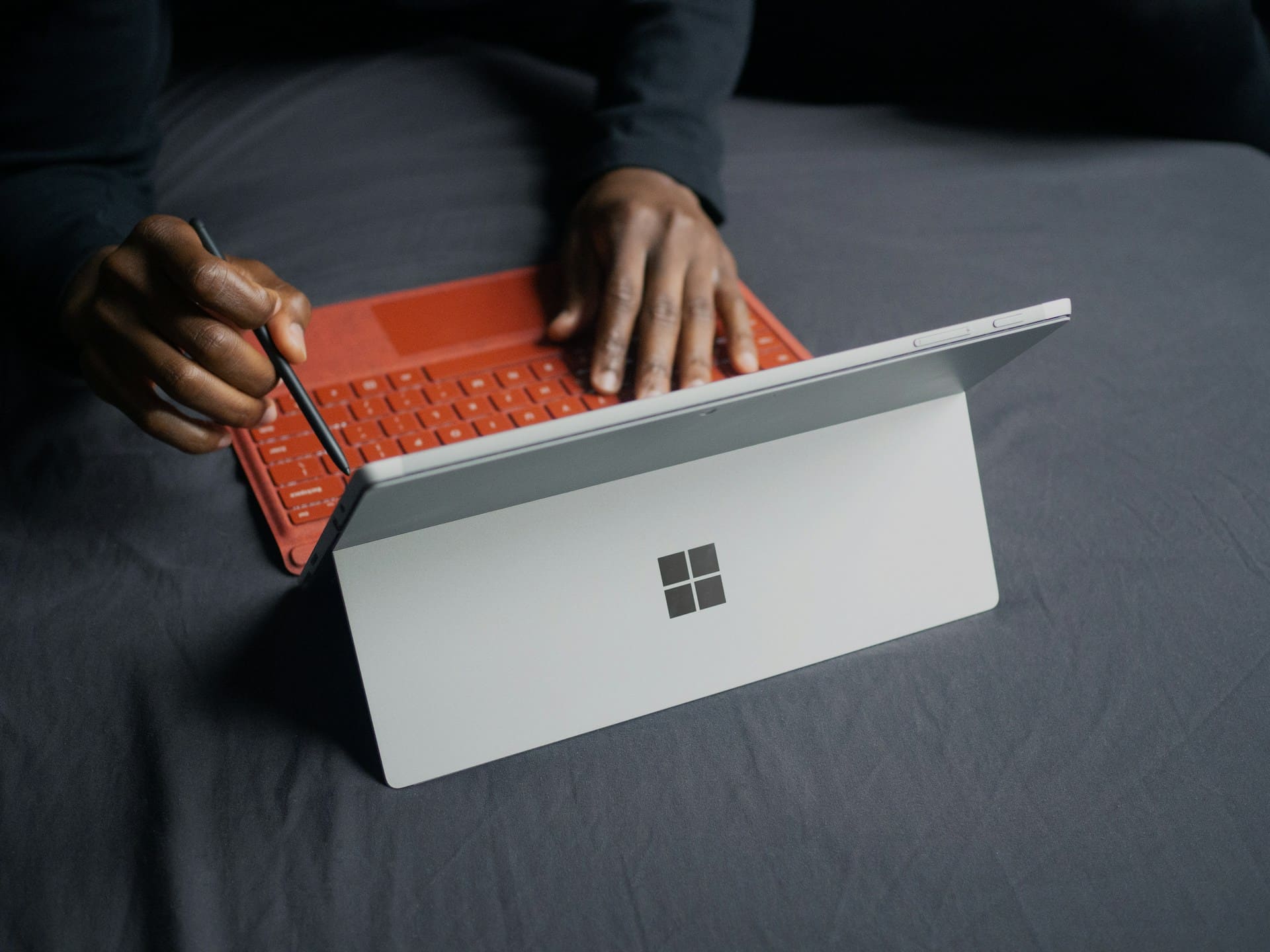
Your Surface can fail at the worst time, but you don’t need to guess what went wrong. Most common problems—like a screen that won’t respond, a device that won’t turn on, or rapid battery drain—have clear causes and step-by-step fixes you can try right away.
This post walks through the critical Microsoft Surface problems and why they happen, shows practical troubleshooting steps you can perform at home, and explains when to get professional support or repairs.
You’ll also get straightforward maintenance tips to reduce future headaches and extend your Surface’s useful life, so you spend less time troubleshooting and more time working.

Best Laptop Stand (with 360° Base)
Keep Your Laptop Cooler & More Comfortable with 360° Rotating Base. Improve Airflow & Reduce Heat. Adjustable Height & Viewing Angle.
Shop on Amazon
Critical Microsoft Surface Problems and Their Causes
These issues affect power, startup integrity, and battery reliability on Surface devices. You’ll see specific hardware and software causes and concrete troubleshooting starting points.
Device Won’t Turn On or Boot
If your Surface won’t turn on, first check the physical power chain: test the Surface power supply and the USB-C or Surface Connect cable for frays, bent pins, or loose connections. Try a different known-good outlet and inspect the power brick LED (if present).
Perform a two-button shutdown on models with a physical power button (hold power 30 seconds, then hold power + volume up for 15 seconds) to clear a firmware hang. For Surface Pro X and Snapdragon-based models, cold boots sometimes require a longer press cycle.
Corrupt firmware or a failed SSD can also prevent boot. If the device shows no LED, no fan activity, or no charging indicator, the DC-in circuit or battery may be faulty—especially on older Surface Laptop and Surface Pro models. Boot issues after a Windows update can stem from incomplete driver or firmware installs; use the Surface app and the Surface Diagnostic Toolkit to detect mismatches.
If you can access Windows Boot Options, try Safe Mode or a system restore. If BitLocker is enabled and you can’t access recovery keys, signing into your Microsoft account on another device may let you retrieve the key.
Blue Screen Loop and Boot Errors
A repeated blue screen (BSOD) or boot loop often points to bad drivers, incompatible firmware, or failing hardware. Note the stop code on the blue screen—codes like CRITICAL_PROCESS_DIED or DRIVER_POWER_STATE_FAILURE narrow the cause.
Surface-specific issues arise after firmware updates affecting keyboard firmware or screen drivers on Surface Pro 7/8/Pro 7+ and Surface Laptop Studio models.
Begin by booting to Advanced Startup (Windows Boot Options) and choose “Startup Settings” to disable driver signature enforcement or roll back recent updates.
Use the Surface recovery image for your exact model if Windows won’t repair itself; Microsoft publishes recovery images tied to serial-number-specific firmware. Faulty NVMe SSDs or corrupt system files can also trigger loops—run disk checks (chkdsk) from recovery Command Prompt.
If crashes began after installing third-party drivers or running heavy GPU workloads on Surface Laptop 7 or devices with Snapdragon X Elite-class chips, uninstall the suspect drivers in Safe Mode. Persistent hardware-level loops require professional repair—do not ignore recurring kernel panic patterns.
Battery and Charging Issues
If your Surface battery drains rapidly or won’t charge, verify the Surface power supply and the Surface Connect port for debris, bent pins, or loose fit. Test charging with another genuine Microsoft charger when possible; third-party adapters often produce inconsistent voltage on Surface devices. Check battery health in Settings > System > Power & Battery to see cycle count and capacity.
Software causes include runaway background tasks, misbehaving drivers, or outdated firmware. Run the Surface app to check driver and firmware health or update via Windows Update. For models like Surface Pro 12-inch, Surface Pro 7, and Surface Pro 8, battery firmware updates have fixed charging and calibration bugs in prior releases—apply those updates before hardware replacement.
If the battery won’t charge at all, try a two-button reset and inspect the Surface Connect magnetic port for wear. For devices that suddenly report 0% or fail to wake, the battery or charging IC may have failed; authorized repair may be necessary.
If BitLocker prompts appear after a battery replacement or recovery, have your BitLocker recovery key ready before restoring a recovery image.
Troubleshooting Microsoft Surface Devices
This section shows specific steps to diagnose power, input, display, driver, and connectivity faults. Follow the checks and tools listed to pinpoint the problem and fix the most common Surface issues quickly.
Using Surface Diagnostic Toolkit and Surface App
Run the Surface Diagnostic Toolkit first to automate key checks: battery health, power adapter, touchscreen, audio, network, and Windows update.
Open the toolkit from Start or download it from the Microsoft Store, then follow on‑screen tests and let it apply recommended repairs. If your Surface is managed by work IT, use the Business version from Surface Tools for IT.
Use the Surface app to view device health, firmware build, and available updates. In the app, expand Help & support then select Check for updates to jump to Windows Update. If a test flags a problem, note the error code and copy it into the Feedback Hub or the Microsoft Community forum when asking for help.
Driver and Windows Update Problems
If Windows Update repeatedly fails or a device feature breaks after an update, check Device Manager for unknown devices or driver errors. Right‑click the device > Update driver and choose “Search automatically” first. If that fails, download the official firmware and drivers for your model from Microsoft’s Surface downloads page and install them manually.
Roll back a driver when a new graphics or peripheral driver causes crashes. Open Device Manager > Properties > Driver tab > Roll Back Driver. For persistent update loops, run Windows Update Troubleshooter, then use the Surface Diagnostic Toolkit to repair Windows components. Keep a restore point handy before major updates.
Display, Touch, and Pen Input Issues
If the touchscreen is unresponsive, restart the device and ensure the screen is clean and dry. Recalibrate touch via Settings > Bluetooth & devices > Touch if available, and toggle tablet/pen settings. For Slim Pen 2 pairing problems, remove it in Bluetooth settings and re-pair while the pen is charged and in range.
If the display flickers or shows artifacts after a driver update, update or roll back the graphics driver (Intel, Qualcomm Snapdragon X‑series, or AMD depending on model). For pen latency or pressure issues, update firmware through the Surface app and check that Windows 11 input and pen settings reflect the correct device. If hardware tests in the Surface Diagnostic Toolkit fail, note the diagnostic code before contacting support.
Performance and Connectivity Problems
If your Surface feels slow, check Task Manager for CPU, memory, or disk spikes and identify the top processes. Disable unnecessary startup apps and run Disk Cleanup. For thermal throttling on Intel or Snapdragon X Plus models, ensure vents are clear and install latest firmware and drivers; the Surface Diagnostic Toolkit will surface thermal warnings.
For Wi‑Fi or Bluetooth dropout, run the network tests in the toolkit and reset the network in Settings > Network & internet > Advanced network settings > Network reset. Update network drivers from Device Manager. If problems persist, gather logs with the Feedback Hub and post details (model, OS build, driver versions) to the Microsoft Community for targeted help.
Support, Repairs, and Service Options
You can try quick fixes yourself, contact Microsoft for guided troubleshooting, or create a service order that moves your device to a Microsoft service center or Authorized Service Provider. Options include shipping your Surface for repair, visiting certain in-person service centers, or using Microsoft’s self-repair parts and instructions.
When to Contact Microsoft Support
Contact Microsoft Support when basic troubleshooting (reboot, Windows updates, Surface app checks) doesn’t fix hardware faults like battery failure, broken connectors, or a non-responsive screen. Use the Surface Diagnostic Toolkit or the Surface app first to collect error codes and device details; this speeds diagnosis and reduces repeat steps during a support call.
If your device is under warranty or covered by Microsoft Complete, note your proof of purchase and device serial number before you call or start an online session. For business devices, use your organization’s Microsoft support channels to preserve management and deployment settings.
For urgent hardware failures you can’t resolve, open a support case online through your Microsoft account or call the regional Surface support phone number. Microsoft can advise repair vs replacement, provide a shipping label, or direct you to local in-person support options.
Creating and Tracking a Service Order
Sign in to your Microsoft account at Devices to start a service order and register the device if needed. The online process asks for problem details, proof of purchase if warranty status is unclear, and offers shipping instructions or local service center options.
After you submit the order, Microsoft typically emails a shipping label and an order number you use to track status. Check repair status and print labels from the repair portal; you can cancel an order there too. Expect turnaround times of several business days for standard shipments; Surface Studio or location-specific options may differ.
Microsoft provides a post-service warranty: if repaired during your original warranty period you get the longer of the remainder of your warranty or 90 days; out-of-warranty repairs typically carry a 90-day post-service warranty. Keep the repair order number and any receipts for warranty claims.
In-Person and Self-Repair Solutions
Some regions offer Microsoft-run service centers for hands-on diagnostics and faster turnaround. These centers can inspect, run advanced diagnostics, and sometimes perform repairs; if they can’t fix the issue, they’ll create a service order to send the device to Microsoft. Confirm pricing and in-warranty policies before any in-person work.
Authorized Service Providers such as local repair shops also perform repairs but may charge additional fees even for in-warranty work. Verify that the provider is an Authorized Service Provider and ask whether they use Microsoft-certified parts.
If you have technical skill and proper tools, Microsoft sells parts and publishes self-repair guidance for certain Surface models. Self-repair can be faster and avoid shipping, but it may void some warranties and requires careful backup of your data. For guidance on warranty coverage and the self-repair program, consult Microsoft’s repair and service pages.
Tips for Maintaining Your Surface and Preventing Issues
Keep your Surface performing well by keeping software updated, protecting the screen and keyboard from dirt and impact, and monitoring battery health and charging habits.
Routine Maintenance and Best Practices
Clean the display and keyboard weekly using a lint-free microfiber cloth lightly dampened with water or a mild, non‑abrasive cleaner. Avoid spraying liquid directly on the screen; wipe in gentle circular motions and let surfaces dry before closing the device.
For Alcantara covers on devices like the Surface Pro 9 or Surface Laptop 13‑inch, test a small hidden area first and use only products recommended for fabric finishes.
Maintain a tidy storage and use environment. Use a protective sleeve or keyboard cover when transporting your Surface Pro 11 or Surface Pro 9 to prevent scratches and debris from entering ports. Keep vents and fans clear by using compressed air in short bursts, holding the device at an angle.
Manage apps and startup items to reduce background load. Uninstall apps you don’t use, disable unnecessary startup programs, and check Task Manager when performance dips. Back up important files regularly using OneDrive or an external drive and create a restore point before major changes.
Charge correctly to protect the battery. Use the original charger or a Microsoft‑certified replacement, avoid exposing the device to extreme temperatures while charging, and unplug after reaching full charge when you expect a long idle period.
Firmware and Security Considerations
Check Windows Update and the Surface app regularly to install firmware and driver updates that address touch, pen, Wi‑Fi, and sleep/resume issues specific to Surface models.
The Surface Diagnostic Toolkit can identify hardware and firmware problems when updates don’t resolve symptoms; run it if touchscreen, camera, or battery reports behave oddly. (See the Surface app and toolkit for details.)
Use Windows Security with real‑time protection enabled and keep Defender or your chosen AV updated. Apply BitLocker or device encryption on Surface Laptop 13‑inch and Pro models where you store sensitive data. Enable Windows Hello PIN or biometric sign‑in to reduce password exposure.
If corporate policies manage your Surface Pro 11 or other work devices, coordinate updates with IT before running firmware installers. Keep recovery media ready: create a USB recovery drive after a clean system state so you can restore firmware or recover from boot failures.
Community Resources and Updates
Subscribe to official Microsoft Surface support pages and forums for model‑specific advisories about Surface Pro 9, Pro 11, and Laptop 13‑inch. Microsoft’s troubleshooting articles explain update steps and warranty/service options, and the Surface community often posts fixes for common driver and touchpad quirks.
Follow manufacturer release notes so you know when a firmware update addresses a specific bug rather than relying on general “performance” labels.
Use targeted search phrases when seeking community help, such as “Surface Pro 9 touchscreen flicker after update” or “Surface Laptop 13‑inch battery drain Windows 11.” Share exact build numbers, firmware versions, and error messages to get accurate advice. When in doubt, open a service request or check repair options and guides for self‑repair parts and instructions.