
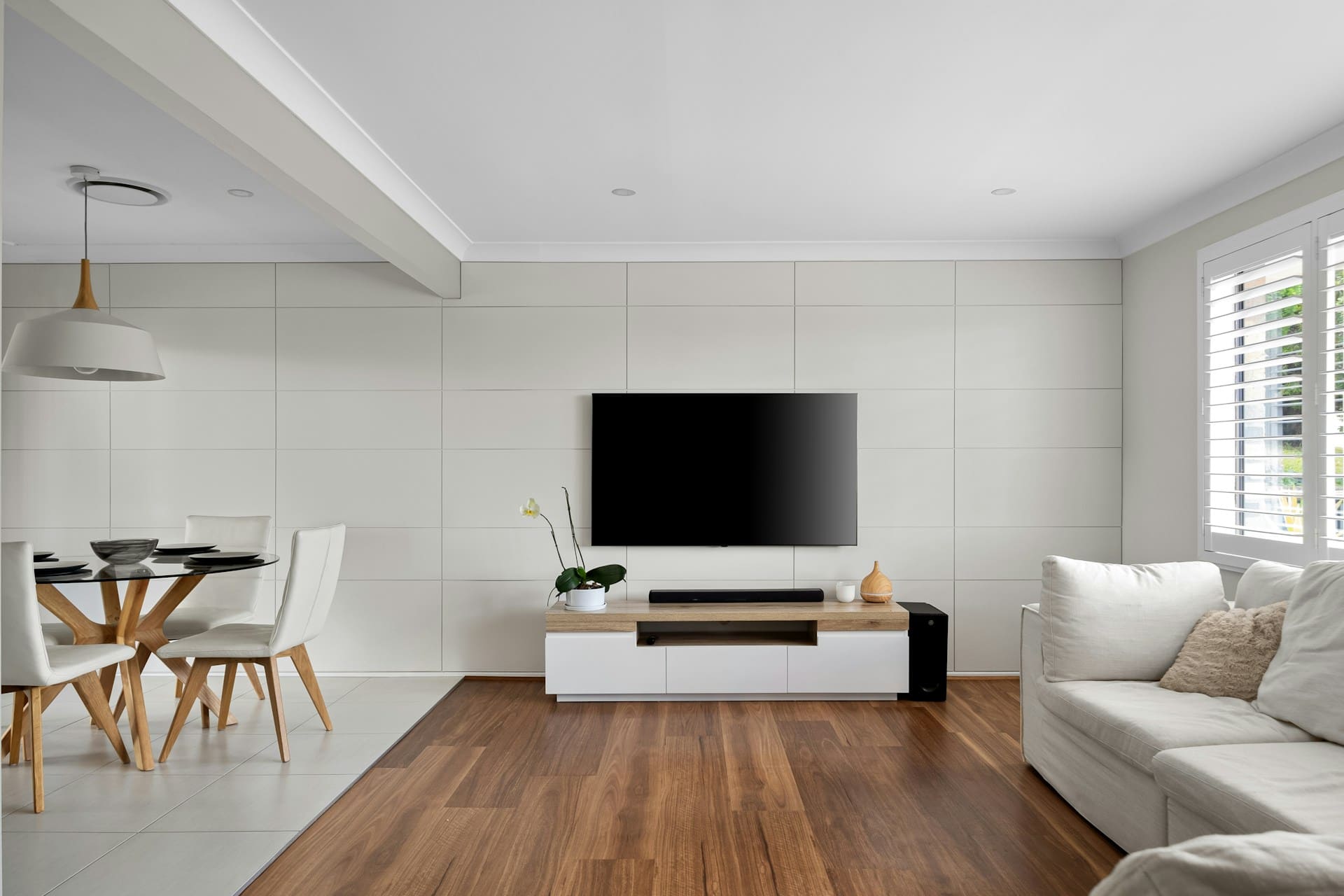
If your Samsung TV’s backlight is not working, the screen may appear completely dark while sound continues to play. This issue typically stems from faulty LED strips, the LED driver board, or power supply problems affecting the backlight system. Understanding these causes helps you diagnose whether the problem can be fixed with basic troubleshooting or requires more advanced repairs.
You might notice signs like flickering, uneven brightness, or no picture at all despite hearing audio. These symptoms often indicate that the LEDs behind your screen are failing or there’s a malfunction in the circuit that powers them. Knowing how to identify the exact cause will save you time and money when deciding the best course of action for your TV.
Many backlight problems can be resolved by power cycling the TV, updating the firmware, or adjusting settings. However, replacing LED strips or repairing the LED driver board might be necessary for persistent issues. Learning these steps empowers you to address the problem or decide when to seek professional help. For detailed steps on diagnosing and fixing backlight issues, see more on how to fix Samsung TV backlight problems.

Amazon Fire TV Stick HD
Turn Any TV to a Smart TV. Stream Netflix, Prime Video & More. Alexa Voice Remote Included. Easy Plug & Play Setup.
Shop on Amazon
Main Causes of Samsung TV Backlight Failure
When your Samsung TV backlight stops working, it’s usually due to specific hardware or environmental issues. These range from natural wear of LED components to electrical or physical damage affecting the power or lighting systems inside your TV. Identifying the root cause helps you decide whether to attempt a repair or seek professional assistance.
LED Backlight Wear and Tear
The LED backlight in your Samsung TV is made of strips with multiple LEDs connected in series. Over time, individual LEDs can fail due to thermal degradation and constant electrical stress. When one LED burns out, it often causes a voltage spike that damages neighboring LEDs, leading to the backlight failing completely.
This type of wear and tear usually happens after several years of use, especially if you frequently run your backlight brightness at or near 100%. Repair involves replacing the LED strips, which can be bought online for reasonable prices. However, the replacement process requires you to open the TV, remove several internal components, and handle delicate parts carefully.
Power Surges and Power Supply Issues
Power surges from unstable electricity supply or lightning strikes can damage your TV’s power board, which supplies voltage to the backlight. If the power board fails, the backlight won’t turn on. A faulty or damaged power board may also cause flickering or the TV not powering up at all.
Using a surge protector reduces the risk of damage, but if a surge has already occurred, you need to inspect the power board internally. Signs of damage include burnt marks or a burning smell. Replacing the power board is often easier and more cost-effective than repairing individual components. Testing with a multimeter can confirm if the power board is faulty.
Overheating and Dust Accumulation
Overheating is a common contributor to backlight failure. Dust buildup inside your TV blocks ventilation and traps heat, which accelerates LED and circuitry wear. High internal temperatures cause thermal expansion that can weaken solder joints on LED strips and internal boards.
Cleaning dust out of your TV periodically can prevent this problem. Use compressed air to blow dust from the circuit boards and keep cooling pathways clear. Avoid using liquids like isopropyl alcohol inside unless you are servicing very specific parts to prevent damage. Maintaining proper room airflow and not covering air vents helps reduce overheating risks.
Water or Moisture Damage
If your Samsung TV is exposed to water or excess moisture, backlight failure can occur due to corrosion on internal components. Water can cause short circuits on the power board or damage the LED strips directly.
Symptoms of moisture damage include flickering backlight or complete failure, sometimes after a spill or increased humidity. If you suspect water damage, unplug the TV immediately to avoid further harm. Drying the TV and carefully cleaning contacts, sometimes with isopropyl alcohol, might restore function if caught early. Severe cases generally require professional repair or part replacement.
For detailed troubleshooting and repair advice, including how to safely check and replace parts, see the comprehensive Samsung TV backlight troubleshooting guide.
How to Diagnose Samsung TV Backlight Problems
When your Samsung TV screen appears unusually dark or completely black but sound is still present, precise steps can help determine if the backlight is the cause. You’ll need to test the screen’s visibility under specific conditions, use built-in diagnostic tools, and verify internal connections to pinpoint the issue accurately.
Flashlight Test Method
The flashlight test is a simple and effective way to check if the backlight is failing. First, turn on your TV and play some bright content. Then, shine a strong flashlight at an angle close to the screen in a dark room.
If you can see faint images or outlines of the picture through the flashlight, it indicates that the LCD panel is working but the backlight is not illuminating properly.
Move the flashlight across different parts of the screen to spot uneven lighting or dead zones. This method helps confirm a backlight problem without opening your TV or using complex tools.
Running Samsung Picture Test
Samsung TVs include a built-in picture test as part of the maintenance features. To run this test, press and hold the “Mute” button on your remote for about five seconds, then enter the code 1-8-2-6. This opens the service menu where you can select “Self Diagnosis.”
Choose the “Picture Test” option. The TV will display test patterns designed to check the screen’s brightness, colors, and backlight function. If the picture test fails or the screen remains dark during the test, backlight failure is likely.
This test narrows down the problem to hardware rather than external inputs or software faults.
Using Self Diagnosis Tools
Apart from the picture test, Samsung’s self-diagnosis tools provide further insight. Within the self-diagnosis menu, you’ll find options such as “Signal Strength,” “Sound Test,” and “Smart Hub Reset.”
Using these tools helps you isolate whether the issue is related to backlight hardware, input signals, or software errors. For example, if audio works normally but the picture test and screen remain dark, the fault points to the backlight or driver circuits.
Accessing these tools requires following specific remote commands and menu navigation, so keep your remote handy and check your TV manual if needed.
Checking Cables and Connections
Sometimes what appears to be a backlight failure is due to loose or damaged internal cables. Open the back panel cautiously if you are comfortable, and inspect the ribbon cables connecting the mainboard and LED driver board to the screen.
Look for signs of wear, corrosion, or disconnection. Reseat any loose cables firmly in their connectors. Also, verify the power cable is connected directly to a stable outlet rather than a power strip.
Inspecting cables helps rule out simple hardware connection issues before proceeding to more complex repairs. Faulty internal connections can cause the backlight to malfunction without visible damage to LEDs or boards.
For a comprehensive guide on diagnosing Samsung TV backlight issues, see this detailed how to fix backlight on Samsung TV.
Step-By-Step Solutions for Fixing Samsung TV Backlight
If your Samsung TV’s screen is dim or completely dark despite audio playing, you can follow precise actions to troubleshoot and repair the backlight. These solutions range from simple resets to replacing LED strips, focusing on practical and safe methods to restore your TV’s display performance.
Power Cycle and Reset Procedures
Start by fully powering down your TV to clear residual energy that might cause backlight malfunction. Unplug the TV from the wall outlet and press and hold the power button on the TV itself (not the remote) for about 30 seconds. This discharges remaining power in internal components.
Wait at least 60 seconds before plugging the TV back in and turning it on. If the backlight problem persists, perform a soft reset by unplugging again, holding the power button for another 30 seconds, and plugging it back in.
Additionally, check for firmware updates in your TV’s settings under Support > Software Update. Updating firmware can fix software glitches affecting the backlight. These steps often resolve minor issues without hardware intervention.
Adjusting Backlight and Power Settings
Navigate to Settings > Picture > Expert Settings on your Samsung TV. Increase the Brightness and Backlight sliders incrementally to ensure they aren’t set too low, which can cause a dim screen.
Disable any power-saving or eco modes, as these may reduce backlight intensity to conserve energy. You can find these under Settings > General > Eco Solution or Power Saving.
Test different picture modes, like Standard or Movie, to exclude mode-specific problems.
Finally, test multiple HDMI inputs and cables to rule out connection issues mimicking backlight failure.
Replacing Faulty LED Strips
If diagnostics confirm the backlight itself is defective, replacing LED strips behind the LCD panel is often necessary. Before opening your TV, unplug it and wait at least 30 minutes.
Use a Phillips screwdriver to remove the back panel carefully. Detach ribbon cables with gentle pressure to avoid damage.
Visually inspect LED strips for burnt or darkened areas. Use a multimeter to test voltage across strips—each LED typically requires 3 to 4 volts.
Remove faulty strips by softening the adhesive with low heat and clean the surface with isopropyl alcohol before installing new strips.
Ensure the polarity matches, and apply fresh thermal paste to help dissipate heat during reassembly.
Cleaning Internal Components Safely
Dust and grime can impair both backlight components and cooling, causing overheating and premature failure. Gently remove the back panel after unplugging the TV.
Use compressed air to blow dust from LED strips, driver boards, and ventilation areas.
For sticky residue, apply isopropyl alcohol sparingly on a lint-free cloth to clean contacts and internal surfaces safely.
Avoid liquids near circuit boards and allow all cleaned parts to dry completely before reassembling.
This routine maintenance can improve component lifespan and prevent future backlight problems.
When to Seek Professional Help and Prevention Tips
Backlight problems can vary in complexity, and knowing when to involve experts can save you time and potential damage. Protecting your TV from power fluctuations and ensuring proper airflow are key to extending its lifespan and preventing backlight failure.
Identifying Complex Backlight Issues
Some backlight problems go beyond simple fixes. If your screen remains black but sound plays, or you notice flickering and uneven brightness despite resetting and updating firmware, the issue might lie within the LED driver board or internal circuitry. Symptoms like burnt smells, swollen components inside the TV, or partial lighting usually indicate hardware failure.
Attempting DIY repairs with these signs can worsen the damage or void your warranty. When you face persistent issues after basic troubleshooting, it’s best to trust professionals with specialized tools and diagnostic knowledge to address the problem safely and accurately.
Using a Surge Protector for Protection
Power surges and voltage spikes are common causes of backlight and overall TV failure. You should always plug your Samsung TV into a high-quality surge protector that can absorb or divert excess energy. This protects sensitive internal components like the LED driver board and mainboard.
Look for surge protectors with a joule rating above 1000 for effective protection. Avoid using cheap power strips without surge protection features. Regularly inspect your surge protector for wear or damage, and replace it every few years to maintain its protective capabilities.
Maintaining Proper Ventilation
Heat buildup inside your TV directly affects backlight longevity. You should place your Samsung TV in a well-ventilated area, avoiding enclosed spaces like tight cabinets or packed shelves. Allow at least 4–6 inches of clearance around the TV for air to circulate.
Dust accumulation on vents and internal fans can increase operating temperatures. Clean your TV’s ventilation grilles with compressed air or a soft brush every few months to prevent overheating. Proper airflow reduces the risk of components overheating, which helps maintain consistent backlight performance.
Contacting Samsung Support
If your Samsung TV is under warranty or the issue seems complicated, contacting Samsung support is advisable. They provide authorized service centers specialized in diagnosing and repairing backlight problems safely. You can access troubleshooting guides, schedule repairs, or request parts replacements directly through their customer service.
Samsung support may also offer firmware updates or remote diagnostics to rule out software-related backlight issues before opting for physical repairs. Using official channels ensures that repairs meet manufacturer standards and preserve your warranty coverage. For assistance, visit the Samsung support website.