

Last updated on April 5th, 2026 at 03:58 am
The phone charges perfectly, but CarPlay remains stubbornly inactive. Sound familiar? You’re not alone in this frustration. Thousands of Subaru owners face identical problems daily, turning what should be seamless smartphone integration into a source of constant aggravation.
Your iPhone charges but CarPlay won't activate, the system freezes randomly, or wireless connection drops frequently. These issues stem from software conflicts, cable problems, or outdated firmware that can be resolved through systematic troubleshooting steps.

System Reset Methods
Before diving into complex diagnostic procedures, let’s start with the most straightforward solution that resolves the majority of CarPlay issues. The immediate remedy for unresponsive CarPlay involves forcing your Subaru’s infotainment system to restart completely, which effectively clears temporary memory conflicts and resets communication protocols that may have become corrupted during normal operation.

Best Bluetooth OBD2 Scanner
Detect 39,000+ Issues With Enhanced Codes. Save $1000s on car repairs & buying used vehicles by diagnosing problems yourself.
Shop on AmazonTo begin this process, locate both the volume control knob and the tuning knob on your dashboard. Press and hold both knobs simultaneously for approximately 10-15 seconds until the display screen turns completely black. Some owners report needing to maintain pressure for up to 20 seconds on newer 2024-2025 models before the shutdown occurs, so don’t give up too quickly if the screen doesn’t respond immediately.
Once the screen goes dark, release both knobs immediately and exercise patience while waiting for the system to cycle through its startup sequence. This process typically takes 30-45 seconds, during which you’ll see the Subaru logo appear followed by various system initialization messages.
After the system fully loads, test your CarPlay connection using a known-good cable and your iPhone. Remarkably, many users discover that this simple reset resolves 70-80% of their connectivity issues without requiring additional troubleshooting steps.
Cable Quality Assessment
However, if the reset doesn’t solve your problem, the next logical step involves examining your connection hardware. Professional automotive technicians consistently identify faulty or incompatible cables as the primary cause of CarPlay connection failures, which makes sense considering the harsh environment these cables must endure inside vehicles.
![[Apple MFi Certified] USBC Charging Cable for iPhone 16,2Pack 6ft USB A to Type C Car Charger 60W Fast Charging Cord Fast Data Sync Nylon Braided for iPhone 16 Pro/16 Pro Max/16 Plus/15 iPad](https://m.media-amazon.com/images/I/41wJ5hQsG8L._SS500_.jpg)
Apple’s strict MFi (Made for iPhone) certification requirements ensure proper data transmission, but unfortunately, counterfeit cables flood the market with inferior components that fail under automotive conditions. These fake cables often work initially, creating a false sense of security before failing unexpectedly when you need them most.
Modern cars are computers we happen to drive, not cars that happen to have computers. Chris Gerdes
Genuine Apple Lightning cables contain sophisticated authentication chips that communicate with your iPhone to verify compatibility and optimize charging speeds. In contrast, counterfeit cables lack these chips, causing intermittent connections, slow data transfer, and potentially damaging your device’s charging port over time through improper voltage regulation.
Examine your current cable carefully for physical damage including frayed insulation, bent connector housings, or loose connections where the cable meets the plug. Temperature extremes inside vehicles accelerate cable degradation significantly beyond what most people realize. Summer heat can soften insulation materials while winter cold makes plastic connectors brittle and prone to cracking.
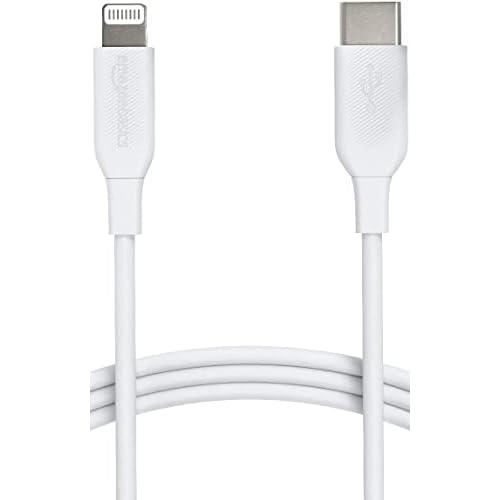
Therefore, consider upgrading to a high-quality MFi-certified Lightning cable designed specifically for automotive applications. These cables feature enhanced shielding against electromagnetic interference, reinforced stress points, and temperature-resistant materials that withstand harsh vehicle environments far better than standard consumer cables.
iPhone Configuration Steps
Moving beyond hardware issues, your iPhone’s internal settings directly control CarPlay functionality, and iOS updates occasionally reset these preferences without warning. Understanding the complete configuration process helps diagnose problems and ensures optimal performance across different vehicle models.
Navigate to Settings > General > CarPlay to access the primary configuration screen where your Subaru should appear in the “My Cars” section if previously paired successfully. Tap your vehicle’s name to access detailed settings including screen layout customization and app permissions that can significantly impact your CarPlay experience.
The “Allow CarPlay While Locked” setting proves particularly important for seamless operation and represents a common oversight that frustrates many users. When this feature is disabled, you must unlock your iPhone each time you start your vehicle before CarPlay activates, creating an unnecessary extra step that defeats the purpose of hands-free operation.
Additionally, check Settings > Screen Time > Content & Privacy Restrictions to verify CarPlay isn’t accidentally blocked by parental controls or corporate device management policies. Furthermore, Siri permissions also affect CarPlay operation significantly since voice control represents a core safety feature. Go to Settings > Siri & Search and ensure “Listen for ‘Hey Siri'” is enabled, along with “Allow Siri When Locked.”
Complete Device Re-pairing
When configuration adjustments don’t resolve your issues, persistent connection problems often require complete removal and re-establishment of the pairing relationship between your iPhone and Subaru’s infotainment system. This more drastic approach eliminates corrupted connection profiles that accumulate over time and cause intermittent failures.
Begin this process by deleting your iPhone from your Subaru’s stored device list, which requires accessing the vehicle’s Bluetooth settings through the infotainment menu. Locate your iPhone in the paired devices section, select your device, and choose the “Delete” or “Unpair” option to remove all stored connection data from the vehicle’s memory.
Simultaneously, you must remove your Subaru from your iPhone’s Bluetooth settings to complete the separation. Navigate to Settings > Bluetooth and tap the information icon next to your vehicle’s name, then select “Forget This Device” to clear the stored pairing information completely from both ends of the connection.
Next, power cycle both devices before attempting to reconnect, ensuring both systems start with clean memory states during the pairing process. Turn off your iPhone completely and restart your vehicle’s infotainment system using the dual-knob reset method described earlier. When re-pairing, ensure your iPhone is unlocked and CarPlay permissions are granted immediately when prompted.
Software Update Solutions
If re-pairing doesn’t solve your problems, the issue might stem from outdated system software that lacks compatibility with current iOS versions. Subaru has issued multiple Technical Service Bulletins addressing CarPlay compatibility issues through firmware updates, which resolve microphone problems, audio routing issues, and connection stability problems.
The car has become an article of dress without which we feel uncertain, unclad, and incomplete.
Marshall McLuhan
Recent TSB documentation details specific fixes for Harman Gen 3.1 audio systems found in 2023-2024 Subaru models, addressing electronic certificate renewals, protocol improvements, and compatibility enhancements for newer iOS versions. These updates represent Subaru’s ongoing efforts to maintain compatibility with rapidly evolving smartphone technology.
Schedule a service appointment with your Subaru dealer to check for available updates specific to your vehicle’s VIN, as different model years and trim levels may have different update requirements. Professional installation ensures proper calibration and prevents the system bricking that can occur during failed update attempts.
The update process typically takes 2-3 hours and may require leaving your vehicle at the dealership while technicians perform the installation and verification procedures. Therefore, document your current radio presets, paired devices, and personalized settings before visiting the dealer, as some updates necessitate complete system reconfiguration.
iOS 18 Compatibility Issues
Speaking of software compatibility, Apple’s iOS 18 release in September 2024 introduced significant CarPlay changes that disrupted compatibility with many vehicle infotainment systems, particularly affecting Subaru models. Users reported blank navigation displays, unresponsive touch controls, and frequent disconnections after updating their iPhones.
The core issue stems from updated security protocols and communication handshakes that older vehicle firmware doesn’t recognize properly. Apple enhanced CarPlay’s encryption and data transmission methods for improved security, but vehicle manufacturers needed time to update their systems accordingly, creating a temporary compatibility gap.
While permanent fixes are being developed, temporary workarounds help maintain functionality during this transition period. Access Settings > Bluetooth on your iPhone while connected to your Subaru, tap your vehicle’s name, and toggle the CarPlay switch off and back on. This action forces a fresh connection handshake that often bypasses protocol conflicts.
For more persistent problems, network settings resets provide comprehensive solutions by clearing all wireless connection data. Navigate to Settings > General > Transfer or Reset iPhone > Reset > Reset Network Settings to eliminate any corrupted network configurations. However, this action removes WiFi passwords, Bluetooth pairings, and cellular settings, requiring complete reconfiguration afterward.
Apple’s official support documentation acknowledges these compatibility issues and recommends coordinating with vehicle manufacturers for firmware updates. The company continues releasing iOS point updates that improve CarPlay stability with older vehicle systems.
Network Reset Steps:
- Navigate to Settings > General > Transfer or Reset iPhone
- Select Reset > Reset Network Settings
- Enter your device passcode when prompted
- Confirm the reset action
- Wait for your iPhone to restart automatically
- Reconfigure WiFi connections and re-pair with your Subaru
- Test CarPlay functionality with a known-good cable
Hardware Diagnosis Steps
Beyond software issues, physical connection problems frequently masquerade as software problems, leading owners down frustrating troubleshooting paths that don’t address root causes. Systematic hardware evaluation helps identify genuine equipment failures that require replacement rather than configuration changes.
Inspect your vehicle’s USB ports using a flashlight to check for debris, corrosion, or damaged connector pins that might prevent proper electrical contact. Road salt, food particles, and pocket lint commonly accumulate in these ports over time, creating barriers between your cable connector and the vehicle’s charging/data pins.
Different USB ports in your Subaru serve different functions, and not all support full CarPlay functionality despite appearing identical. Some ports provide only charging power while others handle both power and data transmission, which explains why your phone might charge in certain ports but fail to establish CarPlay connections.
Test your iPhone with multiple cables and ports to systematically isolate the problem source through process of elimination. If CarPlay works with some cable-port combinations but not others, you’ve successfully identified hardware failures that require replacement rather than software troubleshooting.
Environmental factors also affect hardware performance significantly. Extreme temperatures cause expansion and contraction that can loosen connections over time, while humidity promotes corrosion of metal contacts. Consequently, consider investing in a premium retractable USB-C to Lightning cable engineered specifically for automotive environments with enhanced EMI shielding and temperature-stable materials.
Video Credit: Subaru School with Evan Schmitt / YouTube
Frequently Asked Questions
Why does my iPhone charge but CarPlay won’t connect in my Subaru?
This frustrating scenario typically occurs when you’re using power-only USB ports or non-MFi certified cables that lack proper data transmission capabilities. Your iPhone receives electrical power through the charging pins but cannot establish the bidirectional data connection necessary for CarPlay communication.
The solution involves trying different USB ports specifically designated for smartphone connectivity and ensuring you’re using a genuine Apple-certified cable that supports both charging and data transfer protocols. Many aftermarket cables appear identical to genuine Apple products but contain inferior components that fail under automotive conditions.
Can iOS updates break CarPlay compatibility with Subaru vehicles?
Unfortunately, yes. Major iOS updates occasionally introduce compatibility issues with vehicle infotainment systems, particularly when Apple modifies underlying communication protocols or security requirements. iOS 18 significantly affected many Subaru models, causing blank displays, unresponsive controls, and frequent disconnections that frustrated thousands of owners.
These compatibility breaks occur because vehicle manufacturers design infotainment systems years before iOS updates are released. Subaru has released firmware updates addressing many iOS 18 problems, while Apple continues refining CarPlay through point releases.
How do I know if my Subaru needs a software update for CarPlay issues?
Contact your authorized Subaru dealer to check for available Technical Service Bulletins addressing CarPlay problems specific to your vehicle’s model year and VIN. Many 2023-2024 models received critical updates that resolve microphone functionality, audio routing problems, and wireless connectivity issues.
Professional installation at the dealership ensures proper update procedures and prevents system bricking that can occur during failed update attempts using specialized diagnostic equipment unavailable to consumers.
Why does wireless CarPlay keep disconnecting in my Subaru?
Wireless CarPlay relies on both Bluetooth for initial handshaking and WiFi for data transmission, making it inherently more complex and failure-prone than wired connections. Environmental interference from other wireless devices, weak signal strength, or protocol conflicts can cause intermittent disconnections.
Ensure your iPhone’s WiFi is enabled and functioning properly, verify that Auto-Join is activated in your CarPlay settings, and check for software updates on both devices. Physical obstructions like phone cases with metallic components can also interfere with wireless signals.
What should I do if CarPlay completely disappears from my Subaru’s menu?
Complete CarPlay menu disappearance often indicates deeper system problems requiring comprehensive troubleshooting approaches. Start with a complete infotainment system reset by holding both volume and tuning knobs until the screen goes black, then wait for full system reboot.
If CarPlay still doesn’t appear after reset, verify your vehicle’s compatibility requirements and confirm your iPhone model supports CarPlay with your specific Subaru year and trim level. Some base trim levels or older model years may not include CarPlay functionality.
Sources:
- Official Subaru CarPlay Setup Guide
- Apple CarPlay Troubleshooting Support
- Subaru iOS 18 Compatibility Discussion
- Technical Service Bulletin Documentation
- CarPlay Connection Settings Guide
Related Articles: