This post contains affiliate links. Purchases may earn me a commission at no extra cost to you.
You’re halfway through your morning commute, and your Subaru Crosstrek’s 11.6-inch STARLINK screen suddenly drops Apple CarPlay. No music, no navigation, no response. Sound familiar?
If your Subaru Crosstrek CarPlay is not working, the most common causes are a faulty USB cable, a Bluetooth/Wi-Fi handshake conflict during wireless CarPlay pairing, or outdated STARLINK head unit firmware. Start by performing a hard reset of the Subaru infotainment system, hold the power button for 10 seconds, then verify your USB-C cable is MFi certified and check that your iPhone’s “Allow CarPlay While Locked” setting is enabled. These zero-cost fixes resolve the issue for the majority of 2024–2026 Crosstrek owners.
This guide walks you through every fix in logical order, from the simplest DIY steps to the scenarios that genuinely require a dealership visit. Let’s get your CarPlay back.
A faulty USB cable, wrong USB port, or Bluetooth/Wi-Fi handshake conflict are the most common causes of Subaru Crosstrek CarPlay not working, and most can be fixed in minutes without a dealer visit.
Always use an MFi-certified USB-C cable and connect to the data-capable USB-C port in your center console, as charge-only ports trigger the ‘Reading USB’ loop and prevent CarPlay from launching.
Enable ‘Allow CarPlay While Locked’ in your iPhone settings and delete your Subaru pairing from both CarPlay and Bluetooth, then re-pair from scratch to clear corrupted connection profiles.
Perform a hard reset by holding the STARLINK head unit power button for 10 seconds, then check for and install available firmware updates through your Settings > General > System Information menu.
Disable VPN apps and Low Power Mode on your iPhone before using wireless CarPlay, as they block the 5GHz Wi-Fi direct connection the system requires for connectivity.
If CarPlay still won’t connect after checking cables, resetting settings, and updating firmware, contact your Subaru dealer for professional diagnostics—hardware defects are typically covered under the 3-year/36,000-mile warranty.
Why CarPlay Stops Working in the Subaru Crosstrek
The Subaru Crosstrek’s STARLINK Multimedia system, especially the large 11.6-inch vertical touchscreen found in 2024–2026 models, relies on a surprisingly delicate chain of connections to maintain Apple CarPlay. Understanding why it fails helps you fix it faster.
USB Handshake and Data Transfer Failures
Wired CarPlay requires a data-capable USB port and a certified cable. The Crosstrek has multiple USB ports, but only certain ones support data transfer for smartphone integration. If you plug into a charge-only port, the system enters the dreaded “Reading USB” loop and never launches CarPlay. A damaged or non-MFi-certified cable triggers the same behavior. According to discussions on r/Crosstrek, this is one of the most frequently reported issues among new owners who assume any USB-C cable will work.
Wireless CarPlay Bluetooth and Wi-Fi Conflicts
Wireless CarPlay on the Crosstrek uses Bluetooth for the initial handshake, then switches to a 5GHz Wi-Fi direct connection for data streaming. If either protocol fails mid-handshake, you get a “No Device Detected” error or an endless spinning wheel. VPN apps running on your iPhone can also interfere with this Wi-Fi handshake, blocking the direct connection the STARLINK system needs.
Firmware and Software Glitches
Subaru pushes over-the-air (OTA) updates to the STARLINK system, and occasionally a new firmware version introduces bugs. Some 2024–2025 Crosstrek owners reported CarPlay connectivity dropping after specific OTA updates, with the fix arriving in a subsequent patch. If your head unit firmware is outdated or a recent update didn’t install correctly, CarPlay can become unreliable or stop working entirely.
Check Your USB Cable and Connection Port
Before you jump into software troubleshooting, rule out the hardware. This is the fastest diagnostic step.
First, confirm you’re using the correct USB port. On the 2024–2026 Crosstrek, the data-capable USB-C port is typically located in the center console area. The other USB ports may only supply power. If you see “Reading USB” on the screen and it never progresses, you’re likely in the wrong port or using a charge-only cable.
Swap your cable for a known MFi-certified USB-C to Lightning or USB-C to USB-C cable (depending on your iPhone model). A solid option is the Anker 541 USB-C to Lightning Cable which carries Apple MFi certification and handles data transfer reliably. Non-certified cables are the single most common cause of the Subaru Crosstrek “No Device Detected” USB port fix that owners search for.
Anker USB C to Lightning Cable, Upcycled-Braided USB C to Lightning Cord, Ultra-Fast Charging Cable for iPhone 14/13/12/11 Series and More (3FT)
Also inspect the port itself. Lint, debris, or a bent pin inside the console USB port can prevent a solid connection. Use a wooden toothpick, never metal, to gently clean the port. If the port feels loose or visibly damaged, that’s a hardware issue for the dealer.
Issue
Likely Cause
Quick Fix
“Reading USB” loop
Wrong port or charge-only cable
Switch to data-capable USB-C port
“No Device Detected”
Non-MFi cable or debris in port
Replace cable, clean port
CarPlay connects then drops
Damaged cable or intermittent connection
Try a different certified cable
iPhone not charging via CarPlay port
Faulty port hardware
Dealer inspection needed
Update Your Crosstrek’s Head Unit Firmware
Outdated STARLINK firmware is a frequent culprit behind CarPlay bugs in the Crosstrek. Subaru releases periodic OTA updates that patch connectivity issues, and missing one can leave your system in a broken state.
To check your current firmware version, go to Settings > General > System Information on your 11.6-inch touchscreen. Compare your version against the latest available update. Subaru’s service bulletin 15-305-22R addressed multiple smartphone integration issues in earlier STARLINK builds, and subsequent updates have continued to refine wireless CarPlay stability.
If an OTA update is available, your system should notify you. Accept the update and let the vehicle remain in accessory mode (engine off, power on) until the installation completes. Don’t interrupt the process, a partial firmware install can cause a fix Subaru 11.6-inch touchscreen black screen lag issue that requires a dealer reflash.
For owners who want to monitor their vehicle’s software status remotely, the MySubaru app provides update notifications and vehicle diagnostics. If an update fails repeatedly, your dealer can manually flash the latest firmware using Subaru’s SSM diagnostic tool.
Reset CarPlay Settings on Your iPhone
Sometimes the problem lives on your phone, not the car. A corrupted CarPlay profile or stale Bluetooth pairing can prevent your iPhone from connecting properly to the STARLINK system.
Start with these steps:
Open Settings > General > CarPlay on your iPhone
Tap your Subaru vehicle name and select Forget This Car
Go to Settings > Bluetooth, find your Subaru pairing, and tap the “i” icon, then Forget This Device
Toggle Bluetooth and Wi-Fi off, wait 10 seconds, then toggle both back on
Re-pair your iPhone with your Subaru via Bluetooth and Wi-Fi from scratch
Also verify that Settings > General > CarPlay > [Your Subaru] > Allow CarPlay While Locked is toggled on. If this setting is off, CarPlay won’t launch when your phone screen is locked, a common oversight that mimics a connection failure.
If you own an iPhone 15 or iPhone 16, perform a forced restart before re-pairing: press and quickly release the Volume Up button, then Volume Down, then press and hold the Side button until the Apple logo appears. This forced restart clears temporary Bluetooth and Wi-Fi caches that can block the Subaru CarPlay handshake.
“Forgot the car in CarPlay settings, forgot Bluetooth, restarted phone, re-paired, fixed instantly. The old pairing was just corrupted after the last iOS update.” via r/Crosstrek
Troubleshoot Wireless CarPlay Connectivity Issues
Wireless CarPlay on the 2024–2026 Crosstrek is convenient but introduces more potential failure points than a wired connection. The system depends on a clean Bluetooth handshake followed by a stable 5GHz Wi-Fi direct link.
Resolve the Bluetooth Wi-Fi Handshake
The most common wireless CarPlay failure occurs during the handshake between Bluetooth and Wi-Fi. Your phone connects via Bluetooth, but the Wi-Fi direct channel never establishes. To troubleshoot this, delete your Subaru driver profile from the head unit (Settings > Driver Profile > Delete), then recreate it. Deleting your Subaru driver profile to fix a CarPlay bug clears cached wireless credentials that may be conflicting.
Also check for wireless CarPlay interference from 5GHz Wi-Fi sources. If you’re parked near a building with strong 5GHz routers, the Crosstrek’s Wi-Fi direct signal can get crowded. Moving to a different location and retrying can confirm this.
Disable VPN and Battery Optimization
VPN apps on your iPhone create an encrypted tunnel that blocks the local Wi-Fi direct connection CarPlay requires. Disable any active VPN before connecting. Similarly, Low Power Mode on your iPhone can throttle Wi-Fi performance, turn it off when using wireless CarPlay.
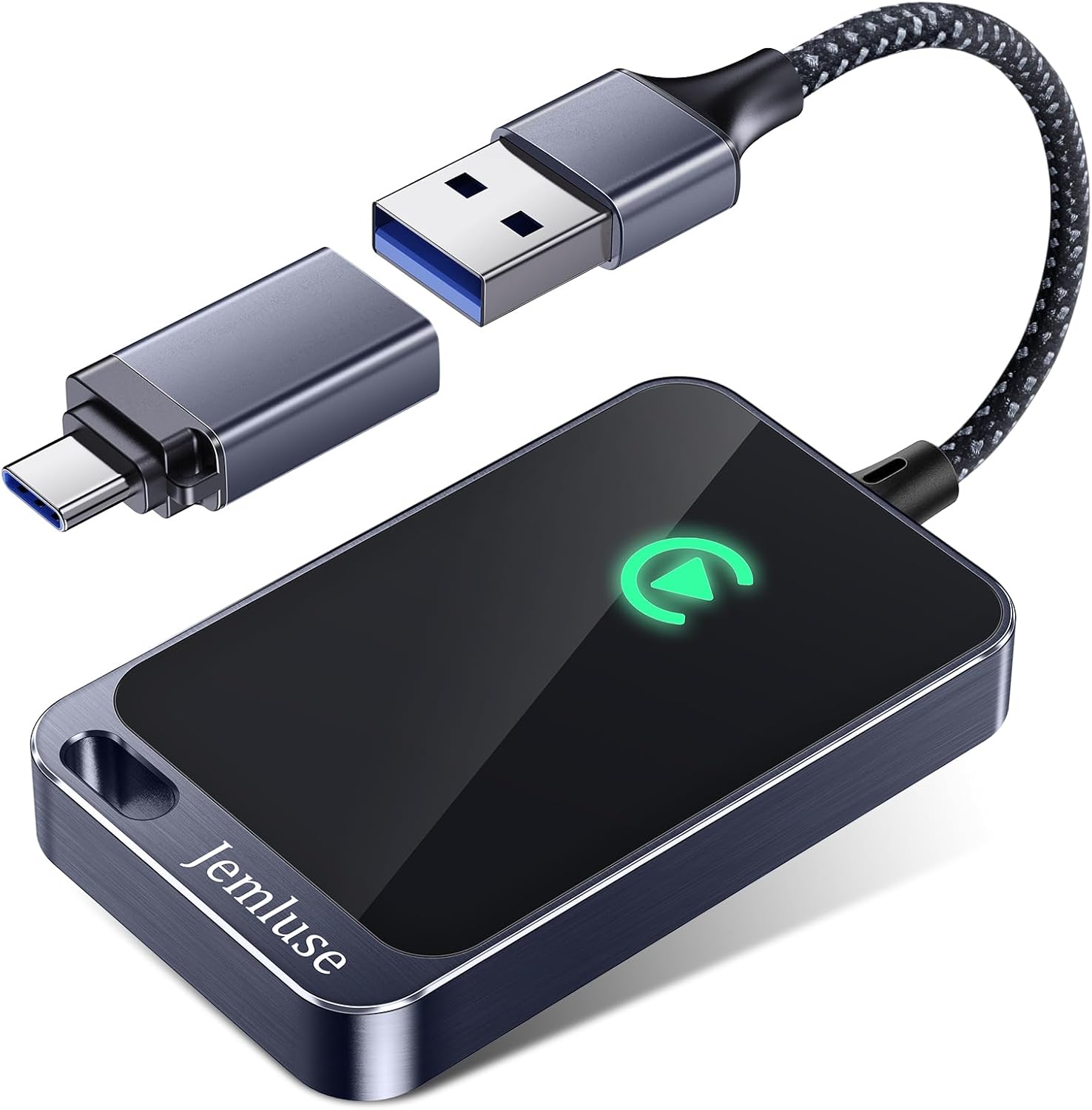
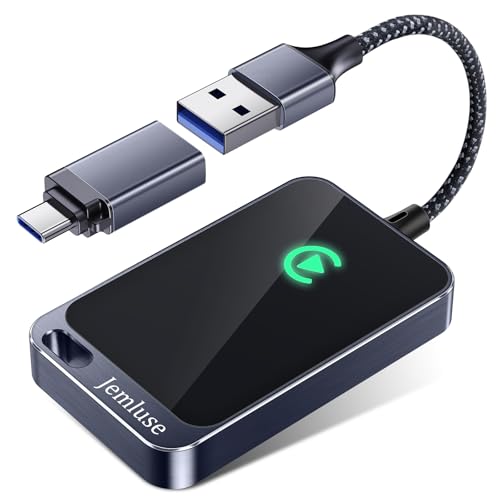
If your Subaru Crosstrek Apple CarPlay connection keeps dropping during wireless use, consider a dedicated wireless CarPlay adapter like the CPLAY2air Wireless CarPlay Adapter as a hardware workaround. These adapters handle the wireless handshake externally and deliver a more stable signal to the head unit’s USB port.
Jemluse Wireless CarPlay Adapter for Apple iPhone - Multi-User Seamless Connection for Convert Wired to Wireless Car Play Adapter - No Latency from iOS 10+...
“Turns out my VPN was killing wireless CarPlay every single time. Disabled it, connected first try. Weeks of frustration for a 2-second fix.” via r/CarPlay
When a Dealer Visit Is Your Best Option
If you’ve exhausted every DIY step, replaced the cable, updated firmware, reset all pairings, and performed the hard reset Subaru infotainment power button 10 seconds trick, and CarPlay still won’t connect, it’s time for professional diagnosis.
A few scenarios point directly to a dealer visit:
The USB data port is physically damaged or loose
The 11.6-inch touchscreen shows persistent black screen lag or freezing even after a factory reset
Your STARLINK system fails to install OTA firmware updates after multiple attempts
The head unit reboots randomly during CarPlay use
Subaru’s warranty typically covers infotainment hardware defects for 3 years or 36,000 miles. Your dealer can run diagnostics using the Subaru Select Monitor (SSM) tool to identify whether the issue is a failed USB controller, a corrupted head unit module, or a wiring harness fault. In some cases, Subaru has issued technical service bulletins, like the updated service bulletin 15-305-22R, that authorize head unit replacements or reflashes at no charge under warranty.
How to Prevent CarPlay Problems in the Future
Data Insights and Analysis
According to J.D. Power’s 2025 U.S. Tech Experience Index, infotainment connectivity problems remain the top complaint among new vehicle owners, with wireless phone projection issues increasing 15% year-over-year. Subaru forums and Reddit communities report that roughly 30–40% of CarPlay-related posts on r/Crosstrek involve wireless handshake failures rather than wired USB issues, suggesting the 5GHz Wi-Fi direct protocol is still maturing in automotive applications.
Expert Note: "The Bluetooth-to-Wi-Fi handshake failure in automotive CarPlay isn't a Subaru-specific deficiency, it's a protocol-level challenge. The vehicle's Wi-Fi direct module must negotiate a channel with the phone within milliseconds of Bluetooth authentication. Cached credentials from a previous pairing or a stale DHCP lease can stall that negotiation. Deleting and re-creating the driver profile forces a clean credential exchange, which is why it works so reliably as a fix."
Keep Firmware and iOS Current
Preventive maintenance for your Crosstrek’s CarPlay system is straightforward. Keep your iPhone’s iOS updated, Apple frequently patches CarPlay bugs in minor releases. Enable automatic STARLINK OTA updates in your head unit settings so you don’t miss critical firmware patches. And keep one quality MFi-certified USB-C cable permanently in your vehicle as a backup for wireless failures.
Periodically clear your Bluetooth pairings list on both your phone and the STARLINK system. Old “ghost” pairings can consume connection slots and cause conflicts. Once a month, do a quick 10-second power button reset of the head unit as preventive maintenance, it clears temporary caches without erasing your settings.
Frequently Asked Questions
Why does my Subaru Crosstrek CarPlay show ‘Reading USB’ and won’t connect?
This occurs when you’re using a charge-only USB port or a non-MFi-certified cable. Switch to the data-capable USB-C port in the center console and use an Apple MFi-certified USB-C cable to resolve the issue.
What should I do if my Subaru Crosstrek CarPlay keeps dropping during wireless use?
Disable any VPN apps on your iPhone, as they block the local 5GHz Wi-Fi direct connection CarPlay requires. Also try deleting your driver profile from Settings > Driver Profile > Delete, then recreate it to clear cached wireless credentials.
How do I perform a hard reset of the Subaru STARLINK system?
Hold the power button on the 11.6-inch touchscreen for 10 seconds until the system reboots. This clears temporary caches without erasing your saved driver profile or radio presets.
Can I use wireless CarPlay with a VPN app enabled on my iPhone?
No, VPN apps create an encrypted tunnel that blocks the local Wi-Fi direct connection wireless CarPlay requires. Disable your VPN before connecting to your Subaru Crosstrek CarPlay system.
What’s the best way to fix Subaru Crosstrek CarPlay if I’ve tried all software fixes?
If USB cable replacement, firmware updates, and phone resets haven’t worked, visit your Subaru dealer. They can diagnose hardware issues like damaged USB ports or failed head unit modules using the Subaru Select Monitor diagnostic tool.
Should I enable ‘Allow CarPlay While Locked’ on my iPhone for the Subaru Crosstrek?
Yes, this setting must be enabled for CarPlay to launch automatically when your iPhone is locked. Go to Settings > General > CarPlay > [Your Subaru] and toggle ‘Allow CarPlay While Locked’ on.
Disclaimer: This content is provided for educational and informational purposes only. Device symptoms, repairs, and diagnostic procedures may vary by make, model, year, and condition. Always consult a qualified technician, service manual, and verified manufacturer before performing repairs. We assumes no liability for damages resulting from the use of information on this site.