

Last updated on October 7th, 2026 at 08:55 pm
Your Toyota’s advanced Entune infotainment system promises seamless smartphone integration, yet CarPlay consistently fails to connect.
Toyota CarPlay problems primarily result from firmware incompatibilities, cable authentication failures, iOS 18 protocol conflicts, or Entune system glitches. Solutions require firmware updates, MFi-certified cable upgrades, Entune resets, and iPhone configuration adjustments.

Firmware Update
Toyota’s most significant CarPlay challenge remains hidden from most owners, critical firmware updates that never reach vehicles through over-the-air distribution. Despite your Entune system displaying “up to date” status, many 2020-2022 Toyota vehicles require manual updates to achieve iOS 18 compatibility.

Best Bluetooth OBD2 Scanner
Detect 39,000+ Issues With Enhanced Codes. Save $1000s on car repairs & buying used vehicles by diagnosing problems yourself.
Shop on Amazon“When you check for updates over the air on the car’s infotainment system it will say you are up to date but if your version isn’t showing 1162 you aren’t actually up to date. You have to update manually using a USB drive.” – Reddit user Next_Newspaper_188
This firmware discrepancy creates widespread CarPlay failures that appear to be Apple problems but actually stem from outdated Toyota software. The required updates address authentication protocols, audio routing conflicts, and connection stability issues affecting thousands of vehicles globally.
Access Toyota’s firmware update portal to check your vehicle’s current software version and download necessary upgrades. The manual update process requires downloading files to a USB drive and following Toyota’s specific installation procedures, which vary by model year and trim level.
Current firmware version 1162 resolves most iOS 18 compatibility issues while improving overall system stability and response times. The update process typically takes 30-45 minutes and must be performed with the vehicle turned off to prevent installation corruption.
Cable Quality
Physical cable problems represent the leading cause of Toyota CarPlay failures, yet many owners overlook this fundamental requirement. Toyota’s sophisticated Entune system demands precise electrical specifications that counterfeit or degraded cables cannot provide consistently.
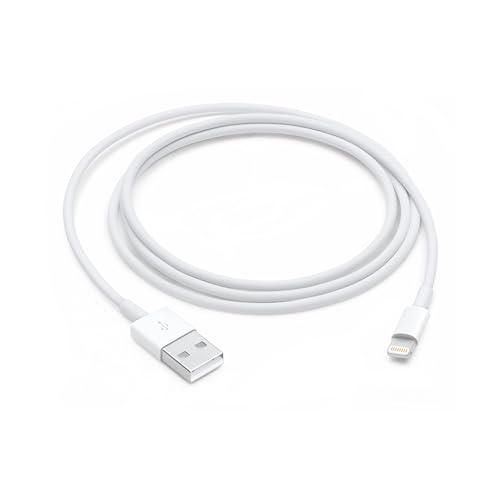
Authentic MFi-certified cables contain Apple-approved authentication chips that communicate directly with iOS devices to verify compatibility and optimize performance. These chips must successfully complete complex handshaking protocols before CarPlay activation, and damaged or counterfeit chips prevent connection establishment despite normal charging functionality.
“Solution, at least for me, is the use of the ‘apple’ usb c cable that came with my phone and a usb a adapter to usb c. none of the usb a to usb c cables I have tried seem to work properly.” – YouTube user commenting on Toyota CarPlay issues
Toyota’s automotive environment subjects cables to conditions far exceeding normal consumer applications. Temperature extremes reaching 160°F in summer and -20°F in winter create expansion cycles that gradually loosen connector pins and crack internal solder joints over time.
Consider upgrading to premium coiled Lightning cables engineered specifically for automotive environments. These specialized cables feature enhanced electromagnetic interference shielding, reinforced strain relief points, and temperature-resistant materials maintaining reliable performance across extreme conditions.
![Coiled Lightning Cable, iPhone Charger Cable 3FT for Car, 2 Pack [Apple MFi Certified] 3 Feet Lightning Cord Compatible with iPhone14/13/12/11 Pro Max/XS MAX/XR/XS/X/8/7/Plus/6S iPad/iPod- Black](https://m.media-amazon.com/images/I/41YSLricJtL._SS500_.jpg)
Video Credit: Steve Clifford / YouTube
Entune System Reset
Toyota’s Entune infotainment platform requires specific reset procedures that differ significantly from other manufacturers’ approaches. Understanding these unique methods helps resolve system-level conflicts that prevent proper CarPlay integration and communication.
The primary Entune reset involves holding the volume/power button combination until complete system reboot occurs. This process clears memory buffers, resets communication protocols, and eliminates corrupted data files that accumulate during normal operation over time.
Different Toyota models utilize varying reset procedures, so consult your owner’s manual for exact button combinations and timing requirements. Some newer vehicles require accessing hidden service menus through specific touch sequences on the display screen rather than physical button manipulation.
During reset procedures, avoid starting the engine or pressing other controls that might interrupt the reinitialization process. Complete system reboots require several minutes of uninterrupted operation to properly restore all interconnected subsystems and communication pathways.
Allow the system to remain idle for approximately two minutes after reset completion before attempting any CarPlay connections. This cooling-off period ensures all background processes complete initialization and establish stable operating conditions for smartphone integration.
iOS 18 Compatibility
Apple’s iOS 18 release created unprecedented compatibility challenges for Toyota CarPlay users, with enhanced security protocols disrupting communication between iPhones and older Entune firmware versions. These problems affect all Toyota model years but prove particularly severe for vehicles lacking recent software updates.
The core issue involves updated authentication requirements and modified data transmission methods that legacy Entune systems don’t recognize properly. Apple strengthened CarPlay’s security architecture, but Toyota needed time to update their systems accordingly, creating temporary compatibility gaps affecting daily usability.
Immediate workarounds help maintain functionality while permanent solutions develop through coordinated software updates. Access Settings > Bluetooth on your iPhone while connected to your Toyota, locate your vehicle’s name, and toggle the CarPlay switch off and back on to force fresh protocol negotiation.
For persistent problems requiring comprehensive intervention, complete network settings resets provide thorough solutions despite requiring device reconfiguration afterward. Navigate to Settings > General > Transfer or Reset iPhone > Reset > Reset Network Settings to clear all stored wireless connection data.
Complete iOS Configuration Steps:
- Update to latest iOS version through Settings > General > Software Update
- Enable CarPlay in Settings > General > CarPlay
- Verify Siri permissions in Settings > Siri & Search
- Check Screen Time restrictions for CarPlay app access
- Reset network settings if other methods fail
- Re-pair devices after network reset completion
USB Port Identification
Toyota vehicles contain multiple USB ports serving different functions, and not all support full CarPlay functionality despite identical physical appearances. Understanding port designations prevents confusion during troubleshooting while ensuring optimal connection establishment.
Toyota’s official documentation specifically states that charging-only ports cannot be used for smartphone apps, requiring data-capable ports for proper CarPlay operation. These ports typically feature different internal wiring and controller chips supporting bidirectional communication.
Systematically test each available USB port with certified cables to identify which connections support full CarPlay functionality. Some ports may provide charging power while failing to establish data connections necessary for smartphone integration protocols.
Center console ports generally offer the most reliable CarPlay connections due to shorter cable runs and dedicated data controllers, while armrest or rear passenger ports may prioritize charging functionality over data transmission capabilities.
Mark successful port-cable combinations for future reference to streamline connection procedures and avoid repeated troubleshooting attempts with incompatible configurations.
Wireless CarPlay Optimization
Toyota’s wireless CarPlay implementation relies on complex coordination between Bluetooth and WiFi protocols, creating multiple potential failure points that require systematic diagnosis to resolve effectively. Environmental interference and competing wireless devices significantly impact connection stability in ways that don’t affect wired connections.
Begin troubleshooting by completely forgetting your Toyota from your iPhone’s known networks and paired devices lists. This dual deletion ensures both devices start with clean connection profiles during re-pairing, eliminating stored data conflicts that prevent successful authentication.
“Make sure to remove your device entirely in the Toyota bluetooth menus. That way it only connects via cable.” – Reddit RAV4 Club member
WiFi network strength and interference sources significantly affect wireless CarPlay performance within vehicle environments. Metal body construction creates Faraday cage effects that can weaken wireless signals, while other electronic devices generate electromagnetic interference disrupting data transmission.
Minimize competing wireless device usage during troubleshooting to identify specific interference sources affecting your Toyota’s performance. Disable unnecessary Bluetooth connections, turn off WiFi hotspots, and temporarily remove aftermarket electronic accessories to isolate connection problems.
Professional Diagnosis
When systematic DIY troubleshooting fails to resolve persistent CarPlay problems, professional diagnosis at authorized Toyota dealerships provides access to specialized equipment and proprietary updates unavailable to consumers. Dealership technicians utilize manufacturer-specific diagnostic protocols identifying hardware failures and software conflicts beyond typical user capabilities.
Recent Toyota technical service bulletins address known CarPlay issues affecting specific model years and production runs. These bulletins often include software updates, wiring harness repairs, or USB port replacements resolving widespread problems affecting multiple vehicles manufactured during particular periods.
Professional diagnosis typically involves comprehensive system scans checking Entune firmware versions, USB port functionality, wiring harness continuity, and compatibility matrices between specific iPhone models and vehicle software revisions. This thorough approach identifies root causes rather than treating symptoms through temporary workarounds.
Advanced Recovery
Complete Entune system resets provide comprehensive solutions when standard troubleshooting methods prove insufficient for resolving persistent CarPlay connectivity problems. These procedures erase corrupted system data while restoring factory configurations that eliminate complex software conflicts.
Before initiating factory resets, meticulously document all current preferences including radio presets, navigation favorites, climate control settings, and paired device information. Post-reset reconfiguration requires this documented data to efficiently restore your preferred operational configuration.
The reset procedure varies by Toyota model year and trim level, with some requiring specific button sequences or service mode access unavailable through normal menu navigation. Incorrect reset attempts can potentially damage system firmware, making proper procedure consultation essential before beginning.
Allow systems to remain completely idle for several minutes after reset completion before attempting any reconfiguration. Complex electronic architectures need initialization time to establish proper communication pathways between integrated subsystems, and rushing this process often creates stability problems requiring additional reset cycles.
Frequently Asked Questions
Why does my iPhone charge but CarPlay won’t work in my Toyota?
This common scenario occurs when using charging-only USB ports or cables lacking proper data transmission capabilities. Your iPhone receives electrical power through dedicated charging pins but cannot establish bidirectional data connections necessary for CarPlay communication.
Test different USB ports specifically designated for smartphone connectivity and ensure you’re using genuine Apple-certified cables supporting both charging and data transfer functions.
How do I know if my Toyota needs a firmware update for CarPlay issues?
Visit Toyota’s firmware update website and enter your vehicle information to check for available updates. Many 2020-2022 Toyota vehicles require manual updates despite showing “up to date” status through the infotainment system. Current firmware version 1162 resolves most iOS 18 compatibility issues affecting CarPlay connectivity and audio performance.
Can iOS 18 completely break CarPlay in Toyota vehicles?
Yes, iOS 18’s enhanced security protocols can disrupt compatibility with older Toyota Entune firmware versions. The updated authentication requirements and modified data transmission methods may not be recognized by legacy systems, causing connection failures, blank displays, or unresponsive controls. Toyota firmware updates or comprehensive iPhone network resets typically resolve these compatibility conflicts.
Why does wireless CarPlay work inconsistently in my Toyota?
Wireless CarPlay complexity creates multiple failure points through dual Bluetooth and WiFi protocol requirements. Environmental interference, competing wireless devices, or metallic phone cases can disrupt connection stability.
Ensure your iPhone’s WiFi remains active, remove interfering cases temporarily, and minimize other wireless device usage during troubleshooting to identify specific interference sources affecting performance.
What should I do if Toyota CarPlay stops working completely?
Start with the Entune system reset by holding the volume/power button until complete reboot occurs. If problems persist, check for available firmware updates through Toyota’s website and perform manual installation if required.
Finally, try comprehensive iPhone network settings resets to clear corrupted connection data that may prevent proper device pairing and authentication.
Sources:
- Toyota Firmware Updates Portal
- Reddit iOS 18 CarPlay Fix Discussion
- Toyota Official CarPlay Documentation
- Apple CarPlay Support Guide
- Toyota Support CarPlay Issues