

Last updated on March 28th, 2026 at 08:29 am
Your Volvo’s sophisticated Sensus infotainment system promises seamless smartphone integration, yet CarPlay refuses to cooperate.
Volvo CarPlay failures typically stem from Sensus system glitches, iOS 18 compatibility conflicts, faulty USB connections, or corrupted device pairings. Resolution requires systematic troubleshooting through Sensus resets, iOS configuration adjustments, cable upgrades, and network settings restoration.

Volvo’s Sensus System Challenges
Volvo’s Sensus infotainment platform represents one of the automotive industry’s most ambitious connectivity projects, yet this complexity creates multiple failure points affecting CarPlay reliability. Unlike simpler systems from other manufacturers, Sensus integrates deeply with vehicle functions, making troubleshooting more nuanced but ultimately more rewarding when properly executed.

Best Bluetooth OBD2 Scanner
Detect 39,000+ Issues With Enhanced Codes. Save $1000s on car repairs & buying used vehicles by diagnosing problems yourself.
Shop on AmazonThe system’s sophisticated architecture processes multiple data streams simultaneously while managing everything from climate control to advanced driver assistance features. This integration excellence becomes a liability when software conflicts occur, as problems cascade across interconnected systems rather than remaining isolated within CarPlay functionality.
Contemporary Volvo models utilize Android Automotive OS as their underlying platform, adding another compatibility layer between your iPhone and vehicle systems. This architectural decision provides enhanced functionality but introduces potential conflicts between iOS updates and Android-based vehicle software, particularly affecting newer iPhone models running iOS 18.
Recent Volvo support documentation acknowledges widespread Sensus CarPlay issues affecting multiple model years, with solutions requiring both software updates and user intervention to restore proper functionality.
The 20-Second Sensus Reset
Volvo’s unique infotainment reset procedure provides immediate resolution for most CarPlay connectivity problems without requiring complete system shutdowns or dealership visits. This technique specifically addresses Sensus system memory conflicts that prevent proper iPhone recognition and communication.
“One way to resolve it while driving is to hold the home button on the XC40 display for 20 seconds. It will restart the infotainment system and CarPlay will reset and work again.” – Reddit user t1nc1
Locate the center button beneath your Sensus display screen while your vehicle remains running. Press and hold this button continuously for 20-30 seconds, maintaining pressure even when the screen appears to go dark or display cleaning mode messages. The extended hold duration ensures complete system memory clearing rather than partial resets that leave lingering conflicts.
During the reset process, your screen will display various messages including “Screen Cleaning Mode” before eventually returning to the main interface. Continue holding throughout these transitions, as premature release prevents complete memory buffer clearing essential for resolving deep-seated connectivity issues.
After the system restarts, wait approximately 60 seconds before connecting your iPhone to allow all Sensus subsystems to fully initialize. This patience prevents rushed reconnection attempts that can immediately recreate the original problem, requiring additional reset cycles to achieve stable operation.
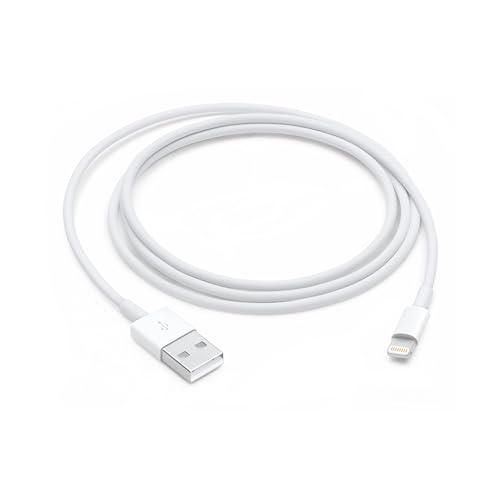
Subsequently test your connection using a certified MFi Lightning cable specifically designed for automotive environments to eliminate cable-related variables from your troubleshooting process.
iOS 18 Compatibility
Apple’s iOS 18 release created unprecedented compatibility challenges for Volvo CarPlay users, with thousands reporting complete connectivity failures following routine iPhone updates. The fundamental issue stems from enhanced security protocols and modified data transmission methods that older Sensus firmware doesn’t recognize properly.
These compatibility breaks manifest in multiple ways including blank navigation displays, unresponsive touch controls, frequent disconnections, or complete CarPlay menu disappearance from Sensus interface options. The problems affect all Volvo model years but prove particularly severe for 2018-2021 vehicles lacking recent firmware updates.
Apple’s updated authentication requirements demand more sophisticated handshaking protocols between devices, while legacy Sensus systems continue using older communication standards. This technological gap creates connection failures even when cables, ports, and basic settings appear correct during troubleshooting attempts.
Temporary workarounds help maintain functionality while permanent solutions develop through coordinated Apple and Volvo software updates. Access Settings > Bluetooth on your iPhone while connected to your Volvo, locate your vehicle’s name, and toggle the CarPlay switch off and back on to force fresh protocol negotiation.
For persistent problems affecting daily usability, comprehensive network settings resets provide more thorough solutions despite requiring complete device reconfiguration afterward. Navigate to Settings > General > Transfer or Reset iPhone > Reset > Reset Network Settings to clear all stored wireless connection data and force clean reconnection processes.
Cable Quality Assessment
Physical connection problems frequently masquerade as complex software issues, leading Volvo owners through ineffective troubleshooting sequences that don’t address actual root causes. The automotive environment subjects cables to conditions far exceeding normal consumer electronics applications, accelerating degradation in ways that aren’t immediately visible.
![Coiled Lightning Cable, iPhone Charger Cable 3FT for Car, 2 Pack [Apple MFi Certified] 3 Feet Lightning Cord Compatible with iPhone14/13/12/11 Pro Max/XS MAX/XR/XS/X/8/7/Plus/6S iPad/iPod- Black](https://m.media-amazon.com/images/I/41YSLricJtL._SS500_.jpg)
“Thicker cord always solve the connection issue. I have similar issues sometimes, resetting the infotainment system usually fixes it.” – Facebook Volvo Owner Group Member
Authentic Apple Lightning cables contain sophisticated authentication chips communicating directly with iOS devices to verify compatibility and optimize performance. These chips must successfully complete multi-stage handshaking protocols before CarPlay activation, and damaged chips prevent connection establishment despite normal charging functionality.
Temperature extremes inside vehicles create expansion and contraction cycles that gradually loosen connector pins and crack internal solder joints. Summer heat reaching 160°F+ softens cable insulation while winter cold below -20°F makes plastic connectors brittle and prone to fracturing under normal handling stress.
Electromagnetic interference from vehicle electrical systems also affects cable performance in ways that don’t impact home or office usage. Engine management computers, ignition systems, and radio equipment generate electromagnetic fields that can disrupt data transmission through poorly shielded cables, causing intermittent connection failures.
Consider upgrading to premium coiled Lightning cables engineered specifically for automotive applications. These specialized cables feature enhanced electromagnetic interference shielding, reinforced strain relief points, and temperature-resistant materials maintaining reliable performance across extreme environmental ranges.
Wireless CarPlay Optimization
Volvo’s wireless CarPlay implementation relies on sophisticated coordination between Bluetooth and WiFi protocols, creating multiple potential failure points that require systematic diagnosis to resolve effectively. Understanding this dual-protocol architecture helps identify specific problems rather than attempting generic fixes that may not address actual issues.
Initial connection establishment occurs through Bluetooth Low Energy handshaking, followed by automatic WiFi network creation for high-bandwidth data transmission. Problems can occur at either stage, with different symptoms indicating whether Bluetooth pairing or WiFi data transmission is failing during connection attempts.
Begin troubleshooting by completely forgetting your Volvo from your iPhone’s known networks and paired devices lists. Navigate to Settings > WiFi, locate your vehicle’s network name, tap the information icon, and select “Forget This Network” to clear stored connection parameters that may contain corrupted authentication data.
Simultaneously access your Sensus system’s Bluetooth settings and delete your iPhone from the paired devices list using manufacturer-specific menu navigation. This dual deletion ensures both devices start with completely clean connection profiles during re-pairing, eliminating stored data conflicts that prevent successful authentication.
Professional Diagnosis
When systematic DIY troubleshooting fails to resolve persistent CarPlay problems, professional diagnosis at authorized Volvo dealerships provides access to specialized equipment and proprietary software updates unavailable to consumers. Dealership technicians utilize manufacturer-specific diagnostic protocols that can identify hardware failures and software conflicts beyond typical user troubleshooting capabilities.
Recent Volvo technical service bulletins address known CarPlay issues affecting specific model years and VIN ranges. These bulletins often include software updates, hardware replacements, or calibration procedures that resolve widespread problems affecting multiple vehicles manufactured during particular time periods.
“The problem is with the software, and considering that MY 2021 are on the older platform, it’s unlikely that patches will be pushed out in the future.” – Reddit XC40 Owner deofictitio
Professional diagnosis typically involves comprehensive system scans that check Sensus firmware versions, USB port functionality, wiring harness continuity, and compatibility matrices between your specific iPhone model and vehicle software revision. This thorough approach identifies root causes rather than treating symptoms through temporary workarounds.
Software updates require specialized equipment and authorization codes unavailable to consumers, making dealer service essential for accessing the latest compatibility fixes. Many updates also require complete system reconfiguration and testing protocols ensuring proper functionality across all integrated vehicle systems.
Network Settings
Your iPhone’s internal settings architecture directly controls CarPlay functionality through multiple interdependent preferences that iOS updates occasionally reset without user notification. Proper configuration across these various settings menus ensures optimal performance while preventing common connection failures that appear mysterious without systematic investigation.
Navigate to Settings > General > CarPlay to access primary configuration options where your Volvo should appear in the “My Cars” section if previously paired successfully. Tap your vehicle’s name to access detailed preferences including screen layout customization, app permissions, and connectivity prioritization settings affecting performance.
The “Allow CarPlay While Locked” preference proves crucial for seamless operation since disabled settings require manual iPhone unlocking each time you start your vehicle before CarPlay activation. This creates unnecessary interaction steps that defeat hands-free integration purposes while potentially creating safety hazards during driving situations.
Screen Time restrictions and Content & Privacy controls can accidentally block CarPlay functionality through parental controls or corporate device management policies. Navigate to Settings > Screen Time > Content & Privacy Restrictions to verify CarPlay isn’t inadvertently restricted by security policies that weren’t specifically intended to affect vehicle connectivity.
Siri permissions significantly impact CarPlay operation since voice control represents core safety functionality for hands-free driving operation. Access Settings > Siri & Search to ensure “Listen for ‘Hey Siri'” activation along with “Allow Siri When Locked” permissions enabling voice commands essential for safe driving practices.
Complete iOS Configuration Checklist:
- CarPlay Settings: Enable “Allow CarPlay While Locked”
- Screen Time: Verify no CarPlay restrictions active
- Bluetooth: Confirm vehicle pairing without conflicts
- WiFi: Enable automatic joining for vehicle networks
- Siri Permissions: Allow locked device voice control
- Notifications: Configure CarPlay app display preferences
- Focus Modes: Ensure driving modes don’t block connectivity
Hardware Failure Recognition
Systematic hardware evaluation helps distinguish genuine equipment failures requiring replacement from configuration problems that software adjustments can resolve. This diagnostic approach prevents unnecessary part purchases while ensuring actual hardware problems receive appropriate attention rather than ineffective software troubleshooting attempts.
Inspect Volvo USB ports using adequate lighting to identify debris accumulation, corrosion, or damaged connector pins that prevent proper electrical contact. Road salt, food particles, and pocket lint commonly collect in these recessed ports over time, creating insulation barriers between cable connectors and vehicle charging/data contacts.
Different USB ports throughout your Volvo serve varying functions despite identical appearances, and not all support full CarPlay functionality simultaneously. Some provide charging power exclusively while others handle both power delivery and bidirectional data transmission required for smartphone integration protocols.
Test systematically across multiple cable and port combinations to isolate problem sources methodically. If CarPlay functions with specific combinations while failing with others, you’ve identified hardware failures requiring targeted replacement rather than continued software troubleshooting that won’t address actual root causes.
Consider the cumulative effects of environmental stress on electronic components over time. Constant temperature cycling, vibration, and electromagnetic interference gradually degrade performance in ways that create intermittent failures before complete component breakdown, making problems difficult to diagnose without systematic testing approaches.
Advanced Recovery Procedures
When standard troubleshooting methods prove insufficient for resolving persistent CarPlay problems, advanced recovery procedures provide comprehensive solutions through complete system reinitialization. These nuclear options erase corrupted data while restoring factory configurations that eliminate complex software conflicts preventing proper smartphone integration.
Factory reset procedures vary significantly between Volvo model years and trim levels, with some requiring specific button combinations or service mode access unavailable through normal menu navigation. Consult your owner’s manual for exact procedures since incorrect reset attempts can cause permanent system damage requiring expensive dealer intervention.
Before initiating factory resets, meticulously document all current preferences including radio presets, climate control settings, seat positions, navigation favorites, and paired device information. Post-reset reconfiguration requires this documented data to restore your preferred operational configuration efficiently without frustrating trial-and-error processes.
The reset procedure typically requires 15-30 minutes of uninterrupted operation depending on system complexity and installed options. Avoid engine starting, button pressing, or other vehicle operation during reset execution, as interruption can corrupt system firmware requiring dealer reprogramming to restore functionality.
Allow systems to remain completely idle for several minutes after reset completion before beginning any reconfiguration attempts. Complex electronic architectures need initialization time to establish proper communication pathways between integrated subsystems, and rushing this process often creates stability problems requiring additional reset cycles.
Video Credit: Carcode Secure / YouTube
Frequently Asked Questions
Why does my iPhone charge but CarPlay won’t activate in my Volvo?
This common scenario occurs when using USB ports designated for charging only or cables lacking proper data transmission capabilities. Your iPhone receives electrical power through dedicated charging pins but cannot establish bidirectional data connections necessary for CarPlay communication protocols.
Test different USB ports specifically designated for smartphone connectivity in your Volvo’s center console, armrest, or dashboard areas while ensuring you’re using genuine Apple-certified cables supporting both charging and data transfer functions.
Can Sensus software updates fix CarPlay problems in older Volvo models?
Yes, but availability varies significantly by model year and regional market. Volvo regularly releases Sensus updates addressing CarPlay compatibility issues, though older vehicles may not receive all available updates due to hardware limitations or market prioritization decisions.
Contact your authorized dealer to check update availability for your specific VIN and current software version, as many critical fixes require professional installation using dealer diagnostic equipment.
How do I know if my Volvo’s USB ports are damaged?
Systematic testing across multiple certified cables and different devices helps isolate port-specific problems from general connectivity issues. Try connecting various USB devices including flash drives, different smartphones, or charging cables to identify ports with consistent failure patterns.
Visual inspection under adequate lighting can reveal physical damage, corrosion, or debris accumulation requiring professional cleaning or port replacement through dealer service departments.
Why does wireless CarPlay work inconsistently in my Volvo?
Wireless CarPlay complexity creates multiple failure points through its dual Bluetooth and WiFi protocol requirements. Environmental interference, weak signal strength, competing wireless devices, or iPhone case materials can disrupt connection stability.
Ensure your iPhone’s WiFi remains active, remove metallic cases temporarily, and minimize other wireless device usage during troubleshooting to identify specific interference sources affecting your vehicle’s performance.
What should I do if CarPlay completely disappears from my Sensus menu?
Complete menu disappearance typically indicates deeper system problems requiring comprehensive reset procedures or dealer intervention. Perform the 20-second Sensus reset by holding the center button beneath your display, then wait for complete system reinitialization before testing connectivity.
If CarPlay options still don’t appear, verify your Volvo model’s compatibility requirements and confirm your iPhone supports CarPlay with your specific vehicle year through official Apple and Volvo compatibility documentation.
Sources:
- Volvo Sensus Support Documentation
- Reddit XC40 CarPlay Discussion
- SwedeSpeed CarPlay Forum
- Apple CarPlay Official Support
- Apple CarPlay Setup Guide