

Last updated on March 28th, 2026 at 12:55 pm
Forgotten passwords on Acer laptops can lock you out of your own device, creating frustrating barriers to accessing important files and applications. These Windows-based systems use various authentication methods that require specific reset procedures depending on your account type and available recovery options.
Resetting an Acer laptop password depends on your account type and available recovery methods: for Microsoft accounts, use "I forgot my password" at the sign-in screen or visit account.live.com/ResetPassword.aspx from any browser; for local accounts, answer security questions at the login screen or use password reset disks if created previously. When standard methods fail, access Windows Recovery Environment through Shift+Restart, use Acer's Alt+F10 factory reset option, or create bootable password reset tools on another computer.

Acer Password Systems
Before attempting any reset procedure, identifying your specific account type becomes crucial because different authentication systems require entirely different recovery approaches. Your login screen provides essential clues about whether you’re using a Microsoft account or local Windows account.
Microsoft accounts display email addresses as usernames and connect to cloud services, offering robust recovery options through Microsoft’s online systems. These accounts sync across multiple devices and provide password reset capabilities through email verification, SMS codes, or authenticator apps.
Local accounts show simple usernames without email addresses and store authentication data locally on your Acer laptop. These accounts offer security questions, password hints, and password reset disk options but lack cloud-based recovery methods available to Microsoft accounts.
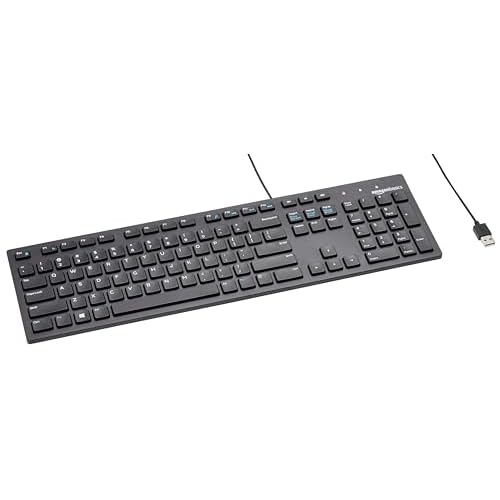
Sometimes, a ‘wrong password’ error isn’t due to a forgotten code, but a malfunctioning laptop keyboard that is typing the wrong characters. Before attempting a full reset, try plugging in an Amazon Basics Low-Profile Wired USB Keyboard. If you can log in with an external keyboard, you’ve saved yourself from a data-wiping factory reset.
Windows Hello features like fingerprint readers or facial recognition on newer Acer models provide alternative authentication paths that can bypass forgotten passwords. Understanding these options helps determine the most efficient recovery approach for your specific situation.
Microsoft Account Password Reset
When you’re using a Microsoft account and can access the Windows sign-in screen, the reset process becomes straightforward through Microsoft’s built-in recovery systems. Start by identifying the Microsoft account username displayed on your Acer laptop’s login screen.
Step-by-Step Microsoft Account Reset:
- Click “I forgot my password” at the Windows sign-in screen
- Select your preferred verification method (email, phone, or authenticator)
- Enter the verification code sent to your recovery method
- Create a new strong password following Microsoft’s requirements
- Confirm the new password by typing it twice
- Sign in to your Acer laptop using the new password
- Test the new password by locking and unlocking the screen
Microsoft’s recovery system typically sends verification codes within minutes, but delivery times can vary based on network conditions and service availability. Always check spam folders if expected emails don’t arrive promptly.
Alternative Method – Web Browser Reset:
Visit account.live.com/ResetPassword.aspx from any device with internet access. Enter your Microsoft account email, complete the verification process, and create a new password that will work immediately on your Acer laptop.
Local Account Security Questions
When you’ve forgotten your local account password, Windows provides security question recovery that relies on information you provided during account setup. This method works only if you previously configured security questions and remember the correct answers.
Step-by-Step Security Question Reset:
- Enter any password at the login screen to trigger the reset option
- Click “OK” when the incorrect password message appears
- Select “Reset password” from the available options
- Answer all security questions with exact original responses
- Enter your new password following Windows complexity requirements
- Confirm the new password by typing it again
- Add a password hint to help remember the new password
- Complete the reset process and sign in with the new password
Security question answers are case-sensitive and must match exactly what you entered during account creation. Common mistakes include different capitalization, additional spaces, or slight wording variations that prevent successful recovery.
Windows Recovery Environment
When standard password recovery methods fail, accessing Windows Recovery Environment provides advanced options for regaining access to your Acer laptop. This approach works by booting into a special diagnostic mode that bypasses normal Windows authentication.
Step-by-Step Recovery Environment Access:
- Hold Shift and click Restart from the login screen
- Select “Troubleshoot” from the Choose an option screen
- Choose “Advanced options” from the Troubleshoot menu
- Select “Command Prompt” for advanced users or “System Restore”
- Follow authentication prompts if they appear
- Execute password reset commands or restore to previous state
- Restart normally and test new access methods
Command Prompt access in Recovery Environment allows advanced users to manipulate user accounts through Windows administrative tools. System Restore options can revert your Acer laptop to a previous state when the password was known, effectively undoing recent changes.
Acer Factory Reset (Alt+F10)
Acer laptops include built-in recovery systems that can restore factory settings and eliminate password protection entirely. The Alt+F10 key combination during startup accesses Acer’s recovery partition on most models, providing comprehensive system restoration options.
Warning: This approach completely erases all personal data, installed programs, and custom settings while returning the laptop to its original factory configuration.
Step-by-Step Acer Factory Reset:
- Power off your Acer laptop completely
- Press and hold Alt+F10 immediately after pressing the power button
- Continue holding until the Acer recovery screen appears
- Select “Restore System to Factory Default” or similar option
- Follow on-screen prompts to confirm the restoration process
- Wait for the complete restoration process to finish (30-60 minutes)
- Set up Windows with new user accounts and passwords
Some newer Acer models may use F11 or require entering BIOS settings to enable the recovery partition. The factory reset process requires adequate battery charge or power connection to prevent interruption.
Password Reset Disk Recovery
Password reset disks provide the most reliable recovery method for local accounts, but they must be created before forgetting your password. These special USB drives contain encrypted keys that can unlock your specific user account regardless of password changes.
Using Existing Password Reset Disk:
- Insert your previously created password reset disk
- Enter any password at the login screen
- Click “Use a password reset disk instead” when the option appears
- Follow the Password Reset Wizard instructions
- Select your USB drive containing the reset disk
- Enter and confirm your new password
- Complete the wizard and sign in with the new password
Creating Password Reset Disk (Preventive):
If you still have access to your account, create a password reset disk immediately by searching “password reset disk” in Control Panel and following the wizard instructions with a USB drive.
For this process to work, you need a reliable, high-speed flash drive to ensure the recovery keys are stored correctly. The SanDisk 64GB Ultra Flair USB 3.0 Flash Drive is our top recommendation for creating a permanent recovery tool that you can keep in a safe place for emergencies.

Third-Party Password Reset Tools
When Microsoft’s built-in recovery methods fail, third-party password reset tools offer alternative approaches using bootable media created on accessible computers. These tools work by modifying Windows password databases directly.
Using Third-Party Reset Tools:
- Access another computer with internet connectivity
- Download reputable password reset software (Ophcrack, PCUnlocker)
- Create bootable USB media using the downloaded tools
- Insert the bootable media into your locked Acer laptop
- Boot from USB by pressing F12 during startup
- Follow the tool’s interface to select your user account
- Reset or remove the password using the tool’s options
- Remove the bootable media and restart normally
Important: Third-party tools carry risks including potential malware, system damage, or data loss. Only download software from reputable sources and scan files with updated antivirus software.
BIOS/UEFI Settings Modification
Modern Acer laptops use UEFI firmware with security features that may interfere with alternative recovery methods. Accessing these settings might be necessary for advanced recovery techniques.
Modifying Boot Settings:
- Restart your Acer laptop and press F2 repeatedly during startup
- Navigate to the Security or Boot menu using arrow keys
- Locate Secure Boot settings and disable if necessary
- Change boot priority to allow USB/DVD booting
- Save changes and exit BIOS/UEFI setup
- Attempt recovery methods with modified settings
- Re-enable security features after successful recovery
Seek Professional Help
Persistent recovery failures often indicate hardware problems, system corruption, or advanced security configurations requiring professional intervention. Professional laptop repair services offer specialized tools and expertise for complex scenarios.
Consider professional services when:
- Multiple recovery methods fail consistently
- System displays hardware error messages
- Data recovery is critical and backups aren’t available
- Advanced security features like BitLocker are enabled
Cost considerations should weigh professional service fees against laptop replacement costs and data value. Professional recovery typically costs less than complete data loss scenarios.
Security Best Practices
Prevention Strategies:
- Create password reset disks immediately after account setup
- Configure multiple recovery methods (email, phone, security questions)
- Regular password updates with secure storage methods
- Enable Windows Hello biometric authentication when available
- Maintain current backups of important data
Post-Recovery Actions:
- Update all account security settings
- Review and refresh security questions
- Create new password reset disks
- Enable two-factor authentication for Microsoft accounts
- Document recovery information securely
Video Credit: Documee / YouTube
Frequently Asked Questions
Why won’t my Acer laptop accept the correct Microsoft account password?
Microsoft account authentication failures often result from network connectivity issues, temporary server problems, or account security restrictions rather than password errors. Check your internet connection and try alternative sign-in methods like PIN or Windows Hello if configured on your Acer laptop.
Time synchronization problems can cause authentication failures even with correct passwords, as Microsoft’s servers require accurate system clocks for security token validation. Access BIOS settings to verify date and time accuracy, or connect to the internet to allow automatic synchronization.
Account security features like two-factor authentication or suspicious activity detection may block login attempts from your Acer laptop if Microsoft’s systems detect unusual patterns. Check email for security notifications and follow Microsoft’s verification procedures to restore normal access.
Can I recover my password if I don’t remember my security questions?
Forgotten security questions essentially make local account recovery impossible through standard Windows methods, as these questions serve as the primary verification mechanism for password resets. The system requires exact matches to original answers, with no alternative verification paths available.
Third-party password reset tools offer potential solutions for local accounts with forgotten security questions, though these methods carry risks and may not work on systems with advanced security features. Professional recovery services provide more reliable alternatives for valuable data or complex systems.
Consider whether migrating to a Microsoft account might provide better recovery options for future situations, as cloud-based authentication offers multiple verification methods beyond security questions.
Are there different procedures for Windows 10 versus Windows 11 on Acer laptops?
Windows 10 and Windows 11 use fundamentally similar password recovery systems, with minor interface differences in accessing reset options and recovery tools. Both versions support Microsoft account recovery, local account security questions, and password reset disks through nearly identical procedures.
Windows 11 introduces enhanced security features and updated interfaces that may affect the appearance of recovery screens, but underlying mechanisms remain compatible with Windows 10 methods. Most recovery procedures work identically across both operating system versions.
Acer-specific recovery features like Alt+F10 factory reset options typically function identically regardless of Windows version, as these systems operate at hardware and firmware levels independent of the installed operating system version.
How do I know if my Acer laptop password reset was successful?
Successful password resets demonstrate consistent authentication with new credentials across multiple login attempts. After completing reset procedures, test the new password at least three times, fully logging out between attempts to ensure reliable operation under normal use conditions.
Pay attention to system behavior during login processes – properly reset passwords should authenticate smoothly without delays, error messages, or unusual prompts that suggest incomplete reset procedures or remaining authentication conflicts.
Visual confirmation includes successful desktop access, normal application functionality, and proper integration with Windows features like file encryption or credential managers that depend on user authentication for operation.
What should I do if my Acer laptop gets stuck during password recovery?
Stuck recovery processes require careful assessment to avoid data loss or system damage through forceful intervention. Document the exact stage where problems occurred and any error messages displayed before attempting remediation procedures.
Try gentle recovery approaches like waiting 30 minutes for processes to complete, pressing Ctrl+Alt+Delete to access task manager, or holding the power button for controlled shutdown if the system becomes completely unresponsive.
If multiple recovery attempts fail or create recurring problems, discontinue self-service efforts and consult professional laptop repair services to prevent permanent data loss or hardware damage from improper recovery procedures.
Sources: