
Your Ring doorbell just dropped offline, and your front door is unmonitored. That unsettling feeling? Completely valid. Let’s fix it fast.
The most common reasons your Ring doorbell won’t connect to Wi-Fi include weak signal strength (RSSI above -60 dBm), your router broadcasting only on the 5 GHz band instead of 2.4 GHz, incorrect Wi-Fi passwords after a router change, WPA3 security protocol incompatibility, and outdated firmware. Start by checking your Device Health in the Ring app, then systematically work through signal, network, and power diagnostics before resorting to a factory reset.
This guide walks you through every diagnostic step, from quick app-based checks to advanced router configurations, so you can restore your home security in minutes, not hours.

Key Takeaways
- Ring doorbell not connecting to WiFi is most often caused by weak signal strength (RSSI below -60 dBm), router 5 GHz band defaults, or WPA3 incompatibility—check Device Health in the Ring app first to diagnose.
- Ensure your Ring doorbell connects to 2.4 GHz networks only, as most Ring models don’t support 5 GHz; disable 5 GHz temporarily during setup if using a dual-band router.
- Power cycling your modem and router for 30 seconds resolves roughly half of all Ring connectivity issues, making it the fastest troubleshooting step.
- WPA3 security protocol is incompatible with most Ring doorbells; switch your router to WPA2-PSK (AES) to restore connection.
- For hardwired Ring doorbells, verify your transformer delivers 16-24V AC using a multimeter, as underpowered transformers silently cause intermittent disconnections.
- Use a Ring Chime Pro as a dedicated Wi-Fi extender placed halfway between your router and doorbell to boost signal strength and maintain consistent video streaming.
Key Reasons for Ring Doorbell Not Connecting to WiFi
Your Ring doorbell relies on a stable 2.4 GHz Wi-Fi connection to stream video, send motion alerts, and communicate with your Ring app. When that connection breaks, the cause typically falls into one of five categories: poor signal strength, wrong network credentials, band incompatibility, firmware bugs, or router security conflicts. Understanding which category your problem falls into saves you from blindly rebooting everything.
A Reddit user summed up the frustration perfectly:
“My Ring doorbell keeps going offline every few days. I’ve power cycled the router, moved it closer, and it still drops. Turns out my router was defaulting to WPA3 after a firmware update.” via r/Ring
Wi-Fi Signal Strength and Range Issues
Ring measures signal strength using RSSI (Received Signal Strength Indicator). You can find your Ring device health RSSI signal strength reading in the Ring app under Device Health. An RSSI value of -40 or better is ideal. Anything worse than -60 means your doorbell is struggling. Walls, especially brick, concrete, and metal, dramatically weaken signals. A single concrete wall can cut your Wi-Fi range by 50% or more.
Wi-Fi interference from metal objects like steel doors, aluminum siding, or even large appliances positioned between your router and doorbell will degrade performance. Distance matters too: most consumer routers lose meaningful throughput beyond 30-40 feet through walls.
Incorrect Password or Network Settings
After a power outage, ISP update, or router replacement, your Ring doorbell may try reconnecting with old credentials. If your Wi-Fi password changed, the doorbell can’t authenticate. You’ll need to forget the network and reconnect Ring through the setup process in the app. Also check that your network name (SSID) hasn’t changed, some routers append “_5G” after updates.
Compatibility with 2.4GHz and 5GHz Networks
This is a critical detail: most Ring doorbells only support the 2.4 GHz Wi-Fi band. If your dual-band router merges both bands under one SSID, your Ring may accidentally grab the 5 GHz signal and fail to connect. The 2.4 GHz vs 5 GHz Wi-Fi band issue is the single most common reason for setup failures.
Here’s a quick comparison:
| Feature | 2.4 GHz | 5 GHz |
|---|---|---|
| Range | Longer (better through walls) | Shorter |
| Speed | Slower | Faster |
| Ring Compatibility | Supported (all models) | Limited (Ring Pro 2, Elite only) |
| Interference | More crowded | Less crowded |
If you’re stuck, try disabling 5 GHz for Ring setup temporarily in your router settings.
Firmware and App Glitches
Ring connectivity issues after firmware update are more common than you’d think. A bad firmware push can knock your device offline. Similarly, an outdated Ring app may fail to communicate with your doorbell. Always ensure both your Ring app and doorbell firmware are current. Check the Ring app for pending updates under Device Health.
Step-by-Step Solutions to Restore Connectivity
Checking Signal Strength in the Ring App
Open the Ring app, tap your doorbell device, then select Device Health. Look at the RSSI value under “Network.” Here’s what the numbers mean:
- -40 or better: Excellent signal
- -41 to -55: Acceptable
- -56 to -65: Weak, expect dropouts
- -66 or worse: Unreliable, relocation needed
If your RSSI is poor, consider moving your router closer or adding a Ring Chime Pro as a dedicated Wi-Fi extender for your Ring devices. The Chime Pro plugs into any outlet and creates a secondary network specifically optimized for Ring products.

Rebooting Router and Doorbell
Power cycle your modem and router by unplugging both for 30 seconds, then reconnect the modem first, wait 60 seconds, then plug in the router. For battery-powered Ring doorbells, press and release the setup button, or remove and reinsert the battery. For hardwired models, toggle the breaker off for 30 seconds.
This simple step resolves roughly half of all Ring doorbell offline after setup complaints.
Reconnecting or Changing Wi-Fi Networks
If rebooting didn’t work, reconnect your Ring to Wi-Fi:
- Open Ring app → tap your device → Device Health → Change Wi-Fi Network
- Put your Ring in setup mode (press and hold the orange setup button until the light spins)
- Connect your phone to the Ring’s temporary hotspot
- Select your 2.4 GHz network and enter the password
Watch for the Ring doorbell setup mode light patterns: a spinning white light means setup mode is active, while a flashing blue light indicates it’s attempting to connect.
Resolving Router and Network Configuration Issues
Some routers have settings that block Ring devices. Check these:
WPA3 Incompatibility: Ring is not compatible with WPA3 on most models. Switch your router’s security to WPA2-PSK (AES). A VPN blocking Ring app connection is another common culprit, disable any active VPN on your phone during setup.
Router firewall and port forwarding settings can also interfere. Ring devices need outbound access on ports 443 (HTTPS) and 8555 (video streaming). If you’re running a mesh network, verify mesh network compatibility with Ring by ensuring the 2.4 GHz band is accessible across all nodes.
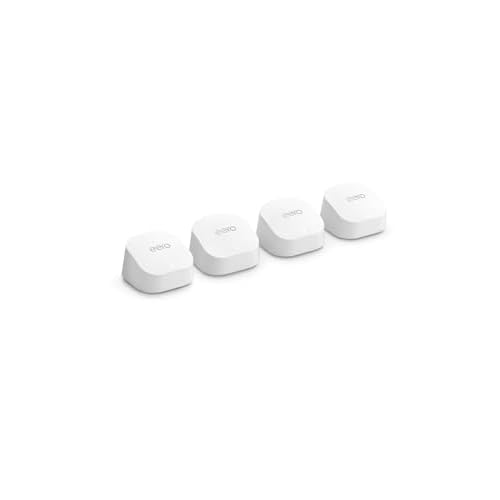
For users wanting a reliable networking solution, eero mesh Wi-Fi systems work seamlessly with Ring since Amazon owns both brands.
Advanced Troubleshooting Tips
Addressing Power and Hardware Concerns
For hardwired Ring doorbells, verify your transformer delivers 16-24V AC. Anything below 16V causes intermittent disconnections and Ring battery charging issues even on wired models. Use a multimeter at the doorbell terminals to confirm voltage. The hardwired Ring transformer voltage requirement is non-negotiable, an underpowered transformer is a silent connectivity killer.
Another community member shared this insight:
“Spent 3 weeks troubleshooting Wi-Fi when the real problem was my 40-year-old 10V doorbell transformer. Swapped in a 24V and it’s been rock solid since.” via r/ringdoorbell
Updating Firmware and Software
Check Ring app permission settings on your phone, ensure location, Bluetooth, and local network permissions are enabled. Then verify firmware: Ring app → Device Health → Firmware. If a firmware update is pending, keep the doorbell powered and connected. Updates usually install automatically overnight.
For persistent Ring connectivity issues after firmware update, try uninstalling and reinstalling the Ring app. This forces a fresh sync with Ring’s servers.
Handling Special Network Cases
Guest networks, captive portals, and enterprise Wi-Fi setups won’t work with Ring. Your doorbell needs a standard WPA2 home network. If you use Firewalla or similar network security appliances, whitelist Ring’s IP ranges to prevent false-positive blocks.
Hidden SSIDs can also cause problems. If your network name is hidden, you’ll need to manually type it during setup.
When to Factory Reset Your Device
Factory reset your Ring doorbell as a last resort. Press and hold the setup button for 20-25 seconds until the front light flashes. This erases all settings and returns the device to out-of-box state. You’ll need to set it up from scratch in the Ring app.
The factory reset Ring doorbell setup button location varies by model, it’s on the back of Ring Video Doorbell and on the right side of Ring Pro models.
Here’s a helpful walkthrough video that covers the full reset and reconnection process:
Optimizing Performance for Ring Doorbell and Accessories
Extending Wi-Fi Range with Chime Pro or Extenders
The Ring Chime Pro signal extender is purpose-built for this problem. It acts as both a chime and a Wi-Fi repeater, sitting between your router and doorbell to boost signal. Place it roughly halfway between the two for best results. Generic Wi-Fi extenders also work, but make sure they broadcast a dedicated 2.4 GHz SSID.
Ensuring Reliable Video Streaming and Motion Detection
Consistent video quality requires at minimum 2 Mbps upload speed. Run a speed test at your router’s location and again near the doorbell. If upload speed drops below 1 Mbps at the doorbell, video will lag and motion detection may miss events.
Adjust motion sensitivity zones in the Ring app to reduce unnecessary activations that tax your bandwidth.
Pairing and Synchronizing Chime Devices
To pair a Ring Chime or Chime Pro, open the Ring app, tap “Set Up a Device,” and follow the prompts. The Chime needs to be on the same Wi-Fi network as your doorbell. After pairing, you can customize alert tones and volume per device.
Maintaining Long-Term Connectivity
Data Insights & Analysis
According to Parks Associates’ 2025 smart home research, roughly 30% of smart home device owners report Wi-Fi connectivity issues as their top frustration. Ring doorbells specifically account for a significant share of support tickets related to Wi-Fi band incompatibility, with community forums showing a spike in complaints after ISP-pushed router firmware updates that default to WPA3.
A 2025 analysis from Consumer Reports found that signal degradation over distance, particularly through exterior walls, remains the leading cause of Ring doorbell disconnections, with RSSI values worsening by an average of 10-15 dBm per wall.
Expert Note: "Ring doorbells don't fail because of Wi-Fi 'weakness', they fail because the 2.4 GHz radio in most models has a limited antenna gain of roughly 2 dBi. That's adequate in open air but insufficient when competing with 20+ neighbor networks on overlapping channels. Switching your router to channel 1, 6, or 11 and using 20 MHz channel width reduces co-channel interference dramatically."
For long-term stability, schedule monthly check-ins: open Device Health, verify RSSI, and confirm firmware is current. Replace your router’s firmware if it’s more than a year old, and keep your Ring app updated. These small habits prevent 90% of future disconnections.
Frequently Asked Questions
Why is my Ring doorbell not connecting to Wi-Fi?
The most common reasons include weak signal strength (RSSI worse than -60 dBm), your router broadcasting only 5 GHz instead of 2.4 GHz, incorrect Wi-Fi passwords after router changes, WPA3 security incompatibility, or outdated firmware. Start by checking Device Health in the Ring app to identify the issue.
What is RSSI and how does it affect Ring doorbell connectivity?
RSSI (Received Signal Strength Indicator) measures your Wi-Fi signal strength in the Ring app under Device Health. Values of -40 or better are excellent; -56 to -65 is weak with dropouts expected; -66 or worse is unreliable. Walls, distance, and interference degrade RSSI significantly.
Can my Ring doorbell connect to 5 GHz Wi-Fi?
Most Ring doorbells only support 2.4 GHz Wi-Fi. Only the Ring Pro 2 and Elite models support 5 GHz. If your dual-band router merges both bands under one SSID, your doorbell may grab the 5 GHz signal and fail to connect. Temporarily disable 5 GHz during setup.
How do I reconnect my Ring doorbell to Wi-Fi after changing my password?
Open the Ring app, tap your device, select Device Health, then choose ‘Change Wi-Fi Network.’ Put the doorbell in setup mode by pressing and holding the orange setup button until the light spins. Connect to the temporary hotspot, select your 2.4 GHz network, and enter the new password.
Is WPA3 compatible with Ring doorbells?
No, Ring doorbells are not compatible with WPA3 security on most models. Switch your router’s security protocol to WPA2-PSK (AES) for reliable connectivity. Check your router settings if you recently updated firmware, as some routers default to WPA3.
What internet speed do I need for reliable Ring doorbell video streaming?
You need a minimum of 2 Mbps upload speed for consistent video quality. If upload speed drops below 1 Mbps near the doorbell, video will lag and motion detection may miss events. Run a speed test at both your router and doorbell location to diagnose issues.
Read More:
- Alexa Announcement Not Working? Troubleshooting and Fixes
- Skyworth TV HDMI Not Working (This HDMI Fix Actually Works)
- Nissan X-Trail CarPlay Not Working (Common Causes & Fixes)