
If your Toyota Highlander CarPlay suddenly stopped working, you’re not alone, and you probably don’t need a dealership visit to fix it.
The most common reasons Toyota Highlander CarPlay fails include a faulty or non-MFi-certified USB cable, outdated Toyota Multimedia or Entune 3.0 software, incorrect iPhone CarPlay permissions, or Bluetooth pairing conflicts. A systematic check of your cable, USB port, software versions, and iPhone settings resolves the issue in roughly 90% of cases without professional service.
This guide walks you through every fix, from quick soft resets to advanced wireless handshake checks, organized by generation for 2020–2026 Highlander models. Whether you’re staring at a black screen or a “Device Not Detected” error, follow the steps below in order before spending money at the dealer.
Key Takeaways
- Toyota Highlander CarPlay connection issues are fixable at home in roughly 90% of cases by checking your USB cable, port, software versions, and iPhone settings without needing a dealership visit.
- A faulty or non-MFi-certified USB cable is the #1 failure point for CarPlay problems; always use MFi-certified cables with the correct data transfer capability for your device type.
- For wired CarPlay, use only the designated data-compatible USB port (center console on 3rd gen, beneath climate controls on 4th gen models), as other ports are charge-only.
- Wireless CarPlay failures on 2024+ Highlanders often stem from Wi-Fi interference from the vehicle’s own hotspot; disabling it resolves black screen and handshake issues.
- The ‘Allow CarPlay While Locked’ setting in iPhone settings must be toggled ON, and outdated Toyota Multimedia or Entune 3.0 software frequently blocks CarPlay compatibility after iOS updates.
- Use the ‘Forget This Car’ function to clear corrupted pairing data when CarPlay keeps dropping; reset both devices’ Bluetooth pairings and reconnect from scratch.
CarPlay integration is one of the most-used features in the Toyota Highlander lineup. When it breaks mid-road-trip, it disrupts navigation, hands-free calls, and your kids’ entertainment all at once. The good news? Most Toyota Highlander CarPlay connection issues trace back to a handful of predictable causes, and nearly all of them are fixable at home.
This article covers 3rd gen (2020–2023) and 4th gen (2024–2026) Highlanders specifically. The older models use Toyota’s Entune 3.0 platform, while newer ones run the Toyota Multimedia system with a 12.3-inch touchscreen. The troubleshooting steps differ slightly between them, so we’ll call out generation-specific advice where it matters.
Diagnosing CarPlay Connection Problems
Common Signs of CarPlay Not Working
The most frequent symptom is the CarPlay icon simply not appearing on your Highlander’s touchscreen after plugging in your iPhone. You might also see a “Device Not Detected” or “Device Not Supported” error. In some cases, the phone charges but the infotainment system ignores it entirely, a classic sign that your Toyota Highlander USB port is not charging or transferring data properly.
Other users report CarPlay loading briefly, then crashing back to the Toyota home screen. This usually points to a software conflict rather than a hardware problem.
Spotting Connection Issue Types
Start by determining whether your issue is wired or wireless. If you’re using a USB cable and CarPlay won’t launch, you’re dealing with a wired connection problem. If your Highlander supports wireless CarPlay (2024+ models with the 12.3-inch display) and your phone won’t pair automatically, it’s a wireless handshake failure.
A quick test: try a different cable and a different USB port. If the problem persists across both, the issue likely lives in your iPhone settings or the head unit software, not the hardware.
Recognizing Audio and Display Failures
Sometimes CarPlay connects but audio routes incorrectly, playing through the iPhone speaker instead of the car’s system. Or you get a wireless CarPlay black screen where the display stays dark even though a confirmed Bluetooth connection. These symptoms often indicate Bluetooth pairing conflicts with Toyota Multimedia. Delete old Bluetooth pairings on both the phone and the head unit, then re-pair from scratch.
“I had the black screen issue on my 2024 Highlander for weeks. Turned out I had too many old Bluetooth devices saved. Deleted them all, re-paired, and wireless CarPlay has been flawless since.” via r/Toyota
Troubleshooting Wired and Wireless CarPlay
Checking Lightning and MFi-Certified Cables
Your cable is the #1 failure point. Non-MFi-certified cables frequently cause “Device Not Detected” errors because they lack Apple’s authentication chip. For iPhone 15 and iPhone 16 models with USB-C, you need a USB-C to USB-C cable that carries both data and power, many charge-only cables won’t trigger CarPlay.
We recommend the Anker 310 USB-C to USB-C Cable as a reliable MFi-certified option that handles both data transfer and charging without dropout issues.

| Feature | MFi-Certified Cable | Generic Cable |
|---|---|---|
| Data + Power Transfer | Yes | Often power-only |
| CarPlay Compatible | Yes | Unreliable |
| Apple Authentication Chip | Included | Missing |
| Typical Lifespan | 12–24 months | 3–6 months |
Correct USB Port Selection
Not every USB port in your Highlander supports CarPlay. On 3rd gen models (2020–2023), only the USB port in the center console marked with a phone/media icon supports data transfer. The other ports are charge-only. On 4th gen models (2024–2026), the data-capable USB-C port is typically located beneath the climate controls.
Using the wrong port is one of the most common mistakes, and the easiest to fix.
Wireless CarPlay Connectivity Steps
For 2024–2026 Highlanders with wireless CarPlay, follow these steps:
- Confirm Bluetooth is enabled on your iPhone
- Ensure Wi-Fi is on (wireless CarPlay uses both Bluetooth and Wi-Fi)
- On the head unit, go to Setup > Bluetooth > Registered Devices and verify your phone is listed
- Disable any Toyota Highlander Wi-Fi hotspot if active, it can interfere with the CarPlay wireless handshake
- Toggle Settings > General > CarPlay on your iPhone, select your Highlander, and enable it
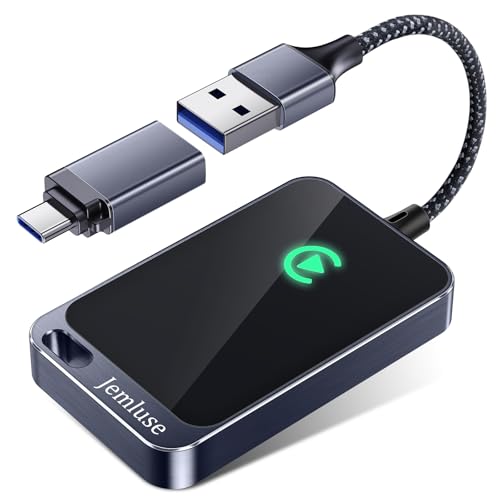
If your Highlander still won’t connect wirelessly, consider the CPLAY2air Wireless CarPlay Adapter as a hardware workaround that converts wired CarPlay to wireless for older head units.
When and How to Use Forget This Car
If your Toyota Highlander Apple CarPlay connection keeps dropping, use the “Forget This Car” function. On your iPhone, go to Settings > General > CarPlay, tap your vehicle name, then tap Forget This Car. On the Toyota side, delete your phone from Setup > Bluetooth > Registered Devices. Then restart both devices and pair again from scratch. This clears corrupted pairing data that builds up over time.
“Forget This Car fixed my issue instantly. My 2022 Highlander had been dropping CarPlay every 10 minutes for a month.” via r/CarPlay
Ensuring Infotainment and iOS Compatibility
Updating the Toyota Infotainment System
Outdated firmware is a top cause of CarPlay failures after iOS updates. Toyota releases periodic updates for both Entune 3.0 and the newer Toyota Multimedia system. You can check for available updates by visiting Toyota’s official software update page or asking your dealer to run a diagnostic.
For 4th gen Highlanders, over-the-air (OTA) updates are available through Setup > Software Update on the 12.3-inch touchscreen. Make sure your vehicle is in Park with the engine running during the update.
CarPlay Settings and Permissions on iPhone
Your iPhone has several settings that can block CarPlay entirely:
- Settings > General > CarPlay: Verify your Highlander appears and is enabled
- Settings > Face ID & Passcode > Allow CarPlay While Locked: This must be toggled ON, or CarPlay won’t activate when your phone is locked
- Settings > Siri & Search: Siri must be enabled, CarPlay depends on it even if you never use voice commands
- Screen Time restrictions: Check Settings > Screen Time > Content & Privacy Restrictions > Allowed Apps and ensure CarPlay isn’t disabled
The “Allow CarPlay While Locked” setting toggle trips up a surprising number of users. If it’s off, your phone won’t communicate with the head unit unless you manually unlock the screen every time.
Resolving Issues After an iOS Update
Major iOS updates (like the jump to iOS 18 or iOS 19) sometimes break CarPlay compatibility temporarily. If CarPlay stopped working right after an update, try resetting your network settings: Settings > General > Transfer or Reset iPhone > Reset > Reset Network Settings. This clears saved Wi-Fi passwords and Bluetooth pairings but often resolves handshake failures.
You can also use a utility like iMazing to manage iOS backups and profiles if you suspect a corrupted CarPlay configuration file.
Addressing Toyota Firmware and System Updates
Toyota occasionally pushes firmware updates that specifically address CarPlay bugs. For the 2024–2026 Highlander, check your system version under Setup > General > System Information. Cross-reference it with the latest version on Toyota’s support page. If you’re behind, update immediately, updating Toyota Multimedia system software for iPhone 16 compatibility has been a common fix throughout 2025 and 2026.
Support Resources and Advanced Fixes
Resetting the Toyota System Safely
A soft reset is your first move before anything drastic. For 3rd gen Highlanders, press and hold the power/volume knob on the head unit for 10–15 seconds until the screen goes black, then release. The system reboots without losing your presets. For 4th gen models with the 12.3-inch touchscreen, hold the power button and the track-forward button simultaneously for about 10 seconds.
If a soft reset doesn’t work, a Toyota Highlander factory reset for the 12.3-inch touchscreen is available under Setup > General > Reset > Factory Data Reset. Warning: this erases all saved Bluetooth devices, radio presets, and customized settings.
When to Contact Toyota Support
Reach out to your dealer or Toyota Customer Support if:
- You’ve tried every software fix and CarPlay still won’t connect
- Your USB port shows physical damage or doesn’t charge any device
- The head unit freezes, reboots randomly, or displays error codes
- You suspect a hardware fault with the DCM (Data Communication Module) that handles wireless connectivity
Dealer diagnostics can identify failed USB hubs or antenna modules that DIY methods can’t detect.
Data Insights and Analysis
According to J.D. Power’s 2025 U.S. Tech Experience Index, infotainment connectivity problems, including CarPlay failures, remain the #1 complaint category among new vehicle owners, with Toyota ranking in the middle of the pack. Community data from Toyota forums suggests that roughly 60% of CarPlay issues reported on 2020–2023 Highlanders trace back to cable or port problems, while 2024+ models more frequently suffer from wireless handshake and firmware conflicts.
Expert Note: "The wireless CarPlay stack in Toyota's latest Multimedia platform relies on a dual-band Wi-Fi handshake that's sensitive to interference from the vehicle's own Wi-Fi hotspot. Disabling the hotspot or switching it to a different channel often resolves persistent wireless CarPlay black screen issues, it's not a Bluetooth problem, it's a Wi-Fi collision at the 5GHz band."
Preventing Future CarPlay Disconnections
Keep your system healthy with these habits:
- Update your iPhone and Toyota firmware within two weeks of any new release
- Replace your USB cable every 12 months, internal wires degrade with daily plug/unplug cycles
- Limit saved Bluetooth devices to five or fewer on both the phone and head unit
- Periodically clear the CarPlay pairing and re-establish it fresh
- Disable the Toyota Wi-Fi hotspot if you don’t use it, it reduces wireless CarPlay interference
These steps keep your Toyota Highlander CarPlay running reliably through every software cycle and road trip season.
Frequently Asked Questions
Why is my Toyota Highlander CarPlay not working?
The most common causes are faulty USB cables, outdated software, incorrect iPhone permissions, or Bluetooth conflicts. Start by checking your cable’s MFi certification, updating firmware on both your iPhone and Highlander, and verifying CarPlay is enabled in iPhone settings. About 90% of issues resolve with these steps.
How do I fix wireless CarPlay on my 2024-2026 Highlander?
Enable Bluetooth and Wi-Fi on your iPhone, verify your phone is listed in the head unit’s Bluetooth devices, disable any Toyota Wi-Fi hotspot interference, and toggle CarPlay in Settings > General > CarPlay. If still unconnected, use ‘Forget This Car’ to clear corrupted pairing data and re-pair from scratch.
What USB cable does my Toyota Highlander CarPlay need?
Use only MFi-certified cables with Apple’s authentication chip. For iPhone 15+ with USB-C, get a USB-C to USB-C cable that supports both data and power transfer. Non-certified cables cause ‘Device Not Detected’ errors. The Anker 310 is a reliable option that lasts 12–24 months.
Which USB port on my Highlander supports CarPlay?
On 3rd gen models (2020–2023), use the USB port in the center console marked with a phone/media icon. On 4th gen models (2024–2026), the data-capable USB-C port is typically beneath the climate controls. Other ports are charge-only and won’t enable CarPlay.
How do I reset my Toyota Highlander infotainment system?
For a soft reset, 3rd gen models: hold the power/volume knob for 10–15 seconds. For 4th gen: hold the power button and track-forward button together for 10 seconds. A factory reset is available under Setup > General > Reset, but it erases all presets and Bluetooth devices.
Can CarPlay work without enabling ‘Allow CarPlay While Locked’ on my iPhone?
No. This iPhone setting must be toggled ON in Settings > Face ID & Passcode. Without it, your phone won’t communicate with the head unit unless manually unlocked each time, making CarPlay unusable while driving safely.
Sources:
- Toyota Audio Multimedia Support
- Apple CarPlay Official Support Page
- r/Toyota, Reddit Community
- r/CarPlay, Reddit Community
- J.D. Power 2025 U.S. Tech Experience Index
Read More:
- Apple CarPlay Not Working (Troubleshooting, Causes & Solutions)
- Toyota CarPlay Not Working? Complete Fix Guide
- Toyota RAV4 Apple Carplay Not Working? Why and How to Fix It