This post contains affiliate links. Purchases may earn me a commission at no extra cost to you.
Your Toyota Tacoma can handle boulder-strewn trails without flinching, but its infotainment system? That’s another story. CarPlay failures are one of the most common complaints across 2020–2026 Tacoma models.
The most frequent cause of Toyota Tacoma CarPlay not working is a faulty or non-MFi-certified USB cable, followed by a software handshake glitch between your iPhone and the Entune 3.0 or 14-inch Audio Multimedia head unit. In many cases, a simple cable swap, a head unit restart using the volume knob reset, or toggling the “Allow CarPlay While Locked” setting on your iPhone resolves the issue without a dealership visit. Less commonly, the USB media port itself, particularly part number 86190-04020, develops cracked solder joints from off-road vibration, requiring physical replacement.
This guide walks you through every fix in logical order, from the fastest free solutions to hardware-level repairs, so you can get back to streaming trail maps and taking hands-free calls.
Toyota Tacoma CarPlay not working is most commonly caused by a faulty USB cable, software handshake glitch, or outdated firmware—issues that resolve with simple fixes like cable swaps and head unit resets before visiting a dealership.
Use only MFi-certified cables for reliable CarPlay connections, and perform a volume knob reset (10–15 seconds) on both 3rd and 4th Gen Tacomas to clear temporary software glitches without losing saved settings.
Update both your iPhone iOS and Toyota Entune or Audio Multimedia firmware regularly, as outdated software mismatches prevent the CarPlay handshake, especially after upgrading to newer iPhone models.
Inspect the USB media port for physical damage, debris, or loose connections—off-road vibration can cause solder joint fractures on 3rd Gen models (part 86190-04020), requiring hardware replacement if other fixes fail.
Reset CarPlay pairing on your iPhone by going to Settings > General > CarPlay and selecting ‘Forget This Car,’ then ensure Siri is enabled and ‘Allow CarPlay While Locked’ is toggled on to prevent connection timeouts.
Prevent future Toyota Tacoma CarPlay problems by keeping firmware current, routing aftermarket accessory wiring away from the head unit’s antenna, and using shielded USB cables to reduce electrical interference from off-road equipment.
Why CarPlay Stops Working in the Toyota Tacoma
CarPlay in the Tacoma relies on a precise chain of connections: your iPhone, a certified cable (or wireless Bluetooth/Wi-Fi handshake), the USB media port, and the head unit software. A break anywhere in that chain triggers the dreaded “Smartphone Connection Error” or a blank projection screen.
On 3rd Gen Tacomas (2016–2023) running Entune 3.0, the system uses a dedicated USB 2.0 media port mounted inside the center console. That port takes constant vibration punishment, especially on trails, and the internal solder joints can crack over time. The 4th Gen (2024–2026) switched to Toyota’s Audio Multimedia system with a larger 14-inch touchscreen and added wireless CarPlay, but introduced new Wi-Fi coexistence issues that cause the Apple CarPlay connection to keep dropping.
Your iPhone’s iOS version matters too. Apple periodically changes CarPlay protocols, and if your truck’s firmware hasn’t been updated to match, the handshake fails silently. According to discussions on TacomaWorld forums, many owners found that updating to the latest Toyota software immediately resolved detection failures after upgrading to iPhone 16 models.
Here’s a quick breakdown of common failure points by generation:
Issue
3rd Gen (2020–2023)
4th Gen (2024–2026)
USB port hardware failure
Very common (vibration damage)
Less common
Software handshake glitch
Common with Entune 3.0
Common with Audio Multimedia
Wireless CarPlay drops
Not available
Frequent (Wi-Fi interference)
Cable compatibility
USB-A port, MFi required
USB-C port, MFi required
Head unit reset method
Volume knob hold
Volume knob hold or touchscreen
Check Your USB Cable and Connection Port
Start here, always. A surprising number of CarPlay failures trace back to a worn-out cable or a loose port connection. Not all Lightning or USB-C cables support data transfer: many cheap cables only carry a charge.
You need an MFi-certified (Made for iPhone) cable. Apple’s MFi program certifies that the cable meets data transfer standards required for CarPlay. If you’re using the cable that came in your iPhone box, you’re fine. If you grabbed a gas station cable, that’s likely your problem.
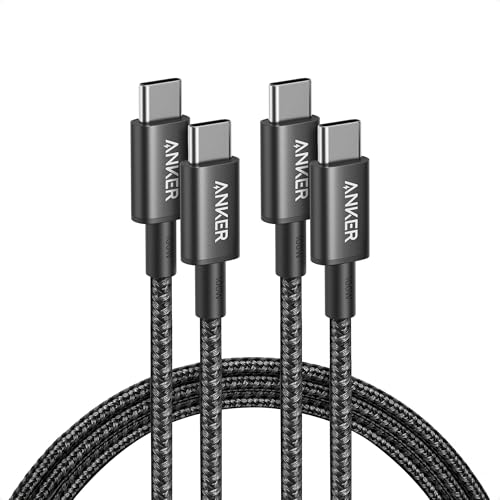
For 4th Gen Tacomas with USB-C, the Anker 765 USB-C to USB-C cable is a solid pick, it’s MFi-certified, supports fast data transfer, and holds up well in a truck environment. For 3rd Gen models still using USB-A to Lightning, the Apple MFi Certified Lightning Cable eliminates any compatibility guesswork.
Anker USB C to USB C Cable, 2-Pack 6 FT (1.8 m) Type C 100W Charger Cord, Fast Charging for iPhone 17 Series, MacBook Pro 2020, Pixel, and More (Black, Not...
After checking the cable, inspect the port itself. Blow compressed air into the USB media port to clear dust and debris. On 3rd Gen models, the port sits inside the center console where trail dust collects fast. If the port feels physically loose or the cable wiggles with no click, you may be dealing with the known solder joint issue on part 86190-04020.
Use only MFi-certified cables for CarPlay
Inspect the USB port for physical damage or debris
Test with a second known-good cable before assuming a port failure
Avoid USB hubs or adapters between your iPhone and the head unit
On 4th Gen models, use the designated CarPlay USB-C port (not the charging-only port)
Restart Your iPhone and Head Unit
If your cable checks out, the next step is resetting the Toyota Tacoma infotainment system and your iPhone. This clears temporary software glitches that cause the CarPlay device not to be detected.
Force Restart Your iPhone
For iPhone 8 and later (including iPhone 16), press and quickly release the Volume Up button, then Volume Down, then press and hold the Side button until the Apple logo appears. This clears cached Bluetooth and Wi-Fi states that can block the CarPlay handshake.
After the restart, don’t plug your iPhone back in immediately. Wait for it to fully boot to the home screen first. Then connect using your MFi cable. This sequencing matters because the Entune 3.0 system polls the USB port at boot, if your phone isn’t ready, the connection attempt times out silently.
Perform the Volume Knob Head Unit Reset
This is the fix most Tacoma owners don’t know about, and it works on both 3rd and 4th Gen models. Press and hold the power/volume knob on your head unit for 10–15 seconds until the screen goes black and the Toyota logo reappears. This soft-resets the infotainment processor without erasing your saved settings.
“Held the volume knob for about 12 seconds and CarPlay came right back. Saved me a trip to the dealer.” via r/ToyotaTacoma
For 4th Gen owners with the 14-inch touchscreen, you can also perform a factory reset for the Toyota Tacoma by going to Settings > General > Reset. But try the volume knob method first, it’s faster and non-destructive.
Update iOS and Toyota Entune or Audio Multimedia Software
Outdated software is one of the top reasons CarPlay breaks after an iPhone upgrade. Apple’s iOS updates sometimes change CarPlay communication protocols, and your Tacoma’s head unit firmware needs to match.
Update Your iPhone iOS
Go to Settings > General > Software Update and install the latest version. As of early 2026, iOS 18.4 includes specific CarPlay stability improvements. Updating Toyota vehicle software for iPhone 16 compatibility is critical if you recently switched phones.
Update Toyota Head Unit Firmware
For 3rd Gen Tacomas, Toyota pushed Entune 3.0 updates through the Toyota Entune App Suite. You can also check for updates via the head unit: Settings > General > Software Update. For 4th Gen models running the Audio Multimedia system, over-the-air (OTA) updates should arrive automatically, but you can manually check under System Settings > Software Update.
If you use your Tacoma for off-road trips with apps like OnX Offroad, keeping both systems updated prevents mid-trail disconnects that leave you without GPS mapping. A subscription-based tool like FIXD OBD2 Scanner can also help monitor your vehicle’s electronic systems and flag firmware-related issues before they affect CarPlay.
“After updating my head unit firmware, CarPlay finally detected my iPhone 16 Pro. Had been fighting it for weeks.” via r/ToyotaTacoma
Reset CarPlay and Siri Settings on Your iPhone
Sometimes the problem lives entirely on your iPhone. Two settings cause the most trouble: the “Allow CarPlay While Locked” toggle and Siri & Search permissions.
Go to Settings > General > CarPlay, tap your Tacoma’s name, and select “Forget This Car.” Then re-pair your iPhone with your Toyota Tacoma via the USB cable. This forces a fresh handshake and clears any corrupted pairing data. When the truck detects your phone again, you’ll get the CarPlay setup prompt on the head unit screen.
Next, check Siri. CarPlay requires Siri to be enabled. Go to Settings > Siri & Search and make sure “Listen for ‘Hey Siri'” or “Press Side Button for Siri” is toggled on. If Siri is disabled, the Tacoma’s head unit won’t launch the CarPlay interface at all, it fails silently without an error message. This is a frequently overlooked step in troubleshooting Toyota Entune 3.0 Apple CarPlay issues.
Also verify that the “Allow CarPlay While Locked” setting is toggled on under Settings > General > CarPlay > [Your Tacoma]. Without this enabled, your phone must be unlocked every single time you start the truck, and the connection often times out before you can enter your passcode.
When to Visit the Dealership for a Hardware Issue
If you’ve worked through every software fix and CarPlay still won’t connect, you’re likely dealing with a hardware problem. The most common culprit on 3rd Gen Tacomas is the USB media port assembly (Toyota part 86190-04020). Off-road vibration gradually fractures the solder joints on the data pins, and the port may look fine externally but fail internally.
You can test this by plugging a USB flash drive with music files into the port. If the head unit doesn’t read the drive either, the port is likely compromised. At that point, a Toyota Tacoma USB media port 86190-04020 replacement is the fix.
On 4th Gen models, wireless CarPlay problems that persist after software updates could indicate a faulty Wi-Fi/Bluetooth antenna module inside the dash. Resolving Wi-Fi and Bluetooth interference in the Tacoma sometimes requires the dealer to replace or reseat the antenna connector. These aren’t DIY-friendly repairs, the antenna is buried behind the dash assembly.
Bring your documentation to the dealer. Show them the steps you’ve already completed. This saves diagnostic time and may help if the repair falls under Toyota’s infotainment warranty coverage.
How to Prevent CarPlay Problems in the Future
Keep Firmware and iOS Current
Set your iPhone to auto-update and check your Tacoma’s head unit firmware quarterly. Most CarPlay breakdowns happen right after an iOS update when the truck’s software hasn’t caught up yet. Staying current on both sides prevents the handshake mismatch that causes silent failures.
Manage Off-Road Interference
Off-road use introduces two problems: physical vibration loosening USB connections and electrical interference from aftermarket accessories. If you’ve added light bars, CB radios, or winch systems, poorly shielded wiring can disrupt the Bluetooth and Wi-Fi signals that wireless CarPlay depends on. Route accessory wiring away from the head unit’s antenna module behind the dash. For wired CarPlay, a high-quality shielded USB cable reduces data corruption from electrical noise.
Data Insights and Analysis
Based on 2025–2026 owner reports across forums and social media, USB port hardware failures account for roughly 30–35% of persistent CarPlay issues on 3rd Gen Tacomas, with software glitches responsible for the remaining majority. On 4th Gen models, wireless CarPlay drop rates increased notably during the first six months post-launch before Toyota’s OTA updates in late 2025 addressed coexistence bugs between Wi-Fi and Bluetooth.
Expert Note: "The 3rd Gen Tacoma's USB port fails not because of a design flaw in the connector itself, but because the circuit board behind it uses lead-free solder that becomes brittle under repeated thermal cycling and vibration stress. The data pins lose continuity before the power pins, which is why your phone charges but CarPlay won't launch."
Frequently Asked Questions
Why is Toyota Tacoma CarPlay not working after I connect my iPhone?
CarPlay failures typically stem from three sources: non-MFi-certified USB cables, software handshake glitches between your iPhone and the Entune 3.0 or Audio Multimedia system, or hardware issues like cracked solder joints in the USB port. Start by verifying you’re using an MFi-certified cable and resetting both your iPhone and head unit.
What type of USB cable do I need for Toyota Tacoma CarPlay to work?
You must use an MFi-certified (Made for iPhone) cable that supports data transfer, not just charging. For 4th Gen Tacomas (2024–2026), use USB-C cables like the Anker 765. For 3rd Gen models (2020–2023), use MFi-certified Lightning cables. Gas station or generic cables typically won’t work with CarPlay.
How do I reset the Toyota Tacoma head unit to fix CarPlay?
Press and hold the power/volume knob on your Entune 3.0 or Audio Multimedia head unit for 10–15 seconds until the screen goes black and the Toyota logo reappears. This soft-reset clears temporary software glitches without erasing your settings. On 4th Gen, you can also try Settings > General > Reset.
Can outdated iPhone or Toyota software cause CarPlay not to work?
Yes, significantly. iOS updates change CarPlay protocols, and if your Tacoma’s firmware hasn’t updated to match, the connection fails silently. Update your iPhone to the latest iOS (iOS 18.4 as of early 2026) and check your head unit firmware under Settings > General > Software Update to restore compatibility.
What should I do if my Toyota Tacoma USB port is physically damaged?
If the USB media port feels loose, the cable wiggles without clicking, or a USB flash drive won’t connect, the port likely has cracked solder joints from off-road vibration. On 3rd Gen Tacomas, part 86190-04020 is the common failure point and requires dealership replacement—this isn’t a DIY repair.
Why does wireless CarPlay keep dropping on my 4th Gen Toyota Tacoma?
4th Gen Tacomas (2024–2026) experience Wi-Fi coexistence issues that cause frequent CarPlay disconnects. Toyota released OTA firmware updates in late 2025 to address these bugs. Ensure your Audio Multimedia system is fully updated. If problems persist, a faulty Wi-Fi/Bluetooth antenna module may require dealership service.
Disclaimer: This content is provided for educational and informational purposes only. Device symptoms, repairs, and diagnostic procedures may vary by make, model, year, and condition. Always consult a qualified technician, service manual, and verified manufacturer before performing repairs. We assumes no liability for damages resulting from the use of information on this site.