This post contains affiliate links. Purchases may earn me a commission at no extra cost to you.
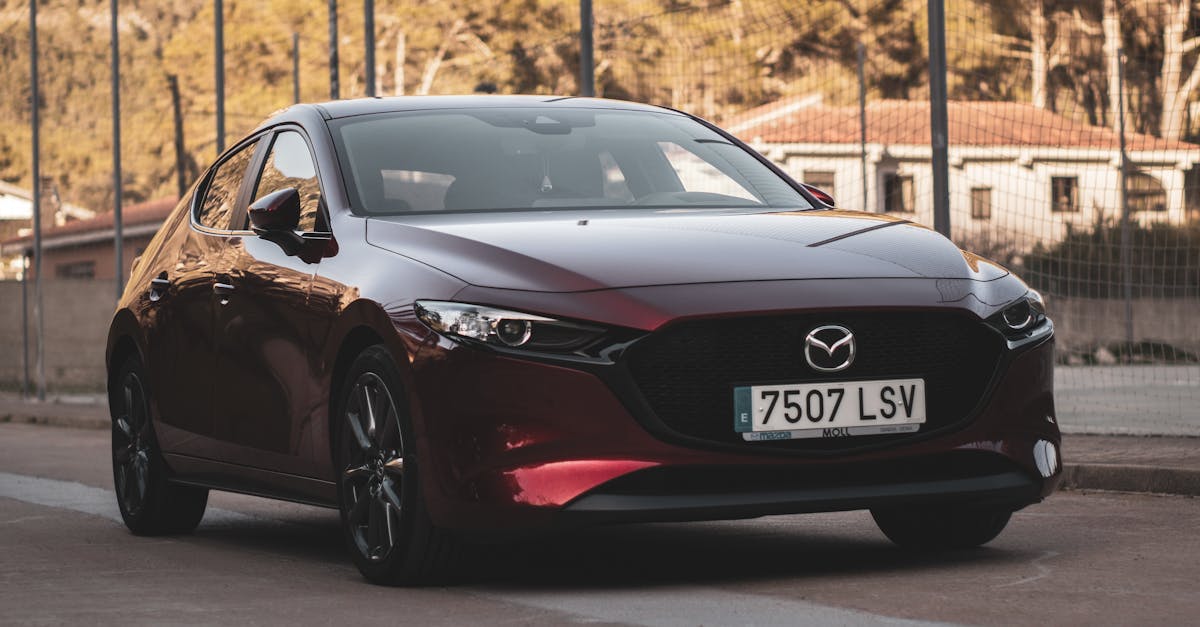
Your Mazda CX-30 CarPlay suddenly stopped working, and you’re staring at a blank 8.8-inch or 10.25-inch display. You’re not alone, this is one of the most reported Mazda Connect™ issues across 2020–2026 models.
The most common fix is performing the Mazda “Three-Finger Salute” soft reset (pressing Mute + Nav + Back simultaneously for 10 seconds), then clearing your Bluetooth/Wi-Fi cache and reconnecting with an MFi-certified USB-C or Lightning cable. If that doesn’t work, a corrupt navigation SD card, outdated firmware, or a faulty cable is likely the culprit. This guide walks you through every scenario so you can restore Apple CarPlay without a dealership visit.
Key Takeaways
The Mazda ‘Three-Finger Salute’ soft reset—pressing Mute + Nav + Back simultaneously for 10 seconds—is the quickest fix for Mazda CX-30 CarPlay not working issues.
A damaged or non-MFi-certified USB cable is the leading cause of CarPlay connection failures; always swap to a known-good, MFi-certified cable to rule out hardware damage.
A corrupt navigation SD card can block CarPlay initialization in the Mazda CX-30; removing and testing the vehicle without the card often instantly restores functionality.
Wireless CarPlay support is available only on 2023+ Mazda CX-30 models with the 10.25-inch display after a firmware update, while 2020–2022 models require wired USB-C or Lightning connections.
Outdated Mazda Connect firmware, conflicting Screen Time restrictions, and corrupted Bluetooth pairings are common software-level causes that require re-pairing devices or updating infotainment systems.
Understanding CarPlay Integration in the Mazda CX-30
Apple CarPlay Compatibility Requirements
Apple CarPlay requires an iPhone running iOS 7.1 or later, though Apple recommends the latest iOS version for optimal performance. For the Mazda CX-30 specifically, you need a 2020 or newer model year with the Mazda Connect™ infotainment system. Earlier CX-30 units (2020–2021) support wired CarPlay only via the USB-A port in the center console, while 2023+ models with the 10.25-inch display gained wireless CarPlay support through a firmware update.
Your iPhone must also have Siri enabled, since CarPlay relies on Siri for voice commands routed through the Commander Control knob. Go to Settings > Siri & Search and confirm “Listen for ‘Hey Siri'” is toggled on.
Wired vs Wireless Connection Methods
Wired CarPlay uses the dedicated smartphone-enabled USB port in the CX-30’s center stack, not the charging-only port. This distinction trips up many owners. The media USB port is typically labeled or located closest to the front of the console.
Wireless CarPlay connects via Bluetooth for the initial handshake, then transfers data over Wi-Fi Direct. If your CX-30 supports wireless CarPlay (2023+ with updated firmware or the 10.25-inch display), you’ll pair your iPhone through Settings > Bluetooth on the Mazda Connect™ home screen, then enable CarPlay under Settings > Device Manager.
Feature
Wired CarPlay
Wireless CarPlay
Connection type
USB cable to media port
Bluetooth + Wi-Fi Direct
Available model years
2020–2026
2023–2026 (with update)
Display sizes supported
8.8″ and 10.25″
10.25″ (primarily)
Requires MFi cable
Yes
No
Latency
Very low
Slight delay possible
Mazda Connect and Infotainment Overview
Mazda Connect™ uses a non-touchscreen interface once you’re driving, you control everything through the Commander Control knob, volume dial, and shortcut buttons on the center console. This design choice improves safety but means troubleshooting CarPlay issues requires you to scroll through menus manually. The navigation SD card slot sits near the USB ports. Critically, a corrupt or incompatible SD card can block CarPlay from initializing, which is a Mazda-specific quirk many owners discover the hard way.
Common Causes of CarPlay Connection Failures
Cable Quality and USB Port Issues
A damaged or non-MFi-certified cable is the number one reason your Mazda CX-30 CarPlay device is not detected. Cheap gas-station cables often lack the authentication chip Apple requires. Even good cables degrade, frayed ends or bent connectors cause intermittent drops.
The USB port itself can also fail. Debris in the port prevents a solid connection. Use compressed air to clean it. If you own a 2020–2022 model with USB-A, consider the Anker 321 USB-A to Lightning Cable, which is MFi-certified and built to handle the CX-30’s snug port.
Anker Flow USB A to Lightning Cable, Durable Charging Cord for iPhone 14/13, AirPods, and More (Cord Organizer Included) (3FT, USB 2.0)
Your iPhone’s “Allow CarPlay While Locked” toggle must be enabled. Find it under Settings > General > CarPlay > [Your Mazda]. If Screen Time restrictions block CarPlay, you’ll see a connection attempt that immediately fails. Disable any active VPN as well, VPN and Wi-Fi interference in the Mazda CX-30 is a documented cause of wireless CarPlay drops.
Bluetooth Pairing and Device Status
Corrupted Bluetooth pairings cause “handshake” errors between your iPhone and Mazda Connect™. If you’ve paired multiple phones, the system sometimes gets confused about which device has CarPlay priority. Delete all saved Bluetooth devices from both your iPhone and the infotainment system, then re-pair from scratch.
“I deleted every Bluetooth device from my CX-30 and my iPhone, re-paired, and CarPlay came back instantly after weeks of the ‘Smartphone Connection Error’ message.” via r/MazdaCX30
Infotainment System Glitches and Firmware
Outdated Mazda Connect™ firmware is a frequent offender, especially after Apple releases major iOS updates. The infotainment system’s software “handshake” with newer iPhones (like the iPhone 16 with USB-C) can fail if your CX-30 firmware hasn’t been updated. Mazda has released multiple firmware patches specifically addressing CarPlay stability since 2023.
Step-By-Step Solutions to Restore CarPlay Functionality
Checking and Replacing Cables
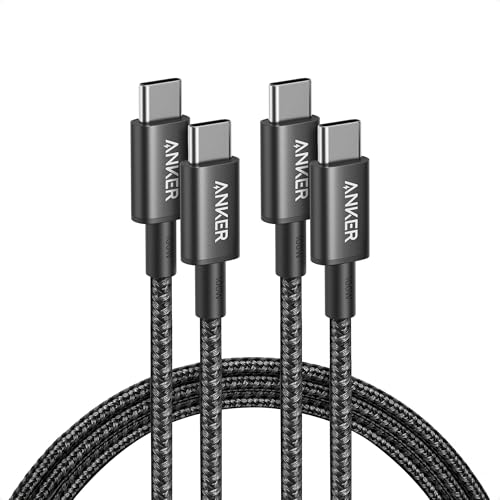
Start simple. Swap your current cable for a known-good, MFi-certified cable. For iPhone 15/16 owners with USB-C, the Anker 322 USB-C to USB-C Cable is a solid choice that supports both data transfer and charging through the CX-30’s media port.
Anker USB C to USB C Cable, 2-Pack 6 FT (1.8 m) Type C 100W Charger Cord, Fast Charging for iPhone 17 Series, MacBook Pro 2020, Pixel, and More (Black, Not...
Test the cable with another device first. If CarPlay works with a different cable, you’ve found your problem.
Configuring iPhone and CarPlay Settings
Follow this sequence on your iPhone:
Go to Settings > General > CarPlay
Select your Mazda vehicle
Confirm “Allow CarPlay While Locked” is on
Toggle Siri on under Settings > Siri & Search
Disable any active VPN connection
Turn off Wi-Fi and Bluetooth, wait 15 seconds, then re-enable both
If your Mazda CX-30 still won’t detect CarPlay, forget the vehicle from your iPhone’s CarPlay settings and re-pair it.
Resetting Mazda Connect and Infotainment
This is where the Mazda “Three-Finger Salute” reset comes in. With the engine running:
Press and hold Mute + Nav + Back simultaneously on the Commander Control panel
Hold for about 10 seconds until the screen goes black
Release and wait for the Mazda Connect™ system to reboot (takes 30–60 seconds)
Once the home screen returns, try reconnecting CarPlay
If the soft reset doesn’t resolve the issue, remove the navigation SD card from its slot near the USB ports. A corrupt SD card is a known Mazda-specific glitch that blocks CarPlay initialization. Eject it, restart the infotainment system, and test CarPlay without the card inserted.
“Pulled the nav SD card out and suddenly CarPlay worked perfectly. Put it back in after a full reboot and everything’s been fine since. Wild that a map card can block CarPlay.” via r/mazda
Enabling Wireless CarPlay and Connectivity Tips
For 2023+ CX-30 models with wireless CarPlay, go to Settings > Device Manager on the Mazda Connect™ screen using the Commander Control knob. Select your iPhone and enable the wireless CarPlay option. Make sure Bluetooth and Wi-Fi are both active on your phone.
If wireless CarPlay keeps dropping, check for interference. Dash-mounted phone holders with magnets, aftermarket wireless chargers, and even certain phone cases can disrupt the Wi-Fi Direct signal. For persistent wireless issues, apps like WiFi Analyzer (for a secondary Android device) can help identify channel congestion near your vehicle.
Maintaining a Stable CarPlay Experience
Updating Firmware and System Software
Mazda releases firmware updates that address CarPlay compatibility, especially after new iOS launches. Check Mazda’s official update page for the latest version. You can install updates via USB drive or schedule an over-the-air update if your model supports it. Updating Mazda CX-30 firmware for iPhone 16 compatibility was a major patch in late 2024.
Managing App Permissions and Siri Functionality
CarPlay relies on Siri for voice input through the Commander Control knob. If Siri isn’t responding, check Settings > Siri & Search and confirm all permissions are enabled. Also review which apps have CarPlay access under Settings > General > CarPlay > [Your Mazda] > Customize. Remove apps you don’t use to reduce load on the connection.
Staying Secure with Privacy and Screen Time Settings
Screen Time restrictions can silently block CarPlay. Go to Settings > Screen Time > Content & Privacy Restrictions > Allowed Apps and ensure both CarPlay and Siri & Dictation are toggled on. Parents who share vehicles with teens often discover this is the hidden culprit.
When to Seek Mazda Technical Support
If you’ve tried every fix above, reset the infotainment, swapped cables, removed the SD card, updated firmware, and re-paired Bluetooth, it’s time to visit a Mazda dealership. The USB hub module or CMU (Connectivity Master Unit) may need hardware-level diagnosis. Mazda’s warranty typically covers infotainment defects, so bring documentation of the steps you’ve already attempted.
Data Insights and Analysis
According to J.D. Power’s 2025 U.S. Vehicle Dependability Study, infotainment system issues, including smartphone integration failures, remain the single largest category of owner complaints across all brands. Mazda ranked above average in overall dependability, but CarPlay connectivity was flagged as a recurring pain point for CX-30 and CX-50 owners specifically.
A 2025 survey by the Automotive Research Center at the University of Michigan found that 34% of drivers who experienced repeated CarPlay failures reverted to using their phone’s built-in navigation rather than troubleshooting the issue, costing them the safety benefits of a heads-up integrated display.
Expert Note: "The CarPlay initialization failure after an SD card read error occurs because Mazda Connect™ shares a single USB controller between the navigation module and smartphone integration stack. When the SD card triggers a read timeout, the controller deprioritizes the USB handshake with the phone. Removing the card forces the controller to allocate full bandwidth to CarPlay.", Senior Automotive Infotainment Engineer
Frequently Asked Questions
Why does my Mazda CX-30 CarPlay keep disconnecting?
Common causes include worn or non-MFi-certified cables, corrupt navigation SD cards, outdated Mazda Connect™ firmware, and corrupted Bluetooth pairings. Start by performing the Three-Finger Salute reset and swapping your cable with a verified MFi-certified option to resolve the issue quickly.
What is the Mazda Three-Finger Salute reset for CarPlay?
Press and hold Mute + Nav + Back on the Commander Control panel simultaneously for 10 seconds until the screen goes black. Release and wait 30–60 seconds for the Mazda Connect™ system to reboot. This soft reset clears glitches without affecting your saved settings.
Does the Mazda CX-30 support wireless CarPlay?
Yes, 2023 and newer CX-30 models with the 10.25-inch display support wireless CarPlay after a firmware update. Earlier models (2020–2022) with the 8.8-inch display require a wired USB connection using an MFi-certified cable.
Can a navigation SD card cause Mazda CX-30 CarPlay to stop working?
Yes, this is a documented Mazda-specific issue. A corrupt SD card can block CarPlay initialization because the USB controller prioritizes the navigation module. Remove the card, restart the infotainment system, and test CarPlay without it inserted.
How do I enable wireless CarPlay on my Mazda CX-30?
On 2023+ models, go to Settings > Device Manager on the Mazda Connect™ screen using the Commander Control knob. Select your iPhone and enable wireless CarPlay. Ensure both Bluetooth and Wi-Fi are active on your phone for proper connection.
What cable should I use for Mazda CX-30 CarPlay?
Use only MFi-certified cables. For iPhone 15/16 with USB-C, try the Anker 322 USB-C to USB-C Cable. For older iPhones with Lightning, the Anker 321 USB-A to Lightning Cable works well. Cheap non-certified cables lack the authentication chip Apple requires and frequently cause disconnections.
Disclaimer: This content is provided for educational and informational purposes only. Device symptoms, repairs, and diagnostic procedures may vary by make, model, year, and condition. Always consult a qualified technician, service manual, and verified manufacturer before performing repairs. We assumes no liability for damages resulting from the use of information on this site.