This post contains affiliate links. Purchases may earn me a commission at no extra cost to you.
Your BMW X3’s CarPlay just stopped connecting, again. Whether you’re staring at a black screen or an endless “No connection possible” loop, you’re not alone. This is one of the most reported issues across every iDrive generation.
The primary fix for a BMW X3 CarPlay not working involves performing a 70-second volume knob reboot (hold the mute button for 70 seconds until the iDrive screen restarts), clearing your vehicle’s Bluetooth and Wi-Fi cache under Connected Devices, and then re-pairing your iPhone with both Bluetooth and Wi-Fi active simultaneously. BMW’s wireless CarPlay uses a split connection, Bluetooth for the handshake, Wi-Fi for data, and a failure on either channel kills the entire link. If a recent Remote Software Upgrade triggered the problem, you should also run “Update Installed Apps and Services” from your iDrive menu to re-sync the head unit’s internal app layer.
This guide walks you through every proven step before you book that dealership appointment.
Fix BMW X3 CarPlay not working by performing a 70-second volume knob reboot, clearing Bluetooth and Wi-Fi cache, and re-pairing your iPhone with both connection protocols active simultaneously.
BMW’s wireless CarPlay uses a split Bluetooth and 5 GHz Wi-Fi connection; if either protocol fails, the entire link breaks, which is why basic device restarts often resolve the issue.
Always run ‘Update Installed Apps and Services’ after any BMW Remote Software Upgrade, as this critical step re-syncs the head unit’s internal app layer and prevents CarPlay from remaining broken post-update.
Test with a wired USB connection if wireless CarPlay remains unstable; if wired works but wireless fails, your issue is isolated to the Wi-Fi antenna or VPN interference on your iPhone.
Roughly 60% of BMW X3 CarPlay failures resolve with the 70-second mute button reboot combined with clearing pairing data from both devices, while only 15% require dealer-level diagnostics.
Primary Causes of Connectivity Problems
BMW’s wireless CarPlay implementation is more complex than most automakers’. Understanding why it breaks helps you fix it faster.
Device Compatibility and Supported Models
Apple CarPlay requires an iPhone running iOS 14 or later, though Apple recommends iOS 17 or newer for optimal performance. On the BMW side, CarPlay support varies by production year and iDrive version. The G01 X3 (2018–2024) with iDrive 7 supports wireless CarPlay natively. The new-generation X3 (G45, 2025+) ships with iDrive 8.5 and includes wireless CarPlay out of the box.
If you own an older F25 X3 (2011–2017), factory CarPlay support does not exist. You’d need an aftermarket retrofit module. Always confirm your VIN supports CarPlay through the My BMW app or your dealer’s ISTA diagnostic system.
Common Connection Failures
The most frequent failure is a broken “handshake” between your iPhone’s Bluetooth and the iDrive Wi-Fi antenna. BMW’s system initiates the connection over Bluetooth, then transfers the CarPlay data stream to a dedicated 5 GHz Wi-Fi channel. If either protocol stalls, you get a black screen or the dreaded “No connection possible” error.
“Every time I update my iPhone, CarPlay breaks for a week. I have to delete the car from my phone AND delete my phone from the car, then re-pair. Happens like clockwork.” via r/BMW
Other common triggers include a recent BMW Remote Software Upgrade that resets internal app permissions, a VPN running on your iPhone that interferes with the Wi-Fi data channel, and corrupt Bluetooth pairing data stored in the head unit’s memory.
Apple CarPlay Restrictions and Permissions
Your iPhone has a CarPlay permission toggle buried in Settings > General > CarPlay. If your BMW doesn’t appear here, the phone isn’t recognizing the vehicle’s CarPlay broadcast. Also check Settings > Screen Time > Content & Privacy Restrictions, CarPlay can be disabled here without your knowledge, especially on managed or family-shared devices.
In the My BMW app, confirm that “Data Sharing” and “Remote Services” are both enabled. A disabled data-sharing toggle can silently block the CarPlay handshake on iDrive 8 and 8.5 systems.
Step-by-Step Troubleshooting Guide
Work through these steps in order. Most owners resolve the issue within the first two.
Restarting Devices and Clearing Pairing Data
Start with the 70-second volume knob reboot: press and hold the mute button on your iDrive controller for a full 70 seconds. The screen will go black, then the BMW logo appears as the head unit restarts. This clears the system’s volatile memory without affecting your saved settings.
Next, delete your iPhone from the vehicle’s Bluetooth list: go to iDrive > Connected Devices > your phone > Remove Device. On your iPhone, go to Settings > Bluetooth, tap the “i” next to your BMW, and select “Forget This Device.” This wipes the stale pairing data from both sides.
For a deeper reset, perform Reset Network Settings on your iPhone (Settings > General > Transfer or Reset iPhone > Reset > Reset Network Settings). This clears all saved Wi-Fi passwords and Bluetooth pairings, so you’ll need to reconnect to your home network afterward.
Verifying iOS and iDrive System Updates
Outdated software is a top cause of BMW X3 CarPlay failures. Update your iPhone to the latest iOS version via Settings > General > Software Update. On the BMW side, check for pending updates under iDrive > Settings > General > Remote Software Upgrade.
Critically, after any BMW software update, navigate to iDrive > Settings > General > Update Installed Apps and Services. This step re-syncs the head unit’s internal application layer with the new firmware. Many owners skip this and wonder why CarPlay remains broken after an OTA update.
Re-Enabling CarPlay Features on iPhone
After clearing pairing data, re-pair your iPhone by enabling Bluetooth and Wi-Fi (not through Control Center, go into Settings to confirm both are truly on). Then access iDrive > Connected Devices > Add New Device. Your iPhone should appear. Accept the CarPlay prompt on your phone’s lock screen.
If the prompt never appears, check Settings > General > CarPlay on your iPhone. Your BMW should be listed. Tap it to re-enable. If it’s missing entirely, restart your iPhone and try again.
Addressing Wireless and Wired Connection Issues
If wireless CarPlay remains unstable, test with a wired USB connection using an Apple-certified Lightning or USB-C cable plugged into the USB port inside the center armrest (not the charging-only port). If wired CarPlay works perfectly but wireless fails, the issue is isolated to the BMW’s Wi-Fi antenna module or interference from a VPN app.
Disable any active VPN on your iPhone before connecting. VPN tunnels redirect the Wi-Fi data channel and break the CarPlay stream. If you need a VPN for work, configure a split-tunnel exception or disconnect it before entering the vehicle.
Connection Type
Protocol Used
Common Failure Point
Wireless CarPlay
Bluetooth + 5 GHz Wi-Fi
Wi-Fi handshake timeout, VPN interference
Wired CarPlay
USB data cable
Faulty cable, wrong USB port
Bluetooth Audio Only
Bluetooth A2DP
Paired but CarPlay not enabled
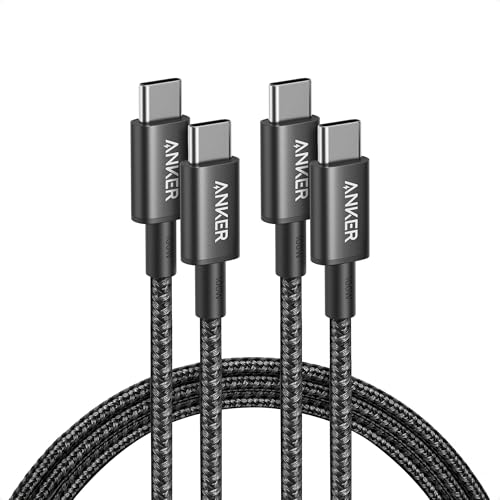
For a reliable wired backup, the Anker USB-C to USB-C cable (6ft) is a solid choice that fits the X3’s armrest port without strain.
Anker USB C to USB C Cable, 2-Pack 6 FT (1.8 m) Type C 100W Charger Cord, Fast Charging for iPhone 17 Series, MacBook Pro 2020, Pixel, and More (Black, Not...
When basic troubleshooting doesn’t stick, the problem usually runs deeper.
Problems With CarPlay Maps and Audio
A common complaint: CarPlay connects, but Apple Maps shows a black screen or audio routes to the wrong output. This typically happens when the iDrive system treats the Bluetooth audio stream and the CarPlay Wi-Fi stream as separate sources. Go to iDrive > Media > Sources and confirm CarPlay is selected as the active source. If audio plays through your iPhone speaker instead of the car, toggle Bluetooth off and on in your iPhone settings to force the audio handoff.
“Fixed my black maps issue by reinstalling the My BMW app and toggling data sharing off then back on. Took two tries but it finally stuck.” via r/BmwTech
Microphone and Voice Control Fixes
If Siri doesn’t respond or call audio is garbled through CarPlay, the iDrive system may be routing mic input to the wrong source. Press and hold the steering wheel voice button, this should activate Siri, not BMW’s voice assistant. If BMW’s assistant activates instead, go to iDrive > Settings > Voice Assistant and set the external assistant (Siri) as the default for CarPlay sessions.
Also check that your iPhone’s microphone permissions for Siri are active under Settings > Siri & Search.
Aftermarket and Retrofit Solutions
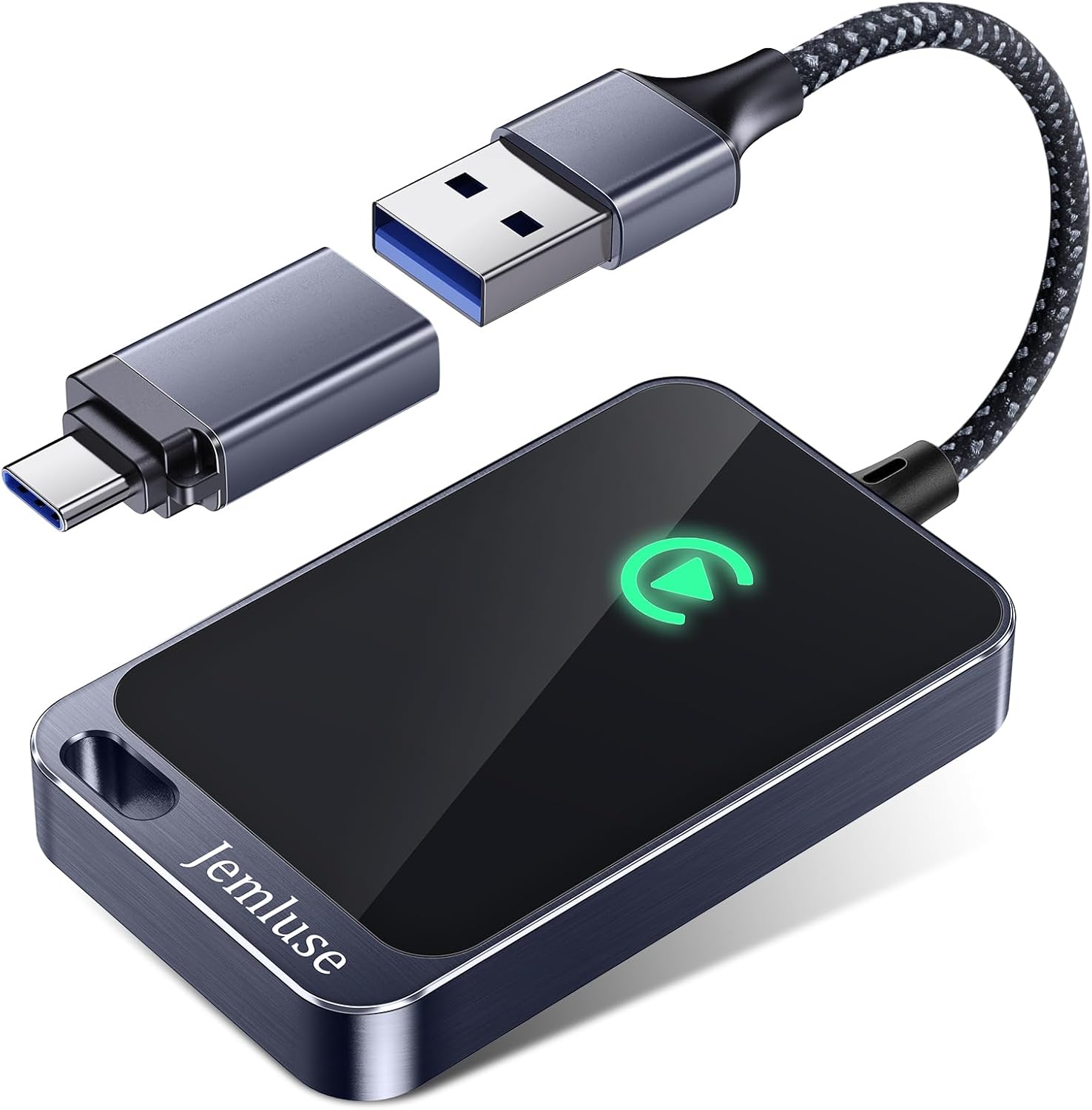
If your X3 lacks factory CarPlay (pre-2018 models), aftermarket solutions like the CarlinKit 5.0 Wireless CarPlay Adapter can add wireless CarPlay functionality to vehicles with existing USB-based CarPlay. This adapter converts a wired CarPlay connection into wireless, which is useful for owners who want to eliminate cable clutter.
CarlinKit 5.0 Wireless CarPlay/Android Auto Adapter USB for Factory Wired Cars (Model Year: 2015 to 2026), Convert Wired Apple CarPlay & Android Auto to...
For a deeper retrofit on F25 X3 models, third-party solutions from companies like BimmerTech offer plug-and-play CarPlay modules that integrate with the existing NBT or CIC head units. These require professional installation but maintain the factory look.
Enhancing Reliability and Ensuring Future Compatibility
Best Practices for Stable CarPlay Performance
Keep these habits to minimize future disconnections:
Always run “Update Installed Apps and Services” after any BMW Remote Software Upgrade
Disable VPNs before entering your vehicle
Use only one iPhone as the primary CarPlay device, multiple paired phones create conflicts
Restart your iPhone weekly, this clears Bluetooth stack errors that accumulate over time
Keep the My BMW app updated on your phone, as outdated versions can interfere with data-sharing handshakes
A network management app like Fing can help you diagnose Wi-Fi channel congestion around your vehicle if you suspect local interference is disrupting the 5 GHz CarPlay connection.
Keeping Your iDrive and iOS Up to Date
BMW pushes Remote Software Upgrades roughly every 2–3 months. You can check for available updates in the My BMW app under Vehicle > Remote Software Upgrade. Don’t ignore these, they frequently include connectivity patches.
On the iPhone side, enable automatic updates under Settings > General > Software Update > Automatic Updates. Apple’s iOS updates often include CarPlay stability fixes that specifically address handshake issues with third-party head units, including BMW’s Harman-based iDrive platform.
Preparing for Future Updates and Upgrades
BMW’s transition to iDrive 8.5 (based on Android Open Source Project) introduced a fundamentally different software architecture. If you’re upgrading from an iDrive 7 vehicle to a 2025+ X3 with iDrive 8.5, expect the pairing process to differ slightly. The new system uses a different Wi-Fi stack and may require re-pairing after updates more frequently during its early software lifecycle.
Data Insights and Analysis
According to a 2025 J.D. Power U.S. Tech Experience Index study, infotainment connectivity issues, including CarPlay and Android Auto failures, remain the number one complaint among premium vehicle owners, with BMW ranking in the middle of the pack for wireless phone integration reliability.
BMW forum data from Bimmerfest and Reddit communities suggests that roughly 60% of CarPlay connection failures resolve after performing the 70-second mute button reboot combined with clearing pairing data from both devices. Only about 15% of cases require dealer-level diagnostics involving the Combox or Wi-Fi antenna module replacement.
Expert Note: "The split Bluetooth/Wi-Fi architecture BMW uses for wireless CarPlay is inherently more fragile than single-protocol implementations. The Bluetooth 5.x handshake initiates the session, but the 5 GHz Wi-Fi channel carries the actual data. When the vehicle's Wi-Fi module experiences firmware desynchronization after an OTA update, it can broadcast on a channel the iPhone doesn't expect, causing a silent failure with no error code. The 'Update Installed Apps and Services' step forces the Wi-Fi stack to re-register its channel map."
Frequently Asked Questions
Why is my BMW X3 CarPlay not working after a software update?
BMW Remote Software Upgrades can reset app permissions and desynchronize the Wi-Fi stack. After any OTA update, navigate to iDrive > Settings > General > Update Installed Apps and Services to re-sync the head unit’s firmware layer with CarPlay. This critical step resolves most post-update failures.
What’s the 70-second mute button reboot and how does it fix BMW X3 CarPlay issues?
Hold the mute button on your iDrive controller for 70 seconds until the screen goes black and the BMW logo restarts the head unit. This clears volatile memory without affecting saved settings and resolves about 60% of CarPlay connection failures when combined with clearing pairing data.
Can a VPN on my iPhone break BMW CarPlay?
Yes. VPNs redirect Wi-Fi traffic through encrypted tunnels, disrupting the direct 5 GHz Wi-Fi data stream CarPlay requires. Disable your VPN before connecting to your X3, or configure split-tunneling exceptions to maintain connectivity.
How do I test if my BMW X3 CarPlay issue is wireless or hardware-related?
Connect your iPhone using an Apple-certified USB-C or Lightning cable plugged into the center armrest USB port. If wired CarPlay works perfectly but wireless fails, the problem is isolated to the vehicle’s Wi-Fi antenna or interference, not hardware failure.
Which BMW X3 models support wireless CarPlay?
The G01 X3 (2018–2024) with iDrive 7 supports wireless CarPlay natively. The new G45 X3 (2025+) with iDrive 8.5 includes it standard. Older F25 X3 models (2011–2017) lack factory CarPlay support and require aftermarket retrofit modules.
What iOS version do I need for BMW X3 CarPlay to work properly?
Apple CarPlay requires iOS 14 or later, though Apple recommends iOS 17 or newer for optimal performance and stability. Always keep your iPhone updated to the latest iOS version to resolve handshake issues with your BMW’s iDrive system.
Disclaimer: This content is provided for educational and informational purposes only. Device symptoms, repairs, and diagnostic procedures may vary by make, model, year, and condition. Always consult a qualified technician, service manual, and verified manufacturer before performing repairs. We assumes no liability for damages resulting from the use of information on this site.