This post contains affiliate links. Purchases may earn me a commission at no extra cost to you.
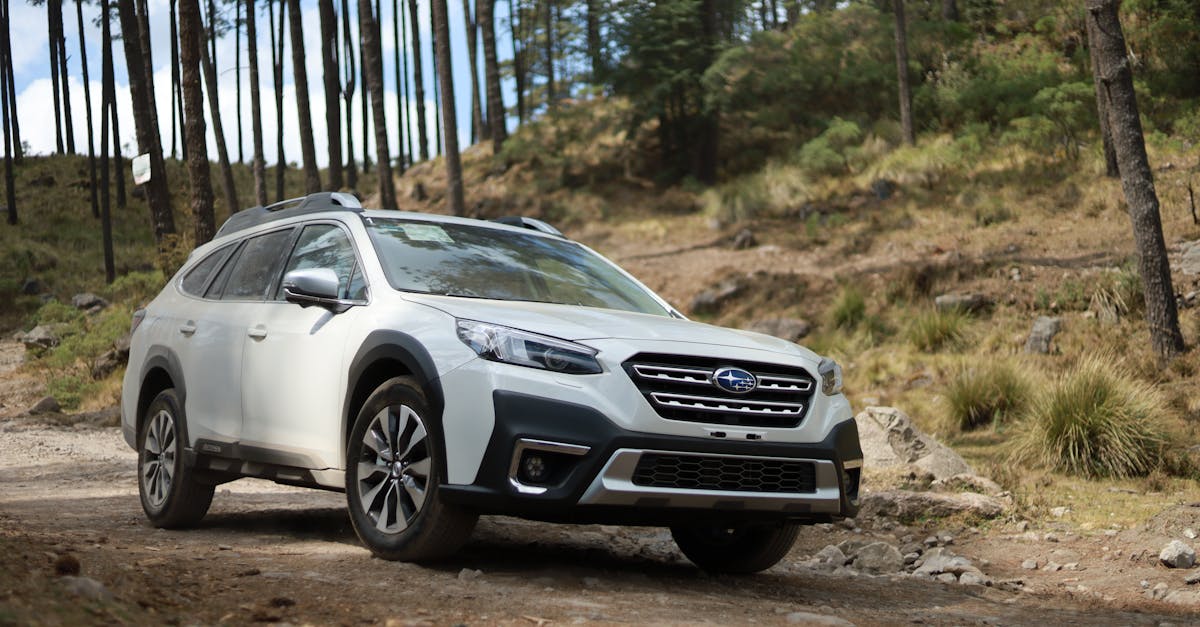
Few things are more frustrating than your Subaru Outback’s 11.6-inch STARLINK touchscreen refusing to connect to CarPlay right when you need directions most.
If your Subaru Outback CarPlay is not working, the issue almost always traces back to one of three culprits: a non-MFi-certified USB cable failing the data handshake, a corrupt driver profile in the STARLINK infotainment system, or a wireless connectivity conflict caused by a VPN or 5GHz Wi-Fi interference on your iPhone. A 30-second power button reset on the infotainment head unit resolves the majority of these connection failures without a dealership visit.
This guide walks you through every fix, from a quick cable swap to a full system reset, so you can get CarPlay running again on your 2020–2026 Outback in minutes.
Subaru Outback CarPlay not working usually stems from three main issues: non-MFi-certified USB cables, corrupt STARLINK driver profiles, or wireless conflicts caused by VPNs and 5GHz Wi-Fi interference.
A 30-second power button reset on the STARLINK infotainment head unit resolves the majority of Subaru Outback CarPlay connection failures without requiring a dealership visit.
Always use the designated MEDIA USB port (marked with a smartphone icon in the center console) for wired CarPlay, as other USB ports are charge-only and will trigger a ‘No Device Detected’ error.
Disabling your VPN before entering the vehicle or configuring it to exclude local Wi-Fi connections instantly resolves most wireless CarPlay handshake failures on Subaru systems.
Forgetting and re-pairing your iPhone on both the STARLINK touchscreen and your phone’s Bluetooth settings clears the cache and forces a fresh connection, fixing persistent wireless CarPlay issues.
Keep your STARLINK firmware and iPhone iOS versions current, as mismatches between the two can cause CarPlay handshake failures after major system updates.
Key Causes of CarPlay Malfunctions in Subaru Outback
Before you start swapping cables or factory-resetting anything, it helps to understand why your Subaru Outback STARLINK CarPlay connection fails. The vertical tablet-style display in the Outback uses a Linux-based infotainment platform that communicates with your iPhone through a specific USB data protocol or a wireless Bluetooth/Wi-Fi handshake. When any link in that chain breaks, you get the dreaded “No Device Detected” message.
Cable and USB Port Issues
The single most common cause of CarPlay failure is a bad cable. Subaru’s STARLINK system requires an MFi-certified (Made for iPhone) cable that supports full USB 2.0 data transfer, not just charging. Many generic USB-C to Lightning or USB-C to USB-C cables only carry power, which triggers the “No Device Detected” USB port error.
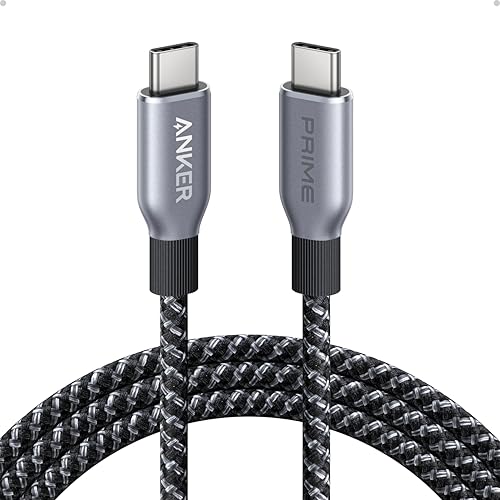
Damaged or frayed cables also cause intermittent disconnects. If your Subaru Outback Apple CarPlay connection keeps dropping every few minutes, inspect the cable’s connector tips for bent pins or debris. The Anker 765 USB-C to USB-C cable is a reliable MFi-certified option that many Outback owners recommend on forums.
Anker Prime USB C to USB C Cable, 240W Fast Charging Cord, Upcycled-Braided Nylon with 100-Year Bend Durability for iPhone 17 Series, MacBook, Galaxy S24(6 FT)
Subaru rolled out CarPlay support starting with the 2020 model year, but not all STARLINK firmware versions handle CarPlay equally well. Older software builds on the 11.6-inch touchscreen can struggle with newer iPhone models, especially after iOS updates that change the CarPlay communication protocol.
A corrupt driver profile can also block CarPlay entirely. The STARLINK system stores Bluetooth pairings, Wi-Fi credentials, and CarPlay permissions per driver profile. If that profile data becomes corrupted, often after an interrupted OTA update, the system can’t complete the connection handshake. Deleting your Subaru driver profile to fix the CarPlay bug is a proven step many technicians use before deeper diagnostics.
Wireless CarPlay and Network Conflicts
Wireless CarPlay on the Outback relies on a combination of Bluetooth for initial pairing and a peer-to-peer 5GHz Wi-Fi link for data. This dual-channel setup is sensitive to interference. An active VPN on your iPhone is one of the most overlooked culprits, it reroutes network traffic in a way that breaks the wireless CarPlay handshake.
“Turned off my VPN and CarPlay instantly connected wirelessly. Months of frustration solved in 5 seconds.” via r/subaru
Resolving VPN interference with Subaru wireless CarPlay is as simple as disabling the VPN before entering the vehicle, or setting your VPN app to exclude local Wi-Fi connections.
iOS and Infotainment Software Updates
Apple and Subaru both push updates that affect CarPlay stability. A mismatch between your iPhone’s iOS version and your STARLINK firmware version can cause handshake failures. Always check for pending Subaru STARLINK software 2026 OTA updates under Settings > General > System Update on your touchscreen. On your iPhone, go to Settings > General > Software Update to ensure you’re running the latest iOS release.
Connection Troubleshooting Steps
Now let’s get practical. Follow these steps in order, each one eliminates a specific failure point.
Inspecting and Replacing Cables
Start by swapping your USB cable for a known-good MFi-certified one. Use a cable that’s under 3 feet long, since longer cables can introduce signal degradation on USB 2.0 connections. Test with a different cable before assuming the port or phone is the problem.
The Anker USB-C to USB-C adapter hub can also help diagnose whether the issue is the port or the cable, especially if you need to test multiple connection types.
Anker USB C Hub 332 (5-in-1, 4K HDMI) Adapter – Expand USB-C Laptop with 4K HDMI, 2 USB-A 3.0 Ports, SD/TF Card Readers, Compact Dock Compatible with...
This trips up more Outback owners than you’d expect. The Subaru Outback has multiple USB ports, but only the designated media USB port supports CarPlay data transfer. On 2020–2026 models, this port is typically located in the center console and marked with a smartphone icon or labeled “MEDIA.” The other ports are charge-only. Plugging into the wrong one produces a “No Device Detected” error every time.
Cleaning a Dirty USB Port
Dust, lint, and trail debris accumulate fast in an Outback, especially if you use your vehicle for outdoor adventures. A dirty USB port can prevent a solid electrical connection. Use a wooden toothpick or plastic spudger to gently clear debris from the port. Avoid metal tools, which can short the pins.
Forgetting and Re-Pairing the Car
Re-pairing your iPhone with Subaru via Bluetooth and Wi-Fi often resolves persistent wireless CarPlay issues. Here’s the sequence:
On your iPhone: Go to Settings > Bluetooth, tap the “i” next to your Subaru, and select Forget This Device
On the STARLINK touchscreen: Go to Settings > Bluetooth and delete your phone from the paired devices list
Restart both your iPhone and the infotainment system
Re-pair by enabling Bluetooth on your iPhone and selecting your Subaru from the discovered devices
This clears the Bluetooth/Wi-Fi cache and forces a fresh handshake, which fixes the majority of troubleshooting Subaru wireless CarPlay handshake errors.
“After forgetting the device on both ends and re-pairing, wireless CarPlay has been rock solid for two weeks now.” via r/SubaruOutback
Configuring iPhone and Subaru Settings for CarPlay
Sometimes CarPlay won’t connect because of a simple settings oversight on your iPhone or the STARLINK system.
Allowing CarPlay While Locked
Your iPhone must have “Allow CarPlay While Locked” enabled, or the system can’t launch CarPlay when the phone is in your pocket or bag. Go to Settings > General > CarPlay, select your Subaru, and toggle on Allow CarPlay While Locked. This is one of the most frequently missed Subaru “Allow CarPlay While Locked” settings on iPhone.
Managing Device Pairings and Restrictions
If you’ve paired multiple phones with your Outback, the STARLINK system may default to a previously connected device. Check the CarPlay device priority list on your touchscreen under Settings > Smartphone > CarPlay. Remove old devices you no longer use. On your iPhone, also check Settings > Screen Time > Content & Privacy Restrictions, if CarPlay is restricted there, it won’t connect regardless of cable or wireless setup.
Updating and Enabling CarPlay Features
Keep both your iPhone and STARLINK system current. For a forced restart on iPhone 16 for Subaru CarPlay fix, press and quickly release the Volume Up button, then Volume Down, then hold the Side button until you see the Apple logo. This clears temporary glitches that block CarPlay.
Here’s a quick comparison of wired vs. wireless CarPlay on the Outback:
Feature
Wired CarPlay
Wireless CarPlay
Connection method
USB-C cable to MEDIA port
Bluetooth + 5GHz Wi-Fi
Reliability
High (direct data link)
Moderate (sensitive to interference)
Setup complexity
Plug and play
Requires pairing + Wi-Fi handshake
Common failure cause
Bad cable or wrong port
VPN, Wi-Fi conflict, or corrupt profile
Latency
Minimal
Slight delay possible
Advanced Fixes and Support Options
Resetting Infotainment and iPhone
The hard reset Subaru infotainment power button 30 seconds method is the go-to fix when the 11.6-inch touchscreen freezes or shows a black screen. Press and hold the power/volume knob on the STARLINK unit for a full 30 seconds. The screen will go dark, then reboot. This clears the system’s temporary cache without erasing your saved settings.
If the touchscreen remains unresponsive, a fix for Subaru 11.6-inch touchscreen black screen, you can also pull the infotainment fuse (check your owner’s manual for the exact fuse location) for 60 seconds, then reinsert it. This performs a deeper reset.
For software-side troubleshooting on your devices, an app like iMazing can help you manage iPhone backups and profiles, which is useful if you suspect a corrupt CarPlay configuration file on your phone.
When to Seek Subaru Support
If you’ve tried every step above and CarPlay still won’t connect, it’s time to visit your Subaru dealer. Specific red flags include: the USB MEDIA port showing no power at all, the touchscreen rebooting in a loop, or CarPlay working in another vehicle but not your Outback. These symptoms point to a hardware fault, possibly the USB hub module or the head unit’s Wi-Fi antenna, that requires dealer-level diagnostic tools.
For ongoing Subaru Outback STARLINK CarPlay connection fix needs, consider these habits:
Always disable VPNs before connecting
Use a single, high-quality MFi cable and keep a spare
Periodically clear your driver profile and re-pair
Enable automatic STARLINK OTA updates so you don’t fall behind on firmware patches
Data Insights & Analysis
According to J.D. Power’s 2025 U.S. Tech Experience Index, infotainment connectivity problems, including CarPlay and Android Auto failures, remain the number-one complaint category among vehicle owners, affecting roughly 1 in 4 new car buyers in the first 90 days of ownership. Subaru’s STARLINK system, while improved in recent model years, still generates significant discussion on forums like r/SubaruOutback, with wireless CarPlay handshake errors spiking after major iOS updates.
Expert Note: "The wireless CarPlay handshake failure in Subaru's STARLINK system isn't a hardware defect in most cases, it's a protocol timing issue. The head unit's Wi-Fi radio expects a response within a narrow window, and when the iPhone's network stack is delayed by a VPN or background app refresh, the connection times out silently. Clearing the Bluetooth/Wi-Fi cache and forcing a fresh pairing resets those timing parameters."
Frequently Asked Questions
Why is my Subaru Outback CarPlay not working?
The most common causes are a non-MFi-certified USB cable, a corrupt driver profile in the STARLINK infotainment system, or wireless connectivity conflicts from a VPN or 5GHz Wi-Fi interference. A 30-second power reset on the head unit resolves most issues without a dealership visit.
What type of USB cable do I need for Subaru Outback CarPlay?
You need an MFi-certified (Made for iPhone) USB cable that supports full USB 2.0 data transfer, not just charging. Many generic cables only provide power, causing ‘No Device Detected’ errors. The Anker 765 USB-C to USB-C cable is a reliable option recommended by Outback owners.
How do I fix wireless CarPlay on my Subaru Outback?
First, disable any VPN on your iPhone before connecting—this is the most overlooked cause. Then forget the device on both your iPhone (Settings > Bluetooth) and the STARLINK touchscreen, restart both, and re-pair. This clears the Bluetooth/Wi-Fi cache and forces a fresh handshake that resolves most wireless CarPlay issues.
Which USB port on my Subaru Outback supports CarPlay?
Only the designated MEDIA USB port supports CarPlay data transfer. On 2020–2026 Outback models, it’s typically in the center console and marked with a smartphone icon or labeled ‘MEDIA.’ Other USB ports are charge-only and will produce a ‘No Device Detected’ error.
How do I perform a hard reset on Subaru STARLINK infotainment?
Press and hold the power/volume knob on the STARLINK unit for a full 30 seconds. The screen will go dark and then reboot, clearing the system’s temporary cache without erasing your saved settings. This resolves most freezing, black screen, and connectivity issues.
Can outdated iOS or STARLINK firmware cause CarPlay to fail?
Yes. Mismatches between your iPhone’s iOS version and STARLINK firmware can cause connection handshake failures. Always check for pending STARLINK OTA updates under Settings > General > System Update on your touchscreen and update your iPhone via Settings > General > Software Update.
Disclaimer: This content is provided for educational and informational purposes only. Device symptoms, repairs, and diagnostic procedures may vary by make, model, year, and condition. Always consult a qualified technician, service manual, and verified manufacturer before performing repairs. We assumes no liability for damages resulting from the use of information on this site.