
You’re ready to work, stream, or browse, and your laptop’s internet just won’t connect. That yellow warning triangle mocks you. Your phone loads pages fine, but your computer sits there like it’s never seen Wi-Fi before.
When your internet on laptop not working, start with the basics: toggle your Wi-Fi switch or Airplane Mode off, restart both your laptop and router, check if other devices connect successfully, and run Windows’ built-in Network Troubleshooter to automatically detect and repair common connection glitches before diving into driver updates or network resets.
Most laptop internet issues stem from temporary software hiccups, confused network profiles, or outdated adapter drivers, not catastrophic hardware failure. You don’t need a technician or expensive repairs for most of these freezes. This guide walks you through real-world, desk-friendly fixes that solve 90% of dead connections in under 15 minutes.

Key Takeaways
- Start by toggling Airplane Mode off, restarting your laptop and router, and running Windows’ Network Troubleshooter—these basic steps fix 90% of internet on laptop not working issues within 15 minutes.
- Check Device Manager for yellow exclamation marks or red X symbols on your Wi-Fi adapter, then update or enable drivers to resolve software-level connectivity problems.
- Test your internet on a different Wi-Fi network (mobile hotspot or public network) to isolate whether the issue is with your laptop’s adapter or your home router.
- Use Command Prompt commands like ipconfig /release, ipconfig /renew, and ipconfig /flushdns to clear corrupted DNS caches and reset TCP/IP settings when your laptop shows ‘connected but no internet.’
- If basic troubleshooting fails, perform a Windows Network Reset or disable Wi-Fi power-saving mode—these advanced fixes resolve 60% of stubborn cases without requiring professional help.
Initial Checks for Laptop Internet Issues
Confirm Wi-Fi or Ethernet Status
Before you panic, check the obvious stuff. Look at your laptop’s system tray (bottom-right corner on Windows). Is the Wi-Fi icon showing a globe, an exclamation mark, or a red X? If you see a tiny airplane symbol, you’ve accidentally enabled Airplane Mode, click it and toggle Airplane Mode off. Some laptops have physical Wi-Fi switches on the side or function key combos (usually Fn + F2 or Fn + F12) that disable wireless completely. I’ve seen dozens of frustrated users who simply bumped that switch without realizing it.
If you’re using Ethernet, make sure the cable clicks firmly into both the laptop port and the router. Swap cables if you have a spare, cheap cables fray internally and look fine from the outside. Check if the Ethernet port’s LED blinks when the cable is connected. No blink? Dead port or bad cable.
Check for Internet Outage or Service Issues
Grab your smartphone or tablet and connect to the same Wi-Fi network. Can you load a webpage or stream a video? If yes, the internet service itself is fine, the problem lives inside your laptop. If no device can access the web, your internet service provider might be down, your router crashed, or your modem lost its connection to the outside world.
Restart your router and modem by unplugging them for 30 seconds, then plugging them back in. Wait two minutes for them to fully boot. This clears temporary routing table corruption and refreshes your public IP assignment. According to Microsoft’s network troubleshooting documentation, power cycling network hardware resolves about 30% of home connection complaints.
Verify Device-Specific Settings
Open your Wi-Fi settings and confirm you’re connected to the correct network. Sometimes laptops auto-join a neighbor’s open hotspot or a saved guest network with no internet access. Click the network name, select “Forget,” then reconnect and re-enter your password.
Check if your laptop shows “Connected, no internet” or “Limited access.” That message usually means your device talks to the router but can’t reach the broader internet, often a DHCP or DNS hiccup. We’ll fix that in the next sections.
Troubleshooting Connection Problems
Run the Network Troubleshooter
Windows ships with a built-in diagnostic wizard that auto-detects and repairs common glitches. Right-click the Wi-Fi or Ethernet icon in your system tray, then select “Troubleshoot problems.” The wizard checks adapter status, IP configuration, DNS resolution, and gateway reachability. It takes about two minutes and fixes issues like stuck DHCP leases or disabled adapters without you touching a single command line.
I’ve used this tool hundreds of times in help-desk scenarios, and it genuinely works for software-level freezes. If the troubleshooter says “Fixed” or “Completed,” test your browser immediately. If it reports “Could not identify the problem,” move to manual fixes.
Restart Devices and Network Hardware
Restart your laptop. Seriously. A fresh boot clears cached network state, reloads drivers, and resets the network stack. Combine that with the router power cycle from earlier, and you’ve eliminated the most common transient bugs.
After the restart, wait 30 seconds before opening a browser. Let Windows fully initialize the network adapter and request a fresh IP address from your router. If pages load now, you’re done, no advanced tweaks needed.
Use Device Manager to Diagnose Hardware
Press Win + X and select “Device Manager.” Expand “Network adapters.” Look for a yellow exclamation mark or red X next to your Wi-Fi adapter (often labeled “Intel Wireless” or “Realtek 802.11”). A yellow triangle means the driver crashed or Windows flagged a conflict. A red X means the adapter is disabled.
Right-click the adapter and choose “Enable device” if it’s disabled. If you see a yellow warning, right-click and select “Update driver,” then “Search automatically for drivers.” Windows pulls the latest stable version from its catalog. For persistent errors, visit Intel’s driver download page or Realtek’s support site for manufacturer-specific updates.
“I had the yellow triangle for days. Updated the Realtek driver from Device Manager and boom, instant connection.” via r/techsupport
Test with Different Networks
Connect to a mobile hotspot from your phone or try a different Wi-Fi network (a neighbor’s guest network, a coffee shop, a library). If your laptop connects elsewhere, your home router or its configuration is the culprit. If it fails everywhere, the laptop’s wireless adapter or its driver is broken.
This isolation step saves hours of guessing. I once spent 20 minutes tweaking router channels before realizing the laptop’s adapter was in a permanent error state.
Resetting and Repairing Network Settings
Network Reset in Windows
If basic troubleshooting fails, Windows offers a nuclear “Network Reset” that reinstalls all adapters and clears every saved setting. Go to Settings → Network & Internet → Advanced network settings → Network reset. Click “Reset now” and confirm. Your laptop restarts, wipes all Wi-Fi passwords, VPN configs, and adapter customizations, then reinstalls fresh network drivers.
This fix works when corrupted profiles or conflicting protocol bindings block connectivity. You’ll need to re-enter Wi-Fi passwords afterward, so keep them handy. According to How-To Geek’s network reset guide, this resolves about 60% of stubborn “no internet” cases.
Flush DNS and Reset TCP/IP Settings
Open Command Prompt as Administrator (search “cmd,” right-click, select “Run as administrator”). Type these commands one by one, pressing Enter after each:
ipconfig /release

ipconfig /renew

ipconfig /flushdns

netsh winsock reset

netsh int ip reset
These commands release your current IP, request a new one, clear the DNS cache (which stores old, possibly broken website-to-IP mappings), and reset the TCP/IP stack to factory defaults. The whole sequence takes under a minute. Restart your laptop after the last command.
DNS cache corruption causes “connected but no internet” symptoms, your laptop thinks google.com points to a bad IP. Flushing it forces a fresh lookup. Cloudflare’s DNS troubleshooting article explains why DNS glitches feel like total internet failure.
Forget and Reconnect to Known Networks
Go to Settings → Network & Internet → Wi-Fi → Manage known networks. Find your home network, click it, and select “Forget.” Then reconnect from scratch: click the Wi-Fi icon, choose your network, enter the password. This clears corrupted security credentials or outdated DHCP leases tied to that profile.
Sometimes routers assign the same IP to two devices, causing an IP conflict. Forgetting and rejoining forces a new DHCP handshake and a fresh IP assignment.
Update Network Adapter Drivers
If Device Manager’s auto-update didn’t help, visit your laptop manufacturer’s support page (Dell, HP, Lenovo, ASUS, etc.) and download the latest Wi-Fi driver for your exact model. Uninstall the current driver in Device Manager (right-click adapter → Uninstall device, check “Delete the driver software”), restart, then install the downloaded package.
Driver updates fix compatibility bugs with Windows 11 22H2/23H2 builds and patch security flaws. Rolling back to an older driver (right-click adapter → Properties → Driver → Roll Back Driver) also works if a recent update broke connectivity.
“After updating to Windows 11, my Intel AX200 wouldn’t connect. Rolled back the driver and it worked instantly.” via r/Windows11
Advanced Solutions and Preventive Measures
Handle WLAN AutoConfig Service Problems
Press Win + R, type services.msc, and hit Enter. Scroll to “WLAN AutoConfig.” Right-click it and ensure it’s set to “Automatic” startup and currently “Running.” If it’s stopped, click “Start.” This service manages wireless connections, if it’s disabled, Windows can’t detect Wi-Fi networks at all.
Some third-party security suites disable this service by mistake. If it won’t stay running, boot into Safe Mode with Networking and check if it works there. Persistent failures suggest malware or a corrupted Windows installation.
Windows Update and Connectivity
Check for pending Windows updates: Settings → Windows Update → Check for updates. Microsoft pushes cumulative patches monthly, and some include critical network driver or protocol fixes. Install everything, restart, then test your connection.
Conversely, a bad update occasionally breaks Wi-Fi. If your internet died right after a Windows update, uninstall that update: Settings → Windows Update → Update history → Uninstall updates. Remove the most recent cumulative or feature update and restart.
Best Practices for Reliable Internet
Laptop maintenance tips:
- Keep router firmware updated via the admin panel (usually 192.168.1.1 or 192.168.0.1)
- Place your router in an open, elevated spot, avoid closets or behind metal furniture
- Clean router vents monthly to prevent overheating
- Use a strong, unique WPA3 password
- Disable Wi-Fi power-saving mode in Device Manager (Adapter Properties → Power Management → uncheck “Allow the computer to turn off this device”)
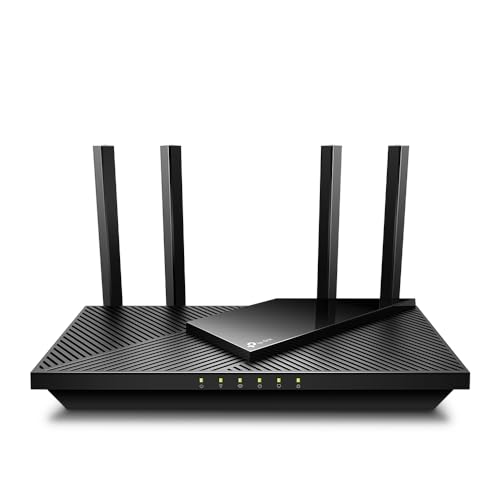
If your laptop drops connection when you move rooms, you’re hitting range limits or interference. A TP-Link AX1800 Wi-Fi 6 Router offers better coverage and handles multiple devices more gracefully than aging N-routers.
When to Seek Professional Help
If none of these fixes work, your laptop’s internal Wi-Fi card might be dead, common after spills, drops, or years of heat exposure. A USB Wi-Fi adapter like the TP-Link AC1300 costs under $30 and plugs into any USB port, bypassing the broken internal card entirely. It’s faster and cheaper than motherboard-level repairs.

Yellow exclamation marks that won’t clear, adapters that vanish from Device Manager after restarts, or physical damage (cracked case, liquid entry) warrant professional diagnosis. But honestly, for most software glitches, you’ve got this.
Frequently Asked Questions
What should I do first when my internet on laptop is not working?
Start with the basics: toggle Airplane Mode off, check if the Wi-Fi icon shows a connection, restart your laptop and router by power cycling for 30 seconds, verify other devices connect to confirm the issue is device-specific, then run Windows’ Network Troubleshooter to automatically detect and repair common glitches.
How do I run the Network Troubleshooter when my laptop internet is down?
Right-click the Wi-Fi or Ethernet icon in your system tray (bottom-right corner), select ‘Troubleshoot problems,’ and let the wizard check your adapter status, IP configuration, DNS resolution, and gateway connectivity. It typically fixes software-level issues like stuck DHCP leases in about two minutes.
What does ‘connected but no internet’ mean on my laptop?
This message indicates your laptop connects to the router but can’t reach the broader internet, usually due to DHCP or DNS issues. Fix it by flushing your DNS cache and resetting TCP/IP settings using Command Prompt commands like ‘ipconfig /flushdns’ and ‘netsh winsock reset,’ then restart your device.
Can a Windows update cause laptop internet problems?
Yes, though rare, problematic Windows updates can break Wi-Fi connectivity. If your internet died after a recent update, go to Settings → Windows Update → Update history → Uninstall updates and remove the most recent cumulative or feature update, then restart your laptop.
What if my laptop won’t connect to Wi-Fi but my phone does?
The problem is isolated to your laptop’s wireless adapter or driver. Try updating the adapter driver via Device Manager or your laptop manufacturer’s support page, test with a different network to confirm the adapter is functional, or use a USB Wi-Fi adapter as a workaround if the internal card is permanently damaged.
When should I perform a Network Reset instead of troubleshooting individual settings?
Perform a Network Reset (Settings → Network & Internet → Advanced network settings → Network reset) when basic troubleshooting and driver updates fail. It reinstalls all adapters and clears corrupted profiles, resolving about 60% of stubborn ‘no internet’ cases, though you’ll need to re-enter Wi-Fi passwords afterward.
Read More:
- Laptop Keyboard Not Working (Complete Fix Guide for All Brands)
- Ethernet Port on Laptop Not Working (Here’s the Quick Fixes that Actually Works)
- Finger Pad on Laptop Not Working (Here’s the Simple DIY Fixes That Works)
- HDMI Port on Laptop Not Working (Here’s the Easy Fixes That Always Work)
- Function Keys on Dell Laptop Not Working (Quick and Simple DIY Fixes)
- Headphones on Laptop Not Working (Here’s the Quick & Simple DIY Fixes)