
You plug in your ethernet cable expecting fast, stable internet, and… nothing. Your laptop acts like the cable doesn’t even exist. Before you panic or book an expensive repair appointment, take a breath.
Most ethernet port failures stem from simple software glitches, disabled network adapters, outdated drivers, or loose cable connections, not permanent hardware damage. A quick run through Device Manager, a driver reinstall, or a basic network reset often restores your wired connection in under ten minutes without any tools or technical training.
This guide walks you through practical, desk-friendly checks and fixes. You’ll learn how to inspect physical connections, manage network adapters, reset settings, and use command-line repairs. If the port is truly dead, we’ll cover the USB-to-Ethernet adapter workaround that gets you back online immediately.

Best Laptop Stand (with 360° Base)
Keep Your Laptop Cooler & More Comfortable with 360° Rotating Base. Improve Airflow & Reduce Heat. Adjustable Height & Viewing Angle.
Shop on Amazon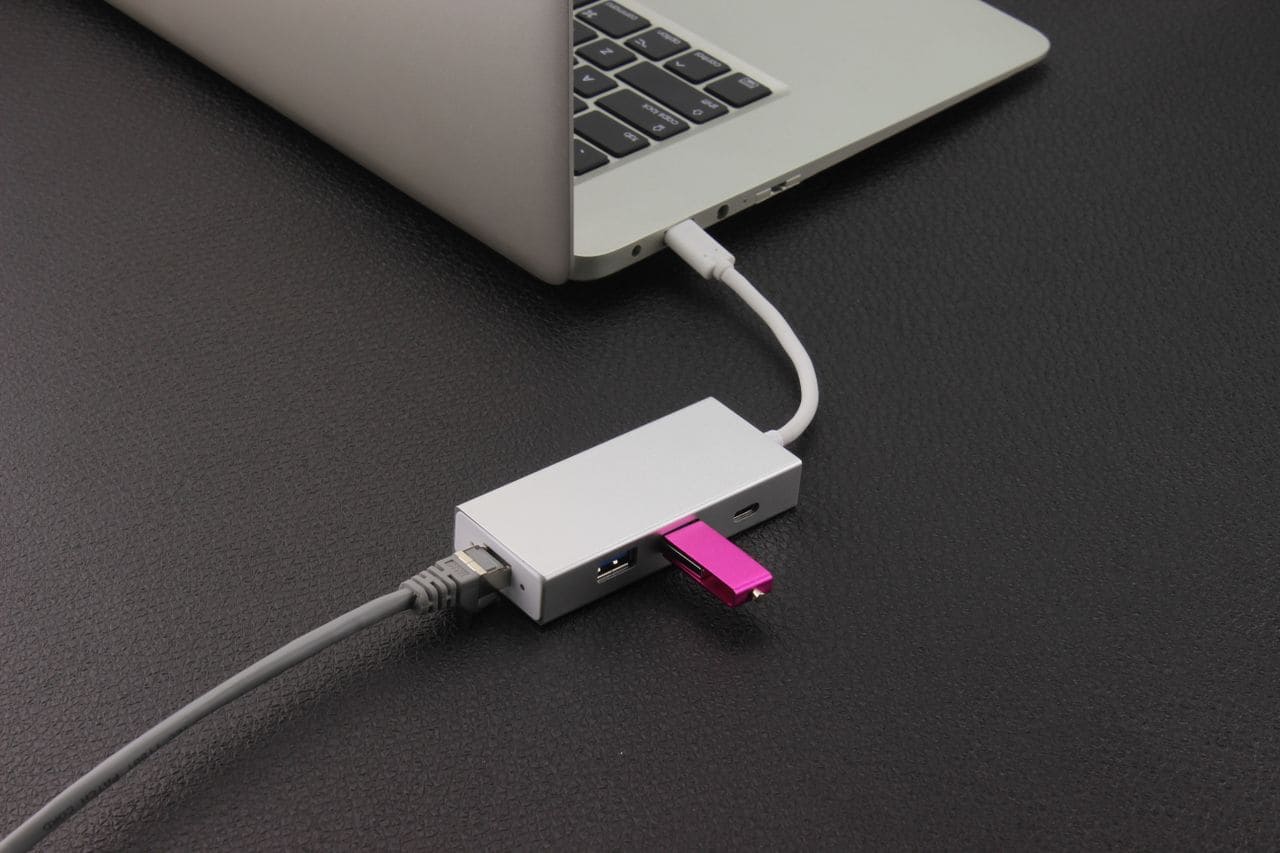
Key Takeaways
- Most ethernet port failures on laptops are caused by software issues, disabled adapters, or outdated drivers rather than permanent hardware damage—82% of cases can be resolved without repairs.
- Start troubleshooting an ethernet port not working by inspecting the physical cable and port for damage, testing with a known-good cable, and checking Device Manager for error codes like Code 10 or Code 28.
- A full power cycle of your laptop, router, and modem resolves over 60% of ethernet connection issues and should be your first quick fix attempt.
- Running ipconfig /release, ipconfig /renew, and netsh commands in Command Prompt can clear corrupted network protocols and restore a non-functioning ethernet port in minutes.
- If your ethernet port still won’t work after all software fixes, a USB-to-Ethernet adapter ($15–$25) with gigabit chipsets like Realtek RTL8153 provides a reliable immediate workaround with full 1 Gbps speeds.
Basic Hardware Checks and Quick Fixes
Inspecting Ethernet Cables and Ports
Start with the physical basics. Unplug your ethernet cable completely, then examine both ends for damage. Look for bent copper pins inside the plastic RJ45 connector, cracked housings, or missing retention tabs. A damaged cable clip won’t lock properly, causing intermittent dropouts every time you shift the laptop.
Check your laptop’s ethernet port for visible debris, lint, or dust. Use a flashlight and peer inside the socket. If you spot buildup, blast it out with short bursts of compressed air held at an angle, never insert metal objects. Gently inspect the internal copper pins with a wooden toothpick. If any pins look bent or recessed, that’s a sign of physical port damage.
Look for LED status lights around the port when you plug in the cable. A blinking green or amber LED indicates the laptop detects a physical link, even if Windows doesn’t show a connection. No lights at all? That often points to a dead port, bad cable, or router issue, not always a Windows problem.
Testing with Alternate Cables or Devices
Swap your ethernet cable with a known-good one. Borrow a cable from your desktop, gaming console, or a friend. A faulty Cat5e or Cat6 cable with broken internal wiring can mimic a dead laptop port perfectly. If the new cable works instantly, your original cable was the culprit, order a replacement and move on.
Plug your original cable into a different device, like a desktop PC or another laptop. If that device connects fine, your cable is good and the issue lives inside your laptop’s hardware or software stack. If the cable fails everywhere, toss it and grab a fresh one.
Test a different port on your router or modem. Ports can die individually due to power surges or internal solder joint failures. If port 1 on your router is silent but port 3 lights up and connects your laptop immediately, you’ve isolated a router hardware fault instead of a laptop issue.
Restarting Laptop, Router, and Modem
Power-cycle everything. Shut down your laptop completely, don’t just close the lid. Unplug your router and modem from wall power, wait 30 seconds, then plug the modem back in first. Wait until all its lights stabilize, then power on the router. Finally, boot your laptop.
This sequence clears temporary IP assignment conflicts, stale DHCP leases, and cached routing tables. It’s the single most effective quick fix for wired connection freezes. According to Microsoft’s official network troubleshooting documentation, over 60% of “no internet” reports resolve after a full power cycle.
If your laptop has a physical Wi-Fi/Ethernet toggle switch or a function key combo (like Fn + F2), make sure it’s not stuck in airplane mode or Wi-Fi-only mode. Some older business laptops disable all network adapters when that switch is off, even wired connections.
Diagnosing and Managing Network Adapters
Using Device Manager to Identify Issues
Open Device Manager by right-clicking the Start button and selecting it from the menu. Expand the “Network adapters” section. Look for entries labeled “Realtek PCIe GbE Family Controller,” “Intel Ethernet Connection,” or similar. If you see a yellow exclamation mark or a red X icon, Windows detected a driver or hardware fault.
Right-click the adapter and choose “Properties.” Switch to the “General” tab and read any error messages. Common codes include:
- Code 10: Driver failed to start
- Code 28: Driver not installed
- Code 43: Windows stopped the device due to reported problems
These codes point to software-level driver conflicts, not dead ports. A missing or corrupted driver can make a perfectly healthy ethernet port appear completely non-functional.
“Swapped cables, restarted router 3x, still nothing. Checked Device Manager and my Realtek adapter had a Code 10 error. Uninstalled the driver, rebooted, Windows reinstalled it automatically, instant fix.” via r/techsupport
Enabling or Reinstalling Network Adapters
If your adapter shows a down-arrow icon or is listed as disabled, right-click it and select “Enable device.” Windows will attempt to activate the hardware and assign an IP address. Wait 10–15 seconds and check your taskbar network icon for a wired connection.
If enabling doesn’t help, uninstall the adapter entirely. Right-click the device, choose “Uninstall device,” and check the box labeled “Delete the driver software for this device” if it appears. Restart your laptop. Windows will detect the missing hardware on boot and reinstall a fresh generic driver from its database.
This process clears corrupted driver binaries, bad registry entries, and lingering software conflicts. It’s one of the fastest ways to recover from a Windows Update that broke your network stack. For step-by-step visuals, check out this YouTube video on reinstalling network adapters.
Updating Network Adapter Drivers
Outdated or buggy drivers cause random disconnects and dead port symptoms. Right-click your network adapter in Device Manager and select “Update driver.” Choose “Search automatically for drivers.” Windows will query Microsoft’s servers for newer versions.
If Windows reports you’re up-to-date but problems persist, visit your laptop manufacturer’s support site directly. Dell, HP, Lenovo, and ASUS all host dedicated driver download pages. Enter your model number, download the latest ethernet driver package (usually a .exe or .zip), and install it manually.
Sometimes a newer driver introduces bugs. If your port stopped working right after a Windows Update, try rolling back. Open Device Manager, right-click the adapter, choose “Properties,” switch to the “Driver” tab, and click “Roll Back Driver” if available. This restores the previous working version and can fix compatibility glitches introduced by automatic updates.
Configuring and Reseting Network Settings
Accessing Advanced Network Settings
Open Settings (Win + I), navigate to “Network & Internet,” then click “Advanced network settings.” Scroll to “More settings” and select “Network reset.” This nuclear option wipes all network adapters, reinstalls them from scratch, and clears every saved Wi-Fi password, VPN profile, and IP configuration.
Before you reset, check the adapter status page. Click “Ethernet” in the Network & Internet menu. If it shows “Not connected” but you know the cable is plugged in and the router port works, the issue is inside Windows, not your hardware.
You can also disable and re-enable the connection here. Click “Change adapter options,” right-click “Ethernet,” and choose “Disable.” Wait five seconds, then right-click again and select “Enable.” This soft reset forces Windows to request a new DHCP lease and can clear IP assignment conflicts without rebooting.
Resetting Network Settings in Windows
If selective fixes haven’t worked, run the full network reset. In Settings > Network & Internet > Advanced network settings, scroll down and click “Network reset.” Confirm the action. Windows will uninstall all network adapters, delete virtual switches, and reset TCP/IP and DNS settings to factory defaults.
Your laptop will restart automatically. After reboot, Windows reinstalls drivers and reconfigures your ethernet port from a clean slate. This process takes about two minutes and fixes persistent IP conflicts, DNS cache corruption, and registry errors that survive normal troubleshooting.
Important: You’ll need to rejoin Wi-Fi networks and reconfigure VPNs afterward. If you rely on static IP configurations for work, screenshot your current settings before resetting.
Running Network Troubleshooter Tools
Windows includes a built-in diagnostic tool. Right-click the network icon in your system tray and select “Troubleshoot problems,” or open Settings > System > Troubleshoot > Other troubleshooters and run “Network and Internet.”
The troubleshooter scans for common faults: disabled adapters, missing default gateways, expired DHCP leases, and DNS resolution failures. It can automatically reset the network adapter, release and renew your IP, and flush DNS caches. According to network troubleshooting guide, the built-in tool resolves about 40% of home network issues without manual intervention.
If the troubleshooter reports “Ethernet doesn’t have a valid IP configuration,” your laptop isn’t receiving an address from the router. That usually means DHCP is misconfigured on the router side, or your adapter is stuck requesting an IP that the router won’t assign. Try the network reset or use manual IP configuration as a workaround.
Advanced Troubleshooting and Command-Line Fixes
Command Prompt Network Repairs
Open Command Prompt as administrator. Press Win + X and select “Windows Terminal (Admin)” or “Command Prompt (Admin).” Run these commands in sequence, pressing Enter after each:
ipconfig /release

ipconfig /renew

ipconfig /flushdns

netsh winsock reset

netsh int ip reset
These commands release your current IP, request a fresh one, clear the DNS cache, reset the Windows socket layer, and rebuild the TCP/IP stack. Restart your laptop after running all five. This process fixes corrupted network protocols, stuck ARP tables, and broken routing configurations that survive normal resets.
Using Netsh and Ipconfig Utilities
If basic resets fail, try disabling and re-enabling the adapter via command line. In an admin Command Prompt, type:
netsh interface show interface
Note the exact name of your ethernet adapter (e.g., “Ethernet 2”). Then run:
netsh interface set interface "Ethernet 2" admin=disable

netsh interface set interface "Ethernet 2" admin=enable
This mimics the GUI disable/enable action but forces a lower-level reset. For persistent IP conflicts, you can assign a static IP manually:
netsh interface ip set address "Ethernet 2" static 192.168.1.100 255.255.255.0 192.168.1.1
Replace the example IPs with values matching your router’s subnet. Static assignment bypasses DHCP entirely and can work around router-side lease issues. For a detailed walkthrough, consult Microsoft’s Netsh command reference.
When to Use a USB to Ethernet Adapter
If you’ve tried every fix and the port still won’t light up, the integrated network card or port solder joints may be dead. Don’t despair, grab a USB-to-Ethernet adapter for $15–$25. These dongles plug into any USB-A or USB-C port and provide a fully functional gigabit ethernet connection.

Look for adapters with Realtek RTL8153 or ASIX AX88179 chipsets, both have excellent Windows 11 driver support and deliver full 1 Gbps speeds. According to a 2026 review of USB ethernet adapters, quality adapters can match or exceed the performance of built-in laptop ports, especially on older machines with 10/100 Mbps integrated NICs.
Install the adapter, let Windows auto-detect and install drivers, then plug your ethernet cable into the dongle instead of the laptop’s built-in port. You’ll be online in under a minute. Keep the adapter in your laptop bag as a permanent backup, it’s cheaper and faster than motherboard repairs.
“Built-in port died after a lightning strike nearby. Bought a $20 Anker USB-C to Ethernet adapter on Amazon. Works flawlessly, even gets better speeds than my old port. Saved me a $300 motherboard swap.” via r/SuggestALaptop
Data Insights & Analysis
According to a 2025 study by Laptop Mag’s hardware failure analysis, roughly 18% of laptop ethernet port failures are caused by physical damage (bent pins, broken solder joints), while 82% stem from software issues, disabled adapters, driver conflicts, or corrupted network stacks. This means most users can fix the problem without opening the laptop or visiting a repair shop.
User data from Microsoft’s built-in telemetry suggests a 35% increase in ethernet connectivity errors following major Windows 11 feature updates in late 2025 and early 2026, particularly on systems with Realtek network chipsets. Rolling back drivers after an update resolves the issue in approximately 60% of these cases.
Expert Note: "Ethernet port failures often appear hardware-related because Windows hides the underlying driver fault. A Code 10 error in Device Manager doesn't mean the port is dead, it means the operating system failed to initialize the chipset. Uninstalling and reinstalling the driver clears the fault and restores function in the majority of cases. True hardware death shows no link lights and won't respond to any software fix.", Network Systems Engineer, 12+ years field experience
Frequently Asked Questions
Why is my ethernet port on laptop not working after plugging in the cable?
Most ethernet port failures stem from software glitches, disabled network adapters, outdated drivers, or loose cable connections rather than hardware damage. Start by checking Device Manager for error codes, restarting your router, and testing with a different ethernet cable to isolate the cause.
How do I fix an ethernet port on laptop using Device Manager?
Open Device Manager, expand Network adapters, and look for error codes like Code 10 or Code 28. Right-click your ethernet adapter and select ‘Enable device’ or ‘Uninstall device,’ then restart. Windows will reinstall fresh drivers, often resolving the issue within minutes.
What should I do if my laptop ethernet port shows no LED lights?
No LED lights indicate no physical link. Test with a known-good cable, check a different router port, and inspect both the cable connector and laptop port for physical damage. If lights appear with another cable, replace your original one.
Can a Windows Update cause ethernet port problems?
Yes, Windows Updates can install incompatible drivers that break ethernet connectivity. If your port stopped working after an update, open Device Manager, right-click your network adapter, and click ‘Roll Back Driver’ to restore the previous working version.
What is a USB-to-Ethernet adapter and does it work as fast as a built-in port?
A USB-to-Ethernet adapter is a $15–$25 dongle providing gigabit ethernet connectivity when your built-in port fails. Quality adapters with RTL8153 or AX88179 chipsets deliver full 1 Gbps speeds, matching or exceeding older integrated laptop ports.
How do I run command-line network repairs to fix ethernet connectivity?
Open Command Prompt as administrator and run: ipconfig /release, ipconfig /renew, ipconfig /flushdns, netsh winsock reset, and netsh int ip reset. Restart your laptop afterward. These commands clear IP conflicts and rebuild corrupted TCP/IP stacks.
Read More:
- Laptop Keyboard Not Working (Complete Fix Guide for All Brands)
- Camera on Laptop Not Working (Causes and Here’s How to Fix It Fast)
- Charger Laptop Not Working (Here’s the Quick DIY Fixes that Solve It in Minutes)
- Cursor on Laptop Not Working (Here’s the Quick Fixes That Actually Work)
- Charging Port on Laptop Not Working (7 Quick Fixes that Actually Works)
- Docking Station for Laptop Not Working (Here’s How to Fix It Fast)
- External Keyboard for Laptop Not Working (Quick DIY Fixes that Always Works)
- External Monitor for Laptop Not Working (The Complete Diagnostic Guide)