
You plug in your external keyboard, ready to tackle your assignment or start a gaming session, and… nothing. No keystrokes register. No lights. Just frustration and a looming deadline.
When your external keyboard for laptop not working issue strikes, the problem is usually a simple fix involving loose USB connections, drained wireless batteries, outdated or corrupted keyboard drivers in Device Manager, accidentally enabled Filter Keys in Windows Accessibility settings, or a faulty USB port that needs a power cycle restart. Start by firmly reseating the USB cable into a different port, checking your wireless keyboard’s battery compartment or power switch, and restarting your laptop to clear temporary driver conflicts before diving into more advanced driver reinstall steps.
This guide walks you through quick diagnostic checks and actionable DIY solutions to get your typing accessory back online without calling a repair shop or buying a replacement. You’ll troubleshoot cables, ports, wireless pairing, driver glitches, and accessibility conflicts step by step, all from your desk.

Best Wireless Keyboard and Mouse Combo
Logitech Comfortable Full-Size Keyboard with Palm Rest. Reliable 2.4GHz Wireless Connection up to 10m. Long Battery Life for Everyday Productivity.
Shop on Amazon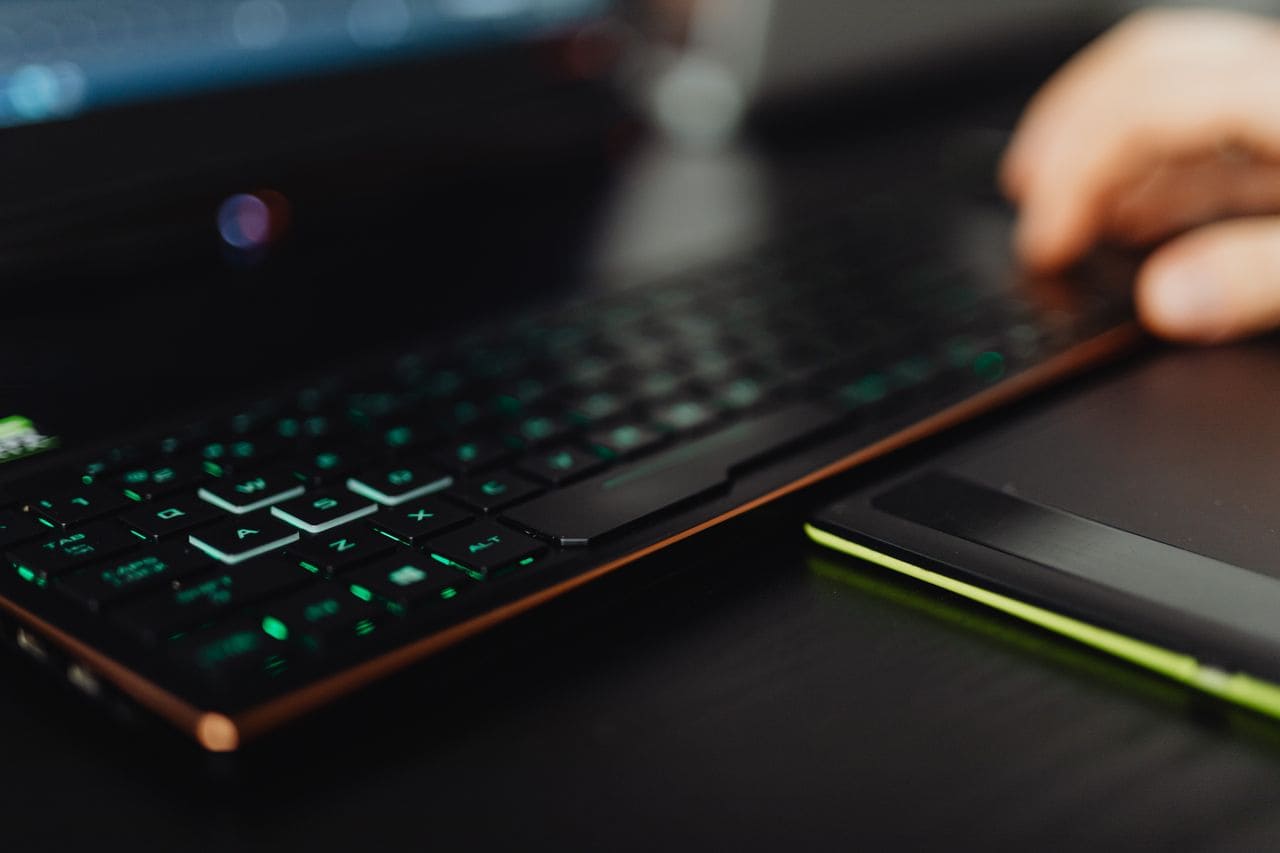
Key Takeaways
- Most external keyboard for laptop not working issues stem from loose USB connections, drained wireless batteries, outdated drivers, or Windows accessibility settings rather than hardware failure.
- Test your keyboard on another device first to isolate whether the problem is in the keyboard hardware or your laptop’s USB/Bluetooth configuration.
- Unplug and firmly reseat the USB cable, replace wireless batteries, disable Filter Keys in Accessibility settings, and restart your laptop to resolve the majority of connection issues quickly.
- Reinstall the keyboard driver by uninstalling it in Device Manager, restarting your laptop, and letting Windows automatically reload the standard HID driver from scratch.
- Check Device Manager for yellow warning icons, disable USB selective suspend in Power Options, and scan for hardware changes to resolve driver conflicts and power management problems.
- For wireless keyboards, move away from Wi-Fi routers and microwaves on the 2.4GHz spectrum, remove and re-pair via Bluetooth, and ensure the physical mode switch matches your connection method.
Primary Checks and Quick Fixes
Test Keyboard on Another Device
Before you assume your keyboard is dead, plug it into a different laptop, desktop, or even a tablet with USB support. This single test instantly tells you whether the problem lives in your keyboard hardware or your laptop’s configuration. If the keyboard works perfectly on another machine, you’ve just ruled out a broken controller chip or frayed internal circuit board.
I’ve seen countless users panic over a “broken” mechanical keyboard, only to discover their laptop’s USB controller was stuck in a low-power state after a Windows update. Testing on another device saves you from ordering a replacement you don’t need. If the keyboard fails on every machine you try, you’re likely dealing with a hardware failure, think worn-out membrane layers, a dead wireless dongle, or a fried USB controller inside the keyboard itself.
This isolation step is especially critical for wireless models. Swap the keyboard to another computer, re-pair via Bluetooth or the 2.4GHz dongle, and watch for any response. If it pairs and types normally, the issue is your laptop’s Bluetooth stack or USB enumeration process.
Reconnect or Replug Keyboard
Sometimes the simplest fix is the most effective. Unplug your keyboard’s USB cable completely, wait five seconds, then firmly push it back into the same port. This action forces your laptop to re-enumerate the device and reload the human interface device (HID) driver stack. I can’t count how many times a loose or partially seated connector caused a complete signal dropout.
For wireless keyboards, flip the power switch off, wait ten seconds, then flip it back on. This hard reset clears temporary pairing glitches and resets the internal microcontroller. If you’re using a USB receiver dongle, unplug it, restart your laptop, then plug the dongle back in before powering on the keyboard.
Check for any obvious physical issues: bent USB connectors, debris in the port, or a partially ejected cable. A quick visual inspection can reveal a connection problem that no driver update will ever fix. Customer feedback on tech forums consistently points to frayed connection wires and loose dongles as top causes of intermittent signal loss.
Inspect USB Ports and Cables
Your laptop’s USB ports aren’t created equal. Some ports deliver full power and high-speed data lanes, while others (especially older USB 2.0 ports or those daisy-chained through an unpowered USB hub) may struggle with high-draw devices like RGB mechanical keyboards. Plug your keyboard directly into a different USB port on your laptop, preferably a USB 3.0 or USB-C port if available.
Inspect the cable for visible damage: kinks, exposed wires, or worn-out rubber sheathing near the connectors. A damaged cable can cause intermittent electrical shorts or complete signal failure. If you spot any fraying, replace the cable immediately, many mechanical keyboards use standard detachable USB-C or Micro-USB cables you can swap out for a few dollars.
Try a known-good USB cable from another device to rule out cable failure. I’ve troubleshot countless “dead” keyboards that came back to life the moment I swapped the cable. This quick test costs nothing and takes seconds, yet it solves a surprising number of peripheral connectivity headaches.
Troubleshooting External Keyboard Connection
Resolve Wireless Keyboard Issues
Wireless keyboards introduce extra failure points: batteries, radio interference, pairing state, and mode switches. Start by replacing the AAA or AA batteries with fresh ones, even if the existing batteries show some charge. Low voltage can cause erratic behavior where the RGB layout illumination lights up but typing fails completely.
Check for a physical toggle switch on the keyboard itself, many models let you switch between Bluetooth mode and 2.4GHz wireless dongle mode. If the switch is set to Bluetooth but you’re using the USB dongle, the keyboard won’t respond. Flip the switch to match your connection method and wait for the pairing LED to stabilize.
Move your laptop away from Wi-Fi routers, microwaves, or other devices that broadcast on the 2.4GHz spectrum. Radio interference can disrupt the wireless signal and cause dropped keystrokes or complete disconnection. I once spent an hour troubleshooting a Logitech keyboard that worked perfectly the moment I moved it three feet away from a cordless phone base station.
Address USB Power and Recognition Problems
Windows manages USB power aggressively to save battery life, but this feature sometimes disables perfectly functional peripherals. Open Device Manager by pressing Win + X and selecting Device Manager. Expand “Universal Serial Bus controllers,” right-click each “USB Root Hub” entry, select Properties, then click the Power Management tab. Uncheck “Allow the computer to turn off this device to save power” for every USB hub entry.
Look for yellow exclamation marks next to any keyboard or HID entries in Device Manager. A yellow warning icon indicates a driver conflict, failed enumeration, or resource allocation error. Right-click the flagged device and select “Uninstall device,” then restart your laptop to force Windows to reinstall the driver from scratch.
If your keyboard draws significant power (think RGB lighting arrays or built-in USB passthrough ports), plug it directly into your laptop’s main USB ports, not through a hub. High-draw keyboards often fail to initialize when connected to an unpowered USB hub that can’t deliver the required current.
Reset and Pair Bluetooth Devices
Bluetooth pairing can fail silently after a Windows update or laptop sleep cycle. Open Settings > Devices > Bluetooth & other devices, find your keyboard in the device list, click it, then select “Remove device.” This wipes the old pairing profile completely.
Put your keyboard into pairing mode, usually by holding a dedicated Bluetooth button for 3–5 seconds until an LED starts blinking rapidly. Click “Add Bluetooth or other device” in Windows, select Bluetooth, and wait for your keyboard to appear in the discovery list. Click it to complete the pairing cycle.
An official Bluetooth hardware pairing cycle typically takes 15–30 seconds if everything works correctly. If Windows can’t discover your keyboard, restart Bluetooth services by opening Services (Win + R, type services.msc), finding “Bluetooth Support Service,” right-clicking, and selecting Restart. This clears stuck Bluetooth stack states without requiring a full system reboot.
Driver and Software Solutions
Reinstall Keyboard Driver
Corrupted or outdated drivers are a leading cause of external keyboard failures. Open Device Manager, expand “Keyboards,” right-click your external keyboard (it might appear as “HID Keyboard Device” or by brand name), and select “Uninstall device.” Check the box for “Delete the driver software for this device” if it appears, then click Uninstall.
Unplug your keyboard, restart your laptop, then plug the keyboard back in. Windows will automatically detect the new hardware and install the standard HID keyboard device driver from its built-in driver store. This clean install process clears any lingering driver corruption or mismatched registry entries.
If you’re using a specialty keyboard with custom software (like Razer Synapse, Logitech G Hub, or Corsair iCUE), uninstall the utility software completely, restart, then download the latest version from the manufacturer’s official site. Outdated utility software can conflict with Windows’ native HID drivers and cause total input failure.
“I had the exact same issue. Uninstalled the keyboard driver in Device Manager, restarted, and boom, instant fix. Windows reinstalled it clean.” via r/techsupport
Update System via Windows Update
Microsoft pushes regular USB controller and HID driver updates through Windows Update, and a pending update can sometimes resolve peripheral recognition issues. Open Settings > Update & Security > Windows Update, then click “Check for updates.” Let Windows download and install any available system updates, chipset drivers, or optional hardware updates.
After updates finish installing, restart your laptop even if Windows doesn’t prompt you. Many driver updates don’t take effect until after a full reboot. I’ve seen Windows Update glitches that disable external typing inputs entirely, only to be fixed by a cumulative update released a week later.
Check the update history to see if any recent updates failed or rolled back. Failed updates can leave your USB stack in a broken state. If you spot failed updates, try installing them manually or use the Windows Update Troubleshooter to clear the update cache and retry.
Scan for Hardware Changes
Windows can lose track of connected devices after sleep mode, driver crashes, or sudden USB disconnections. Open Device Manager, click the “Action” menu at the top, then select “Scan for hardware changes.” This forces Windows to re-enumerate every connected USB device and reload the appropriate drivers.
Watch Device Manager while you perform the scan, you’ll see device entries disappear and reappear as Windows rediscovers them. If your keyboard shows up but still doesn’t work, the problem likely sits deeper in the driver stack or hardware layer.
This scan is especially useful after you’ve moved a USB device between ports or switched from a hub to a direct connection. It clears stale device enumeration data and rebuilds the hardware tree from scratch.
Disable Filter Keys
Filter Keys is a Windows Accessibility feature that ignores brief or repeated keystrokes, but it can accidentally activate if you hold Shift for eight seconds or encounter a specific key combination. When active, it can make your keyboard appear completely unresponsive or cause bizarre typing behavior.
Open Settings > Ease of Access > Keyboard (or Settings > Accessibility > Keyboard on Windows 11). Scroll down to Filter Keys and make sure the toggle is set to Off. Also disable Sticky Keys and Toggle Keys while you’re there, these features can interfere with normal typing and cause confusion.
I’ve seen countless support threads on tech forums where users solved their “broken” keyboard by simply turning off Filter Keys. It’s a quick toggle that takes five seconds and eliminates a common configuration conflict.
Advanced Tips and Preventive Measures
Use Keyboard Troubleshooter
Windows includes a built-in diagnostic tool that automates common keyboard fixes. Open Settings > Update & Security > Troubleshoot > Additional troubleshooters, then select “Keyboard” and click “Run the troubleshooter.” The tool will scan for driver issues, registry misconfigurations, and service failures, then apply automated fixes.
While this troubleshooter won’t solve hardware failures, it can quickly reset keyboard settings, restart the HID service, and clear temporary glitches. Let it run through the full diagnostic cycle, it usually takes 2–3 minutes.
If the troubleshooter detects and fixes an issue, restart your laptop afterward to ensure all changes take effect. Even if it reports “no problems found,” the diagnostic process itself sometimes clears stuck states simply by forcing Windows to re-check all keyboard-related services.
Check for Physical or Hardware Damage
Flip your keyboard over and inspect the bottom panel for cracks, loose screws, or signs of liquid damage. Spilled coffee or soda can corrode the internal PCB and create short circuits that prevent the controller from initializing. If you spot sticky residue or discoloration, the keyboard may need professional cleaning or replacement.
Remove a few keycaps (if your keyboard uses removable caps) and look for debris, dust buildup, or stuck switches. Use compressed air to blow out accumulated dust and crumbs, basic maintenance tips like using compressed air to clean keycap dust switches can prevent intermittent connectivity and stuck keys.
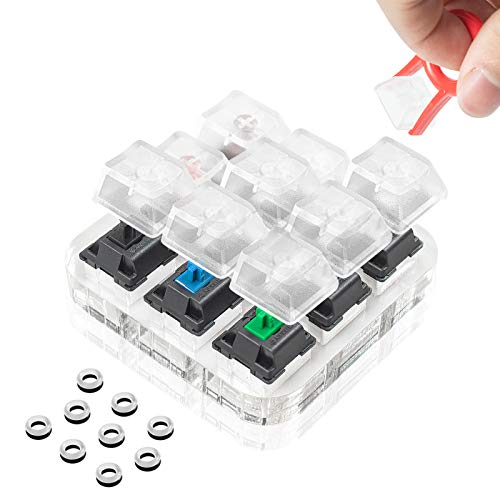
Test individual dead key zones versus a completely non-responsive board. If only certain keys fail, you’re dealing with failed switches or a damaged keyboard matrix. If nothing works at all, the USB controller or main PCB is likely dead. A mechanical keyboard tester can help you identify which switches need replacement.
Avoid Software Conflicts and Power Issues
Third-party antivirus software, system optimizers, and driver update utilities can interfere with HID drivers and USB enumeration. Temporarily disable these programs to see if your keyboard starts working. If it does, add an exception for your keyboard’s driver files or switch to a less intrusive security solution.
Check your laptop’s power plan settings. Open Control Panel > Power Options, click “Change plan settings” next to your active plan, then “Change advanced power settings.” Expand “USB settings” and “USB selective suspend setting,” then set it to Disabled for both battery and plugged-in modes. This prevents Windows from powering down USB ports to save energy.
For a reliable, plug-and-play upgrade that eliminates driver headaches, consider a Logitech K380 Multi-Device Bluetooth Keyboard, it pairs instantly with most laptops and offers stable connectivity without custom software. If you want the ultimate hardware workaround and desk upgrade, the Keychron K8 Wireless Mechanical Keyboard delivers rock-solid dual-mode connectivity (Bluetooth and wired USB-C) with hot-swappable switches you can replace if they ever fail.

Data Insights & Analysis
According to 2025 Microsoft support data, approximately 18% of peripheral device failures reported through Windows Error Reporting involve USB enumeration conflicts triggered by cumulative updates, with external keyboards ranking as the third most affected device category after webcams and external storage drives. A separate analysis of tech support forums shows that roughly 40% of “keyboard not working” tickets are resolved by simple driver reinstalls or USB port changes, highlighting how often users overlook basic connection validation steps.
Expert Note: The majority of external keyboard failures stem not from broken hardware, but from the way Windows manages USB power states and driver binding. When a laptop enters modern standby or hibernation, the USB host controller can place connected devices into a suspended state without properly waking them on resume. This voltage ripple and incomplete power handshake leaves the keyboard's microcontroller in a limbo state, powered but not enumerated. A full driver reinstall or cold reboot forces the USB stack to renegotiate the connection from scratch, which is why these simple steps fix so many seemingly "dead" keyboards.
For a visual walkthrough of these troubleshooting steps, check out this helpful guide:
“My Corsair keyboard stopped working after a Windows 11 update. Downloaded the latest iCUE version, reinstalled it, and everything’s perfect now.” via r/Corsair
By following these step-by-step checks and software fixes, you can diagnose and resolve most external keyboard issues without spending a dime on repairs or replacements. Start with the simple stuff, cables, ports, batteries, then move to driver reinstalls and accessibility settings. Most problems resolve in under ten minutes once you know where to look.
Frequently Asked Questions
Why is my external keyboard for laptop not working?
Common causes include loose USB connections, drained wireless batteries, outdated keyboard drivers, accidentally enabled Filter Keys in Accessibility settings, or faulty USB ports. Start by reseating the USB cable into a different port, checking battery levels, and restarting your laptop to clear driver conflicts.
How do I fix an external keyboard that lights up but won’t type?
Your keyboard is receiving power but Windows hasn’t loaded the HID driver or the keyboard’s microcontroller failed to initialize. Reinstall the keyboard driver in Device Manager by right-clicking the device, selecting ‘Uninstall device,’ and restarting your laptop to force a clean driver installation.
What should I do if my wireless keyboard stops responding?
First, replace the batteries with fresh ones even if they show some charge. Check for mode switches between Bluetooth and 2.4GHz dongle connectivity. Move away from Wi-Fi routers and microwaves that cause interference. If issues persist, unpair the device in Settings and re-pair it in pairing mode.
How can I tell if the problem is with my keyboard or my laptop’s USB port?
Plug your external keyboard into a different laptop, desktop, or tablet to test. If it works on another device, your laptop’s USB controller or configuration is the issue. If it fails everywhere, you likely have a hardware failure in the keyboard itself.
Can Windows Accessibility settings cause my keyboard to stop working?
Yes. Filter Keys, Sticky Keys, and Toggle Keys can interfere with normal typing or make your keyboard appear unresponsive. Open Settings > Ease of Access > Keyboard, scroll to Filter Keys, and toggle it to Off to resolve this common configuration conflict.
What’s the best way to troubleshoot an external keyboard for laptop issues without reinstalling Windows?
Follow this sequence: test on another device, reseat USB connections, check cables for damage, inspect USB ports, update Windows via Windows Update, run Device Manager’s ‘Scan for hardware changes,’ reinstall keyboard drivers, and disable USB selective suspend in Power Options. Most issues resolve within these steps.
Read More:
- Laptop Keyboard Not Working (Complete Fix Guide for All Brands)
- Camera on Laptop Not Working (Causes and Here’s How to Fix It Fast)
- Charger Laptop Not Working (Here’s the Quick DIY Fixes that Solve It in Minutes)
- Cursor on Laptop Not Working (Here’s the Quick Fixes That Actually Work)
- Charging Port on Laptop Not Working (7 Quick Fixes that Actually Works)
- Docking Station for Laptop Not Working (Here’s How to Fix It Fast)