
You press your laptop’s power button and nothing happens. No lights, no fan noise, just silence. It’s terrifying when your primary device won’t respond at all.
Most laptop power button failures stem from static charge buildup, loose charging cables, depleted batteries, or simple Windows power state confusion rather than actual hardware damage, and you can fix about 80% of these cases in under five minutes by unplugging the AC adapter, removing the battery if possible, holding down the power button for 30 seconds to drain residual current, then reconnecting everything and trying again, or by using alternative startup methods like the Novo button, lid-open wake triggers, or external keyboard power keys.
This guide walks you through quick diagnostics, simple resets, and real-world workarounds that I’ve used countless times to revive seemingly “dead” laptops without spending a dime on repairs.

Best Laptop Stand (with 360° Base)
Keep Your Laptop Cooler & More Comfortable with 360° Rotating Base. Improve Airflow & Reduce Heat. Adjustable Height & Viewing Angle.
Shop on Amazon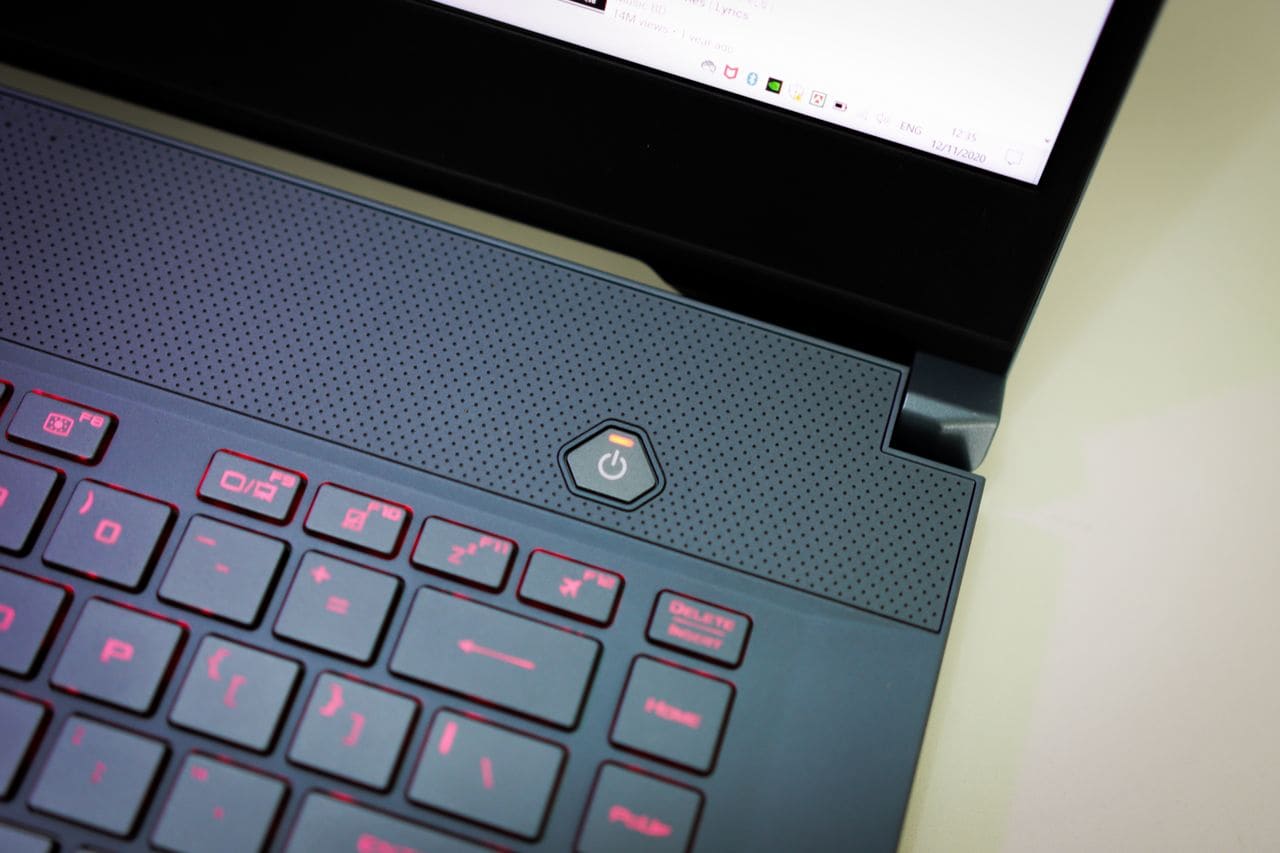
Key Takeaways
- Most power button on laptop not working issues stem from static buildup, loose cables, or power state confusion rather than hardware failure, and can be fixed in under five minutes by unplugging the adapter, holding the power button for 30 seconds, and reconnecting everything.
- A hard reset that drains residual charge from capacitors is the single most effective fix for unresponsive power buttons—simply hold down the power button for 30–45 seconds with the AC adapter disconnected.
- Inspect your AC adapter’s LED indicator light and test different wall outlets to rule out power supply failures before assuming the power button itself is broken.
- Alternative startup methods like the Novo button, lid-open wake triggers, or external USB keyboard can bypass a non-working power button and boot your laptop into recovery mode.
- A swollen battery, burning plastic smell, visible scorch marks, or complete unresponsiveness to all troubleshooting steps indicates deeper motherboard failure that requires professional repair or replacement.
- Check your manufacturer’s warranty status before attempting DIY repairs, as opening the case may void coverage, but replacement power button boards cost only $8–$15 and are easy to install yourself.
Identifying the Reasons
Common Causes and Warning Signs
When your power button stops working, the trigger is usually far simpler than you’d expect. Static electricity builds up inside your laptop’s motherboard and embedded controller, creating a temporary lockup that blocks the startup circuit. Windows sleep mode can freeze into a half-powered state where the operating system thinks it’s awake but the screen stays black. Your battery might be completely drained, or your AC adapter could be failing.
Look for these warning signs: your charging port LED stays off even when plugged in, the power button feels mushy or stuck, your laptop was recently dropped or exposed to liquid, or the machine shut down unexpectedly during a Windows update. According to Microsoft’s official power troubleshooting documentation, power state conflicts account for a significant share of startup failures that users mistake for hardware damage.
Physical Damage and Hardware Issues
Sometimes the button itself is the problem. Dust, crumbs, or sticky residue can jam the tiny plastic plunger mechanism underneath. If you’ve been opening and closing your laptop lid hundreds of times, the internal ribbon cable connecting the power board to the motherboard can loosen or fray.
Press the button gently and notice if it clicks normally or feels spongy and unresponsive. A completely loose button that rattles or sinks without resistance usually means the plastic retention clip broke. Physical cracks around the button housing or visible liquid damage near the keyboard deck signal deeper trouble. You can sometimes clear debris with a toothpick or compressed air, but a broken internal connector requires opening the chassis.
Power Supply and Connection Failures
Your laptop won’t start if it’s not receiving power, even if the battery is installed. Check the AC adapter’s brick, most models have a small LED indicator that glows green or blue when the brick is working. No light means the adapter is dead, the wall outlet is off, or the power strip is switched off.
Inspect the charging cable for frayed wires, bent pins inside the barrel connector, or a loose fit in the laptop’s charging port. Try wiggling the plug gently while it’s connected. If the charging LED blinks on and off, the port or cable has a bad connection. Using an incorrect voltage universal charger can prevent the laptop from recognizing power altogether, which Laptop Magazine warns against in their adapter safety guides.
Essential Diagnostics and Troubleshooting
Checking Power Sources and AC Adapter
Start with the basics. Plug your AC adapter into a different wall outlet to rule out a dead socket. Look at the adapter’s LED light, if it’s off, the brick is fried and you’ll need a replacement. If the light is on, trace the cable to your laptop’s charging port and make sure the connector is seated fully and snugly.
Press gently on the plug while it’s inserted and watch for any flicker in the charging indicator LED on your laptop. A loose port can block power flow entirely. If you have a multimeter, you can test the adapter’s output voltage (usually 19V or 20V for most laptops), but that’s optional. For a quick workaround, try borrowing a friend’s compatible charger to confirm whether your adapter is the culprit.
Inspecting the Battery and Power Cable
If your laptop has a removable battery, take it out and inspect the metal contacts for corrosion or dirt. Wipe them clean with a dry cloth, then reinsert the battery firmly. For non-removable batteries, you’ll skip this step but can still perform a hard reset.
Disconnect the AC adapter completely. Hold down the power button for 30 to 45 seconds. This drains residual charge from the capacitors and embedded controller, clearing temporary power state lockups. It’s the single most effective fix I’ve used over the years. Reconnect the AC adapter (leave the battery out if it’s removable) and try powering on. If the laptop starts, the issue was static buildup or a confused power management chip.
“Held power button for 30 seconds, plugged back in, and it fired right up. Thought my laptop was toast.” via r/techsupport
Assessing Power Button Response
Press the power button and pay attention to any tiny LED activity, fan noise, or vibration. Even a brief flicker means the motherboard is receiving some power. No response at all suggests either a completely dead battery and adapter, or a failed power button circuit.
Try holding the button for 10 seconds instead of a quick tap, some laptops require a long press to wake from deep hibernation. Check if your laptop has a dedicated Novo button (common on Lenovo models) or a recovery pinhole near the charging port. Pressing that can bypass the main power button and boot the machine into a recovery menu. Also test opening the laptop lid, many models support Wake on Open, which triggers startup when the lid sensor detects movement.
Advanced Solutions and Alternatives
Using Keyboard or Wake-On LAN Features
If your laptop is in a weird sleep state, an external USB keyboard can sometimes wake it. Plug in a keyboard and press any key or the spacebar. Some BIOS settings allow you to enable “Power On by Keyboard,” which lets you start the machine using a specific key combo like Ctrl+Esc.
Wake-on-LAN (WoL) is another option if you’re on a network. You’ll need to enable it in the BIOS and device manager first, then send a magic packet from another computer. It’s more technical and not practical for immediate fixes, but it’s a neat trick if your power button is totally broken and you need to boot remotely. Intel’s guide on WoL covers the setup steps in detail.
Motherboard and Internal Hardware Bypass Techniques
If you’re comfortable opening the laptop, you can temporarily short the power button pins on the motherboard to start the machine. Power off, unplug everything, remove the battery, and locate the small two-pin connector where the power button ribbon cable plugs into the board. Use a metal screwdriver tip to briefly touch both pins simultaneously. The laptop should boot.
This confirms whether the button itself is broken or if the motherboard’s power circuit is dead. Be careful, this only works when the laptop is unplugged and the battery is removed. Never attempt it while power is connected. For a safer long-term fix, you can order a replacement power button board on Amazon for $8 to $15, depending on your model. Swapping the ribbon cable takes about 20 minutes and requires a small Phillips screwdriver.
Replacing or Repairing the Power Button
If the button is stuck, try gently cleaning around the edges with a toothpick or a can of compressed air. Dirt and grime can jam the plastic mechanism. For a broken button, you’ll need to open the bottom panel and disconnect the old power board ribbon cable, then install a new one.
Search for your laptop model plus “power button board” on Amazon or eBay. The part usually ships with a plastic tool and instructions. Take photos before disconnecting anything to remember the cable routing. If you’re not confident, a local repair shop can handle the swap for $30 to $50 in labor. A replacement power button ribbon cable is an affordable fix compared to replacing the entire motherboard.
Preventive Maintenance and Help
Routine Cleaning and Care Tips
Keep your laptop’s vents and keyboard deck free of dust and debris. Use compressed air every few months to blow out particles that can migrate under the keys and into the power button well. Avoid eating or drinking near your laptop to prevent sticky spills that can jam buttons or corrode connectors.
Check your Windows power settings regularly. Open Settings > System > Power & battery and make sure sleep and hibernation timeouts are set to reasonable values. Disable fast startup if you experience frequent wake issues, it can cause power state confusion. Also update your chipset and ACPI drivers via Device Manager to prevent power management conflicts.
Recognizing Signs of Deeper Hardware Failure
Sometimes the power button issue points to a bigger problem. A swollen battery that bulges the laptop case can press against internal components and block the power circuit. If your laptop smells like burning plastic, shows scorch marks near the charging port, or the motherboard has visible corrosion, stop troubleshooting immediately and consult a professional.
A completely dead motherboard won’t respond to any of the tricks above, no lights, no sounds, no heat. If you’ve tried every step and nothing works, the logic board likely failed. Motherboard replacement is expensive (often $200 to $400), so weigh repair costs against buying a refurbished or new machine.
“Battery was swollen and pushing the keyboard up. Replaced it and the power button started working again.” via r/Lenovo
Manufacturer Support and Warranty Considerations
Check if your laptop is still under warranty before opening the case or attempting DIY repairs. Most manufacturers void coverage if you break warranty seals or damage internal components. Dell, HP, and Lenovo all offer online diagnostics and chat support that can walk you through official troubleshooting steps.
If you’re within the warranty period, file a claim and ship the laptop in for free repair. Outside of warranty, contact the manufacturer for a repair quote, sometimes they offer flat-rate service plans. For older laptops, a local independent repair shop is usually cheaper and faster than official service centers. Always get a written estimate before authorizing any work.
For an ultimate desk upgrade, consider a USB-C docking station that lets you power on and charge your laptop through a single cable, reducing wear on the built-in power button and charging port over time.

Frequently Asked Questions
Why is my laptop power button not working?
Common causes include static charge buildup, loose charging cables, depleted batteries, or Windows power state confusion. Physical damage like stuck buttons, frayed cables, or moisture exposure can also prevent startup. Try unplugging the AC adapter, holding the power button for 30 seconds to drain residual charge, then reconnecting to fix most cases.
How do I fix a laptop power button that won’t respond?
First, check your AC adapter LED indicator and try a different wall outlet. Remove the battery if possible, hold the power button for 30-45 seconds to drain residual current, then reconnect everything. If that fails, try alternative startup methods like the Novo button, opening the laptop lid, or using an external keyboard to wake the device.
Can I start my laptop without using the power button?
Yes. Try pressing the Novo button (common on Lenovo models), opening the laptop lid if it supports Wake on Open, or plugging in an external USB keyboard and pressing a key. Some models allow Power On by Keyboard if enabled in BIOS. Advanced users can temporarily short the power button pins on the motherboard to bypass the button entirely.
What should I check if my laptop won’t turn on?
Verify the AC adapter’s LED is lit and the charging cable is fully seated. Inspect the battery contacts for corrosion. Check for physical damage around the power button, loose internal ribbons, or liquid exposure. Test the charging port by gently wiggling the plug. If nothing works after a 30-second hard reset, consider professional diagnostics.
How much does it cost to repair a broken laptop power button?
A replacement power button board costs $8-15 online and takes 20 minutes to install yourself. Professional repair shops typically charge $30-50 in labor. If the motherboard failed, replacement costs $200-400. Check your warranty first—manufacturers may cover repairs free if you’re within the coverage period.
What are warning signs that my laptop has serious hardware damage?
Red flags include a swollen battery bulging the case, burning plastic smell, scorch marks near the charging port, visible corrosion on the motherboard, or complete unresponsiveness to all troubleshooting methods. Stop attempting fixes immediately and consult a professional, as these indicate deeper hardware failure requiring expert repair.
Read More:
- Headphones on Laptop Not Working (Here’s the Quick & Simple DIY Fixes)
- Ethernet Port on Laptop Not Working (Here’s the Quick Fixes that Actually Works)
- Charger Laptop Not Working (Here’s the Quick DIY Fixes that Solve It in Minutes)
- Internet on Laptop Not Working (Here’s the Proven Fixes that Always Work)
- One Key on Laptop Not Working (Pro Fixes that Solve the Issue in Minutes)