
Your laptop hangs on the shutdown screen, fans keep spinning, or the power light stays on after you told it to turn off. You’ve already tried the power button twice, but nothing happens.
A laptop that won’t shut down properly is usually caused by Fast Startup conflicts, outdated device drivers, background software blocking power-state transitions, pending Windows updates, corrupted system files, or wake-on-LAN settings preventing clean power-off. Force shutdown once to recover, then systematically disable Fast Startup in Power Options, update chipset and IMEI drivers, close background apps, run SFC and DISM repair scans, check for Windows updates, disable wake timers in network adapter power management, and reset your power plan to restore normal shutdown behavior.
This guide walks you through each fix step-by-step. You’ll learn how to safely force power down, identify the software or driver causing the hang, repair OS corruption, and configure power settings so your laptop shuts down cleanly every time.

Best Laptop Stand (with 360° Base)
Keep Your Laptop Cooler & More Comfortable with 360° Rotating Base. Improve Airflow & Reduce Heat. Adjustable Height & Viewing Angle.
Shop on Amazon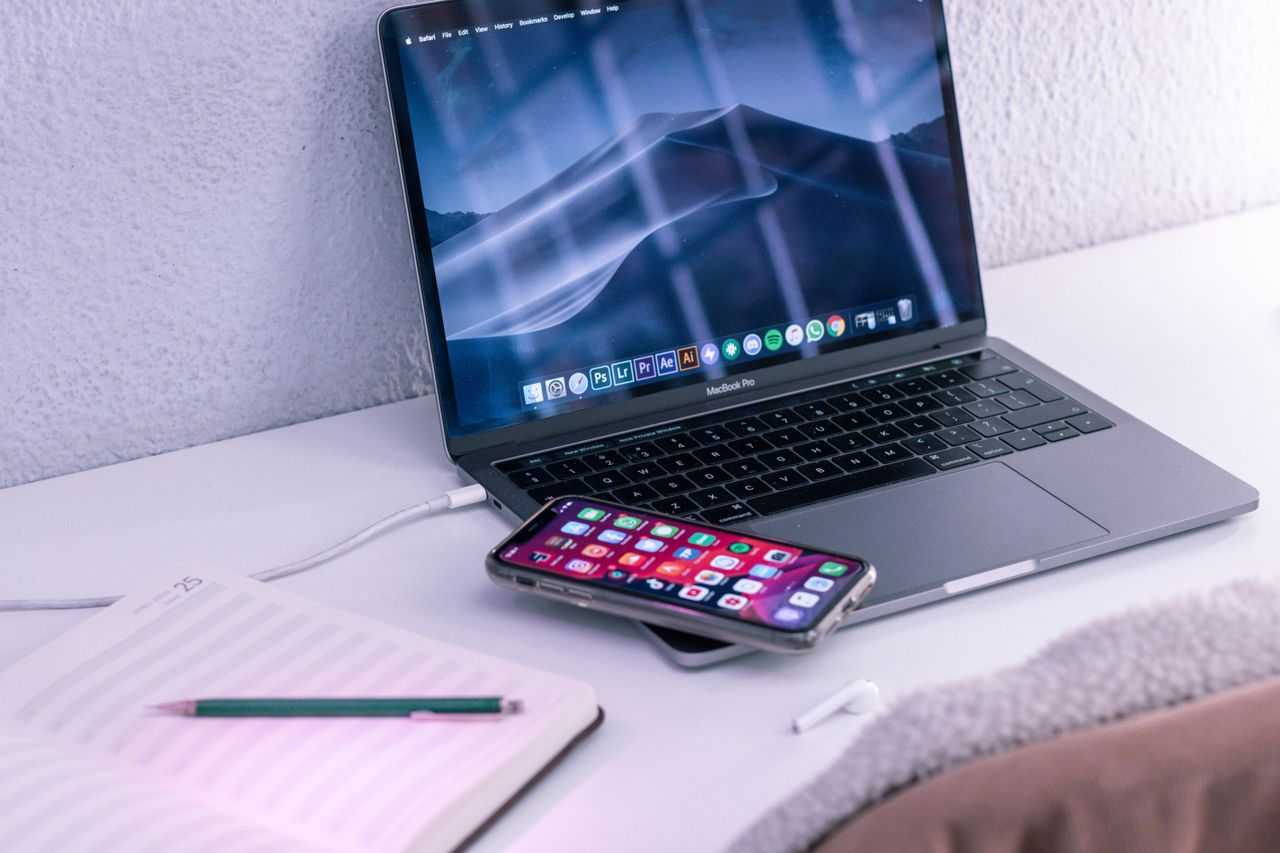
Key Takeaways
- A laptop not shutting down is typically caused by Fast Startup conflicts, outdated drivers, background software, pending updates, or Wake-on-LAN settings that prevent clean power-off.
- Force shutdown your laptop by holding the power button for 10–15 seconds, then wait 30 seconds before restarting to allow electrical charge to dissipate and prevent file-system corruption.
- Update chipset, graphics, and Intel Management Engine Interface (IMEI) drivers from your manufacturer’s support page, as outdated drivers are a leading cause of ACPI power-state failures.
- Disable Fast Startup in Power Options and set wake timers to “Disabled” to ensure Windows performs a true cold boot and releases all hardware resources during shutdown.
- Run system repair scans using `sfc /scannow` and `DISM /Online /Cleanup-Image /RestoreHealth` to fix corrupted system files that may break shutdown scripts and event hooks.
- If software fixes fail after a clean Windows reinstall, the issue likely involves hardware such as a failing motherboard, defective embedded controller, or corrupted BIOS firmware that requires professional repair.
Why Your Laptop Won’t Shut Down Properly
Windows shutdown requires every running process, service, and driver to gracefully release hardware resources and save state. If any component refuses to comply, the operating system waits indefinitely or hangs on the spinning-circle “Shutting down…” screen. Fast Startup, a hybrid sleep-shutdown mode introduced in Windows 8, keeps the kernel session cached to disk, which can corrupt power-state data and prevent clean power-off.
Outdated or buggy chipset drivers, especially Intel Management Engine Interface (IMEI), often block ACPI power transitions. Background apps, from file-sync clients to antivirus software, may hold open file handles or network sockets that prevent shutdown. Pending Windows updates can also trigger automatic restart loops or freeze the shutdown sequence while installing.
Wake timers set by scheduled tasks, network adapters configured for Wake-on-LAN, and USB devices sending wakeup signals can keep your laptop in a partial power state. The screen turns off, but the fan keeps spinning and the power LED stays lit because the motherboard never received the final ACPI S5 (soft-off) command.
“My Dell laptop won’t shut down… it just sits there with the power light on and fans running. I have to hold the power button for 10 seconds every single night.” via r/Dell
System file corruption from improper shutdowns or disk errors can break shutdown scripts and event hooks, creating a vicious cycle.
Force Shutdown Your Laptop Safely
Press and hold the physical power button for 10–15 seconds until all lights turn off and fans stop spinning. This hard reset forces the motherboard to cut power to all components, bypassing the operating system shutdown routine. It’s the fastest recovery method when your laptop is frozen on the shutdown screen.
Wait 30 seconds after the forced shutdown before pressing the power button again. This pause allows residual electrical charge in capacitors to dissipate and ensures a clean cold boot. Disconnect the AC adapter and, if your model has a removable battery, pull it out for 60 seconds to fully reset the embedded controller and power-management firmware.
Do not make forced shutdowns your daily habit. Repeated hard resets increase the risk of file-system corruption, orphaned registry entries, and incomplete driver cleanup. Use this method to recover from an immediate freeze, then fix the root cause using the steps below. Windows will run an automatic disk check (CHKDSK) on the next boot if it detects an unclean shutdown.
If you’re using a modern ultrabook or 2-in-1 with a non-removable battery, the 10-second power-button hold will trigger the embedded controller’s force-off circuit. Some models require you to hold Power + Volume Down simultaneously, check your OEM documentation.
Close All Running Programs and Background Processes
Open Task Manager by pressing Ctrl + Shift + Esc. Click the Processes tab and sort by CPU or memory usage. Look for third-party applications, cloud-storage sync clients, VPN software, screen-recording tools, or game launchers, that remain active after you initiate shutdown. Right-click each and select End task.
Expand the Startup and Services tabs to identify programs that auto-launch and may hold locks on system files. Disable non-essential startup items by right-clicking and choosing Disable. Background services like Windows Search, SuperFetch (SysMain), or third-party update schedulers can delay shutdown by indexing files or downloading patches.
Run powercfg /requests in an elevated Command Prompt to reveal which processes are blocking sleep and shutdown. This command lists active requests from drivers, services, and applications that prevent power-state transitions. Common culprits include media players, printer spoolers, and remote-desktop sessions.
“I found that OneDrive and Nvidia GeForce Experience were both blocking shutdown. Closed them in Task Manager and it finally powered off cleanly.” via Microsoft Community
If you identify a repeat offender, consider uninstalling or reconfiguring it. Many apps offer settings to “exit on shutdown” or disable auto-start.
Update or Roll Back Your Device Drivers
Identify Problematic Drivers
Press Win + X and select Device Manager. Expand System devices and look for any entries marked with a yellow triangle or exclamation point. Right-click and choose Properties, then check the Events tab for error codes or timestamps that align with your shutdown hangs. Intel Management Engine Interface, ACPI-compliant control method battery, and chipset drivers are frequent shutdown blockers.
Open Event Viewer (search for it in the Start menu) and navigate to Windows Logs > System. Filter by Event ID 6008 (unexpected shutdown) and 41 (kernel power error). Review the details pane for driver file names or service names mentioned before the forced reboot. Cross-reference these with Device Manager to pinpoint the hardware component.
Update Graphics and Chipset Drivers
Visit your laptop manufacturer’s support page and download the latest chipset, graphics, and IMEI driver packages for your exact model and Windows version. OEM driver bundles often include firmware updates and power-management fixes that generic Windows Update drivers lack. Install them in this order: chipset first, then graphics, then IMEI.
If shutdown issues started immediately after a recent driver update, roll back to the previous version. In Device Manager, right-click the device, select Properties > Driver > Roll Back Driver. Windows keeps one previous driver version cached. After rolling back, test shutdown behavior before installing any new updates.
For Intel-based laptops, download the latest Intel Driver & Support Assistant and run a full scan. Pay special attention to the Management Engine Interface driver, version mismatches between IMEI and BIOS firmware are a leading cause of shutdown freezes and S5 power-state failures.
Disable Fast Startup Mode
Fast Startup saves the kernel session to hiberfil.sys and performs a hybrid shutdown, which can corrupt power-state data and prevent clean power-off. Open Control Panel > Power Options > Choose what the power buttons do. Click Change settings that are currently unavailable at the top (requires administrator rights), then uncheck Turn on fast startup (recommended). Click Save changes.
Restart your laptop and test a full shutdown. With Fast Startup disabled, Windows performs a true cold boot every time and releases all hardware resources during shutdown. You may notice slightly longer boot times, but the trade-off is reliable power-off behavior and fewer ACPI transition errors.
If the checkbox is grayed out or missing, Fast Startup may already be disabled via Group Policy. Open gpedit.msc (Windows Pro/Enterprise only) and navigate to Computer Configuration > Administrative Templates > System > Shutdown. Ensure Require use of fast startup is set to Not Configured or Disabled.
On some laptops, disabling Fast Startup also resolves issues with dual-boot configurations, encrypted drives, and hardware that doesn’t fully support ACPI S4 (hibernate) states. After disabling, delete the existing hiberfil.sys file by running powercfg /hibernate off in an elevated Command Prompt, then re-enable hibernate if you use it: powercfg /hibernate on.
Run Windows Update and Install Pending Updates
Open Settings > Windows Update and click Check for updates. Pending cumulative updates, driver firmware, and security patches can block shutdown or trigger automatic restart loops. Install all available updates, including optional and driver updates, then restart.
Windows often queues updates to install during shutdown, which can freeze the process if the update package is corrupt or network connectivity is lost mid-download. If you see “Working on updates…” stuck at a fixed percentage, wait at least 30 minutes before forcing a shutdown. Most update hangs resolve themselves given enough time.
After updates complete, run sfc /scannow in an elevated Command Prompt to verify system-file integrity. If SFC reports errors it cannot fix, follow up with DISM /Online /Cleanup-Image /RestoreHealth to repair the component store. These tools download fresh system files from Windows Update servers and replace corrupted binaries that may prevent clean shutdown.
Check the Windows Update Health Dashboard for known issues affecting your Windows version. Microsoft occasionally releases out-of-band patches to fix shutdown bugs. If a recent update is known to cause shutdown freezes, you can uninstall it via Settings > Windows Update > Update history > Uninstall updates.
Adjust Power Settings and Sleep Configuration
Open Control Panel > Power Options and select your active power plan, then click Change plan settings > Change advanced power settings. Expand Sleep > Allow wake timers and set both On battery and Plugged in to Disable. Wake timers let scheduled tasks and maintenance routines wake your laptop from sleep or prevent shutdown.
Expand PCI Express > Link State Power Management and set it to Maximum power savings. Some laptops experience shutdown hangs when PCIe devices (Wi-Fi cards, SSDs, external GPUs) fail to transition to low-power states. This setting forces aggressive power gating during shutdown.
Navigate to Device Manager > Network adapters, right-click your Wi-Fi or Ethernet adapter, and select Properties > Power Management. Uncheck Allow this device to wake the computer and Allow the computer to turn off this device to save power. Wake-on-LAN packets and network activity can keep your laptop in a partial-on state even after shutdown is initiated.
| Setting | Recommended Value | Effect |
|---|---|---|
| Allow wake timers | Disabled | Prevents scheduled tasks from blocking shutdown |
| Fast Startup | Off | Ensures full ACPI S5 soft-off |
| Wake-on-LAN | Disabled | Stops network card from holding power state |
| Hybrid Sleep | Off | Forces clean shutdown instead of hybrid suspend |
Reset your active power plan to defaults by running powercfg /restoredefaultschemes in Command Prompt, then reapply these specific changes.
Check for Malware and System Corruption
Run a full offline scan using Windows Security > Virus & threat protection > Scan options > Microsoft Defender Offline scan. This mode boots into a minimal recovery environment and scans for rootkits, bootkits, and persistent malware that can hook shutdown routines and prevent clean power-off.
Malware that injects into kernel drivers or ACPI event handlers can block shutdown to maintain persistence. If Windows Security finds threats, remove them and restart. Follow up with a secondary scan using Malwarebytes to catch any remaining payloads.
Open an elevated Command Prompt and run sfc /scannow. The System File Checker scans all protected system files and replaces corrupted versions with cached copies from %WinDir%\System32\dllcache. If you see “Windows Resource Protection found corrupt files but was unable to fix some of them,” run DISM /Online /Cleanup-Image /RestoreHealth before repeating SFC.
Check the CBS.log file at C:\Windows\Logs\CBS\CBS.log for details on which files were repaired. Common shutdown-critical files include shutdown.exe, wininit.exe, services.exe, and ACPI.sys. If DISM and SFC both fail to repair corruption, you may need to perform an in-place upgrade repair using the Windows Media Creation Tool.
Modify Group Policy and Registry Settings
Press Win + R, type gpedit.msc, and hit Enter (Windows Pro/Enterprise only). Navigate to Computer Configuration > Administrative Templates > System > Shutdown Options. Enable Turn off automatic termination of applications that block or cancel shutdown to prevent apps from halting the shutdown sequence with “save your work” prompts.
For Windows Home users, open Registry Editor (regedit) and navigate to HKEY_LOCAL_MACHINE\SYSTEM\CurrentControlSet\Control. Create or modify the DWORD value WaitToKillServiceTimeout and set it to 5000 (5 seconds). This reduces the time Windows waits for unresponsive services to close before forcing termination.
Under the same registry path, set AutoEndTasks to 1. This forces Windows to automatically close hung applications during shutdown instead of waiting for user input. Set HungAppTimeout to 5000 and WaitToKillAppTimeout to 5000 to shorten shutdown delays caused by frozen programs.
- WaitToKillServiceTimeout: Time (ms) Windows waits for services to stop
- AutoEndTasks: 1 = auto-close hung apps, 0 = prompt user
- HungAppTimeout: Time (ms) before Windows considers an app hung
- WaitToKillAppTimeout: Time (ms) to wait before force-closing apps
Restart your laptop for registry changes to take effect. These settings aggressively terminate blocking processes and significantly reduce shutdown time.
Reset Your Laptop’s Power Management System
Open an elevated Command Prompt and run powercfg /restoredefaultschemes to delete custom power plans and restore Windows default schemes. Corrupted power-plan settings can cause shutdown hangs, sleep-state failures, and battery-drain issues. After resetting, reconfigure your preferred settings manually.
Run powercfg /energy to generate a detailed power-efficiency diagnostics report. The command runs for 60 seconds, then saves an HTML report to C:\Windows\System32\energy-report.html. Open it in a browser and review the Errors and Warnings sections for wake timers, USB devices preventing sleep, and driver power-management failures.
For advanced troubleshooting, run powercfg /requests to see real-time power requests. If a service or driver is blocking shutdown, you’ll see it listed under SYSTEM, DISPLAY, or AWAYMODE categories. Use Task Manager or Services.msc to stop the offending process.
If your laptop has a removable battery, power it off, unplug the AC adapter, remove the battery, and hold the power button for 30 seconds. This drains residual charge from the embedded controller and resets power-management firmware. Reinsert the battery, plug in, and boot normally. Many shutdown issues caused by firmware glitches resolve after an EC reset.
When to Seek Professional Repair Services
If none of the software fixes work, your laptop may have a hardware fault, most commonly a failing motherboard, defective embedded controller, or corrupted BIOS firmware. Symptoms include shutdown hangs even after a clean Windows reinstall, BIOS errors on boot, or the laptop powering on immediately after shutdown without user input.
Flash your BIOS/UEFI firmware to the latest version from your manufacturer’s support site. Outdated firmware can cause ACPI power-state bugs and shutdown failures. Follow the OEM’s instructions carefully, an interrupted BIOS flash can brick your laptop. Some models support BIOS recovery via USB if the update fails.
Physical issues like a stuck power button, liquid damage to the motherboard, or a short circuit in the DC jack can prevent clean shutdown. If you recently spilled liquid on the keyboard or dropped the laptop, inspect the internals or take it to a certified repair shop. Corrosion on power-management ICs or damaged MOSFET gates requires board-level microsoldering repair.
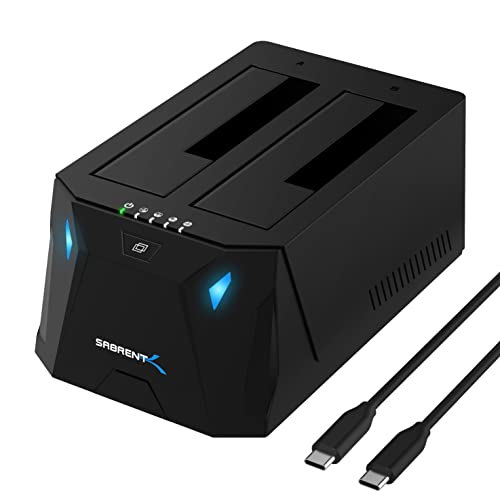
Consider a Sabrent USB-C laptop docking station to isolate whether external peripherals are causing shutdown hangs. If the laptop shuts down cleanly when disconnected from all USB devices, a faulty dock, external SSD, or USB hub may be the culprit. For persistent issues beyond DIY fixes, contact your laptop manufacturer’s warranty support or find a local repair technician certified in motherboard diagnostics.
Frequently Asked Questions
Why won’t my laptop shut down properly?
Your laptop won’t shut down due to Fast Startup conflicts, outdated drivers (especially chipset/IMEI), background apps blocking power transitions, pending Windows updates, wake timers, or corrupted system files. Start by forcing a shutdown, then disable Fast Startup, update drivers, close background apps, and run system repair scans.
How do I force my laptop to shut down if it’s frozen on the shutdown screen?
Hold the physical power button for 10–15 seconds until all lights and fans stop. Wait 30 seconds before restarting to allow residual charge to dissipate. For non-removable battery laptops, some models require Power + Volume Down simultaneously. Check your device manual for specifics.
What is Fast Startup and why does it prevent clean shutdown?
Fast Startup is a hybrid sleep-shutdown mode that caches the kernel session to disk for faster boot times. However, it can corrupt power-state data and prevent clean ACPI S5 power-off. Disable it in Power Options > Choose what the power buttons do by unchecking ‘Turn on fast startup.’
Which drivers most commonly block laptop shutdown?
Intel Management Engine Interface (IMEI), chipset drivers, and graphics drivers are frequent shutdown blockers. Check Device Manager for yellow warning icons, and download the latest OEM driver packages from your laptop manufacturer’s support page. Install in order: chipset, graphics, then IMEI.
Can background apps prevent my laptop from shutting down?
Yes. Cloud-storage sync (OneDrive), VPN software, antivirus programs, and game launchers can hold file handles or network sockets blocking shutdown. Open Task Manager (Ctrl+Shift+Esc), identify and end suspicious background processes, then disable non-essential startup items.
How do I check if a corrupted system file is causing shutdown hangs?
Run ‘sfc /scannow’ in an elevated Command Prompt to scan and repair corrupted system files. If SFC finds unfixable errors, follow up with ‘DISM /Online /Cleanup-Image /RestoreHealth’ to repair the component store. Check CBS.log at C:\Windows\Logs\CBS\CBS.log for details.
Read More:
- Laptop Not Turning On (Here’s the Proven Steps that Always Work)
- Laptop Not Detecting Monitor (Common Causes and Quick Fixes Explained)
- Laptop Not Detecting Headphones (Most Users Fix It With This Method)
- Laptop Not Connecting to Wi-Fi (Start With These Quick Fixes)
- Laptop Not Charging (Here’s the Proven Fixes that Actually Work)