
You’re mid-spreadsheet when your numeric keypad suddenly decides it’s done with numbers. Instead of digits, you’re getting arrows, Home, End, or random letters. Your workflow grinds to a halt, and frustration mounts as you jab those keys repeatedly.
This happens because your Num Lock key is turned off, switching your numeric keypad from number mode to navigation mode. When Num Lock is disabled, keys like 8, 4, 6, and 2 control cursor movements (up, left, right, down) instead of typing their corresponding digits. Other culprits include Mouse Keys accessibility settings remapping your keypad to mouse controls, outdated keyboard drivers creating input conflicts, gaming software macros overriding default key functions, incorrect regional keyboard layouts, or physical hardware damage to the switch contacts. Reactivating Num Lock immediately restores numeric input on most keyboards.
Before you order a replacement keyboard, run through these diagnostics. Most numeric keypad failures stem from software toggles or driver hiccups, not broken hardware.

Best Wireless Touch Keyboard
Logitech All-in-One Keyboard & Touchpad. Perfect for Smart TVs & PCs. Reliable 10m Wireless Connection. Up to 18 Months Battery Life
Shop on Amazon
Key Takeaways
- Keyboard typing letters instead of numbers is most commonly caused by Num Lock being disabled, which switches your numeric keypad to navigation mode—simply press the Num Lock key to restore number input.
- On laptops, accidental activation of Fn + Num Lock converts letter keys into a makeshift numpad; press the same key combination again to toggle back to standard alphabetic input.
- Use Windows’ On-Screen Keyboard (Win + Ctrl + O) to diagnose whether your keyboard issue stems from hardware failure or software conflicts like driver corruption or Mouse Keys accessibility features.
- Mouse Keys, a Windows accessibility feature activated by Alt + Shift + Num Lock, hijacks your numeric keypad for cursor control—disable it through Settings > Accessibility > Mouse to reclaim number typing.
- Persistent keyboard number key problems often resolve by reinstalling keyboard drivers through Device Manager or updating BIOS settings to enable Num Lock persistence across reboots.
- Physical damage like worn mechanical switches, liquid spills, or dust accumulation requires cleaning with compressed air and isopropyl alcohol, or replacement of individual switches in high-quality mechanical numpads.
Why Your Keyboard Is Typing Letters Instead of Numbers
The Num Lock Key: The Most Common Culprit
Your numeric keypad serves dual purposes. When Num Lock is active, you get digits 0–9 and arithmetic operators. When it’s off, those same keys become navigation commands: 8 becomes Up Arrow, 2 becomes Down Arrow, 4 becomes Left Arrow, 6 becomes Right Arrow, 7 becomes Home, 1 becomes End, 9 becomes Page Up, and 3 becomes Page Down. Zero switches to Insert.
Most keyboards ship with Num Lock enabled by default, but certain BIOS configurations, Windows updates, or accidental key presses toggle it off. If you’re typing in Excel and suddenly your “5” key does nothing while “8” scrolls your worksheet upward, Num Lock has disengaged. The Num Lock indicator LED, usually positioned at the top-right corner of your keyboard, confirms its status. No light means navigation mode is active.
Laptops without dedicated numpads complicate this further. Compact keyboards often overlay numeric functions onto letter keys (typically the 7-U-I-O-J-K-L-M block), activated by holding Fn + Num Lock. If you accidentally trigger this combo, your letter keys start behaving like a numpad. You’ll type “j” and get “1,” or “k” produces “2.” Disabling Num Lock returns those keys to standard alphabetic input.
“I thought my keyboard was broken until I realized NumLock was off. Three hours of troubleshooting wasted.” via r/techsupport
Check your Windows registry key InitialKeyboardIndicators if Num Lock keeps reverting to off at startup. Setting this DWORD value to 2 forces Num Lock to activate automatically when Windows boots, saving you repetitive toggling.
Function Key Conflicts and Laptop-Specific Issues
Laptop manufacturers cram full-size keyboard functionality into compact chassis by layering secondary functions onto existing keys. The Fn key unlocks these alternate behaviors, brightness adjustment, volume control, and critically, numeric keypad emulation. On many HP, Dell, and Lenovo models, pressing Fn + Num Lock converts your right-side letter cluster into a makeshift numpad.
This creates confusion when users accidentally activate embedded numpad mode. You’ll press “M” expecting the letter but get “0” instead. The solution is simple: press Fn + Num Lock again to toggle back. Some laptops use Fn + F11 or Fn + Insert instead, so consult your manufacturer’s documentation if the standard combo fails.
Gaming keyboards add another wrinkle with programmable macro layers. Software like Razer Synapse, Corsair iCUE, or Logitech G Hub lets you reassign any key to custom commands. If someone configured your numpad keys to launch applications or execute game combos, pressing “5” might open Discord instead of typing the digit. Open your keyboard’s software dashboard and reset profiles to default settings.
Mouse Keys, a Windows accessibility feature, hijacks your numeric keypad entirely. When enabled via Left Alt + Left Shift + Num Lock, your numpad controls cursor movement instead of typing numbers. The number “8” moves your pointer up, “2” moves it down, and “5” executes a mouse click. You’ll see a small mouse icon in your system tray when Mouse Keys is active. Disable it through Settings > Accessibility > Mouse to reclaim numeric input.
Quick Fixes: How to Get Your Number Keys Working Again
Enabling Num Lock on Different Keyboard Types
Desktop keyboards feature a dedicated Num Lock key positioned above the numpad’s 7 key or integrated into the top row near Print Screen. Press it once, you should see the Num Lock LED illuminate. On mechanical keyboards like the Keychron K8, the LED sits directly on the keycap or along the keyboard’s edge.
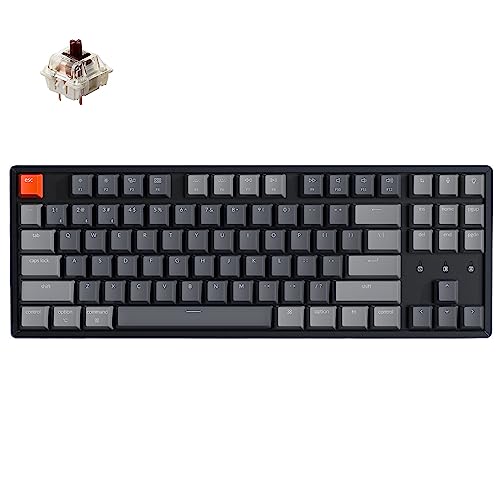
Laptops require the Fn modifier. Dell users press Fn + F4, HP users try Fn + Num Lock (often sharing the Scroll Lock or Insert key), and Lenovo ThinkPads use Fn + Scroll Lock. Asus and Acer models typically map it to Fn + F11. If you can’t locate the combo, search “[your laptop model] enable Num Lock” for manufacturer-specific instructions.
External USB numeric keypads sold separately, like the Jelly Comb Wireless Number Pad, ship with their own Num Lock keys. These operate independently from your main keyboard’s Num Lock state. If your laptop numpad works but an external unit doesn’t, press the Num Lock key on the external device itself.

Some BIOS/UEFI firmware lets you enforce Num Lock at boot. Restart your PC, enter BIOS setup (usually Del, F2, or F10 during startup), navigate to Boot or Peripheral Configuration, and enable “NumLock on Boot” or “Boot NumLock State.” This prevents Windows login screens from requiring Num Lock reactivation every session.
Using the On-Screen Keyboard as a Diagnostic Tool
Windows’ On-Screen Keyboard (OSK) reveals whether your issue is hardware or software. Press Win + Ctrl + O to launch it. Click the “Options” button at bottom-right and check “Turn on numeric keypad.” A virtual numpad appears on-screen.
Now press the physical Num Lock key on your keyboard while watching the OSK. If the virtual Num Lock key highlights when you press the physical key, your hardware signal is reaching Windows correctly. Click numeric keys on the OSK, if they type digits into Notepad, your input pipeline functions properly, and the problem lies in your physical keyboard’s switches or keycaps.
If pressing your physical Num Lock doesn’t highlight the OSK’s Num Lock button, your keyboard isn’t transmitting that signal. Try a different USB port, test with another keyboard, or check Device Manager for hardware recognition failures. If the OSK’s Num Lock is stuck in the “off” position even when your keyboard’s LED shows “on,” a driver conflict or registry corruption is overriding the hardware state.
“The On-Screen Keyboard trick saved me. Turned out my actual NumLock key was physically broken but the rest worked fine.” via r/pcmasterrace
Test individual numpad keys through the OSK. Press your physical “5” key while the OSK displays. If nothing highlights, that specific key has failed mechanically. If “8” highlights but types an up-arrow command, Num Lock remains disabled even though your LED status, indicating firmware or driver desynchronization.
Advanced Troubleshooting for Persistent Number Key Problems
Updating and Reinstalling Keyboard Drivers
Corrupted or outdated keyboard drivers cause input misinterpretation. Windows may register Num Lock toggles but fail to translate numpad presses into digits. Right-click Start and select Device Manager. Expand “Keyboards,” right-click your HID Keyboard Device, and choose “Update driver.” Select “Search automatically for drivers” to let Windows fetch the latest version from Microsoft’s servers.
If updates don’t resolve the issue, uninstall the driver entirely. Right-click your keyboard in Device Manager, select “Uninstall device,” check “Delete the driver software for this device,” and confirm. Restart your PC, Windows automatically reinstalls generic HID drivers on boot. This clears corrupted configuration files that remap numpad inputs.
Third-party driver utilities like IObit Driver Booster scan for manufacturer-specific drivers that Windows Update might miss. Mechanical keyboard brands (Ducky, Vortex, Leopold) sometimes require proprietary drivers for full numpad functionality. Download these directly from the manufacturer’s support page rather than relying on Windows’ generic drivers.
For wireless keyboards, update Bluetooth or USB receiver firmware. Logitech’s Unifying Software resolves connectivity glitches that cause intermittent numpad failures. If your keyboard connects via Bluetooth, remove the pairing in Settings > Devices > Bluetooth, then re-pair it. Stale Bluetooth profiles sometimes cache incorrect key mappings.
Checking for Software Conflicts and Malware
Keylogging malware and remote access trojans intercept keyboard inputs, redirecting numpad presses to malicious scripts instead of standard character output. Run a full system scan with Windows Defender or Malwarebytes to eliminate this possibility. Certain adware bundles modify registry keys controlling keyboard layouts, causing erratic numpad behavior.
Gaming macro software creates the most frequent conflicts. Razer Synapse, SteelSeries Engine, or AutoHotkey scripts override default key functions. Open these applications and check for active profiles remapping numpad keys. Even if you didn’t create macros yourself, pre-installed gaming software ships with demo profiles that reassign keys.
VPN clients and remote desktop applications sometimes interfere with keyboard input. NordVPN and ExpressVPN occasionally trigger security software that monitors keystroke patterns, creating input lag or dropped characters. Temporarily disconnect your VPN and test numpad functionality. If numbers work correctly without the VPN active, whitelist your keyboard in the VPN’s security settings.

Stay Private. Stay Secure.
Browse the internet with greater privacy and security with NordVPN. Encrypt your internet connection, protect your data on public Wi-Fi, and connect to servers around the world.
Get NordVPNCheck Windows’ Language and Region settings. Navigate to Settings > Time & Language > Language & Region. If multiple keyboard layouts are installed (US, UK, International), Windows might switch layouts mid-session via Win + Space. The UK Extended layout, for instance, uses AltGr + numpad combinations to produce special characters, blocking standard digit input when accidentally activated.
Hardware Issues: When Physical Damage Is to Blame
Mechanical keyboards suffer from worn switch contacts. Cherry MX, Gateron, and Kailh switches rated for 50–100 million actuations eventually degrade. If your “5” key worked fine yesterday but today produces nothing, the switch’s metal contact leaf may have oxidized or broken. Remove the keycap with a keycap puller and inspect the switch stem for debris.
Dust, crumbs, and pet hair lodge under keycaps, preventing full switch depression. Compressed air blasts often dislodge particles blocking the actuation point. For stubborn grime, use isopropyl alcohol (90%+ concentration) on a cotton swab to clean around the switch housing. Let it dry completely before reassembly.
Membrane keyboards use a rubber dome sheet beneath all keys. Liquid spills seep under this membrane, creating sticky residue that fuses the numpad’s rubber domes together. If multiple adjacent numpad keys fail simultaneously, say, 4-5-6 stop working as a block, liquid damage is likely. Disassemble the keyboard (unplug it first), remove the membrane layer, and gently wash it with warm soapy water. Dry thoroughly for 24 hours before reinstalling.
Laptop keyboards integrate numpad functions into the main board. Physical trauma, dropping the laptop or pressing keys with excessive force, can sever the ribbon cable connecting the keyboard to the motherboard. This manifests as entire rows or columns of keys failing together. Replacing a laptop keyboard requires technical disassembly: consult your manufacturer’s service manual or hire a certified technician.
| Issue | Symptom | Fix |
|---|---|---|
| Num Lock off | Arrows instead of numbers | Press Num Lock key |
| Mouse Keys enabled | Cursor moves, no digits | Alt + Shift + Num Lock |
| Gaming macro active | Random commands trigger | Reset software profile |
| Driver corruption | Intermittent key recognition | Reinstall HID driver |
| Physical switch failure | Single key unresponsive | Replace mechanical switch |
| Liquid damage | Multiple keys sticky/dead | Clean membrane or replace keyboard |
Platform-Specific Solutions for Windows, Mac, and Linux
Windows users should verify the registry path HKEY_USERS\.DEFAULT\Control Panel\Keyboard contains InitialKeyboardIndicators set to 2 (REG_SZ). This forces Num Lock on at login. If the value reads 0 or 2147483648, Num Lock defaults to off. Edit the value using Registry Editor (Win + R, type regedit).
Mac keyboards don’t feature Num Lock, Apple’s design philosophy treats numeric keypads as always-active. External PC keyboards connected to Macs may exhibit Num Lock quirks. The physical Num Lock key does nothing on macOS, so if your numpad types navigation commands, the keyboard’s hardware firmware has Num Lock disabled. You’ll need third-party software like Karabiner-Elements to remap keys or force numeric mode.
Linux distributions handle Num Lock through X11 or Wayland display servers. In Ubuntu or Fedora, open Settings > Accessibility > Typing and toggle “Num Lock state on startup.” For command-line control, install numlockx via your package manager (sudo apt install numlockx) and add numlockx on to your .xinitrc or startup applications.
Chrome OS Chromebooks with external keyboards require enabling the “Treat top-row keys as function keys” setting in Settings > Device > Keyboard. This doesn’t directly affect Num Lock, but it prevents ChromeOS from intercepting numpad signals for browser shortcuts. External USB numpads work natively without additional configuration.
FreeBSD and other Unix-like systems use kbdcontrol to manage keyboard states. Run kbdcontrol -l us.emacs to load a US keyboard layout with proper numpad mapping, or edit /etc/rc.conf to include keymap="us.kbd" for persistent configuration across reboots.
Preventing Future Keyboard Number Key Issues
Enable Num Lock persistence across reboots through BIOS settings and Windows registry tweaks. Modern motherboards from ASUS, MSI, and Gigabyte include “Restore NumLock State” options in UEFI firmware. Activate this to prevent the annoying reset every startup.
Disable Mouse Keys permanently if you never use accessibility features. Navigate to Settings > Accessibility > Mouse > Mouse Keys and toggle it off. Uncheck “Allow the shortcut key to start Mouse Keys” to prevent accidental activation via Alt + Shift + Num Lock.
Preventive maintenance checklist:
- Clean your keyboard monthly with compressed air and isopropyl alcohol wipes
- Inspect keycap stems for cracks or wear every six months
- Update keyboard firmware and drivers quarterly
- Document gaming software macro configurations before profile changes
- Test external keyboards on a secondary device to isolate hardware vs. system issues
- Keep Windows and drivers current via Windows Update
Invest in a quality mechanical numpad like the Varmilo VA21M with hot-swappable switches. When a key fails, you can replace individual switches without soldering, extending the device’s lifespan and maintaining data entry efficiency.
For ultimate desk flexibility, grab the Keychron Q0 Max, a fully programmable numpad with QMK/VIA support. You can remap every key, eliminate software conflicts permanently, and maintain consistent numeric input across all devices and operating systems.

Frequently Asked Questions
Why is my keyboard typing letters instead of numbers on the numpad?
Your Num Lock key is likely turned off. When disabled, numpad keys function as navigation commands: 8 becomes Up Arrow, 2 becomes Down Arrow, etc. Press the Num Lock key to reactivate number input. Check the Num Lock LED indicator at the top-right of your keyboard to confirm its status.
How do I fix keyboard typing letters or arrows instead of numbers?
First, press your Num Lock key to toggle number mode back on. If that doesn’t work, check Settings > Accessibility > Mouse to disable Mouse Keys. For laptops, try Fn + Num Lock or Fn + F11 depending on your manufacturer. Restart your computer if changes don’t take effect immediately.
What is the Num Lock key and what does it do?
Num Lock (Number Lock) is a toggle key that switches your numeric keypad between number mode and navigation mode. When active, you get digits 0–9 and operators. When off, those keys control cursor movement. Desktop keyboards have a dedicated Num Lock key; laptops require holding Fn while pressing Num Lock or a related key.
Can outdated keyboard drivers cause numpad keys to malfunction?
Yes, corrupted or outdated drivers can cause input misinterpretation, where Num Lock toggles fail to translate numpad presses into digits. Open Device Manager, right-click your HID Keyboard Device, and select Update Driver. If issues persist, uninstall the driver and restart your computer for automatic reinstallation.
How can I check if my keyboard issue is hardware or software?
Use Windows’ On-Screen Keyboard (Win + Ctrl + O) to diagnose the problem. Enable its numeric keypad, then press your physical Num Lock key. If the virtual Num Lock highlights, your hardware signal reaches Windows correctly. Test individual numpad keys; if nothing highlights, that key has failed mechanically.
Why does my numpad type numbers sometimes but not other times?
Gaming macro software, VPN clients, or accessibility features like Mouse Keys might be intercepting your inputs. Check Device Manager for driver conflicts, run a malware scan with Windows Defender, and review Settings > Accessibility > Mouse to disable Mouse Keys. Gaming software like Razer Synapse may have active profiles remapping your numpad keys.
Read More:
- Laptop Not Working Without Charger (Here’s Why and Easy Fix Guide)
- Numbers on Keyboard Not Working Only Symbols (Here’s How to Fix It)
- Keyboard Typing Wrong Characters (Here the Quick DIY Fixes that Works)
- Keyboard Typing Symbols Instead of Letters (Here’s the Instant Fixes)
- Keyboard Typing Numbers Instead of Letters (Causes and Quick Fixes)