
Nothing kills productivity faster than a locked Acer keyboard right when you need to finish an assignment or log into an important meeting. You press keys, nothing happens, and panic sets in.
Most Acer laptop keyboard lock issues stem from accidental function key triggers (like Fn+F6), unintentional activation of Windows accessibility features such as Filter Keys, outdated or corrupted keyboard drivers in Device Manager, or simple software conflicts following a Windows update, and the good news is that you can diagnose and fix nearly all of these problems yourself in under 10 minutes without opening your laptop case or paying for a repair shop.
This guide walks you through the most common software and hardware triggers, shows you exactly how to unlock your keyboard using simple keyboard shortcuts and Windows settings, and gives you clear instructions on updating drivers, running power cycles, and testing with external keyboards. Let’s get your Acer typing again.

Best Wireless Keyboard and Mouse Combo
Logitech Comfortable Full-Size Keyboard with Palm Rest. Reliable 2.4GHz Wireless Connection up to 10m. Long Battery Life for Everyday Productivity.
Shop on Amazon
Key Takeaways
- An Acer laptop keyboard locked issue is typically caused by accidental function key triggers (Fn+F6/F7), Windows accessibility features like Filter Keys, outdated drivers, or software conflicts—all fixable in under 10 minutes without professional help.
- Disable Windows accessibility features through Settings > Ease of Access > Keyboard by turning off Filter Keys, Sticky Keys, and Toggle Keys to immediately restore keyboard responsiveness.
- Perform a complete power cycle by shutting down, unplugging the AC adapter, holding the power button for 30 seconds, and restarting to reset your laptop’s embedded controller and clear stuck keyboard states.
- Update or reinstall keyboard drivers through Device Manager by right-clicking your keyboard device, selecting Update driver, or uninstalling and restarting to let Windows automatically reinstall the default driver.
- Test your Acer keyboard with an external USB keyboard to instantly determine whether the problem is hardware-related or software-based, helping you focus troubleshooting efforts efficiently.
- If all software fixes fail and your keyboard remains locked, contact Acer support within the warranty period or consider a $40–$80 professional keyboard replacement before attempting DIY hardware repairs.
Common Triggers and Keyboard Lock Causes
Keyboard Shortcuts and Function Key Triggers
Acer laptops ship with a variety of function key shortcuts that control everything from screen brightness to keyboard backlighting. One of the most overlooked triggers is the Fn+F6 or Fn+F7 combo, which can disable your entire keyboard on certain Aspire, Nitro, and Swift models. You might’ve brushed the key combination while cleaning your screen or adjusting volume, and suddenly your keyboard stops responding.
Some Acer models also feature a dedicated Fn Lock key that toggles the default behavior of your function row. When Fn Lock is active, pressing F-keys without holding Fn might trigger hardware shortcuts instead of standard F1-F12 commands. If your keyboard feels “stuck” in a weird mode, try pressing Fn + Esc or Fn + Num Lock to reset the state. Check your laptop’s quick-start guide or the Acer support page for model-specific shortcuts.
Accidental Activation of Accessibility Features
Windows includes several accessibility features designed to help users with motor difficulties, but they can accidentally lock or slow down your keyboard if triggered. Filter Keys is the most common culprit, it ignores brief or repeated keystrokes and can make your keyboard appear completely unresponsive. You activate it by holding the right Shift key for eight seconds, and a tiny notification pops up that’s easy to miss.
Sticky Keys is another accessibility toggle that can confuse users. It lets you press modifier keys (Ctrl, Alt, Shift) one at a time instead of holding them down, but it can make typing feel sluggish or erratic. If you hear beeps when you press Shift or Ctrl, Sticky Keys is likely active. Both features are helpful when intentionally enabled, but they’re frustrating when you turn them on by accident during a fast typing session.
“I thought my Acer Aspire keyboard was dead, but it turned out I had accidentally enabled Filter Keys while gaming. Disabled it in settings and everything worked instantly.” via r/techsupport
Software and Driver Conflicts
Outdated or corrupted keyboard drivers are a major source of input lock issues, especially after a Windows 10 or Windows 11 feature update. Microsoft occasionally pushes driver updates that conflict with Acer’s factory-installed keyboard controller software, causing your keys to stop registering or lag significantly. You’ll often see a yellow exclamation mark next to “Standard PS/2 Keyboard” or “HID Keyboard Device” in Device Manager when this happens.
Third-party software can also interfere with keyboard input. Gaming overlays, macro utilities like AutoHotkey, remote desktop apps, and even antivirus programs sometimes hook into your keyboard driver and block normal input. If your keyboard stopped working right after installing new software or a Windows update, there’s a strong chance a driver conflict is to blame. Rolling back or reinstalling the keyboard driver usually clears it up fast.
Quick Steps to Unlock an Acer Keyboard
Disable Filter Keys and Accessibility Locks
Start by checking whether Windows accessibility features are active. Press Windows + I to open Settings, then navigate to Ease of Access > Keyboard (Windows 10) or Accessibility > Keyboard (Windows 11). Look for toggles labeled Filter Keys, Sticky Keys, and Toggle Keys. Turn them all off. You should see the changes take effect immediately, try typing in a text editor to confirm.
If your keyboard is completely unresponsive and you can’t navigate Settings with keystrokes, use your touchpad or an external USB mouse to reach the same menu. Alternatively, press Windows + U to open the Accessibility settings shortcut. Once you disable Filter Keys, test your keyboard by typing a quick sentence. If it’s still locked, move on to the next step.
Using the On-Screen Keyboard for Recovery
When your physical keyboard won’t respond, the Windows On-Screen Keyboard is your best temporary backup. Press Windows + Ctrl + O to launch it instantly, or search “On-Screen Keyboard” in the Start menu. This lets you type passwords, navigate settings, and run troubleshooting commands while you diagnose the hardware or software issue.
The On-Screen Keyboard is especially useful for entering your login password if your keyboard locks before you can sign in. Once you’re logged in, use it to open Device Manager, adjust accessibility settings, or even run Command Prompt commands. It’s a lifesaver when you’re stuck without a physical USB keyboard nearby.
Restart and Complete Power-Cycle Methods
A full power cycle clears temporary glitches in your laptop’s embedded controller (EC) and resets the keyboard hardware state. First, save your work and shut down your Acer laptop completely, don’t just put it to sleep. Unplug the AC adapter, then hold down the power button for 30 seconds to drain residual charge. This forces the EC to reset and can clear stuck keyboard states that a normal reboot won’t fix.
After 30 seconds, plug the adapter back in and power on your laptop. Test the keyboard immediately during the boot screen (press F2 or Del to enter BIOS setup). If the keys work in BIOS but fail in Windows, you’re dealing with a software or driver issue, not a hardware failure. If they don’t work in BIOS either, you might have a loose ribbon cable or a physical hardware fault.
Software Solutions and Driver Fixes
Update or Reinstall Keyboard Drivers
Open Device Manager by pressing Windows + X and selecting it from the menu. Expand the Keyboards section and look for entries like “Standard PS/2 Keyboard” or “HID Keyboard Device.” Right-click the keyboard device and choose Update driver > Search automatically for drivers. Windows will check for the latest driver package and install it if available.
If updating doesn’t help, try a clean reinstall. Right-click the keyboard device again and select Uninstall device. Check the box labeled Delete the driver software for this device if it appears, then click Uninstall. Restart your laptop, and Windows will automatically reinstall the default keyboard driver. This process clears corrupted driver files and often fixes input lockups caused by bad updates.
For Acer-specific driver updates, visit the official Acer support page and enter your laptop’s serial number or model name (like Aspire 5, Nitro 5, or Swift 3). Download the latest chipset and keyboard drivers directly from Acer, then install them manually. This ensures you’re using drivers optimized for your exact hardware configuration.
Scan for Hardware Changes in Windows
Sometimes Windows loses track of your keyboard after a sudden shutdown or failed update. In Device Manager, click Action in the top menu bar, then select Scan for hardware changes. Windows will re-enumerate all connected devices and attempt to re-detect your keyboard. You’ll see a brief progress indicator, and the keyboard should reappear in the device list.
If Device Manager shows a yellow exclamation mark or error code next to your keyboard, right-click the device and select Properties. Under the General tab, check the Device status box for specific error codes like Code 10 (device cannot start) or Code 19 (registry corruption). These codes help you pinpoint whether the issue is driver-related or requires a deeper Windows repair.
Reset Keyboard Layout and Language Settings
Incorrect keyboard layout settings can make your keys produce the wrong characters or stop working entirely. Press Windows + I to open Settings, then go to Time & Language > Language & region (Windows 11) or Time & Language > Language (Windows 10). Click your primary language, then select Options > Add a keyboard. Make sure US QWERTY (or your regional layout) is listed and set as default.
If you see multiple keyboard layouts installed, remove any you don’t use, they can cause input conflicts. Click the extra layout and select Remove. Restart your laptop to apply the changes. This simple reset clears layout mismatches that can make your keyboard behave unpredictably, especially if you’ve switched languages or installed international input methods.
Hardware Troubleshooting and Support Options
Inspecting for Physical Damage and Cleaning Keys
Dust, crumbs, and liquid spills are common causes of sticky or unresponsive keys. Power off your laptop and flip it upside down, then gently shake it to dislodge loose debris. Use a can of compressed air to blow out particles from under the keys, hold the can upright and spray in short bursts at an angle. This maintenance step can restore responsiveness to keys that feel stuck or mushy.

If you spilled liquid on your keyboard recently, time is critical. Power off immediately, unplug the AC adapter, and remove the battery if possible. Wipe the surface dry, then let the laptop sit upside-down in a warm, dry area for at least 24 hours. Liquid damage can short internal circuits and corrode the keyboard ribbon cable, so quick action improves your chances of recovery. If keys remain unresponsive after drying, you may need a replacement keyboard assembly.
“My Acer Swift keyboard suddenly locked after a coffee spill. I let it dry for 48 hours and most keys came back, but a few were dead. Ended up replacing the whole keyboard for $40.” via r/AcerOfficial
Testing With External Keyboards
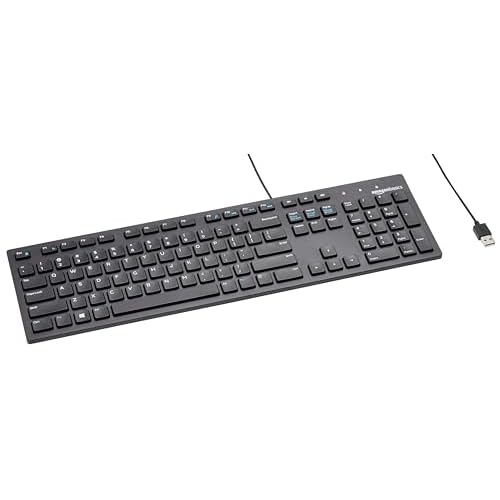
Plugging in an external USB keyboard is the fastest way to isolate whether your problem is hardware or software. Grab any USB keyboard, wired models work best for instant plug-and-play recognition, and connect it to a free USB port. If the external keyboard works perfectly while the built-in one stays locked, you’ve confirmed a hardware fault in your laptop’s internal keyboard or its ribbon cable connection.
Bluetooth keyboards also work for testing, though they require a few extra seconds to pair. If both your internal and external keyboards fail simultaneously, the issue is almost certainly software-related, likely a driver conflict, Windows update bug, or accessibility feature lock. In that case, focus on the driver and settings fixes described earlier. An external mechanical keyboard also makes a great permanent backup for heavy typists who want a more comfortable typing experience.
When to Contact Acer Support
If you’ve tried every software fix, run a full power cycle, tested with an external keyboard, and your built-in keyboard still won’t respond, it’s time to consider hardware repair. Internal keyboard failures on Acer laptops are often caused by a loose or damaged ribbon cable connecting the keyboard to the motherboard. This cable can work loose over time due to hinge flexing or accidental drops, and reconnecting it requires partial disassembly.
Check your Acer warranty status on the Acer support site, many models include a one-year limited warranty covering hardware defects. If your laptop is still under warranty, contact Acer support for a free repair or replacement. Out-of-warranty keyboard replacements typically cost $40–$80 for the part plus labor if you use a local repair shop. You can also find video tutorials on YouTube for DIY keyboard replacement if you’re comfortable with basic hardware work, though this voids any remaining warranty.
For quick diagnostics, run the built-in Acer Care Center hardware scan if it’s pre-installed on your laptop. This utility checks for hardware faults and can detect keyboard connection issues. If the scan reports a hardware error, you’ll have clear evidence to share with Acer support or a technician, speeding up the repair process.
Frequently Asked Questions
What causes an Acer laptop keyboard to become locked or unresponsive?
Common causes include accidental Fn+F6 or Fn+F7 key triggers, Windows accessibility features like Filter Keys or Sticky Keys, outdated keyboard drivers, software conflicts after Windows updates, and physical hardware issues like loose ribbon cables or debris under keys.
How do I disable Filter Keys on my Acer laptop to unlock the keyboard?
Press Windows + I to open Settings, navigate to Ease of Access > Keyboard (Windows 10) or Accessibility > Keyboard (Windows 11), then toggle off Filter Keys, Sticky Keys, and Toggle Keys. Test typing to confirm the keyboard responds immediately.
Can I use the on-screen keyboard if my Acer keyboard won’t work?
Yes. Press Windows + Ctrl + O to launch the On-Screen Keyboard instantly, or search for it in the Start menu. This lets you type passwords, navigate settings, and troubleshoot while your physical keyboard is locked or unresponsive.
How do I update keyboard drivers on my Acer laptop to fix a locked keyboard?
Press Windows + X, open Device Manager, expand Keyboards, right-click your keyboard device, and select Update driver. For Acer-specific drivers, visit the Acer support page, enter your model number, and download the latest chipset and keyboard drivers directly.
What should I do if my Acer keyboard gets wet or has liquid spill damage?
Power off immediately, unplug the AC adapter, and remove the battery if possible. Wipe the surface dry and let the laptop sit upside-down in a warm area for at least 24–48 hours. Liquid can corrode the keyboard ribbon cable and short circuits, requiring replacement if keys don’t recover.
How can I tell if my Acer keyboard problem is hardware or software related?
Connect an external USB keyboard to your laptop. If the external keyboard works while the built-in keyboard stays locked, it’s a hardware issue. If both fail simultaneously, the problem is software-related—focus on driver updates and accessibility settings.
Read More:
- HP Laptop Keyboard Locked (Here’s the Quick and Simple DIY Fixes)
- Dell Laptop Keyboard Locked? 8 Proven Fixes to Restore Typing Fast
- Numbers on Keyboard Not Working? Here’s the 7 Proven Fixes
- Letters Keyboard Not Working? 7 Proven Fixes to Get You Typing Again
- Laptop Keyboard Not Working (Complete Fix Guide for All Brands)