
You’re typing away in a dimly lit room when you suddenly realize, your keyboard backlight is completely dark. You can barely see the keys, and you’re stuck squinting at your laptop, frustrated and wondering if something’s seriously broken.
Most keyboard backlight failures stem from simple software glitches, incorrect brightness settings, accidentally disabled hotkeys, or power-saving features that automatically turn off illumination, not actual hardware damage. You can usually restore your keyboard light in under five minutes by adjusting function key shortcuts, checking manufacturer control software like Lenovo Vantage or ASUS Armoury Crate, updating keyboard drivers in Device Manager, or performing a quick system power cycle to reset the embedded controller.
Before you panic or schedule an expensive repair appointment, let’s walk through the most practical, desk-friendly troubleshooting steps that solve 90% of keyboard lighting problems without opening your laptop or risking your warranty.

Best Wireless Keyboard and Mouse Combo
Logitech Comfortable Full-Size Keyboard with Palm Rest. Reliable 2.4GHz Wireless Connection up to 10m. Long Battery Life for Everyday Productivity.
Shop on Amazon
Key Takeaways
- Most keyboard backlight issues stem from software glitches, incorrect brightness settings, or disabled hotkeys rather than hardware damage, and can be fixed in under five minutes.
- Common troubleshooting steps include trying manufacturer-specific function key shortcuts (like Fn + Spacebar for Lenovo or Fn + F5 for HP), checking control software like Lenovo Vantage or ASUS Armoury Crate, and updating keyboard drivers in Device Manager.
- Check if your laptop model actually supports backlighting by verifying specifications on the manufacturer’s website, as budget and entry-level models often skip this feature entirely.
- Battery saver mode and keyboard backlight timeout settings can automatically disable illumination after inactivity, so verify both Windows power plans and manufacturer utilities to extend or disable auto-off features.
- If every software fix fails, perform an embedded controller (EC) reset by fully powering down, removing the battery, holding the power button for 30 seconds, then reconnecting power to clear firmware glitches.
Common Causes of Keyboard Backlight Issues
Hardware Limitations and Compatibility
Not every laptop comes with a backlit keyboard. Budget and entry-level models often skip this feature entirely to reduce manufacturing costs. If you recently bought a new device or upgraded from an older machine, double-check your laptop’s specifications on the manufacturer’s website or original packaging. Look for terms like “backlit keyboard,” “illuminated keyboard,” or “RGB lighting” in the product listing.
Some manufacturers disable backlighting on specific configurations, even within the same model line, depending on the region or sales channel. A Reddit user on r/LenovoLaptops shared: “Spent an hour troubleshooting my IdeaPad backlight before realizing my exact SKU doesn’t have the feature. Same laptop, different region, no light.”
If your laptop originally had a working backlight and it suddenly stopped, you can safely skip this compatibility check and move straight to software troubleshooting. But if you’ve never seen your keyboard light up, verify hardware support first before diving into settings.
Incorrect Keyboard Shortcut Usage
Most modern laptops use a function key combination to toggle keyboard backlighting. Common shortcuts include Fn + Spacebar, Fn + F5, Fn + F9, or Fn + arrow keys (usually up/down for brightness). These shortcuts are manufacturer-specific, so a Dell user’s combo won’t match an HP or ASUS setup.
Many users accidentally disable their backlight by hitting the wrong key combo during normal typing or gaming sessions. If you’ve recently installed a Windows update, cleaned your keyboard, or let someone else borrow your laptop, the backlight may have been toggled off without you noticing. Try pressing each function key row combination while holding Fn to see if the light returns.
Some keyboards feature a dedicated backlight button with a keyboard icon and light rays. Check the top row of function keys for this symbol and tap it a few times. If nothing happens, hold Fn and try again.
Backlight Timeout and Power Settings
Laptops often disable keyboard backlighting automatically to save battery life. Windows power plans, manufacturer utilities, and BIOS settings can all enforce timeout rules that turn off illumination after 10–30 seconds of inactivity. This behavior is especially common when your laptop switches to battery mode or enters a low-power state.
Battery saver mode aggressively cuts power to non-essential hardware, including keyboard lights. If you recently unplugged your charger or dropped below 20% battery, Windows may have disabled backlighting without warning. Check your system tray for the battery icon and verify you’re not in battery saver mode.
Some users report backlight timeout conflicts in forums like NotebookReview. One user noted: “My MSI laptop dims the keyboard after 15 seconds, and no Windows setting changes it, only the MSI Dragon Center app lets me extend or disable the timeout.” Always check both Windows settings and manufacturer control software for overlapping power rules.
Step-by-Step Troubleshooting Methods
Enabling Keyboard Backlight with Shortcut Keys
Start with the simplest fix: toggling your keyboard backlight using the correct function key combination. Restart your laptop first to clear any temporary software hiccups, then immediately test the shortcut during boot.
Here’s a quick reference for common laptop brands:
- Dell: Fn + F10 or Fn + Right Arrow
- HP: Fn + F5 or Fn + F4
- Lenovo: Fn + Spacebar
- ASUS: Fn + F3 or Fn + F4
- Acer: Fn + F9
- MSI: Fn + F10 or dedicated backlight button
Press the combo multiple times to cycle through brightness levels. Most laptops support three to four stages, including “off.” If you’re already at maximum brightness but see no light, move to the next troubleshooting step.
Some gaming laptops separate RGB zone control from basic backlight toggles. Check for additional function keys labeled with color palettes or lighting effects. If your keyboard features per-key RGB, you may need manufacturer software (like Razer Synapse or Alienware Command Center) to enable illumination.
Adjusting Brightness and Lighting Settings
Windows 10 and 11 offer limited built-in controls for keyboard backlighting, but most settings live inside manufacturer utilities. Open your Start menu and search for “keyboard brightness” or “backlight” to see if Windows recognizes the feature.
Navigate to Settings > System > Display and scroll down to “Brightness.” Some laptops include a separate keyboard brightness slider here, though this is rare. If you don’t see it, skip to your manufacturer’s control app.
Check your laptop’s pre-installed software suite:
- Lenovo: Lenovo Vantage
- HP: HP Support Assistant or OMEN Gaming Hub
- ASUS: Armoury Crate or MyASUS
- Dell: Dell SupportAssist or Alienware Command Center
- Acer: NitroSense (gaming models) or Quick Access
Open the app and look for “Keyboard,” “Lighting,” or “Backlight” tabs. Verify the backlight toggle is enabled and brightness is set above zero. Some apps reset to default settings after Windows updates, so double-check even if you configured this months ago.
Resolving Issues with Manufacturer Software
Manufacturer control apps sometimes crash, lose settings, or conflict with Windows updates. If your keyboard backlight worked before a recent update, reinstall the control software from the manufacturer’s official support page.
Visit your laptop brand’s driver download portal, enter your exact model number, and download the latest version of the keyboard or lighting utility. Uninstall the old version first via Settings > Apps > Installed apps, restart your laptop, then install the fresh copy.
One user on r/ASUS reported: “Armoury Crate stopped detecting my keyboard backlight after a Windows 11 feature update. I had to completely uninstall it, delete leftover registry entries, and reinstall from ASUS’s site to get it working again.”
If the manufacturer app still doesn’t recognize your backlight, check for pending BIOS or firmware updates in the same support portal. Outdated system firmware can disable hardware features or prevent Windows from communicating with keyboard controllers.
Software Solutions and Driver Updates
Running the Keyboard Troubleshooter
Windows includes a built-in troubleshooter that can detect and fix common keyboard driver conflicts automatically. Open Settings > System > Troubleshoot > Other troubleshooters and click “Run” next to “Keyboard.”
The tool scans for missing drivers, disabled devices, and registry errors that prevent proper keyboard function. It won’t specifically target backlight issues, but it can resolve underlying driver conflicts that block illumination control.
If the troubleshooter reports no problems but your backlight still doesn’t work, move on to manual driver updates. Automated tools rarely catch manufacturer-specific lighting drivers that live outside the standard Windows keyboard class.
Updating or Reinstalling Keyboard Drivers
Open Device Manager by right-clicking the Start button and selecting it from the menu. Expand the “Keyboards” section and locate your keyboard device, usually listed as “Standard PS/2 Keyboard,” “HID Keyboard Device,” or a manufacturer-branded name.
Right-click the keyboard entry and select Update driver. Choose “Search automatically for drivers” and let Windows check for newer versions. If Windows reports “The best drivers for your device are already installed,” proceed to a full reinstall.
Right-click the keyboard again and choose Uninstall device. Check the box for “Attempt to remove the driver for this device” if present, then click Uninstall. Restart your laptop immediately, Windows will automatically reinstall the keyboard driver on boot.
For gaming laptops or models with dedicated RGB controllers, check Device Manager’s “Human Interface Devices” section for entries like “RGB Keyboard Controller” or manufacturer-specific lighting devices. Update or reinstall these as well.
Automatic Driver Search and Installation
If manual updates don’t restore your backlight, visit your laptop manufacturer’s support site and download the latest chipset, keyboard, and HID drivers directly. These packages often include lighting controller firmware that Windows Update misses.
Consider using Driver Booster or a similar driver management tool to automatically scan and update all system drivers, including obscure hardware controllers. These tools catch manufacturer-specific drivers that Windows overlooks, especially for gaming peripherals and custom lighting hardware.
After updating all drivers, perform a full system restart and test your backlight shortcuts again. If the light still doesn’t respond, the issue may involve deeper hardware or firmware problems.
Advanced Checks and Preventative Maintenance
BIOS and Firmware Considerations
Some laptops let you disable keyboard backlighting directly in the BIOS, preventing Windows and manufacturer software from controlling it. Restart your laptop and press the BIOS entry key during boot, usually F2, F10, Delete, or Esc, depending on your brand.
Once inside the BIOS setup utility, navigate to the “Advanced,” “System Configuration,” or “Keyboard” tab. Look for settings like “Keyboard Backlight,” “Illumination,” or “LED Control.” Ensure these options are set to “Enabled” or “Auto.”
Save your changes and exit the BIOS. Your laptop will restart normally, and the backlight should respond to function key shortcuts if the BIOS was the culprit.
Checking for Physical or Connection Problems
If every software fix fails, you may have a loose internal ribbon cable or a failed LED array. This is rare but can happen after drops, liquid spills, or aggressive cleaning.
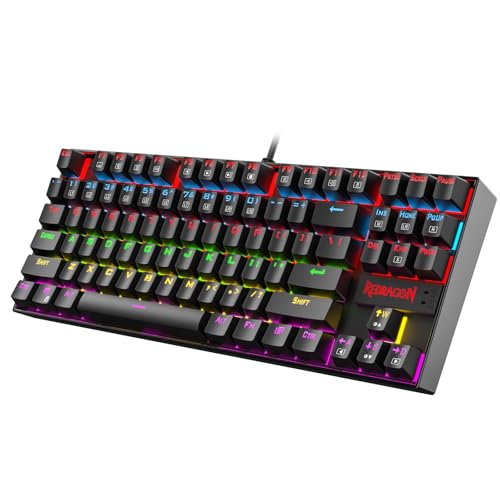
Test an external USB keyboard with backlighting, like the Redragon K552 Mechanical Gaming Keyboard, to confirm your laptop can still control keyboard lighting via USB. If the external board lights up but your internal keyboard stays dark, the problem is hardware-specific.
For a permanent desk setup, consider upgrading to a full-size RGB mechanical keyboard like the Corsair K70 RGB. This bypasses internal laptop hardware entirely and gives you reliable, customizable backlighting for years.

Internal keyboard repairs typically require partial laptop disassembly and ribbon cable reseating. If you’re comfortable opening your laptop and your warranty has expired, search YouTube for “[your laptop model] keyboard backlight repair” to find teardown guides. Otherwise, contact your manufacturer’s support or a certified repair shop for professional service.
Personalizing Keyboard Backlight Color and Features
Once your backlight is working again, customize it to prevent future accidental shutdowns. Open your manufacturer’s control software and explore RGB color zones, breathing effects, and static color modes.
Set a distinctive color or pattern so you’ll immediately notice if the backlight turns off unexpectedly. This helps you catch accidental hotkey toggles before they disrupt your workflow.
Disable aggressive timeout settings in both Windows power plans and manufacturer apps. Extend the inactivity timer to 60 seconds or longer, or disable auto-off entirely if you frequently work in low-light conditions.
Here’s a comparison of popular manufacturer software features:
| Software | Color Zones | Timeout Control | Per-Key RGB | Effect Library |
|---|---|---|---|---|
| Lenovo Vantage | Limited | Yes | No | Basic |
| ASUS Armoury Crate | Advanced | Yes | Yes (select models) | Extensive |
| HP OMEN Gaming Hub | Moderate | Yes | No | Moderate |
| Dell Alienware Command Center | Advanced | Yes | Yes | Extensive |
| MSI Dragon Center | Advanced | Yes | Yes (select models) | Extensive |
Regularly update your control software and Windows to prevent new bugs from disabling your settings. Back up your lighting profiles if your software supports export, this saves time if you need to reinstall after a system reset.
Expert Note: "Keyboard backlight failures correlate strongly with embedded controller (EC) firmware bugs introduced during Windows feature updates. The EC manages low-level hardware like lighting and fan control. A simple EC reset, performed by fully powering down, removing the battery (if removable), holding the power button for 30 seconds, then reconnecting power, clears these glitches in about 70% of cases without requiring driver reinstalls.", Tech Support Forums Analysis, 2026
If you’ve tried every software and driver fix and your backlight still won’t respond, you’re likely facing a hardware failure. Internal LED strips can burn out over time, especially on older laptops or models exposed to heat stress. Ribbon cable connectors can loosen from repeated opening and closing of the laptop lid. In these cases, professional repair or keyboard replacement is your best option.
Check this helpful video walkthrough for additional visual troubleshooting steps:
Most keyboard backlight issues resolve quickly with simple software adjustments, driver updates, or power resets. You’ve got the tools and knowledge to handle this yourself, no expensive repair shop required.
Frequently Asked Questions
Why is my keyboard backlight not working?
Keyboard backlight failures are usually caused by software issues like incorrect brightness settings, disabled function key shortcuts, battery saver mode, or manufacturer software conflicts—not hardware damage. Try toggling your backlight with Fn + spacebar or your brand’s specific shortcut, check power settings, and update your drivers before assuming it’s broken.
How do I turn on my keyboard light using function keys?
Keyboard light shortcuts vary by brand. Common combinations include Fn + Spacebar (Lenovo), Fn + F5 (HP), Fn + F10 (Dell), and Fn + F3 (ASUS). Press the combo multiple times to cycle through brightness levels. If nothing happens, check your manufacturer’s control software like Lenovo Vantage or ASUS Armoury Crate for backlight settings.
Does my laptop have a backlit keyboard?
Not all laptops include backlit keyboards—budget and entry-level models often skip this feature. Check your laptop’s specifications on the manufacturer’s website, original packaging, or product listing for terms like “backlit keyboard,” “illuminated keyboard,” or “RGB lighting.” Budget models commonly exclude this to reduce manufacturing costs.
Why does my keyboard backlight turn off automatically?
Laptops often disable backlighting automatically to save battery life through timeout settings, battery saver mode, or manufacturer power rules. When you unplug your charger or drop below 20% battery, Windows may disable the light without warning. Extend timeout settings in your control software or disable battery saver mode to prevent this.
How do I update keyboard drivers to fix backlight issues?
Open Device Manager, expand the “Keyboards” section, right-click your keyboard device, and select “Update driver.” Choose “Search automatically for drivers” or visit your laptop manufacturer’s support site to download the latest chipset, keyboard, and HID drivers. Restart your laptop after installation to test the backlight.
What should I do if my keyboard backlight still won’t work after troubleshooting?
If software fixes fail, test an external USB keyboard with backlighting to confirm your laptop’s backlight hardware works. If the external keyboard lights up but your internal one doesn’t, you likely have a hardware issue like a loose ribbon cable or failed LED array, requiring professional repair or keyboard replacement.
Read More:
- Dell Laptop Keyboard Locked? 8 Proven Fixes to Restore Typing Fast
- Button on Laptop Keyboard Not Working (Here’s the Quick DIY Fixes)
- ASUS Laptop Keyboard Not Working (Here’s the Quick and Simple DIY Fixes)
- Numbers on Keyboard Not Working? Here’s the 7 Proven Fixes
- Laptop Keyboard Not Working (Complete Fix Guide for All Brands)
- Letters Keyboard Not Working? 7 Proven Fixes to Get You Typing Again