
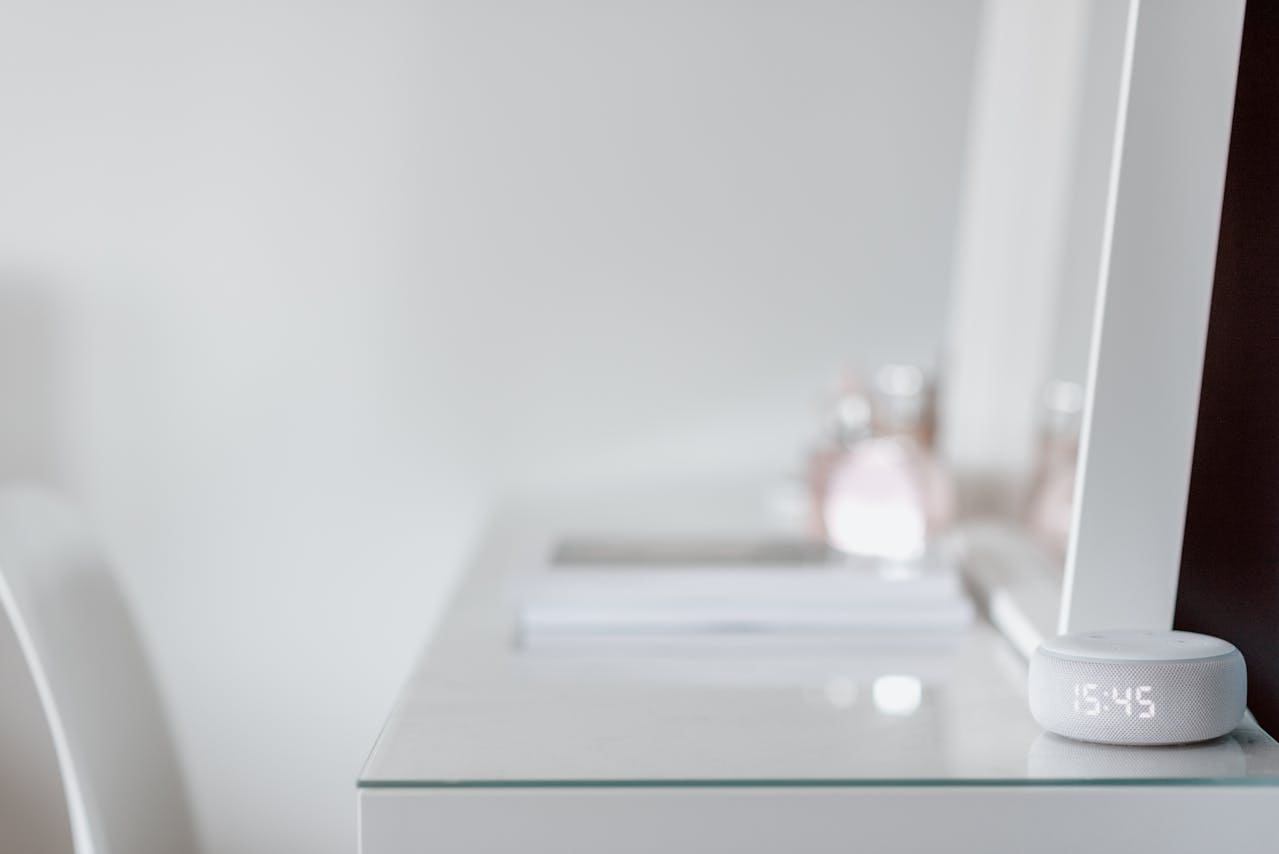
If your Alexa microphone is not working, it can stop the device from hearing your commands properly. The most common reasons are muted microphones, Wi-Fi connection problems, or the device not being placed well. Fixing these usually takes only a few simple steps.
You might need to check if the mute button is on, restart your Echo, update the firmware, or move the device to a better location. These quick fixes can solve most microphone issues and help Alexa respond to you again.

Understanding Common Alexa Microphone Issues
Your Alexa device may stop hearing you for several specific reasons. Some problems come from the device itself, while others come from the environment or how the device works with your setup.
Recognizing Microphone Failure Symptoms
If Alexa isn’t responding to your voice commands, the microphone might be off or blocked. One common sign is the red light on your device. This means the microphone is muted or disabled.
You might also notice Alexa only reacting to very close or loud speech. If Alexa fails to start listening after saying the wake word, your microphone may have hardware damage or software glitches.
Check if Alexa responds to non-voice commands like app controls. If these work but voice commands don’t, the issue is likely with the microphone or voice detection system.
Device Compatibility Limitations
Older Alexa devices may not work well with new updates or features. If you use a first-generation Echo or a discontinued model, its microphone might not catch commands as clearly.
Some devices have fewer microphones, which lowers voice detection accuracy in noisy areas. Newer versions often include advanced mic arrays that pick up sound from farther away.
Compatibility problems can also occur if your Alexa device is paired with outdated apps or connected through unstable networks. Ensuring your device firmware and app are up to date helps avoid these issues.
Ambient Noise Interference
Background noise can block or confuse Alexa’s microphone. Sounds like fans, televisions, or conversations nearby make it harder for Alexa to hear you clearly.
Loud music or multiple people talking at once can cause Alexa to miss or misunderstand commands. Placing your device closer to your usual speaking spot and away from noise sources can improve the microphone’s performance.
Echo devices work best in quieter rooms where your voice is the main sound. If noise problems persist, consider using Alexa devices with noise-cancelling microphones designed to handle busy environments.
Quick Fixes for Alexa Microphone Not Working
If your Alexa microphone isn’t picking up your voice, there are some simple steps you can take right away. These involve resetting the device, making sure the microphone button isn’t turned off, and ensuring the device is ready to listen. Addressing these points can solve most microphone problems quickly.
Restarting Your Alexa Device
Restarting your Alexa device can fix many temporary glitches affecting the microphone. To do this, unplug the power cable from the device, wait about 30 seconds, and then plug it back in.
This process helps clear any software bugs or connection issues that may cause the mic to stop working. After restarting, test your Alexa by saying the wake word to see if the microphone responds.
Restarting is a safe, quick step that should always be tried before anything more advanced. If this does not work, then you can move on to other fixes.
Checking the Microphone Button
Your Alexa device has a physical microphone button. If it is turned off, Alexa will not hear you. Look for a small button with a microphone icon on the device.
If the button is pressed, it will usually show a red light indicating the microphone is muted. Press this button once to turn the microphone back on.
Make sure you hear the typical startup sound or see the indicator light change to confirm the mic is active. This simple check often resolves problems quickly when Alexa stops responding.
Ensuring the Device Is Not Muted
Beyond the microphone button, ensure your device is not muted through the Alexa app. Open the app, select your Echo device, and check the volume and microphone settings.
Sometimes, software settings or updates can mute the mic without your knowledge. Also, place your device where it can clearly hear you, away from noise or obstacles.
Proper placement helps Alexa pick up your voice better. Avoid covering the microphone area or placing the device inside cabinets or tight spaces.
Verifying and Adjusting Microphone Settings
Checking your microphone settings is key to fixing Alexa’s voice detection issues. You need to make sure Alexa has the right permissions and that your device’s sensitivity matches your environment.
Reviewing Alexa App Permissions
Start by opening the Alexa app on your phone. Go to Settings, then select your Echo device.
Check if the microphone permission is enabled. Without this, Alexa cannot hear your commands.
Also, review the app’s permissions in your phone’s system settings. Make sure the app has access to the microphone and is allowed to run in the background.
If you accidentally muted the microphone on the device, toggle the mute button off. This button often has a red light when the mic is disabled.
Permissions and mute status are the most common blockers to Alexa hearing you properly. Confirm these first before adjusting other settings.
Resetting Microphone Sensitivity
You can adjust how sensitive Alexa’s microphone is to your voice through the Alexa app.
In the device’s Settings, look for options related to voice or sound detection.
If your environment is noisy, lower the microphone sensitivity so Alexa picks up only clear commands.
If you find Alexa misses your commands, raising the sensitivity can help it detect quieter voices better.
Sometimes, toggling the microphone on and off resets its state. You can do this by pressing the mute button or unplugging the device for 15 seconds.
Adjust sensitivity in small steps and test with simple commands for the best results.
Inspecting and Cleaning Alexa Device Hardware
To fix microphone issues, check your Alexa device for dirt or anything blocking the sound. You also need to place your Echo in a spot where it can clearly hear your voice.
Physical Obstructions and Debris
Look closely at the microphone holes on your Alexa device. Dust, dirt, or small debris can block sound from reaching the microphones. You can use a soft brush or a dry cloth to gently clean the microphone area.
Avoid using water or any liquid directly on the device. If dust is inside hard-to-reach spots, compressed air can help blow it out carefully. Make sure the device is unplugged before cleaning to prevent damage.
Positioning Alexa for Optimal Pickup
Place your Alexa device away from walls, corners, or objects that could block sound. A flat, open surface at least a few feet away from other electronics works best.
Avoid putting your device near loud noises like fans or TVs. Make sure it is not too close to windows where outside noise can interfere. Keep it at a comfortable height, so your voice can reach the microphones easily.
Updating Software and Firmware
Keeping your Alexa device’s software and firmware up to date can fix bugs and improve microphone performance. You can check for updates manually or let your device update automatically. After an update, restarting your device helps apply changes and solve any lingering issues.
Installing the Latest Alexa Updates
Most Alexa devices update automatically during off-peak hours. However, if your microphone is not working, you should check for and install updates manually to rule out software bugs.
To do this, open the Alexa app on your phone. Then:
- Go to Settings.
- Select your Alexa device.
- Look for the Software Version or Firmware Update option.
- If an update is available, follow the instructions to download and install it.
Using the voice command “Alexa, check for software updates” can also trigger a manual update. Keeping the software current ensures your microphone has the latest improvements and fixes.
Rebooting After Update
Once the update finishes, restart your Alexa device to make sure the changes take effect. This step is important because some updates only work fully after a reboot.
To restart:
- Unplug your Alexa device from the power outlet.
- Wait about 30 seconds.
- Plug it back in.
After the device powers on, test your microphone. Restarting can clear temporary glitches caused by updates and help Alexa hear you better.
Network and Connectivity Troubleshooting
Your Alexa device needs a strong and steady internet connection to hear you properly. If your microphone isn’t working, checking the Wi-Fi strength and fixing connection interruptions should be your first steps.
Checking Wi-Fi Strength
A weak Wi-Fi signal can stop Alexa from hearing your voice correctly. Make sure your Echo device is close enough to your router. Walls, furniture, and other electronics can block the signal.
You can test Wi-Fi strength by using a smartphone or laptop near the Alexa device. If the connection is slow or unreliable, try moving your Echo closer to the router or removing obstacles.
Also, check your router settings to ensure your device is connected to the right network. Avoid using public or guest networks that may have connection limits.
Resolving Connection Interruptions
Connection interruptions can cause Alexa’s microphone to stop working or reacting slowly. Restart your router and your Echo device to refresh the connection.
If interruptions continue, consider rebooting your modem or updating your router’s firmware. Sometimes, interference from other devices like cordless phones or microwaves can cause problems. Try relocating your Echo and router away from these items.
You can also switch your router’s Wi-Fi channel to avoid overcrowding from nearby networks. Most routers have a setting for this in their admin panel.
If the issue remains, reset your Echo’s network settings and reconnect it to Wi-Fi as a fresh start.
When to Contact Amazon Support
If your Alexa microphone still does not work after trying common fixes, you might need professional help. Knowing when the problem points to hardware issues and understanding your warranty options can save you time and frustration.
Identifying Hardware Malfunctions
You should contact Amazon support if your Alexa device shows no response to voice commands, even when unmuted and restarted. Physical damage, such as drops or water exposure, often causes microphone failure.
Other signs include Alexa not detecting any sound or picking up only very faint noise. If firmware updates and troubleshooting steps fail, the microphone or internal components may be defective.
Make sure your device is away from noises that might interfere with voice detection. If these conditions are met and the problem persists, hardware malfunction is likely, and reaching out to customer service is the next step.
Warranty and Service Options
Check if your Alexa device is still under warranty before contacting support. Amazon generally offers a one-year limited warranty covering hardware defects.
If your device qualifies, Amazon support can guide you through repair or replacement options. You might need proof of purchase and details about the issue.
If your device is out of warranty, Amazon support can still assist but may charge for repair services. They also offer a refund or exchange through the retailer, depending on their policies. Always review your coverage status to understand possible costs.
Read More:
- Alexa Remote Not Working? Troubleshooting and Fixes Guide
- Alexa Alarm Not Working? Troubleshooting and Solutions Guide
- Alexa Clock Not Working? Troubleshooting and Fixes Guide