
Last updated on July 12th, 2026 at 05:38 am
You’re mid-game or mid-Zoom call, reach for the volume key, and nothing happens. Your Asus keyboard volume control not working problem probably isn’t a dead keyboard. It’s almost always a software hiccup you can fix in minutes.
The most common cause of an Asus keyboard volume control not working is a crashed Asus Optimization service, a corrupted Armoury Crate or MyAsus hotkey integration, or a disabled Human Interface Device service in Windows, all of which can be fixed without touching a screwdriver. These background processes handle the translation between your Fn keys and Windows audio. When one stalls after an update or a sleep cycle, your volume keys go silent even though the physical switches underneath still work fine.

Best Wireless Touch Keyboard
Logitech All-in-One Keyboard & Touchpad. Perfect for Smart TVs & PCs. Reliable 10m Wireless Connection. Up to 18 Months Battery Life
Shop on AmazonThis guide walks you through the exact diagnostic order technicians use, from quick service restarts to driver reinstalls, so you know whether you’re dealing with a five-minute software glitch or something that actually needs Asus support.

Key Takeaways
- Asus keyboard volume control not working is usually a software issue caused by crashed background services, corrupted hotkey drivers, or disabled Windows HID services—all fixable without hardware replacement.
- Start troubleshooting by testing whether other Fn keys work and checking for on-screen display popups; if they function, the problem is audio-specific rather than a full driver failure.
- The ATKACPI driver is critical for translating physical key presses into Windows commands; if it shows a warning in Device Manager, reinstalling the ATK Package fresh (rather than updating over an old install) typically restores volume control instantly.
- Restarting the Asus Optimization service and checking Armoury Crate or MyAsus hotkey settings for stuck toggles resolves the majority of volume key issues within minutes.
- If basic fixes fail, run Windows’ built-in Keyboard and Audio Playback troubleshooters, update BIOS, and check for third-party software conflicts (Discord overlays, RGB apps, audio enhancers) that may intercept Fn key presses.
- Contact Asus official support if volume keys remain unresponsive after service restarts, driver reinstalls, and BIOS updates, as persistent failure may indicate a hardware fault covered under warranty.
Diagnosing Asus Keyboard Volume Button Issues
Before you touch a single driver, spend two minutes narrowing down what’s actually broken. Most reports of asus laptop volume keys not working windows 11 trace back to one of three culprits: a stuck background service, a stale hotkey driver, or a genuinely stuck key switch. Isolating which one you have saves you from reinstalling drivers you didn’t need to touch.
Identifying Common Symptoms
Start by watching your screen when you press the volume key. If no on-screen display pops up at all, that points to a driver or service problem, not a hardware fault. If the OSD appears but the slider doesn’t move, Windows Audio itself might be the bottleneck. ZenBook owners often describe this as the asus zenbook volume slider not showing on screen when typing, which is a strong signal the hotkey driver stopped talking to Windows entirely.
On Vivobook models, users sometimes report that touch-based multimedia keys respond to presence but not function, a classic case of asus vivobook multimedia hotkeys not responding to touch. That symptom usually means the capacitive sensor layer is fine, but the software layer interpreting it has crashed.
Make a mental note of when it started. Did it follow a Windows update, a BIOS flash, or installing new software? Timing tells you almost everything about the root cause.
Testing Hardware and Shortcut Keys
Next, confirm whether the issue is isolated to volume or affects every Fn shortcut. Try brightness, airplane mode, and keyboard backlight toggles. If those work but volume doesn’t, you’re likely dealing with an audio-specific service failure rather than a full hotkey driver crash.
This distinction matters a lot for ROG and TUF users. Plenty of gamers search for fix asus rog strix function keys volume adjustment dead, only to discover their macro keys and RGB controls work perfectly. That’s a strong clue the Asus Optimization service, not the whole Armoury Crate suite, needs a restart.
Also try an external USB keyboard if you have one nearby. If its volume keys work fine, your Windows Audio pipeline is healthy, and the problem sits squarely in Asus’s own hotkey layer.
Troubleshooting Physical Button Problems
Physical failure is rare but not impossible, especially on older units or laptops that have taken a spill. Press the volume key firmly and listen for a click. A mushy or silent press suggests a worn switch underneath the keycap.
Compare left and right edges of the key, since uneven wear sometimes causes partial contact. If only one specific key fails while everything else on the keyboard works, including other Fn combos, physical damage becomes more likely than software.
Still unsure? Boot into BIOS setup and try adjusting brightness or volume there if your model supports it. BIOS runs independent of Windows drivers, so a working key here all but confirms your issue is a Windows-level asus keyboard volume control not working problem, not a hardware one.
Software Fixes for Non Responsive Volume Controls
Once you’ve ruled out physical damage, the fix usually lives in Windows Services or Armoury Crate settings. This is where most people find their answer to how to fix fn volume keys not working asus laptop, often within ten minutes.
Checking and Updating Drivers
Open Device Manager and look under Keyboards and Human Interface Devices. Right-click each Asus-related entry and choose Update Driver. A grayed-out or missing entry here often explains a human interface device service disabled volume control asus scenario, since Windows can’t route key presses without an active HID stack.
While you’re there, check System Devices for the Asus System Control Interface. If it shows an error icon, uninstall it, restart your laptop, and let Windows reinstall it automatically. This single step resolves a surprising number of hotkey complaints across ZenBook and Vivobook lines alike.
Restoring System and Software Settings
Open Task Manager, go to Services, and find Asus Optimization. If it’s stopped, right-click and restart it. This is the single most effective fix, and it’s exactly why techs recommend you restart asus optimization service for keyboard volume control before trying anything more invasive.
If you use Armoury Crate, open it and check the keyboard or hotkey section for a stuck toggle. This is classic armoury crate keyboard media keys volume wheel troubleshooting territory, and a simple app restart often clears it. MyAsus users should check the same thing through the myasus app keyboard hotkey switching settings guide inside the System Diagnosis tab.
Also confirm Fn Lock isn’t accidentally enabled, since that alone can redirect volume presses to F-key functions instead.
Running Built In Windows Troubleshooters
Go to Settings, then System, then Troubleshoot, then Other Troubleshooters. Run both the Keyboard and Audio Playback tools. They’re basic, but they catch service conflicts that manual restarts sometimes miss.
For a deeper reset, consider a dedicated audio utility. Many users pair Windows’ native tools with third-party audio management software like DFX Audio Enhancer or similar volume-mixing tools to bypass stubborn driver conflicts entirely while Asus service files sort themselves out.
Driver and Compatibility Considerations
Sometimes the fix isn’t a restart at all. It’s an outdated or mismatched driver package that Windows Update quietly broke.
Role of ATKACPI Driver in Volume Control
The ATKACPI driver is the unsung hero behind every Asus hotkey. It translates physical key presses into commands Windows understands, including volume, brightness, and airplane mode. When this driver crashes or fails to load after an update, your keys physically register but produce zero system response.
You’ll find it listed as ATK Package or Asus ATKACPI Driver in Device Manager, usually under System Devices. If it shows a yellow warning triangle, that’s your answer.
Updating the ATK Package and Related Utilities
Head to the official Asus support and drivers site, search your exact model number, and download the latest ATK Package along with Asus System Control Interface Utility. Install both, restart, and test your volume keys immediately after login.
One Reddit user summed up the fix perfectly after struggling for days:
“Reinstalled the ATK package fresh instead of updating over the old one and my volume keys came back instantly. Wish I’d tried that first.” via r/ASUS
This process of reinstalling asus system control interface hotkey driver fresh, rather than patching over an old install, resolves stubborn cases that simple updates miss.
Windows 10 and 11 Compatibility Issues
Windows 11 feature updates occasionally reset driver signatures, breaking hotkey mapping until Asus pushes a compatible release. If you updated Windows recently and volume keys stopped that same day, check Windows Update history and compare it against Asus’s driver changelog for your model before assuming hardware failure.
Advanced Solutions and Manufacturer Support
If service restarts and driver reinstalls didn’t work, it’s time for deeper fixes. This is still a normal part of troubleshooting, not a sign your laptop is failing.
BIOS and System Update Recommendations
Outdated BIOS occasionally causes simple software solutions for broken volume shortcut keys asus to stop working entirely, since firmware handles low-level key mapping before Windows even loads. Check MyAsus or the Asus support page for a BIOS update matching your exact model, and install it only when plugged into power.
Also confirm Windows itself is fully patched. A half-installed update can leave hotkey services in limbo, which explains why some Tuf owners report asus tuf function keys working but volume up down dead while every other shortcut behaves normally.
When to Seek Asus Customer Support
If you’ve restarted services, reinstalled drivers, updated BIOS, and volume keys still don’t respond, contact Asus official support directly. Persistent failure across a clean Windows install strongly suggests a hardware fault covered under warranty, especially on units still within their coverage window.
Third Party Software Conflicts
Overlay software like Discord, RGB lighting apps, or older audio enhancers sometimes intercepts key presses before Asus utilities can process them. Close background apps one at a time and retest your volume keys after each closure to isolate the conflict.
| Software Type | Common Conflict | Quick Fix |
|---|---|---|
| RGB Lighting Apps | Hooks into Fn keys | Update or reinstall |
| Voice Chat Overlays | Intercepts media keys | Disable overlay hotkeys |
| Old Audio Enhancers | Blocks native driver | Uninstall completely |
| Third Party Launchers | Remaps Fn combos | Reset keybinds to default |
For a reliable hardware backup while you troubleshoot, many users keep a compact USB volume control knob on their desk. It bypasses the Fn key layer entirely and adjusts system volume directly through Windows Audio, so meetings and games don’t get interrupted mid-fix.
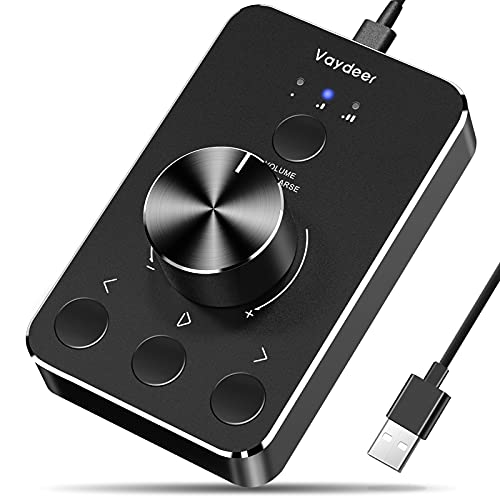
If you’re troubleshooting on a desktop setup with an Asus keyboard, pairing it with a dedicated external audio interface with a physical volume dial gives you a permanent workaround that also improves overall sound quality, well beyond what onboard hotkeys ever offered.

Frequently Asked Questions
Why is my Asus keyboard volume control not working?
The most common cause is a crashed Asus Optimization service, corrupted hotkey drivers, or a disabled Human Interface Device service in Windows. These background processes translate Fn keys to audio commands. Physical keyboard failure is rare; most issues are software-related and fixable in minutes.
How do I fix Asus keyboard volume control not working in Windows 11?
First, restart the Asus Optimization service via Task Manager’s Services tab. Then update drivers in Device Manager under Keyboards and Human Interface Devices. If still unresponsive, reinstall the ATKACPI driver from the Asus support site and restart your laptop.
What should I check if my Fn volume keys stopped working after a Windows update?
Windows 11 updates can reset driver signatures, breaking hotkey mapping. Check Windows Update history and compare it against Asus’s driver changelog for your model. Update or reinstall the ATKACPI driver and Asus System Control Interface Utility from the official Asus support site.
Can third-party software cause Asus volume keys to stop working?
Yes. Overlay software like Discord, RGB lighting apps, or old audio enhancers can intercept key presses before Asus utilities process them. Close background apps one at a time to isolate conflicts, then uninstall or update the problematic software.
How can I tell if my Asus keyboard volume problem is hardware or software?
Test other Fn shortcuts like brightness or airplane mode. If those work but volume doesn’t, it’s likely software. Also try an external USB keyboard—if its volume keys work, your Windows Audio is fine and the issue is Asus-specific software. Boot into BIOS to test there too.
What is the ATKACPI driver and why does it matter for Asus keyboard volume?
The ATKACPI driver translates physical Asus hotkey presses into Windows commands for volume, brightness, and airplane mode. If it crashes or fails to load after an update, keys register physically but produce no system response. Check Device Manager under System Devices for warning icons.
Read More:
- ASUS Keyboard Not Working (Here’s the 7 Fast Fixes That Actually Work)
- ASUS Laptop Keyboard Not Working on Startup (Here’s the Fix Guide)
- ASUS Laptop Keyboard Not Working (Here’s the Quick and Simple DIY Fixes)
- ASUS ROG Laptop Keyboard Not Working? Here’s the 7 Quick DIY Fixes
- ASUS VivoBook Laptop Keyboard Not Working (Here’s the Quick DIY Fixes)