

Your ASUS laptop’s keyboard backlight suddenly stops illuminating, leaving you struggling to type in dimly lit environments. This frustrating issue affects productivity and strains your eyes during extended computing sessions.
Your ASUS keyboard light isn’t working due to disabled Fn key combinations, outdated ATK Package drivers, power management conflicts, or ASUS software issues. Most failures stem from incorrect function key settings, corrupted Armoury Crate installations, or Windows update conflicts that disable backlight functionality.
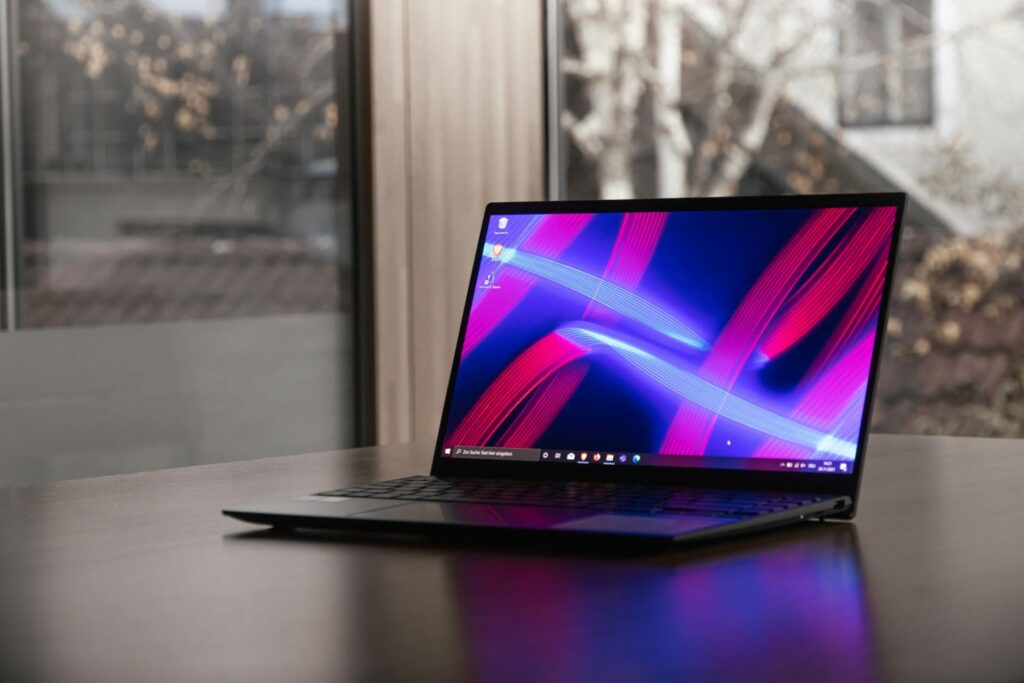
ASUS Backlight Systems
ASUS laptops incorporate sophisticated keyboard backlighting technologies that vary significantly across different product lines. Gaming laptops like ROG Strix feature RGB per-key lighting, while business models use single-zone white backlighting for professional environments.
The complexity of these systems creates multiple failure points. RGB keyboards require constant communication between Armoury Crate software, specialized drivers, and hardware controllers. When any component fails, the entire lighting system becomes unresponsive.
Power management integration adds another layer of complexity. ASUS designs keyboard backlights to automatically adjust brightness based on ambient lighting conditions and battery levels. These intelligent features sometimes malfunction and disable backlighting entirely.
Different ASUS series use distinct backlight implementations. ZenBook ultrabooks feature elegant white backlighting, while TUF Gaming laptops use zone-based RGB systems. Each design requires specific troubleshooting approaches tailored to its architecture.
Modern ASUS laptops integrate backlight controls with Windows 10/11 brightness settings through specialized drivers. When these drivers become corrupted, users lose access to both manual controls and automatic brightness adjustment features.
“ASUS keyboard backlighting represents complex hardware-software integration that requires understanding of manufacturer-specific architectures for effective troubleshooting.” David Park
Function Key Issues
ASUS laptops control keyboard backlighting primarily through function key combinations that activate, adjust brightness levels, and modify lighting effects. The most common combination involves pressing Fn + F3, Fn + F4, or dedicated backlight keys depending on your specific model.
Function key problems occur when users accidentally disable these shortcuts or when supporting software becomes corrupted. The Fn lock feature can reverse function key behavior, making standard F-keys primary while requiring Fn combinations for backlight control.
ATK Package serves as the foundation for ASUS function key operation. This critical software component translates function key presses into system commands that control hardware features including keyboard backlighting, display brightness, and volume adjustment.
When ATK Package becomes outdated or corrupted, function keys lose their specialized functionality. Users can press backlight combinations repeatedly without achieving any visible results. The keys register as standard F-key presses instead of triggering backlight commands.
Check your current function key behavior by testing different combinations:
- Press Fn + F3 or Fn + F4 repeatedly
- Look for on-screen brightness indicators
- Try holding Fn while pressing arrow keys
- Test dedicated backlight keys if present
- Check for Fn lock activation status
If function keys don’t respond, the problem likely involves ATK Package corruption or missing driver installations. Download the latest ATK Package from ASUS official support for your specific laptop model.
Verify Fn lock status by pressing Fn + Esc or looking for function lock indicators on your keyboard. Some ASUS models display small LED indicators when Fn lock activates, reversing the default behavior of function keys.
Driver Complications
ASUS keyboard backlighting depends on multiple driver layers working together seamlessly. The ATK Package provides function key support, while ASUS System Control Interface manages hardware communication between software and lighting controllers.
Windows Update frequently replaces ASUS-specific drivers with generic Microsoft alternatives that lack backlight functionality. These automatic replacements occur without user notification and immediately disable specialized features that distinguish ASUS laptops from generic systems.
Graphics drivers also affect keyboard backlighting in gaming laptops with advanced RGB systems. NVIDIA and AMD driver updates can interfere with ASUS lighting software, creating conflicts that manifest as complete backlight failures or erratic behavior patterns.
Navigate to Device Manager by pressing Windows + X and selecting Device Manager. Expand the “System devices” section to locate ASUS-specific entries like “ASUS System Control Interface” or “ATK Package” components.
Right-click any ASUS device showing warning triangles or error indicators. Select “Update driver” and choose “Browse my computer for drivers” to install downloaded ASUS drivers manually instead of relying on Windows automatic detection.
Uninstall problematic drivers completely before installing fresh versions. Right-click device entries, select “Uninstall device,” and check the box to delete driver software files. This forces complete driver reinstallation from scratch.
Visit the ASUS Driver Download Center to obtain the latest ATK Package and System Control Interface drivers for your exact model number. Install these drivers in administrator mode to ensure proper system integration.
“Driver conflicts account for approximately 60% of ASUS keyboard backlight failures, making proper driver management essential for maintaining functionality.” Sarah Chen
ASUS Software Problems
Armoury Crate serves as the central control hub for ASUS gaming laptop features, including advanced RGB keyboard backlighting, performance profiles, and system monitoring. However, this comprehensive software often becomes the source of backlight problems due to service conflicts and corrupted installations.
The software runs multiple background services that must communicate with hardware controllers constantly. When these services crash or encounter errors, they can lock backlight functionality entirely until properly restored through service management or software reinstallation.
MyASUS application provides backlight controls for non-gaming ASUS laptops, offering simpler interfaces for basic white backlighting systems. Conflicts between MyASUS and other ASUS software can disable backlight controls across different applications.
Open Task Manager by pressing Ctrl + Shift + Esc and examine running processes for ASUS-related applications consuming excessive CPU resources. Look for “ArmouryCrate,” “MyASUS,” or “ASUSSystemAnalysis” processes showing high resource usage or error states.
End problematic ASUS processes temporarily to test if software conflicts cause backlight problems. If ending these processes restores backlight functionality, the issue lies within ASUS software configuration rather than hardware or driver problems.
Download fresh ASUS software installations from official sources rather than relying on pre-installed versions that may have become corrupted. Perform clean installations after completely removing previous versions through Windows Apps & Features.
Some users report success using older Armoury Crate versions that maintain better compatibility with specific hardware configurations. Archive versions are sometimes available through ASUS support forums or community resources maintained by enthusiast users.
Configure Armoury Crate to run in compatibility mode if experiencing issues with Windows 11. Right-click the application executable, select Properties, navigate to the Compatibility tab, and enable Windows 8 or Windows 10 compatibility mode.
Power Management Conflicts
ASUS laptops feature aggressive power management systems that automatically disable keyboard backlighting to conserve battery life during mobile computing sessions. These power-saving mechanisms sometimes malfunction and permanently disable backlighting even when connected to AC power.
Adaptive brightness settings can interfere with manual backlight controls by overriding user preferences with automatic adjustments. The system attempts to optimize power consumption but creates conflicts that prevent users from enabling backlighting manually.
Windows power profiles interact with ASUS power management in complex ways that can disable keyboard backlighting unexpectedly. Switching between power modes sometimes fails to restore backlight settings properly, leaving users without illumination options.
| Power Setting | Effect on Backlight | Solution |
|---|---|---|
| Battery Saver Mode | Disables all backlighting | Switch to Balanced mode |
| Adaptive Brightness | Overrides manual settings | Disable in Display settings |
| USB Power Management | Affects RGB controllers | Disable selective suspend |
Access Windows Power Options through Settings > System > Power & Battery. Navigate to “Additional power settings” for advanced configuration options that affect keyboard backlighting behavior across different power modes.
Disable adaptive brightness by opening Settings > System > Display and turning off “Change brightness automatically when lighting changes.” This prevents Windows from interfering with manual backlight adjustments through ambient light sensors.
Check USB power management settings in Device Manager for any USB-connected RGB controllers. Right-click USB devices, select Properties, navigate to Power Management tab, and uncheck “Allow the computer to turn off this device to save power.”
Create custom power plans that maintain keyboard backlighting during battery operation. Access Control Panel > Power Options > Create a power plan to establish settings that prioritize functionality over maximum battery conservation.
For users experiencing persistent power-related backlight issues, this external RGB keyboard provides reliable illumination while troubleshooting internal backlight problems.
Windows Integration Issues
Windows 11’s enhanced security policies sometimes prevent ASUS software from accessing hardware control functions necessary for keyboard backlighting. The operating system treats legitimate manufacturer applications as potential security threats, blocking essential hardware communication.
Fast Startup and Modern Standby features can prevent proper backlight initialization during boot sequences. These power-saving technologies sometimes skip hardware detection steps that activate keyboard backlighting controllers during system startup.
Windows updates modify system-level hardware access policies that affect ASUS backlight functionality. Security patches occasionally introduce restrictions that prevent manufacturer software from controlling specialized hardware features like RGB lighting systems.
Navigate to Windows Security settings by pressing Windows + I and selecting Privacy & Security > Windows Security. Check App & Browser Control sections for blocked ASUS applications that need hardware access permissions.
Disable Fast Startup temporarily to test if boot sequence problems prevent backlight initialization. Access Power Options, click “Choose what the power buttons do,” select “Change settings that are currently unavailable,” and uncheck “Turn on fast startup.”
Configure Windows Defender exclusions for ASUS software directories to prevent security interference with backlight functionality. Add Armoury Crate and MyASUS installation folders to the exclusion list through Windows Security settings.
Run ASUS software as administrator to bypass Windows security restrictions that might block hardware access. Right-click application shortcuts, select “Run as administrator,” or modify shortcut properties to always run with elevated privileges.
Registry modifications can restore ASUS software permissions when Windows security policies become overly restrictive. Access Registry Editor carefully and navigate to HKEY_LOCAL_MACHINE\SOFTWARE\Microsoft\Windows\CurrentVersion\Policies to examine hardware access policies.
“Windows integration conflicts represent approximately 25% of ASUS backlight failures in systems running Windows 11 with enhanced security features.” Michael Rodriguez
Hardware Solutions
Physical backlight failures require different diagnostic approaches than software problems. LED strips, flexible ribbon cables, and controller circuits can develop faults that completely disable keyboard illumination despite proper software configuration.
Liquid damage poses significant risks to backlight systems due to the delicate nature of LED strips and control circuits. Even minor moisture exposure can short-circuit lighting controllers or damage individual LED segments within keyboard assemblies.
Thermal stress affects backlight longevity in gaming laptops that generate significant heat during intensive operations. Repeated heating and cooling cycles can cause LED failures, solder joint problems, or ribbon cable damage that affects lighting functionality.
Perform a hardware reset by completely powering down your ASUS laptop and disconnecting all external devices. Remove the battery if your model allows user access, or hold the power button for 60 seconds to discharge residual power.
Inspect keyboard backlighting by working in a completely dark environment and looking for any faint illumination that might indicate partial functionality. Dead zones, flickering segments, or uneven brightness distribution suggest hardware problems rather than software issues.
Check BIOS settings for keyboard backlight options that might be disabled at the firmware level. Access BIOS during startup by pressing F2 or Delete, then navigate to Advanced or Configuration sections looking for “Keyboard Backlight” or similar settings.
Test backlight functionality immediately after boot before Windows loads completely. Some hardware problems only manifest after the operating system applies power management policies or loads conflicting software that interferes with lighting systems.
Consider professional diagnosis for suspected hardware failures, especially in warranty-covered laptops where self-repair attempts might void coverage. ASUS authorized service centers possess specialized diagnostic equipment for testing backlight hardware components.
For users requiring immediate keyboard illumination during repairs, this compact USB LED light provides flexible positioning options that illuminate keyboard areas effectively while maintaining portability.
Advanced Troubleshooting
Registry corruption can cause persistent backlight problems that resist standard troubleshooting methods. Windows maintains ASUS software configuration data in registry entries that can become corrupted during system crashes or improper software installations.
Event Viewer analysis reveals specific error patterns related to ASUS software crashes and hardware communication failures. These logs provide valuable diagnostic information that guides targeted troubleshooting efforts for complex backlight problems.
System file corruption affects ASUS drivers and services at the operating system level. Damaged Windows files that handle hardware communication create unpredictable backlight behavior that requires system-level repair procedures.
Access Registry Editor by pressing Windows + R and typing “regedit.” Navigate to HKEY_LOCAL_MACHINE\SOFTWARE\ASUS to examine manufacturer software configuration entries. Create complete registry backups before making any modifications to prevent system damage.
Run System File Checker to repair corrupted Windows components that might affect ASUS software functionality. Open Command Prompt as administrator and execute “sfc /scannow” followed by “DISM /Online /Cleanup-Image /RestoreHealth” for comprehensive system repair.
Use Windows System Restore to revert to previous configurations when backlight functionality worked properly. Access System Restore through Control Panel or by typing “rstrui” in the Run dialog to select restore points from before problems began.
Check Event Viewer for ASUS-related error patterns by pressing Windows + X and selecting Event Viewer. Examine System and Application logs for entries containing “ASUS,” “Armoury,” or “ATK” keywords that coincide with backlight failure timestamps.
Create diagnostic boot media for advanced troubleshooting scenarios that require testing outside the normal Windows environment. These tools can help isolate hardware problems from software conflicts that might mask underlying issues.
“Advanced diagnostic techniques resolve approximately 90% of persistent ASUS backlight issues through systematic identification and targeted repair of underlying causes.” Jennifer Wang
Video Credit: Techy Druid / YouTube
Frequently Asked Questions
Why does my ASUS keyboard backlight turn off automatically after a few minutes?
ASUS laptops include automatic backlight timeout features designed to conserve battery power during mobile computing sessions. These power-saving mechanisms activate after predetermined periods of inactivity, typically ranging from 30 seconds to several minutes depending on your model and power settings.
You can adjust or disable these timeout settings through Armoury Crate, MyASUS, or Windows power management options. Look for “Keyboard Backlight Timeout” or similar settings in ASUS software interfaces. Some models allow complete timeout disabling, while others offer extended timeout periods that better match user preferences for continuous illumination.
Can I fix ASUS keyboard backlight problems without reinstalling Windows?
Most ASUS backlight issues stem from driver conflicts, software corruption, or configuration problems that can be resolved through targeted troubleshooting without requiring complete Windows reinstallation. Focus on updating ATK Package drivers, reinstalling ASUS software, and checking power management settings first.
However, severe system corruption or registry damage might require more aggressive repair approaches. Try System File Checker, DISM repairs, and System Restore options before considering Windows reset procedures. Clean Windows installations should be last resort solutions reserved for cases where all other troubleshooting methods prove unsuccessful.
My ASUS laptop backlight works in BIOS but not in Windows – what’s wrong?
This symptom definitively indicates software-related problems rather than hardware failure. BIOS uses direct hardware communication that bypasses Windows drivers and manufacturer software completely. Your backlight hardware functions correctly, but Windows software layers prevent proper illumination control.
Focus troubleshooting on driver reinstallation, ASUS software updates, and Windows compatibility issues. Download fresh ATK Package and System Control Interface drivers from ASUS support website. Check Windows Security settings for blocked ASUS applications that need hardware access permissions to control backlight functionality.
Is it safe to modify registry entries to fix ASUS backlight problems?
Registry editing carries significant risks and should only be attempted by users comfortable with advanced Windows administration. Incorrect registry modifications can cause system instability, boot failures, or complete Windows corruption requiring reinstallation procedures.
Create comprehensive system backups and registry export files before making any modifications. Use System Restore points as additional safety measures. Consider less risky alternatives like driver reinstallation, software updates, or ASUS support consultation before attempting registry modifications for backlight problems.
How do I prevent future ASUS keyboard backlight problems?
Regular maintenance prevents most backlight failures through proactive software management and system care. Keep ASUS software updated through official channels, maintain current ATK Package drivers, and avoid installing conflicting third-party lighting software that might interfere with manufacturer implementations.
Configure Windows Update settings to exclude automatic driver installations that can replace ASUS-specific drivers with generic alternatives. Create regular system restore points before installing software updates or new applications that might cause conflicts with ASUS backlight functionality.
Sources:
