
Your Bluetooth keyboard drops connection mid-sentence, forcing you to stop, repair, and reconnect every few minutes. It’s not just annoying, it kills productivity and interrupts critical work.
The most common cause is aggressive power management: Windows or macOS puts your Bluetooth adapter or keyboard to sleep to save power, breaking the connection. The fix is simple, disable “Allow the computer to turn off this device to save power” in Device Manager for your Bluetooth adapter and USB Root Hubs, update your Bluetooth drivers, replace weak batteries, and clear physical signal barriers between your keyboard and computer.
This guide walks you through every critical fix, from power settings to driver updates, so you can stop the random disconnection loop and restore stable typing.

Best Wireless Keyboard and Mouse Combo
Logitech Comfortable Full-Size Keyboard with Palm Rest. Reliable 2.4GHz Wireless Connection up to 10m. Long Battery Life for Everyday Productivity.
Shop on Amazon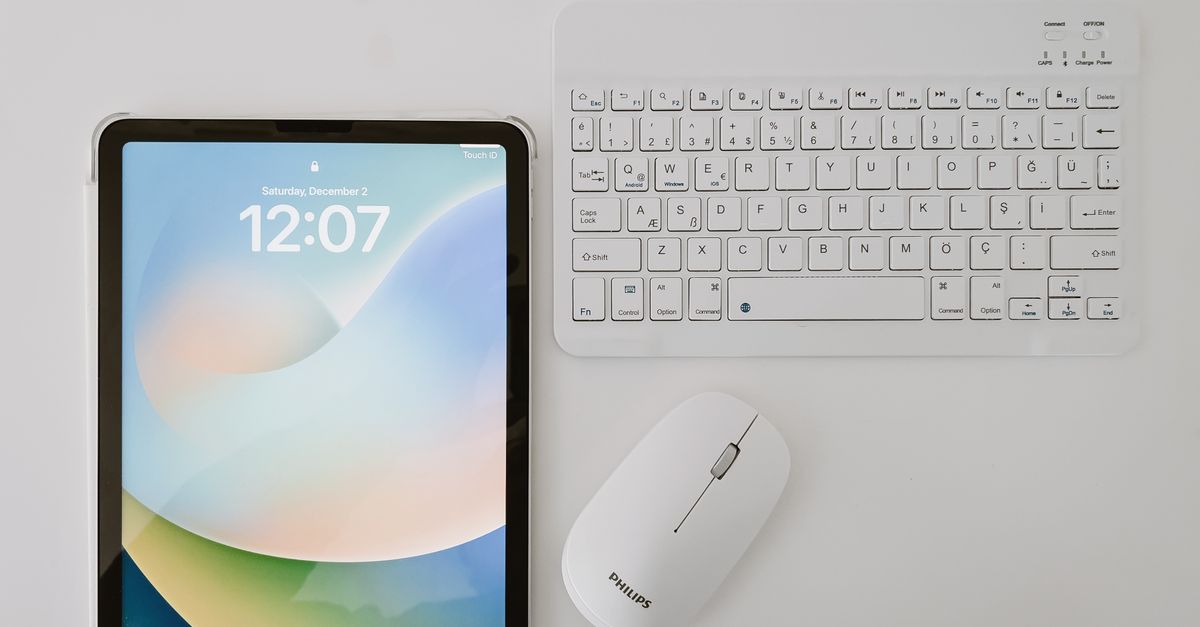
Key Takeaways
- Aggressive power management is the primary software cause of Bluetooth keyboard disconnection—disable power-saving options in Device Manager for your Bluetooth adapter and USB Root Hubs to restore stable connectivity.
- Replace weak batteries immediately as they are the leading hardware cause of Bluetooth keyboard drops, testing cells with a multimeter and ensuring fresh AA alkaline batteries read 1.5V or higher.
- Update Bluetooth drivers through Device Manager or your motherboard manufacturer’s support page, as outdated drivers fail to handle modern power management protocols and wake signals.
- Reduce wireless interference by moving your keyboard closer to the Bluetooth adapter, switching your Wi-Fi router to 5 GHz, and disconnecting unused Bluetooth devices competing for 2.4 GHz bandwidth.
- Clear corrupted pairing profiles by removing and re-pairing your keyboard on Windows or macOS, then test stability for 30 minutes of active typing to confirm the reconnection loop is resolved.
- If disconnections persist across multiple devices, your keyboard’s Bluetooth radio may be failing—test with a different device to determine whether to replace the keyboard hardware or your computer’s Bluetooth adapter.
Why Does Your Bluetooth Keyboard Keep Disconnecting?
Your Bluetooth keyboard drops connection because of power-saving timeout loops, outdated drivers, weak batteries, or signal interference. Modern operating systems aggressively manage power to extend battery life, often putting Bluetooth adapters and peripherals to sleep after short idle periods. When the adapter sleeps, the keyboard loses its connection and must re-establish the link, causing the constant reconnect cycle you experience.
Other culprits include low battery voltage that can’t maintain stable radio transmission, physical barriers like metal desk frames or thick walls blocking the 2.4 GHz signal, and driver conflicts where your Bluetooth stack doesn’t handle wake events properly. Wireless interference from Wi-Fi routers, microwaves, or other Bluetooth devices operating on the same frequency band also creates packet loss and forced disconnections.
Check Your Keyboard’s Battery and Power Status
Weak batteries are the leading hardware cause of bluetooth keyboard drops connection frequently. As alkaline or rechargeable cells drain below 1.2 volts per cell, the radio transmitter can’t maintain stable output power, causing intermittent signal loss and random disconnection loops. Replace your batteries immediately if your keyboard shows low-battery warnings or if you haven’t swapped them in over six months.
Rechargeable keyboards need proper charging cycles. If you leave your keyboard on a charger 24/7, lithium cells degrade and lose capacity, creating the same voltage sag issues. Charge fully, then use until the low-battery indicator appears. For disposable batteries, premium alkaline brands like Energizer Ultimate Lithium AA Batteries deliver consistent voltage throughout their lifespan, eliminating power-related disconnects.

Test battery health with a multimeter: fresh AA alkaline cells should read 1.5V or higher under no load. If your cells measure below 1.3V, swap them immediately. Rechargeable NiMH cells should read 1.2V or higher when fully charged.
Verify Bluetooth Connection Range and Interference
Bluetooth Class 2 devices, which most keyboards use, operate effectively within 10 meters (33 feet) in open space. Physical barriers cut that range drastically. Metal desks, filing cabinets, and reinforced walls block 2.4 GHz radio waves, forcing your keyboard to work harder to maintain connection, which accelerates battery drain and increases packet loss.
Move your keyboard closer to your computer or Bluetooth adapter. If you use a desktop PC with a rear-panel Bluetooth adapter, the metal case itself acts as a shield. Relocate the adapter to a front USB port or use a short USB extension cable to position the dongle on top of your desk in direct line of sight to the keyboard.
Common Sources of Wireless Interference
Wireless interference from other devices operating in the 2.4 GHz spectrum causes collisions and forces your Bluetooth keyboard to retransmit packets, creating lag and disconnections. Common culprits include:
- Wi-Fi routers: 2.4 GHz Wi-Fi networks overlap Bluetooth channels. Switch your router to 5 GHz or use channels 1, 6, or 11 to minimize overlap.
- Microwaves: Active microwave ovens emit broad-spectrum 2.4 GHz noise. Keep your keyboard and adapter at least 3 feet away from kitchen appliances.
- Other Bluetooth devices: Multiple Bluetooth peripherals, mice, headsets, game controllers, compete for bandwidth. Disconnect devices you’re not using.
- Wireless security cameras: 2.4 GHz cameras transmit continuous video streams that saturate the band. Upgrade to 5 GHz models or move cameras away from your workspace.
- Cordless phones: Older DECT 6.0 phones use 1.9 GHz, but legacy 2.4 GHz models interfere directly. Replace or relocate them.
According to IEEE 802.15 Working Group data, Bluetooth devices experience up to 40% packet loss when operating within 1 meter of active Wi-Fi transmitters on overlapping channels.
Update Your Bluetooth Drivers and Firmware
Outdated Bluetooth drivers fail to handle modern power management protocols, causing your adapter to sleep indefinitely or ignore wake signals from your keyboard. Driver updates patch compatibility bugs, improve signal handling, and fix timeout loop errors that create random disconnection cycles.
How to Update Bluetooth Drivers on Windows
- Press Win + X and select Device Manager.
- Expand Bluetooth and locate your Bluetooth adapter (Intel Wireless Bluetooth, Realtek Bluetooth Adapter, etc.).
- Right-click the adapter and select Update driver.
- Choose Search automatically for drivers. Windows will query Microsoft’s server for the latest version.
- If Windows reports “The best drivers are already installed,” visit your motherboard or laptop manufacturer’s support page. Download the latest Bluetooth driver package directly from Intel, Realtek, or Qualcomm.
- Install the driver package, restart your computer, and re-pair your keyboard.
For persistent issues, use Driver Booster to scan for outdated chipset, USB controller, and Bluetooth drivers simultaneously. Chipset drivers control power delivery to USB ports, and outdated versions can create voltage fluctuations that drop Bluetooth connections.
How to Update Bluetooth on Mac
macOS updates Bluetooth firmware through system updates. Open System Settings > General > Software Update and install any pending macOS updates. Apple bundles Bluetooth stack improvements and firmware patches into OS updates, so skipping updates leaves your Mac vulnerable to known disconnection bugs.
If your Mac runs the latest macOS but still experiences drops, reset the Bluetooth module. Hold Shift + Option and click the Bluetooth icon in the menu bar, then select Reset the Bluetooth module. This clears cached pairings and reinitializes the radio stack.
Adjust Power Management Settings
Aggressive power management is the primary software cause of fix wireless keyboard disconnects every few minutes. Windows and macOS put USB controllers and Bluetooth adapters to sleep after short idle periods, severing the connection to your keyboard. Disabling these settings stops the sleep cycle.
On Windows, open Device Manager (Win + X, then select Device Manager). Expand Bluetooth and locate your adapter. Right-click, select Properties, then open the Power Management tab. Uncheck Allow the computer to turn off this device to save power. Click OK.
Next, expand Universal Serial Bus controllers. For every USB Root Hub entry, repeat the process: open Properties, Power Management tab, uncheck the power-saving option. Some systems have 6–10 root hubs: you must disable power management on all of them to prevent the USB bus from sleeping and dropping your Bluetooth adapter.
Finally, adjust Windows power plan settings. Open Control Panel > Power Options > Change plan settings > Change advanced power settings. Navigate to USB settings > USB selective suspend setting and set it to Disabled for both battery and plugged-in modes. This prevents Windows from suspending individual USB ports.
“Disabled USB selective suspend and updated my Intel Bluetooth driver. Keyboard hasn’t dropped once in three days.” via r/Windows11
On macOS, Bluetooth power management is less granular. Open System Settings > Battery and disable Put hard disks to sleep when possible. This setting sometimes affects USB controllers on Intel-based Macs.
Remove and Re-Pair Your Bluetooth Keyboard
Corrupted pairing profiles cause bluetooth keyboard random disconnection loop errors. Re-pairing clears cached encryption keys and connection parameters, forcing your system to establish a fresh, stable link.
On Windows, open Settings > Bluetooth & devices. Locate your keyboard in the device list, click the three-dot menu, and select Remove device. Confirm removal. Turn off your keyboard, wait 10 seconds, then turn it back on and press the pairing button (usually on the bottom or side). In Windows, click Add device > Bluetooth and select your keyboard when it appears. Enter the pairing code if prompted.
On macOS, open System Settings > Bluetooth. Hover over your keyboard and click the (i) icon, then select Forget This Device. Turn off your keyboard, wait 10 seconds, then turn it on and hold the pairing button. Your keyboard will appear in the Bluetooth list as available to connect.
Before re-pairing, restart your computer. This clears the Bluetooth stack from memory and ensures the new pairing writes to a clean profile. After pairing, test stability for at least 30 minutes of active typing to confirm the disconnection loop is resolved.
Fix Bluetooth Keyboard Disconnection Issues on Specific Devices
Different operating systems handle Bluetooth power management differently, requiring platform-specific fixes. Windows, macOS, and iOS/iPadOS each carry out unique sleep timers and wake protocols.
Troubleshooting on iPad and iPhone
iPadOS and iOS aggressively manage Bluetooth to preserve battery life. If your Bluetooth keyboard sleeping too fast waking lag occurs on an iPad or iPhone, start by updating to the latest iOS version: open Settings > General > Software Update.
Next, forget and re-pair your keyboard. Open Settings > Bluetooth, tap the (i) next to your keyboard, and select Forget This Device. Restart your iPad or iPhone, then re-pair the keyboard. iOS caches pairing data, and clearing it resolves many intermittent disconnection issues.
If disconnections persist, disable Handoff and Bluetooth Sharing. Open Settings > General > AirPlay & Handoff and toggle off Handoff. These features create background Bluetooth activity that can interfere with keyboard connections.
“Turned off Handoff on my iPad Pro and my Logitech keyboard finally stopped dropping. Two weeks stable.” via r/iPad
Finally, reset network settings if all else fails. Open Settings > General > Transfer or Reset iPad > Reset > Reset Network Settings. This clears all Bluetooth, Wi-Fi, and VPN configurations, forcing iOS to rebuild connection profiles from scratch. You’ll need to re-enter Wi-Fi passwords and re-pair all Bluetooth devices.
When to Replace Your Bluetooth Keyboard
If you’ve updated drivers, disabled power management, replaced batteries, cleared interference, and re-paired multiple times without improvement, your keyboard’s Bluetooth radio may be failing. Radio chips degrade over time, especially in keyboards exposed to heat, humidity, or physical stress. Solder joints crack, capacitors age, and antenna traces corrode, all of which reduce signal strength and stability.
Test with a different device. Pair your keyboard with a smartphone or tablet. If it drops connection on multiple devices, the keyboard hardware is defective. If it works fine on other devices, your computer’s Bluetooth adapter is the problem. Replace the adapter or, on desktops, add a USB Bluetooth dongle.
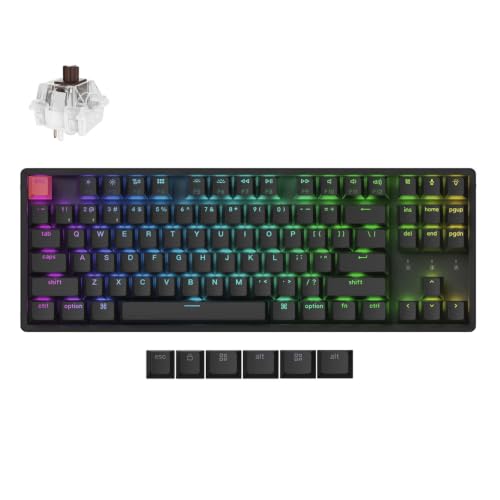
For a hardware upgrade that eliminates Bluetooth entirely, consider the Keychron K8 Pro Wired/Wireless Mechanical Keyboard. It offers both Bluetooth and USB-C wired modes, so you can switch to a cable when wireless drops and maintain uninterrupted workflow. Wired connections bypass all Bluetooth issues, no pairing, no interference, no power management conflicts.
Frequently Asked Questions
Why does my Bluetooth keyboard keep disconnecting?
Bluetooth keyboards disconnect due to aggressive power management that puts adapters to sleep, outdated drivers, weak batteries below 1.2V, or 2.4 GHz interference from Wi-Fi routers and microwaves. Modern OS power-saving features interrupt connections, forcing constant reconnects.
How do I fix a Bluetooth keyboard that keeps disconnecting on Windows?
Disable power management in Device Manager: uncheck ‘Allow computer to turn off this device’ for your Bluetooth adapter and all USB Root Hubs. Then disable USB selective suspend in Power Options. Update Bluetooth drivers and replace weak batteries to restore stable connection.
What should I do if my Bluetooth keyboard battery is low?
Replace batteries immediately if readings fall below 1.3V for alkaline or 1.2V for rechargeable NiMH cells. Weak batteries can’t maintain stable radio transmission. Use a multimeter to test; fresh alkaline AA cells should read 1.5V or higher under no load.
How can wireless interference affect my Bluetooth keyboard connection?
Wi-Fi routers, microwaves, and cordless phones operating on the 2.4 GHz spectrum cause packet loss and forced disconnections. IEEE data shows up to 40% packet loss near active Wi-Fi transmitters. Switch routers to 5 GHz or use channels 1, 6, or 11 to minimize overlap.
Should I disable Handoff to fix Bluetooth keyboard disconnections on iPad?
Yes. iPadOS’s Handoff feature creates background Bluetooth activity that interferes with keyboard stability. Disable Handoff in Settings > General > AirPlay & Handoff, then forget and re-pair your keyboard to resolve intermittent disconnections.
When should I replace my Bluetooth keyboard instead of troubleshooting?
Replace your keyboard if issues persist after driver updates, power management adjustments, battery replacement, and re-pairing. Test with another device: if it disconnects on multiple devices, the keyboard’s radio chip is failing. Consider wired alternatives like the Keychron K8 Pro for stability.
Read More:
- Keyboard Works in BIOS but Not Windows (Here’s the Proven Fixes)
- Keyboard Not Detected by Windows (Causes and Expert Fixes That Work)
- Bluetooth Keyboard Connected But Not Typing (Here’s How to Fix It Fast)
- Bluetooth Keyboard Not Working (Here’s the Fixes That Actually Work)
- Bluetooth Keyboard Not Connecting (Here’s Why and How to Fix It Fast)