
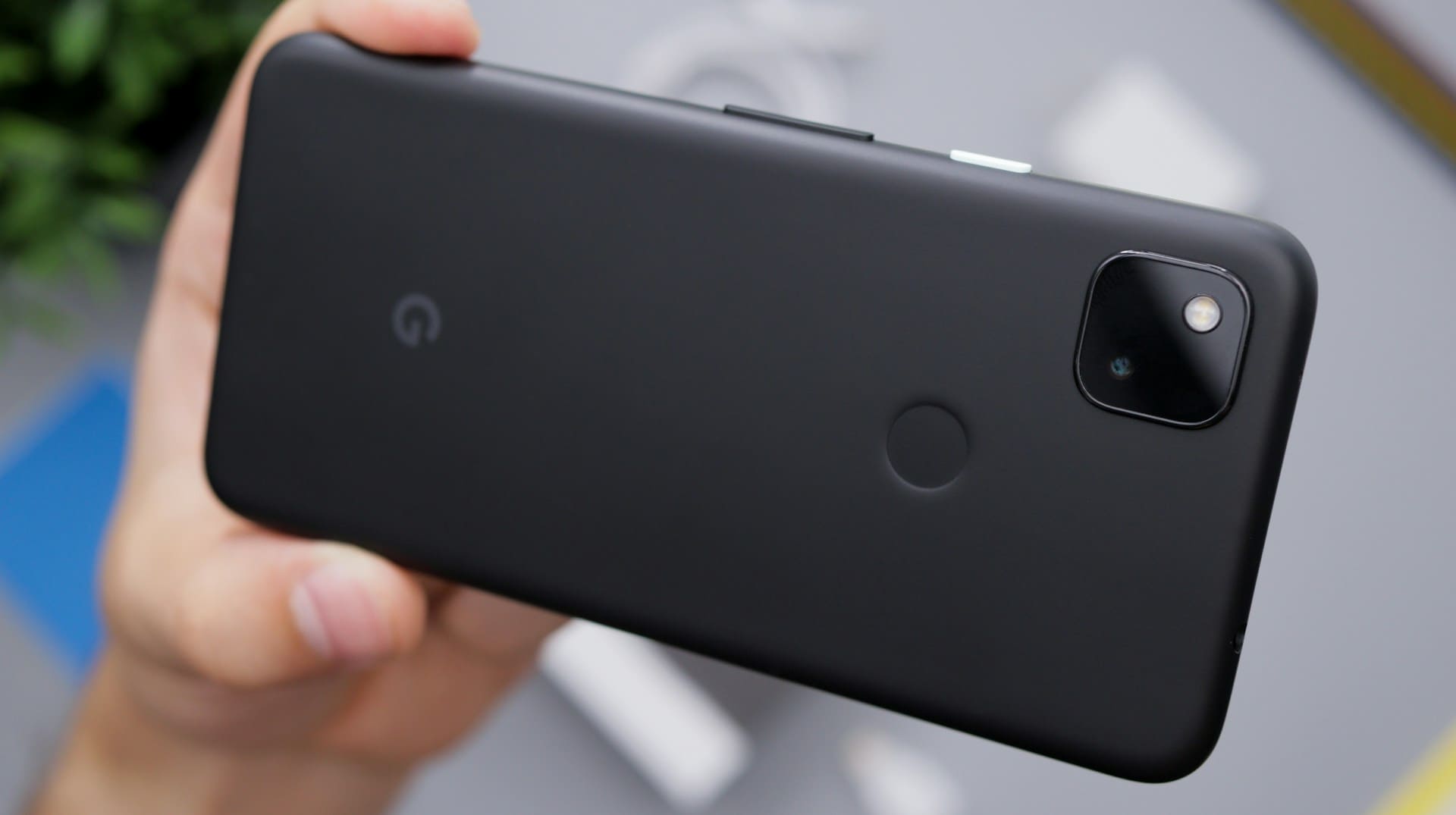
If your Google Pixel keyboard is not working, it can disrupt your ability to send messages, search, or use apps that require typing.
The issue often stems from software glitches, outdated apps, or incorrect settings, which can usually be fixed by restarting your device, clearing the keyboard app cache, or adjusting your input methods.
You might also experience problems after system updates or app conflicts that affect Gboard, the default keyboard on Pixel phones.
Knowing the basic troubleshooting steps can save you time and frustration, helping you restore your keyboard’s functionality quickly and efficiently.
This article will guide you through practical fixes that work on most Google Pixel models and software versions.

Common Reasons for Google Pixel Keyboard Not Working
When your Google Pixel keyboard malfunctions, it often results from specific issues related to software updates, app data, conflicts with other apps, or hardware problems.
Understanding these causes helps you target the right fix without unnecessary resets or replacements.
Software Glitches After Updates
Updates to your Pixel’s operating system or Gboard can introduce bugs that disrupt keyboard functionality.
These glitches might cause the keyboard to lag, not register certain keys, or fail to appear when you tap input fields.
Such problems often occur shortly after an update rolls out, affecting multiple users simultaneously.
Temporary workarounds include restarting your device or switching to a different keyboard app until fixes are deployed.
Keeping your system and apps updated helps, but if a newly installed update triggered the problem, you might consider rolling back or waiting for a stable patch.
Keyboard App Cache or Data Corruption
The Google keyboard relies on cached data to operate smoothly.
However, corrupted cache or data files can cause the keyboard to freeze, behave erratically, or stop showing up on your Android device entirely.
You can resolve this by clearing the cache or deleting the app data via your Pixel’s settings.
This resets the keyboard app to its default state, removing corrupted files without affecting your personal information.
If clearing cache doesn’t help, uninstalling and reinstalling Gboard might fix deeper issues related to corrupted app components or permissions.
Conflicts With Other Keyboards or Apps
Running multiple keyboard apps simultaneously or having apps that interact with input methods can cause conflicts.
Such interference may prevent your Google keyboard from displaying correctly or cause input delays.
To identify conflicts, try switching off or uninstalling alternative keyboards and check if Gboard functions normally.
Apps with overlay permissions or specialized input controls can also block the keyboard.
Adjusting app permissions or temporarily disabling conflicting apps often resolves these issues, restoring proper input response on your Pixel.
Hardware or Touchscreen Issues
If your Google Pixel keyboard doesn’t react to some taps or input fields ignore your typing, the problem might lie in the hardware.
A faulty or unresponsive touchscreen affects how the keyboard registers keystrokes.
Look for inconsistent touch recognition patterns, such as certain keys not responding while others do.
Physical damage, screen protectors interfering with touch sensitivity, or hardware wear can cause these symptoms.
If software troubleshooting fails, testing touchscreen responsiveness or consulting repair services may be necessary to confirm and fix hardware-related keyboard issues affecting your Pixel phone.
For detailed troubleshooting tips related to Gboard and Pixel keyboards, see the guide on keyboard issues after updates.
Diagnosing and Troubleshooting Google Pixel Keyboard Problems
When your Google Pixel keyboard stops working, pinpointing the issue requires methodical testing and system checks.
You’ll want to isolate whether the problem is app-specific, related to outdated software, or caused by conflicting background processes or settings.
Testing Keyboard in Different Apps
Start by opening multiple apps where you typically use your keyboard, such as Messages, Chrome, or a note-taking app.
This helps determine if the issue is widespread or limited to certain apps.
If Gboard functions properly in some apps but not others, the problem may lie with those individual apps rather than the keyboard itself.
If the keyboard does not appear or is unresponsive across all apps, it’s likely a device or system-level issue.
Try entering your SIM PIN or unlocking the phone to see if the keyboard responds at critical points.
Testing in different environments provides insight into whether the keyboard is disabled, frozen, or facing specific app conflicts.
Checking for System and App Updates
Next, ensure your Google Pixel and Gboard app are fully updated.
Software patches frequently fix bugs causing the keyboard to malfunction, such as keys not responding or erratic typing.
Go to Settings > System > System update to check for Android updates.
Then open the Google Play Store and find Gboard to update the keyboard app.
Outdated versions can cause symptoms including the keyboard not showing or delayed response.
If updates are installed, restart your device afterward to apply changes.
In some cases, clearing the keyboard app’s cache or data can also resolve persistent problems by resetting Gboard’s configuration.
Safe Mode Diagnosis
Booting your Pixel into Safe Mode helps you determine whether third-party apps are interfering with your keyboard.
Safe Mode disables all non-system apps, letting you test if Gboard works properly without additional software running.
To enter Safe Mode, press and hold the power button, then tap and hold the Restart option until the Safe Mode prompt appears.
Confirm to reboot into Safe Mode.
If the keyboard works fine in Safe Mode, a third-party app is likely causing the issue.
You can then uninstall recently added or suspicious apps one by one to identify the culprit.
If problems persist in Safe Mode, system-level fixes or a factory reset may be needed.
For detailed troubleshooting tips related to Gboard and the Pixel keyboard, see this guide on keyboard issues.
How to Fix Google Pixel Keyboard Not Working
You can resolve most Google Pixel keyboard issues by addressing app performance, device settings, and software conflicts.
These include restarting your phone, managing keyboard app data, resetting keyboard preferences, or changing your keyboard app when necessary.
Restarting Your Device
Restarting your Pixel can quickly resolve temporary glitches affecting the keyboard.
Press and hold the power button, then select Restart or Power off followed by turning the phone back on.
This action refreshes system resources and reloads the keyboard app, often fixing unresponsive keys or delayed input.
If the keyboard remains inactive, try a forced reboot by holding the power and volume down buttons together for about 10 seconds.
This does not erase your data but resets the device’s temporary states.
Restarting also helps finalize any pending updates that might affect Gboard or other keyboard apps.
Clearing Keyboard App Cache and Data
If restarting doesn’t help, clearing the cache and data for your keyboard app like Gboard or SwiftKey can remove corrupted files disrupting its function.
Go to Settings > Apps > Gboard (or your keyboard app) > Storage.
First, tap Clear Cache to remove temporary files.
If problems persist, use Clear Data which resets the keyboard to default settings, erasing learned words and personalized settings.
After clearing data, you may need to re-enable the keyboard in your device’s input settings.
Clearing app cache is safe and often resolves crashes or lag caused by outdated temporary data.
Resetting Keyboard Settings
Restoring keyboard settings to default can fix improper configurations causing typing errors or missing keys.
Open your keyboard’s app settings (e.g., Gboard) and look for options like “Reset settings” or “Restore default dictionary.”
This step removes any customized preferences that might interfere with functionality.
You can also check your input language, autocorrect, and gesture settings within the keyboard app.
Misconfigured options sometimes disable certain keys or cause delays.
Resetting these makes sure the keyboard works as intended.
Switching or Reinstalling Keyboard Apps
Sometimes the issue lies with the keyboard app itself.
Switching temporarily to a different keyboard, such as SwiftKey or the default Android keyboard, can help diagnose if Gboard is the problem.
You can change keyboards by going to Settings > System > Languages & input > On-screen keyboard > Manage keyboards.
If Gboard is causing trouble, uninstall updates or reinstall the app.
To do this, open Play Store, find Gboard, and select uninstall or update.
Reinstalling installs the latest version and fixes bugs affecting usability.
Using alternative keyboards while troubleshooting ensures you can keep typing without interruption.
If reinstalling doesn’t fix the problem, you might consider reporting the issue to Google support.
For detailed instructions on restoring your keyboard, visit Google’s guide on how to add Gboard back to your keyboard list.
Alternative Solutions and Preventive Tips
When your Google Pixel keyboard malfunctions, having backup options and proactive habits can keep typing smooth.
Adjusting your defaults, managing connected devices, and keeping software current are key steps to avoid or fix common keyboard troubles.
Selecting a Different Default Keyboard
If Gboard becomes unresponsive or buggy, switching to an alternative keyboard like SwiftKey can restore your typing ability immediately.
You can download these keyboards from the Google Play Store.
Once installed, go to Settings > System > Languages & input > Virtual keyboard > Manage keyboards and enable the new keyboard.
Then select it as the default to start using it.
Disabling all other keyboards except the one you want reduces conflicts and accidental switches.
If your Google Keyboard causes recurrent issues after updates, using SwiftKey or another reliable option ensures you won’t get locked out.
Remember, having at least one additional keyboard installed is a practical emergency solution when Gboard fails.
Disconnecting External Keyboards and Accessories
Sometimes external USB or Bluetooth keyboards, mice, or OTG adapters interfere with your on-screen keyboard.
If you use physical keyboards, try disconnecting them to see if the phone’s touchscreen keyboard reactivates correctly.
Bluetooth accessories should be unpaired temporarily from Settings > Connected devices.
This is crucial if the physical input is overriding your Google Pixel’s software keyboard or causing input lag.
Disconnecting peripherals helps isolate issues and can reveal if the problem lies within external hardware or Gboard itself.
Reconnecting devices one by one allows you to identify any compatibility conflicts affecting Gboard performance.
This helps you maintain smooth input without unexpected interruptions.
Maintaining App and System Updates
Both your Google Pixel system and Gboard require regular updates to fix bugs and improve compatibility.
Google’s monthly security patches often contain keyboard fixes alongside overall device improvements.
Go to Settings > System > System update to check for and install the latest Android patches.
Additionally, update Gboard via the Play Store frequently to access bug fixes and feature enhancements.
Avoid beta versions if you encounter stability problems, as they may introduce new issues.
Keeping your device and apps updated helps prevent crashes, unresponsive keys, and sluggish typing caused by outdated software or incompatible versions.
For more details on typical problems and fixes, review the comprehensive solutions for Gboard issues.