
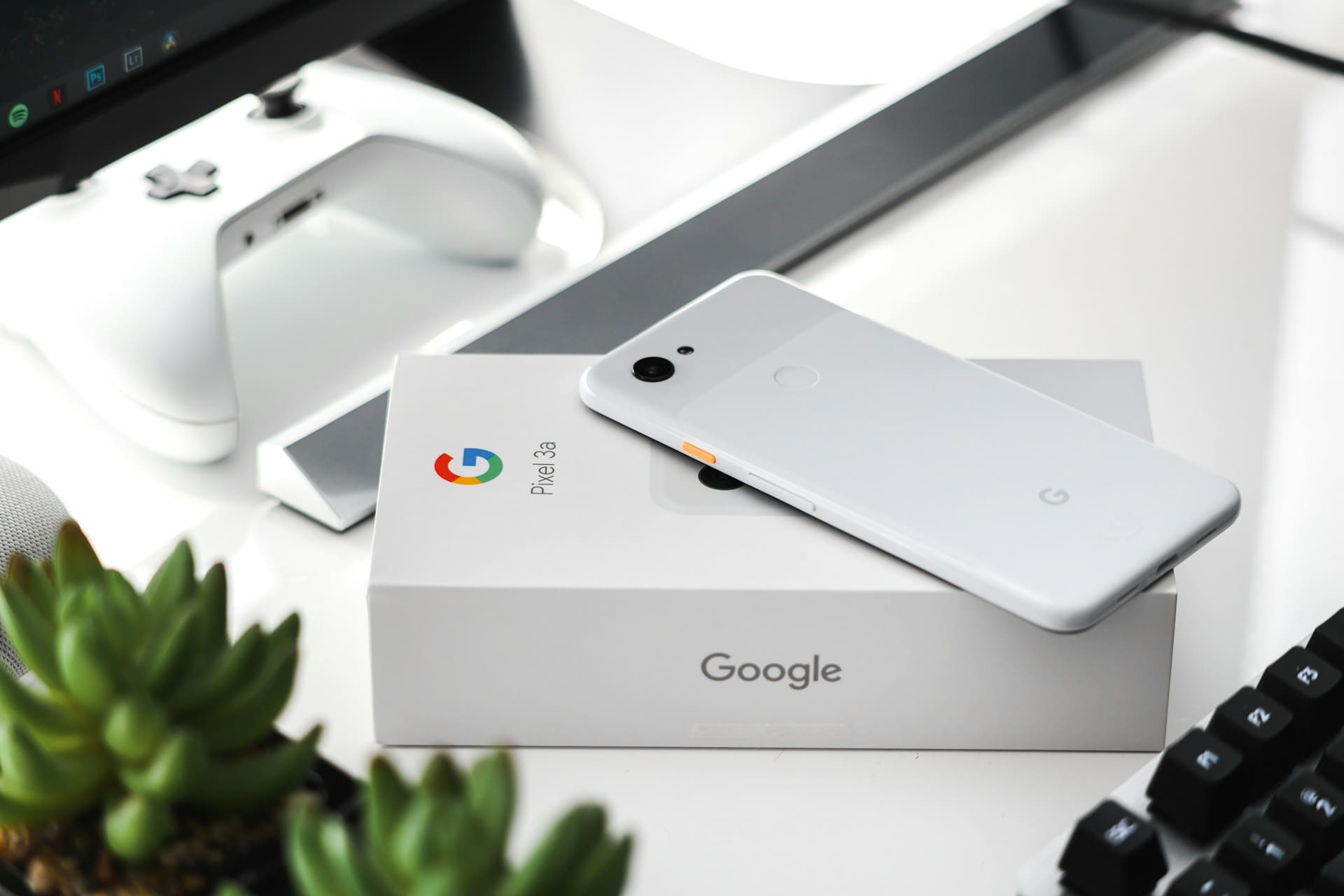
If your Google Pixel keeps restarting unexpectedly, it can disrupt your daily routine and make your device unreliable. This issue is often caused by software glitches, problematic apps, or outdated system updates, and can usually be fixed with some straightforward troubleshooting steps.
You might experience random reboots, constant restarts, or even complete shutdowns without warning. Understanding the common causes and solutions will help you regain full control of your phone quickly and avoid ongoing frustration.
This guide will walk you through practical fixes, from basic resets to checking for software updates and identifying faulty apps. For more details on each method, see this guide on how to fix a Google Pixel phone that keeps restarting.

Main Reasons Why Google Pixel Keeps Restarting
When your Google Pixel keeps restarting, understanding the root causes can help you address the problem effectively. The issue often stems from a mix of software and hardware factors, which can affect overall stability and performance.
Software Glitches and Updates
Software glitches are one of the primary reasons for random restarts on your Pixel. These can occur after a recent system update if bugs or corrupted files affect core processes.
An incomplete or faulty software update may introduce conflicts that cause the phone to reboot unexpectedly. Your Pixel’s operating system may also face corrupted system files or a misbehaving background service.
This can trigger the phone’s automatic restart to protect itself from further damage. Running the latest official updates usually resolves known bugs, so regularly check and install system updates.
You can also try booting into Safe Mode to determine if a system-level glitch or essential app is causing the restarts. In Safe Mode, only pre-installed apps run, helping you isolate software glitches.
Faulty or Draining Battery
A faulty or degraded battery is another common cause of sudden Pixel restarts. If your battery cannot reliably provide power under load, the device may turn off abruptly or reboot.
This is especially true for older Pixel models like the Pixel 6, which may experience battery-related stability problems after prolonged use. Rapid battery drain or inconsistent charge levels can trigger power management issues.
Pixel phones have built-in safeguards that force a restart to avoid damage from unstable voltage. Physical battery damage or swelling can also cause hardware shorts, leading to reboot loops.
If you suspect battery problems, monitoring your battery’s health in settings or using third-party apps can help identify abnormal performance. In some cases, battery replacement may be necessary.
Third-Party App Issues
Apps downloaded from outside the Google Play Store or poorly optimized third-party apps can destabilize your Pixel. When an app crashes repeatedly or conflicts with system processes, it can cause the phone to restart unexpectedly.
Issues frequently arise after installing or updating an app that lacks compatibility with your current Android version. Malware or poorly coded apps can also interfere with normal operations.
To narrow down the cause, uninstall recently added or suspicious apps. You can further verify app-related problems by booting into Safe Mode, which disables these apps temporarily.
Storage and Overheating Problems
Low storage space and overheating can both trigger reboot loops on your Pixel device. When internal storage is nearly full, essential system functions may slow down or fail, leading to instability and forced restarts.
Overheating stresses both hardware and software systems. Your Pixel may restart automatically to prevent damage from excessive heat, especially during heavy use like gaming or video recording.
To avoid storage-related issues, regularly clear cache and delete unnecessary files. Keep your device in a cool environment and avoid intensive tasks during charging to reduce overheating risks.
Step-by-Step Troubleshooting Methods
To address a Google Pixel that keeps restarting, focus on methods that isolate the cause of the problem and eliminate common software and storage issues. These steps involve restarting techniques, checking if third-party apps trigger the problem, and ensuring sufficient free space for normal operations.
Manual Restart and Forced Reboot
Start by performing a manual restart. Press and hold the power button until the device powers off and then back on.
If your Pixel is unresponsive or stuck in a restart loop, try a forced reboot. Hold the power button for about 30 seconds or until the screen goes black.
Release, then press the power button again to turn it on. This process won’t erase your data but can clear temporary errors causing restarts.
Performing these steps helps determine if the problem is a brief software freeze or something deeper. If restarts continue after forced reboots, proceed to further diagnosis.
Safe Mode Diagnosis
Boot your Pixel into Safe Mode to check if apps are causing the restarting issue. Safe Mode disables all third-party apps, allowing only essential system processes to run.
To enter Safe Mode, press and hold the power button, then tap and hold “Power off” until the Safe Mode prompt appears. Tap “OK” to reboot in Safe Mode.
Observe your phone: if the random restarts stop, a third-party app is likely triggering the problem. You can then uninstall recently added or updated apps one by one, rebooting normally after each to identify the culprit.
If restarts persist in Safe Mode, the issue may be related to the system software or hardware.
Free Up Storage Space
A lack of free storage can cause your Pixel to behave unpredictably, including restarting randomly. Check your available space in Settings > Storage.
Aim to keep at least 10-15% of your total storage free. Delete unnecessary files, uninstall apps you rarely use, and clear cached data.
You can also use Google’s built-in storage management tool to identify large files or unused apps quickly. Freeing up space reduces strain on the system and can stabilize performance, helping to stop random restarts caused by storage-related slowdowns.
For more on troubleshooting these symptoms, visit the guide on how to fix a Google Pixel phone that keeps restarting.
Advanced Fixes and When to Seek Support
When simpler troubleshooting steps don’t resolve your Google Pixel keeps restarting issue, you need to consider deeper software interventions and possibly professional help. These approaches focus on restoring device stability while protecting your data and ensuring your Pixel 6 or other models run the latest, most stable software.
Factory Reset and Data Backup
A factory reset erases all your data and settings, returning your Google Pixel to its original state. This step often resolves persistent restarting caused by corrupted system files or problematic app configurations.
Before proceeding, back up your important data—photos, contacts, messages, and app data—using Google Drive or another cloud service. To perform the reset, go to Settings > System > Reset options > Erase all data (factory reset).
After the reset, reinstall apps carefully to avoid reintroducing the issue. This method is especially useful if your Pixel 6 recently installed a software update that might have caused the restarts.
Update and Software Repair Tools
Keeping your device’s software up to date is critical. Google regularly releases patches improving stability and fixing bugs that can cause unexpected restarts.
Check for updates under Settings > System > System update and install any available updates promptly. If restarts continue post-update, consider using Google’s built-in repair options or third-party software tools designed for Pixel recovery.
These tools can fix system-level errors without a full reset. They often include USB-based utilities or recovery modes accessible by holding specific button combinations.
Contacting Google Support or Authorized Repair
If software interventions fail or you suspect hardware problems, contact Google support or visit an authorized service provider. Issues like faulty batteries or internal components can cause the Pixel to reboot repeatedly, and professional diagnostics are necessary.
You can reach support via the official Google Pixel help page or your device’s Settings > Help & feedback section. Authorized technicians have specialized tools to detect and repair hardware failures, ensuring your device is restored safely and reliably.
This step is recommended especially if your phone remains unstable after updates, resets, and self-repair attempts.
Preventing Future Restart Issues and Best Practices
Regular maintenance and cautious habits can significantly reduce the chances of your Pixel encountering restart problems. Focusing on critical areas like software updates, battery condition, and app management helps maintain your device’s stability and performance.
Keeping Software and Apps Updated
Keeping your Pixel’s software up to date is essential. Software updates often include bug fixes and security patches that address known issues causing unexpected restarts.
Check for system updates regularly by going to Settings > System > System update. Apps also need frequent updates.
Outdated apps can conflict with system software, resulting in crashes or reboot loops. Use the Google Play Store to update apps promptly, or enable automatic updates to streamline the process.
Avoid installing beta or unofficial software versions unless you have experience troubleshooting. These can introduce instability and increase the likelihood of your phone restarting unexpectedly.
Monitoring Battery Health
A degraded battery is a common hardware cause of random restarts on Pixel devices. If your phone shuts down during heavy use or loses charge quickly, the battery could be failing.
You can check battery health using third-party diagnostic apps or through authorized service centers. Avoid exposing your Pixel to extreme temperatures, as this can shorten battery lifespan and cause erratic behavior.
Charging with official or certified chargers also ensures safe power delivery to prevent stress on the battery and internal components. If you notice persistent restart issues alongside rapid battery drain, consider professional battery replacement to restore system stability.
Safe App Installation Practices
Installing apps from unknown or untrusted sources can disrupt your Pixel’s software environment. Apps that aren’t properly vetted might contain bugs, malware, or conflicting code that triggers restart loops.
Stick to the Google Play Store for app downloads. Check app permissions before installation and avoid giving unnecessary access to system functions.
Review app ratings and developer credibility to minimize risks. Uninstall suspicious or rarely used apps to reduce system load and eliminate potential software conflicts.
Regularly clearing app caches and data can also help maintain smooth operation and prevent crashes.