
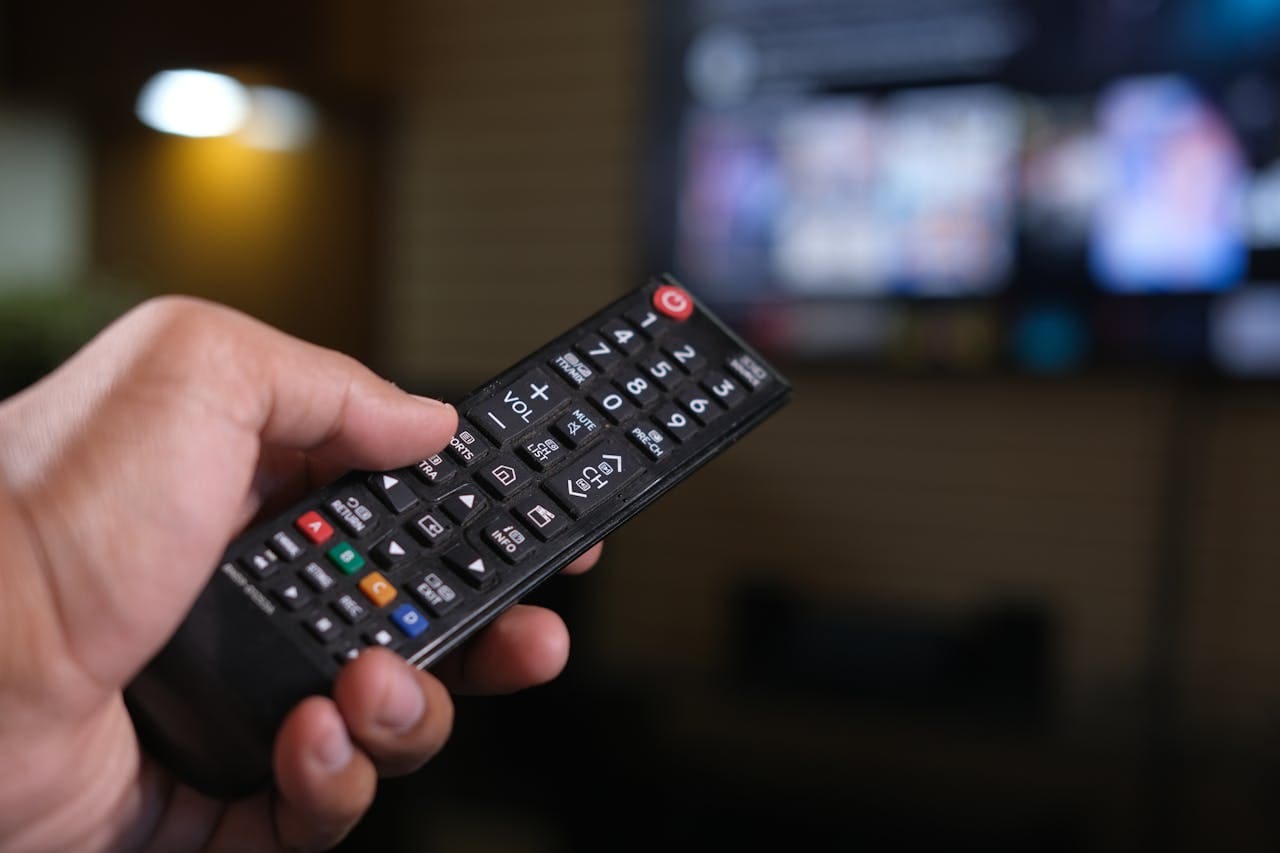
If your Samsung TV is not able to update its software, the issue usually stems from connectivity problems, server interruptions, or glitches within the TV’s system. Ensuring a stable internet connection and manually initiating the update process often solves this problem. Sometimes, the update option might be greyed out or the TV may fail to detect new updates, which requires additional troubleshooting steps.
You might find that restarting your network devices or performing a manual update using a USB drive can bypass common update failures. If your TV remains stuck on an older software version, checking Samsung’s update servers for downtime or resetting the TV to factory settings could help restore the update function. This guide will walk you through practical steps to get your Samsung TV’s software up to date and functioning properly.

Key Reasons Your Samsung TV Can’t Update Software
Your Samsung TV may face specific hurdles that prevent it from installing the latest software update. These obstacles usually relate to network problems, the state of your current firmware, or hardware limits within the TV itself.

Amazon Fire TV Stick HD
Turn Any TV to a Smart TV. Stream Netflix, Prime Video & More. Alexa Voice Remote Included. Easy Plug & Play Setup.
Shop on AmazonInternet Connectivity Issues
A stable internet connection is essential for your Samsung TV to download and install updates. Without it, the update process will fail or may not even start. Check your network settings on the TV and run a connection test to confirm your TV is properly linked to your Wi-Fi or wired network.
Interference, weak signals, or router malfunctions can disrupt this connection. Restarting your router and modem often solves temporary glitches. Also, ensure no other devices are hogging bandwidth, and consider moving your TV closer to the router if using Wi-Fi.
If your connection is stable but updates still fail, Samsung servers may be temporarily down, which can stop your TV from accessing the update files.
Outdated TV Firmware
If your TV’s firmware is too outdated, it might struggle to communicate with update servers or recognize available updates. Older firmware versions can contain bugs that interfere with the update mechanism itself. You may also encounter the software update option being greyed out or unavailable.
You can try manually checking for updates via your TV’s settings under Support → Software Update. If automatic updates fail repeatedly, downloading the firmware from Samsung’s official website and updating via a USB drive is an effective workaround.
Keeping your firmware current ensures you get security patches, new features, and performance improvements critical to the TV’s functionality.
Insufficient Storage or Hardware Limitations
Your Samsung TV requires a certain amount of free internal storage to download and apply updates. If the storage is full or near capacity, the update may not start or complete. Older models often have less storage, which can cause this issue more frequently.
The TV’s processing hardware also matters. Limited processing power or outdated components can cause compatibility issues with new software versions, preventing updates from installing properly.
Checking your storage within the settings and deleting unused apps, files, or resetting the TV to factory settings can free space and resolve update failures related to storage or hardware constraints.
Essential Troubleshooting Steps for Update Failures
If your Samsung TV is unable to update its software, start by focusing on essential actions that address connectivity and internal errors. Restarting devices, manually updating the firmware, and resetting key system components often resolve software update blocks caused by glitches or improperly applied settings.
Restart Samsung TV and Network Devices
Begin by powering off your Samsung TV completely. Unplug it from the power outlet and wait at least 60 seconds before plugging it back in. This process clears temporary software bugs that may interfere with updates.
Next, restart your router and modem by unplugging them for 30 seconds, then reconnecting. A fresh network connection helps ensure your TV can communicate with Samsung’s update servers without interruption.
Once both TV and network devices are restarted, reconnect your TV to the internet. Run a network diagnostic from the TV’s settings to confirm stable connectivity before attempting the update again.
Check and Update TV Firmware Manually
If automatic updates fail, manually initiating the firmware update can bypass common automatic update issues. From your remote, press the Menu or Settings button and navigate to Support > Software Update.
Select Update Now to start the manual update. Make sure your TV remains connected to the internet during this process and do not power off the device to prevent corruption.
If the update option is greyed out or unavailable, verify your internet connection first. You may also visit Samsung’s official website to download the latest firmware to a USB drive as an alternative method.
Reset Smart Hub to Default Settings
Sometimes, a software bug within the Smart Hub can block updates. Resetting Smart Hub to its factory default can clear corrupted app data or settings issues impacting system updates.
To reset, open Settings > Support > Self Diagnosis, then select Reset Smart Hub. You will need to enter your TV’s PIN, usually “0000” unless you have customized it.
Keep in mind this will sign you out of all apps and erase Smart Hub settings, requiring you to log in again after the reset. After resetting, try the software update process once more. This step often resolves stubborn update failures caused by underlying firmware conflicts.
For detailed methods, see the guide on how to resolve Samsung TV software update failures.
Advanced Solutions and When to Seek Samsung Support
When your Samsung TV refuses to update via normal methods, manual intervention or professional help may be necessary. You can use a USB drive to perform a firmware update, reset the TV to factory settings to clear persistent software issues, or reach out to Samsung support for expert assistance if problems continue.
Update via USB Drive
If your TV won’t update automatically or over your network, manually installing the firmware via USB is a reliable alternative. Start by visiting the Samsung support website to download the latest firmware file for your specific TV model.
Next, format a USB drive to FAT32 to ensure compatibility. Copy the downloaded firmware folder to the root directory of the USB. Insert the USB into your TV’s USB port, then access your TV’s Settings menu.
Navigate to Support > Software Update > Update Now, and select the option to update via USB. Follow the on-screen instructions carefully. This process bypasses network issues and is particularly useful if your TV isn’t connected to the internet or if automatic updates fail.
Factory Reset Procedures
Performing a factory reset can resolve entrenched glitches that block software updates. To initiate a reset, open your TV’s Settings and go to General or Support, then select Reset or Factory Reset. You will be prompted to enter your security PIN—commonly “0000” unless you’ve changed it.
Confirm the reset to erase personalized settings and restore your TV to its original state. After the TV restarts, reconnect to your network and attempt to update the firmware again.
Be aware that a factory reset deletes all your apps, preferences, and network settings, so you will need to set everything up again. However, this step often resolves system-level issues preventing successful updates.
Contacting Samsung Support for Persistent Problems
If manual updates and resets don’t work, it’s time to contact Samsung support. Before reaching out, gather details such as your TV’s model number, serial number, and error messages encountered during update attempts.
Visit the Samsung support website to find contact options like live chat, phone support, or email. When you speak with a representative, provide a clear description of your issue and the troubleshooting steps you’ve already tried.
Samsung support can offer specialized guidance, remote diagnostics, or repair solutions tailored to your TV’s problem. They may also provide firmware files or instructions not publicly available. Don’t hesitate to seek their help when firmware update issues persist beyond basic troubleshooting.
Preventing Future Samsung TV Update Issues
Keeping your Samsung TV’s software current is important, but preventing update problems requires a few deliberate actions. Focusing on automated updates, steady internet connections, and understanding the value of updates will help you avoid interruptions that could affect your TV’s performance.
Enable Auto Update and Regular Software Checks
You should enable the auto update feature on your Samsung Smart TV to ensure new software versions install without manual intervention. This setting lets your TV download and install updates during off-peak hours or when the TV is idle, reducing the chances of missed or failed updates.
To activate this, go to Settings > Support > Software Update and turn on Auto Update. Beyond auto updates, periodically checking for updates manually reinforces that no critical patches are skipped. This approach keeps your system optimized with the latest features and fixes.
Enabling auto update reduces your need to troubleshoot failed installations, as the TV handles version checks and installations automatically in the background.
Maintain Stable Internet Connectivity
A reliable internet connection is essential for successful software updates. Your Samsung TV depends on a consistent Wi-Fi or Ethernet network to download update files without corruption or interruption.
If your update repeatedly fails, start by testing your connection in Settings > Network > Network Status. Ensure your router’s firmware is current and positioned optimally to reduce interference. Restart your router regularly to clear network congestion and refresh connectivity.
Wired connections via Ethernet minimize packet loss and downtime, offering a more stable path for updates. Even short connection drops during downloads can cause update failures, so maintaining strong and stable network access is crucial.
Benefits of Receiving Security Patches and Bug Fixes
Installing updates provides more than just new features; it bolsters your Samsung TV’s security and resolves known bugs. Security patches close vulnerabilities that could expose your device to threats, particularly important if you use apps or smart functions connected to the internet regularly.
Bug fixes improve system stability by addressing glitches that cause freezes, crashes, or compatibility issues with streaming services. Keeping your TV updated ensures smoother daily use and extends its useful lifespan.
With updated software, you get optimized performance and protection against emerging risks, making your viewing experience safer and more enjoyable.