
Last updated on April 5th, 2026 at 10:02 am
If your Samsung TV is not finding your Wi-Fi network, the issue often lies in signal strength, network compatibility, or incorrect settings on the TV or router. Ensuring your TV detects the correct network and that the signal is strong enough will usually solve the problem.
You might need to check whether your TV supports the frequency band of your router, as some models only connect to 2.4GHz networks. Other causes include multiple connected devices reducing bandwidth or router settings blocking the connection.

Amazon Fire TV Stick HD
Turn Any TV to a Smart TV. Stream Netflix, Prime Video & More. Alexa Voice Remote Included. Easy Plug & Play Setup.
Shop on AmazonBy addressing these key factors, you can restore your TV’s internet access and avoid interruptions in streaming or smart features. This guide will walk you through practical steps to get your Samsung TV connected efficiently. For detailed troubleshooting, see Samsung’s official Wi-Fi connection guide.

Understanding Why Your Samsung TV Is Not Finding WiFi
Your Samsung TV needs a reliable connection to your wireless network to stream content and access apps. Issues that prevent it from finding WiFi often involve the network settings, signal quality, or external interference. Knowing how these elements interact can help you troubleshoot more effectively.
Common WiFi Connection Issues
If your Samsung TV cannot find your WiFi network, the problem often lies in either the TV’s ability to detect the signal or the network’s compatibility. Your TV might only support 2.4 GHz networks and fail to detect 5 GHz bands, which are common in newer routers. Incorrect WiFi passwords or outdated firmware can also block connections.
Check that your network name (SSID) is visible and not hidden. Sometimes, security settings on the router, such as MAC address filtering, can prevent the TV from connecting. Another frequent issue is weak signal strength if the router is too far. Using network status tests on your TV helps identify specific error messages related to connection failures.
How Samsung TVs Connect to Wireless Networks
Samsung TVs use a WiFi adapter to scan for nearby wireless networks. When you select your network and enter the password, the TV authenticates your access, then obtains an IP address from the router to communicate on the network.
During this process, the TV checks compatibility with your router’s frequency band and network protocols. If your TV is an older model, it may not support newer WiFi standards or certain encryption types like WPA3. You can improve connectivity by updating your TV’s firmware or resetting the network settings to clear misconfigurations.
The TV maintains connection by monitoring signal quality and may disconnect if the network is unstable. Restarting your router and TV often helps restore this path.
Role of Network Congestion and Interference
Network congestion happens when multiple devices simultaneously use the same WiFi network, causing slower speeds and connection drops. If many smartphones, tablets, or smart appliances are connected with your Samsung TV, it may struggle to find or hold a solid connection.
Interference from other wireless devices, microwaves, or nearby networks using the same channel can also weaken your TV’s ability to detect WiFi. To reduce interference, place your router away from electronics and consider changing your router’s wireless channel in its settings.
A stable connection often requires reducing connected devices, boosting router placement, or using range extenders to ensure your Samsung TV maintains full WiFi access despite congestion or interference. For more detailed troubleshooting steps, you can refer to Samsung’s official guide on fixing WiFi issues.
If wireless interference is too high in your area, the most reliable fix is to bypass WiFi entirely. A long Cat6 Ethernet Cable provides a dedicated, interference-free path from your router to the TV, offering the stable bandwidth needed for 4K streaming without the headache of signal drops.

Essential Troubleshooting When Samsung TV Won’t Find WiFi
When your Samsung TV can’t detect your Wi-Fi network, it’s often due to simple issues that can be fixed quickly. Focus on restarting devices, verifying network credentials, and confirming the TV’s connection capabilities. These steps cover the core causes and solutions for resolving network detection problems.
Restarting the TV and Router
Start by power cycling your Samsung Smart TV and router. Unplug both devices from the power source for at least 30 seconds before plugging them back in. This clears temporary glitches in the network or the TV’s software.
Powering up the router first is key. Wait until all indicator lights show a stable internet connection before turning the TV back on. This sequence ensures your TV attempts to connect to an active network.
If your TV still does not find WiFi, consider restarting the TV’s network settings or performing a soft reset through the All Settings > General > Reset menu. This can resolve hidden configuration errors.
Checking WiFi Password and Network Name
Make sure you are selecting the correct Wi-Fi network name (SSID) from the list. Some Samsung TVs may only support 2.4 GHz networks and won’t detect 5 GHz bands. Double-check your router’s settings to confirm which network is active.
Enter your WiFi password carefully. Passwords are case sensitive. Use the option to show the password on-screen to avoid typing errors. If you’re unsure, test the password on another device like your phone.
If the TV still rejects the password, try resetting your router’s password to something simple temporarily. The default password is often printed under the router if you haven’t changed it.
Testing the Smart Hub Connection
Your Samsung TV relies on the Smart Hub connection to access online services. Running a Smart Hub connection test helps isolate connectivity issues at the TV level.
Navigate to Settings > Support > Self Diagnosis > Smart Hub Connection Test. The TV will try to connect to Samsung’s servers and check your network status.
If the test fails, it points to a problem with your TV or network blocking access. You can then try resetting network settings or updating your TV’s firmware using a USB update, ensuring compatibility and bug fixes.
If the Smart Hub test passes but your TV won’t find Wi-Fi, the problem likely lies with your router or network settings rather than the TV itself. Contact your ISP or check your router’s configurations in this case.
For detailed troubleshooting steps, see Samsung’s guide on Samsung TV will not find or connect to my Wi-Fi network.
Advanced Solutions for Persistent WiFi Connection Problems
When basic troubleshooting fails, addressing deeper software or hardware issues is necessary. You may need to reset network settings, update your TV’s software, or check the internal WiFi hardware to restore a stable connection.
Resetting Network Settings and Factory Reset
Start by resetting your TV’s network settings. Navigate to All Settings > Connection > Network > Reset Network. This clears saved WiFi data and removes any corrupted configurations that might block connection.
If this doesn’t help, perform a factory reset. Go to All Settings > General & Privacy > Reset and enter your PIN (default is 0000). This returns your TV to its original state, eliminating any software glitches affecting connectivity.
Note that a factory reset deletes all customized settings and apps. Make sure you can reconfigure your TV before proceeding. Resetting can resolve persistent issues causing your Samsung TV not to connect to WiFi.
Updating TV Software and Firmware
Outdated firmware can cause WiFi connection problems. To update, download the latest software from Samsung’s official site onto a USB drive. Insert the USB into your TV, then go to All Settings > Support > Software Update and select the USB update option.
Alternatively, if you can connect temporarily or via Ethernet, update directly through Software Update in TV settings.
Regular updates fix bugs, improve WiFi module performance, and ensure compatibility with your router and network protocols. Keeping firmware current is critical for stable wireless connectivity.
Inspecting or Replacing the TV’s WiFi Module
If software resets and updates don’t restore your Samsung TV’s WiFi connection, the issue may be hardware-related. The WiFi module inside the TV can fail or become loose over time.
You can test this by trying to connect your TV to other networks or mobile hotspots. Consistent failure with multiple networks suggests a hardware problem.
In this case, professional inspection is needed. A technician can check the WiFi module for damage and replace it if necessary. Replacing the WiFi module often restores connectivity without requiring a new TV, especially if your unit is relatively recent.
Optimizing WiFi and Seeking Support
Ensuring a stable WiFi connection involves checking your signal strength and minimizing interference. Managing the number of devices on your network also plays a crucial role. If problems persist, knowing when and how to reach out for expert help is essential.
Improving WiFi Signal Strength and Placement
Place your router as close to your Samsung TV as possible to ensure a strong signal. Walls, furniture, and electronic devices can weaken WiFi signals, so avoid physical obstructions between the router and TV.
Use a WiFi signal meter app on your phone near the TV to check signal strength. Ideally, the signal should show at least three bars for a reliable connection. If the signal is weak, consider moving your router or using a WiFi extender or repeater.
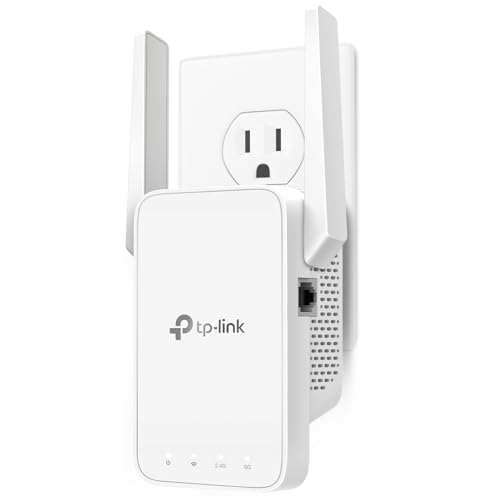
For TVs located in ‘dead zones’ where the signal is too faint to be detected, a TP-Link WiFi Extender can bridge the gap. It captures your existing signal and rebroadcasts it closer to your TV, ensuring full signal bars and preventing the ‘SSID not found’ error.
Also, verify your Samsung TV supports your router’s frequency band. Some models only connect to 2.4 GHz networks, not 5 GHz. Check your TV manual or settings to confirm compatibility.
Limiting Network Congestion
Network congestion happens when too many devices use your WiFi simultaneously. This overload can reduce the bandwidth available to your Samsung TV, causing connection issues or buffering.
To reduce congestion, disconnect unused devices like tablets, phones, or smart appliances temporarily. You can also prioritize your Samsung TV in your router’s Quality of Service (QoS) settings if supported.
If you consistently hit device limits, consider upgrading your router to a model that handles multiple connections better. You may also need to increase your internet plan’s bandwidth if your usage is high.
When to Contact Samsung Support
If your Samsung TV still cannot detect or connect to WiFi after optimizing signal strength and reducing congestion, it may have a hardware or software issue.
Before you call Samsung Support, perform a network status test on your TV under its settings menu to check for error messages. Also, try resetting the TV’s network settings and reboot your network devices in sequence.
If problems remain unresolved, visit the Samsung Support Center to request assistance or schedule a service. Support can guide you through advanced troubleshooting or repair options.