

If your Google Pixel shows as not active, it usually means the device hasn’t completed the activation process with your carrier. This can happen because of network issues, activation server downtime, or problems with your SIM card.
Knowing why your Pixel isn’t activating helps you take the right steps to get it working quickly. You might see messages like “device not activated” or experience no service even after inserting your SIM.
Sometimes, simply restarting your phone or switching to a different WiFi network can help resolve these issues. Other times, you may need to contact your carrier or perform a factory reset after backing up your data.
For detailed activation troubleshooting, visit Google’s activation support page.
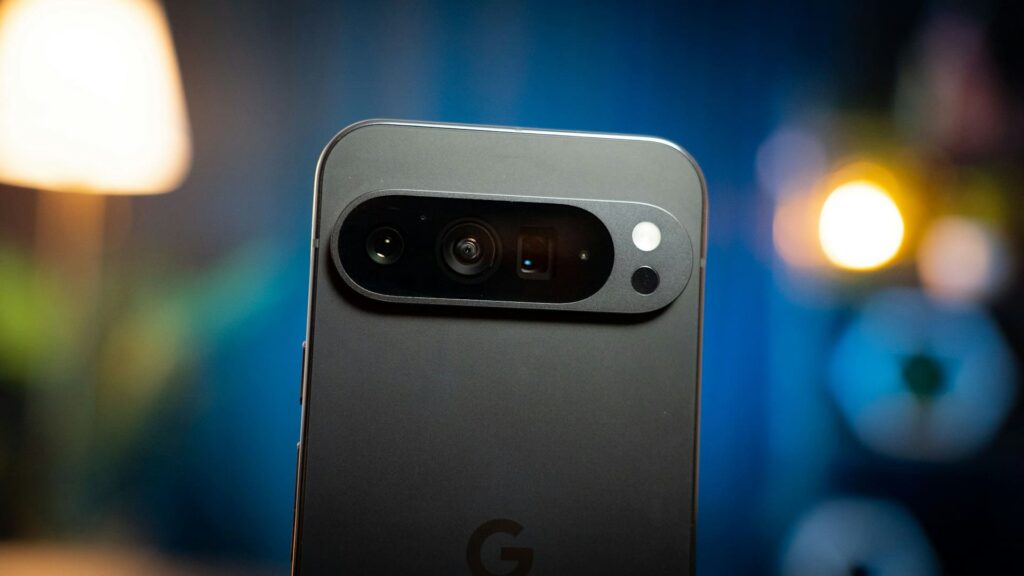
Understanding Google Pixel Not Active Errors
When your Google Pixel shows activation errors, it often means it cannot complete the setup or connect to the carrier’s service. This can happen for several technical reasons, from software glitches to carrier-side issues.
Addressing these specific problems helps you identify the right solution efficiently.
Activation Loop and Setup Failures
An activation loop occurs when your Google Pixel gets stuck during the initial setup, preventing you from completing device activation. This is often caused by software errors or incorrect configuration profiles.
During setup, you might see messages like “this device isn’t active” or “device must be approved by admin,” especially if the phone is managed by a work or school account. In such cases, the device requires administrator approval, and bypassing this demands a factory reset or administrator intervention.
If the loop persists, a factory reset can clear corrupted setup files, but back up your data first as this erases everything. Access factory reset via Settings > System > Reset options or through recovery mode if locked out.
Device Not Recognized by Carrier
Sometimes your Google Pixel won’t activate because the carrier doesn’t recognize it. This can happen if the IMEI number is not registered, blacklisted, or if the phone was purchased from a different carrier with restrictions.
If your phone shows “activation error” but powers on, check that the SIM card is inserted correctly and is active. Contacting your carrier helps confirm whether your device is authorized for their network.
Switching to another Wi-Fi network or toggling airplane mode resets connection settings and may resolve recognition issues. If the problem continues, you might need to contact carrier support to verify your Pixel’s activation status.
Activation depends on Google’s servers to validate your device and grant network access. If the activation server is temporarily down or busy, your Pixel won’t complete activation.
This issue is usually temporary, so waiting and retrying after some time often fixes the problem. However, ensure your phone has a stable internet connection during setup, ideally using reliable Wi-Fi.
If network conditions are poor or restricted by firewalls, your Pixel might not reach the activation servers. Trying a different network or resetting network settings may help.
Keep an eye on Google’s service status for updates on outages affecting activation. For additional help, visiting the Google Pixel Help Community can provide current user advice and official troubleshooting tips.
Troubleshooting Steps for Activation Problems
When your Google Pixel won’t activate, several key areas should be examined carefully. These include restarting the device, verifying SIM and carrier settings, and checking your network and WiFi configurations.
Restart and Force Restart Methods
Start by restarting your Google Pixel. This simple step refreshes system processes and can clear temporary glitches affecting activation.
To restart, press and hold the power button, then tap Restart. If your Pixel is unresponsive, perform a force restart by holding the power button for about 10-20 seconds until the device powers off and restarts.
This method can resolve software freezes that block activation. Regular restarts won’t erase data.
Checking SIM Card and Carrier Settings
Ensure your SIM card is correctly inserted and compatible with your Pixel model. Some models, like the Pixel 4a (5G), have specific carrier compatibility requirements.
Remove and reinsert the SIM card to confirm a secure connection. Verify that your carrier account is active and there are no service restrictions.
Contact your carrier if activation servers appear unavailable, or if your Pixel is not recognized on the network. Check whether you are using a physical SIM, eSIM, or both—Google Pixel supports only one active eSIM at a time, so if you have an eSIM installed, deactivate the unused one before proceeding.
Network and WiFi Configuration
A stable internet connection is crucial during activation. Connect your device to a reliable Wi-Fi network with steady cellular data access.
Avoid using networks with captive portals or restrictions, as these can block activation communication. If activation still fails, try switching to a different Wi-Fi network or disable Wi-Fi and use mobile data instead.
Resetting network settings can help resolve conflicts: go to Settings > System > Reset options > Reset Wi-Fi, mobile & Bluetooth. This will clear saved networks and may fix connection issues preventing activation.
Advanced Solutions for Persistent Activation Issues
When basic troubleshooting fails, you may need to perform more involved steps to resolve your Google Pixel activation problems. These include securing your data, testing your phone in a limited environment, and working directly with your carrier to ensure service compatibility.
Factory Reset and Data Backup
If your Pixel still won’t activate after trying standard fixes, a factory reset can help resolve underlying software conflicts. Before resetting, make sure to back up your important data such as contacts, photos, and app settings using Google Drive or another backup service.
To perform the reset, go to Settings > System > Reset options > Erase all data (factory reset). This will restore your Pixel to its original state, removing any corrupted settings or files affecting activation.
After the reset, proceed with activation steps again. If the issue persists, the problem may be carrier or hardware related.
Safe Mode Diagnostics
Safe Mode disables third-party apps temporarily, allowing you to isolate whether an app is interfering with activation. To enter Safe Mode on your Pixel, press and hold the power button, then tap and hold “Power Off” until the option to reboot into Safe Mode appears.
If your Pixel activates successfully in Safe Mode, the issue likely stems from a recently installed app or service. Identify the culprit by uninstalling recently added apps or those with network access permissions.
Restart your device to exit Safe Mode and test activation again. This process helps pinpoint software conflicts without altering your device’s data or requiring a full reset.
Contacting Carrier Support
Persistent activation problems may be related to your carrier’s network settings or account restrictions. Contact your mobile carrier’s support team to verify your service status, SIM card compatibility, and potential provisioning errors.
Provide them with your Pixel’s IMEI number and any error messages you have encountered. Ask for activation assistance, including refreshing your network profile or replacing the SIM if needed.
Carriers can also check for network outages or account issues that might prevent activation. For additional tips on contacting carriers, see this guide on Pixel activation issues.
Additional Causes and Preventative Measures
Addressing why your Google Pixel might not become active involves examining hardware issues, sensor problems, and ways to prevent future disruptions.
Hardware Failures and Black Screen Issues
Your Google Pixel may remain inactive due to hardware failures such as a faulty display or battery issues. A black screen often points to a dead battery or a damaged screen that prevents normal operation.
Try a forced restart by holding the power button and volume down simultaneously for about 30 seconds to resolve temporary freezes. If the device doesn’t respond after charging it for at least 10 minutes, hardware components like the power button or internal circuits might be compromised.
Physical damage from drops or water exposure can also cause the phone to become unresponsive. In many cases, professional repair may be necessary to replace broken parts and restore functionality.
Sensor Malfunctions and Physical Damage
Sensors on your Google Pixel—like proximity, ambient light, and motion sensors—play a role in activating the screen and managing power. Malfunctions within these sensors can cause your device to stay inactive or unresponsive.
For example, a faulty proximity sensor might keep the screen off even when you try to wake the phone. Physical damage often leads to such sensor issues, particularly after impacts.
Dirt or debris inside the phone can also interfere with sensor performance. You can test sensor problems by restarting your Pixel in Safe Mode, which disables third-party apps and helps identify sensor-related software conflicts.
If issues persist, seek a qualified technician to diagnose and repair or replace damaged sensors.
Tips for Avoiding Future Activation Problems
Prevent activation failures by keeping your Google Pixel protected from impact, moisture, and excessive heat. Use a sturdy case and a tempered glass screen protector to minimize damage risks.
Avoid using uncertified chargers or cables, as poor power supply may damage battery health and internal circuits. Regular software updates ensure your Pixel runs efficiently and fixes bugs related to screen activation or sensor performance.
If you notice overheating, let your device cool down before using it again. Heat can trigger temporary shutdowns or inactivity.
Periodically clean your phone’s ports and sensors carefully to prevent issues caused by dust or debris buildup. For technical help with hardware or sensor problems, consider professional assistance from authorized service providers.
More detailed troubleshooting is available on pages like the Google Pixel unresponsive black screen fix.
