
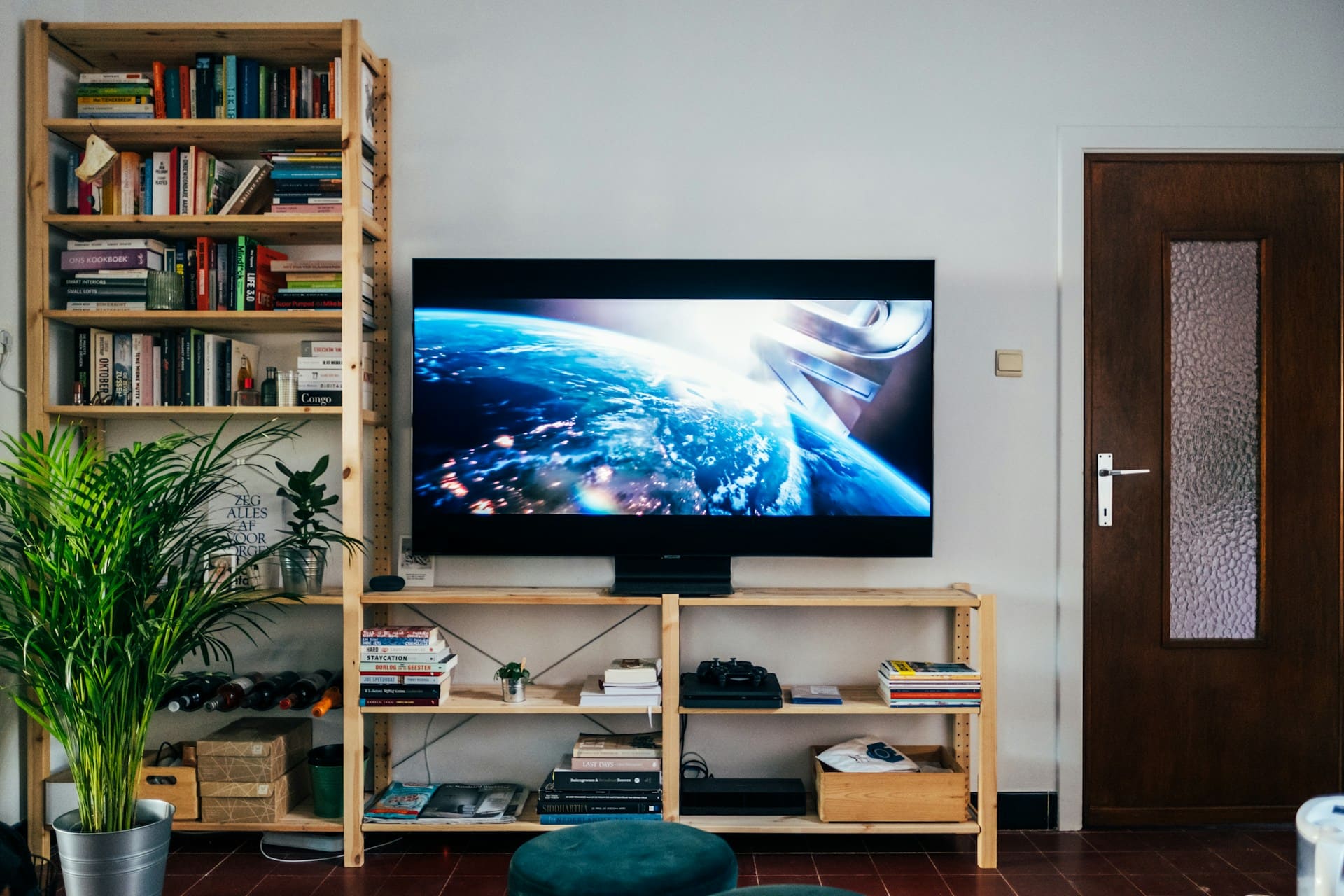
Black screen issues on Insignia TVs prevent normal viewing despite the television receiving power and audio functioning properly. These problems affect both Fire TV and Roku TV models, ranging from simple input errors to complex hardware failures.
Insignia TV black screen problems typically result from power issues, loose HDMI connections, backlight failures, incorrect input settings, or software glitches. The most effective solutions include power cycling the TV, checking all cable connections, verifying input sources, updating software, and performing factory resets when necessary.
Reasons Insignia TV Shows a Black Screen
Understanding the underlying causes of black screen issues helps determine the most appropriate troubleshooting approach. These problems range from simple connectivity issues to complex hardware malfunctions requiring professional repair.

Amazon Fire TV Stick HD
Turn Any TV to a Smart TV. Stream Netflix, Prime Video & More. Alexa Voice Remote Included. Easy Plug & Play Setup.
Shop on AmazonPower Supply and Electrical Issues
Power supply problems frequently cause black screen symptoms while maintaining partial TV functionality. Your Insignia TV may receive enough power to illuminate LED indicators and process audio signals but lack sufficient voltage for display components.
Internal power board failures create inconsistent voltage delivery to critical TV components. Capacitor degradation, loose solder connections, or component aging prevent stable power distribution to the display panel and backlight systems.
Electrical outlet issues also contribute to power-related black screens. Voltage fluctuations, loose connections, or overloaded circuits can provide insufficient power for proper TV operation while maintaining basic functionality.
Power cord damage, including internal wire breaks or connector problems, creates intermittent power delivery that manifests as black screen episodes. These issues often worsen over time as cable stress points develop additional failures.
Moreover, surge protector malfunctions can interrupt clean power delivery to your TV, causing display issues while audio circuits continue functioning normally. Older surge protectors lose protective capabilities and may restrict power flow to connected devices.
Backlight System Failures
Backlight failures represent the most common hardware cause of black screen issues with audio functionality intact. LED backlight strips illuminate your TV’s LCD panel, and their failure prevents visible images despite normal signal processing.
Backlight LED degradation occurs gradually over time through normal use cycles and heat exposure. Individual LED failures within backlight strips create dark areas that eventually expand to complete blackout conditions.
Power supply issues specifically affecting backlight circuits can cause complete darkness while maintaining all other TV functions. Voltage regulator failures or capacitor problems in backlight power circuits prevent LED illumination.
Physical damage to backlight strips from manufacturing defects, shipping impacts, or component stress can cause immediate or progressive failure patterns. Even minor physical damage can cascade into complete backlight system failure.
Additionally, inverter board failures in older LCD models prevent proper backlight operation. These components convert main power into specific voltages required for backlight illumination and commonly fail due to heat stress.
When backlight systems fail, the TV continues processing audio and video signals normally, but the lack of illumination prevents any visible display output.
HDMI and Input Connection Problems
HDMI connection issues frequently cause black screen problems that appear as TV malfunctions rather than cable or device issues. Poor connections, damaged cables, or compatibility problems prevent proper signal transmission.
HDMI cable damage affects video signal integrity more severely than audio transmission. Bent connectors, kinked cables, or internal wire breaks disrupt high-frequency video signals while lower-frequency audio may continue functioning.
HDMI port problems on your Insignia TV can develop from repeated cable insertion, dust accumulation, or electrical damage. Damaged ports fail to establish proper connections with external devices, resulting in black screen conditions.
HDCP (High-bandwidth Digital Content Protection) handshake failures between your TV and connected devices also cause black screens. Version mismatches or authentication problems prevent content display while maintaining audio output.
Furthermore, resolution conflicts between connected devices and your TV’s capabilities can cause black screen conditions. Devices outputting unsupported resolutions or refresh rates may cause display failure while audio continues normally.
Software and Firmware Issues
Software corruption and firmware bugs create black screen conditions despite proper hardware functionality. These issues particularly affect smart TV models with complex operating systems and multiple software components.
Corrupted system files prevent proper display initialization during TV startup or input switching. File system errors, incomplete updates, or memory corruption can disrupt video processing while preserving audio functionality.
Operating system crashes in Fire TV or Roku models can cause partial system failures affecting display output specifically. Background processes may continue running while display drivers or video processing components fail.
App conflicts and memory issues also contribute to software-related black screens. Insufficient system memory or resource conflicts between applications can cause display system failures during normal operation.
Additionally, factory default setting corruption can prevent proper display configuration. Incorrect resolution settings, color space conflicts, or timing parameter errors may cause black screen conditions that resist normal troubleshooting attempts.
Basic Troubleshooting Steps
These fundamental troubleshooting procedures address the most common causes of black screen issues and can resolve many problems without requiring technical expertise or professional assistance.
Power Cycle and Soft Reset Procedures
Power cycling clears temporary system glitches and resets all electrical components to default states. This simple procedure resolves many software-related black screen issues and should be attempted first.
Complete power cycle procedure:
- Turn off your Insignia TV using the remote control
- Unplug the power cord from both the TV and electrical outlet
- Press and hold the TV’s power button for 15 seconds while unplugged
- Wait an additional 60 seconds to ensure complete capacitor discharge
- Reconnect power and turn on the TV to test functionality
The extended button press during unplugging drains residual electrical charges from internal components, ensuring a complete system reset. This process often resolves temporary glitches affecting display output.
Soft reset procedures for smart TV models involve accessing recovery modes or reset options through button combinations. Hold the power button on your TV while plugging in the power cord to access diagnostic modes on some models.
Multiple power cycles may be necessary for persistent issues. Repeat the process 2-3 times if initial attempts don’t restore normal operation, as some glitches require multiple reset cycles to clear completely.
Check All Cable Connections
Systematic inspection of all cable connections ensures proper signal transmission and power delivery. Loose or damaged connections frequently cause black screen issues that appear as internal TV problems.
HDMI connection verification steps:
- Remove all HDMI cables from your TV and connected devices
- Inspect connectors for damage, corrosion, or bent pins
- Clean connector surfaces with contact cleaner if necessary
- Firmly reconnect cables ensuring complete insertion
- Test each HDMI port individually to isolate potential port problems
Replace any damaged HDMI cables immediately, as even minor damage can cause significant signal degradation. The Belkin High Speed HDMI Cable provides reliable 4K signal transmission for under $12.
Power connection inspection includes verifying the power cord connects securely to both your TV and the electrical outlet. Test the outlet with other devices to confirm proper electrical supply.
Additionally, check internal connections if comfortable with basic disassembly. Loose ribbon cables or connector problems inside your TV can cause display failures while maintaining power and audio functionality.
Verify Input Source Selection
Incorrect input selection prevents display output even when all connections function properly. Many users overlook this simple cause when troubleshooting black screen issues.
Input verification process:
- Press the Input or Source button on your remote control
- Cycle through all available input options systematically
- Allow 5-10 seconds on each input for signal detection
- Check both HDMI and non-HDMI inputs including antenna and composite
- Verify connected devices are powered on and outputting signals
Some Insignia models require specific input selection sequences or extended detection periods. Consult your user manual for model-specific input switching procedures if standard methods don’t work.
Auto-input detection features may malfunction and require manual override. Disable automatic input switching in your TV’s settings menu to prevent conflicts between multiple connected devices.
Moreover, test your TV without any external devices connected to isolate internal versus external signal issues. Access your TV’s built-in settings menu to verify internal display functionality works properly.
Advanced Troubleshooting Methods
When basic troubleshooting fails to resolve black screen issues, these advanced techniques address deeper system problems that require more comprehensive intervention or technical knowledge.
Software Updates and Factory Reset
Outdated software often contains bugs that cause display-related problems, while factory resets eliminate software corruption that resists other troubleshooting methods.
Update Insignia Fire TV software:
- Connect your TV to stable internet via Wi-Fi or Ethernet
- Navigate to Settings > My Fire TV > About
- Select “Check for System Update” and wait for completion
- Download and install any available updates automatically
- Restart your TV completely after installation finishes
For Insignia Roku TV models, access Settings > System > System Update to check for available firmware updates.
Factory reset preparation and execution:
- Document Wi-Fi passwords and streaming service login credentials
- Note custom picture and audio settings for later restoration
- Ensure stable internet connection for post-reset configuration
- Backup any personal files or settings you want to preserve
Navigate to Settings > My Fire TV > Reset to Factory Defaults and confirm the reset process. Wait for complete initialization before testing display functionality.
Post-reset configuration should proceed gradually to identify any specific settings or applications that trigger black screen issues. Install and configure one service at a time while monitoring for display problems.
Advanced users can also attempt partial resets through service menus or recovery modes. These options preserve some settings while clearing problematic configurations that may cause display failures.
Backlight Testing and Assessment
Backlight functionality testing helps distinguish between backlight failures and other display issues. Simple testing procedures can confirm backlight operation without requiring disassembly.
Flashlight test procedure:
- Turn on your TV and ensure it receives power normally
- Select an active input with known good signal source
- Darken the room completely to eliminate ambient light
- Shine a bright flashlight directly on the TV screen at various angles
- Look carefully for any visible images, menus, or text on the screen
If images appear under flashlight illumination, backlight failure is confirmed while display processing continues normally. This indicates hardware problems requiring professional repair or component replacement.
Audio functionality verification during black screen episodes helps isolate display-specific issues. If audio works normally while video fails, the problem likely involves display circuits rather than main system failures.
Professional backlight testing requires specialized equipment and technical expertise. Consider professional diagnosis for valuable TVs or those under warranty coverage where DIY testing might void protection.
Backlight replacement costs typically range from $100-300 depending on TV size and model complexity. Compare repair costs against replacement value before authorizing extensive repair work on older units.
Internal Hardware Inspection
Internal hardware inspection requires technical knowledge and careful handling but can identify obvious component failures causing black screen issues.
Safe disassembly procedures:
- Disconnect all power sources and wait 30 minutes before opening
- Use anti-static precautions including wrist straps and grounded work surfaces
- Document cable connections with photos before disconnection
- Handle circuit boards by edges only to prevent component damage
Look for obvious signs of component failure including burnt components, swollen capacitors, or loose connections. Power supply boards commonly show visible damage when causing display issues.
Ribbon cable inspection focuses on connections between main boards and display panels. Loose or damaged ribbon cables frequently cause black screen conditions with maintained audio functionality.
Professional repair services possess specialized diagnostic equipment and component access unavailable to consumers. Consider professional evaluation for complex issues or valuable televisions where amateur repair attempts might cause additional damage.
Moreover, warranty considerations prohibit internal inspection on newer units. Check warranty status before attempting any disassembly procedures that might void coverage.
Hardware Solutions and Professional Repair
Some black screen issues require hardware solutions including component replacement or professional repair services. These approaches address physical failures that cannot be resolved through software troubleshooting.
Component Replacement Options
Failed components causing black screen issues can often be replaced individually rather than requiring complete TV replacement. Identifying specific failed components helps determine cost-effective repair strategies.
Common replaceable components include:
- Power supply boards that provide voltage to display systems
- Main boards containing video processing circuits
- Backlight LED strips that illuminate LCD panels
- Inverter boards that control backlight operation in older models
- T-Con boards that process timing signals for display panels
Replacement part availability varies significantly between Insignia TV models and ages. Newer models typically have better parts availability through authorized service centers and electronics suppliers.
Cost-benefit analysis becomes crucial when evaluating component replacement options. Power supply and main board replacements often cost $100-250, while complete backlight replacements may exceed $200-400 depending on TV size.
DIY component replacement requires advanced technical skills, specialized tools, and careful handling procedures. Consider professional installation for expensive components or complex replacement procedures.
Furthermore, replacement parts should be sourced from reputable suppliers to ensure compatibility and reliability. Generic or incorrect parts can cause additional problems or safety hazards.
Professional Repair vs Replacement Decisions
Professional repair services provide expert diagnosis and access to specialized components but must be evaluated against replacement costs for cost-effectiveness.
Professional repair advantages include:
- Expert diagnosis using specialized test equipment
- Access to original manufacturer components
- Warranty coverage for repair work performed
- Proper safety procedures and certifications
- Technical expertise for complex problem resolution
Repair cost estimates should be obtained before authorizing work, particularly for older TVs where repair costs might exceed replacement value with newer technology.
Consider professional repair for:
- Newer TVs under manufacturer warranty coverage
- High-value TVs where repair costs justify the expense
- Complex problems requiring specialized diagnostic equipment
- Situations where safety concerns prohibit DIY attempts
Replacement options should be evaluated alongside repair estimates. Newer TVs often provide updated features, improved energy efficiency, and enhanced reliability that may justify replacement over expensive repairs.
Additionally, consider the age and expected remaining lifespan of your current TV when making repair versus replacement decisions. Expensive repairs on aging units may provide only temporary solutions.
Video Credit: Tech Tests & Troubleshooting / YouTube
Frequently Asked Questions
Why does my Insignia TV have sound but no picture on the screen?
Sound without picture typically indicates backlight failure or power supply issues affecting display circuits specifically. Your TV continues processing audio signals normally while display components fail to receive adequate power or illumination. This condition commonly occurs when LED backlight strips fail gradually over time due to heat stress or component aging.
Test for backlight failure by shining a bright flashlight on your screen while the TV operates. If you can see faint images or menus under the flashlight, backlight failure is confirmed. Power supply problems affecting display circuits can also cause this symptom while maintaining audio functionality.
Professional diagnosis can determine whether backlight replacement or power supply repair offers cost-effective solutions compared to TV replacement. Repair costs typically range from $150-400 depending on the specific component failure and TV model complexity.
How can I tell if my Insignia TV’s black screen is caused by HDMI connection problems?
HDMI connection problems often affect specific inputs rather than causing universal black screen conditions. Test your TV’s built-in menu system by pressing the Home or Settings button to verify internal display functionality works properly. If menus appear normally, the problem likely involves external device connections rather than internal TV failures.
Try different HDMI cables and ports systematically to isolate connection issues. Connect devices to alternative HDMI inputs and test each port individually. Power cycle both your TV and connected devices to reset HDMI handshake protocols that might prevent proper signal recognition.
Additionally, verify that connected devices output compatible resolutions and refresh rates for your TV model. Resolution conflicts can cause black screen conditions even with proper physical connections. Check device output settings and adjust to supported formats if necessary.
What should I do if my Insignia TV black screen persists after trying all basic troubleshooting steps?
Persistent black screen issues after comprehensive troubleshooting typically indicate hardware failures requiring professional diagnosis or component replacement. Internal component problems including power supply failures, main board issues, or display panel damage resist software-based solutions and basic troubleshooting methods.
Professional repair services can provide definitive diagnosis using specialized test equipment and component-level troubleshooting. Obtain repair estimates before authorizing work, particularly for older TVs where repair costs might exceed replacement value with newer models offering updated features.
Consider warranty coverage if your Insignia TV remains under manufacturer protection. Contact Insignia customer support for warranty repair authorization or replacement options that might resolve the issue without out-of-pocket expenses.
Can software updates fix black screen problems on Insignia TVs?
Software updates can resolve black screen issues caused by firmware bugs, compatibility problems, or corrupted system files. Display driver updates, video processing improvements, and HDMI compatibility fixes often address software-related black screen conditions that develop over time.
However, software updates cannot fix hardware failures including backlight problems, power supply issues, or physical component damage. If your black screen persists after updating to the latest firmware version, hardware problems are more likely causes requiring different troubleshooting approaches.
Enable automatic updates to prevent future software-related issues, but understand that hardware problems will require physical repair or component replacement regardless of software versions installed on your TV.
Is it worth repairing an Insignia TV with a black screen or should I buy a new one?
Repair versus replacement decisions depend on your TV’s age, repair costs, and current market prices for comparable new models. Newer Insignia TVs under warranty should always be repaired through authorized service centers to maintain coverage and ensure proper repair procedures.
For older models, compare professional repair estimates against new TV prices with similar or improved features. Repair costs exceeding 50% of replacement value generally favor purchasing newer models with updated technology, improved energy efficiency, and full warranty protection.
Consider the expected remaining lifespan after repair when making this decision. Expensive repairs on aging TVs may provide only temporary solutions before additional component failures occur, making replacement more economical in the long term.
Sources:
- PC Guide – Insignia TV Black Screen Solutions
- BoostVision – Insignia TV Black Screen Troubleshooting
- Smart TVs – Insignia Black Screen Fix Guide
- JustAnswer – Insignia TV Black Screen Expert Solutions