
You’re in the middle of a project, trying to save a file or install an update, when Windows flashes that dreaded red C: drive bar. Your laptop grinds to a halt, apps refuse to open, and every click feels like forever.
When your laptop shows “not enough space,” the culprit is usually temporary system files, hidden app caches, and forgotten downloads filling your C: drive. Running Windows Disk Cleanup (cleanmgr), enabling Storage Sense to auto-delete temporary files, clearing your %temp% folder, and moving large media to external drives or cloud storage like OneDrive typically frees 10–50 GB instantly without touching personal documents.
This guide walks you through proven cleanup routines, safe file removal strategies, and storage expansion methods that reclaim gigabytes without risking your data.

Best Laptop Stand (with 360° Base)
Keep Your Laptop Cooler & More Comfortable with 360° Rotating Base. Improve Airflow & Reduce Heat. Adjustable Height & Viewing Angle.
Shop on Amazon
Key Takeaways
- Laptop not enough space usually stems from temporary files, Windows updates, app caches, and forgotten downloads—running Disk Cleanup and enabling Storage Sense can instantly free 10–50 GB without risking personal data.
- Identify exactly what’s consuming your storage by checking Settings > System > Storage or using tools like TreeSize Free before deleting anything to avoid accidentally removing important files.
- Common storage culprits include the WinSxS folder (10–20 GB), hibernation files, system restore points, browser caches, and large game installations that should be uninstalled if unused.
- Move large media files, old projects, and archives to external drives or cloud storage services like OneDrive and Google Drive to keep your C: drive at least 15–20% free for optimal SSD performance.
- If cleanup doesn’t solve the problem, upgrade your SSD from 256GB to 1TB using an M.2 NVMe drive—a permanent fix that typically costs under $100 and takes only an hour with proper cloning software.
- Disable hibernation, reduce system restore allocation to 2–5%, and clear browser caches regularly as ongoing maintenance to prevent your laptop from running out of space again in the future.
Why Your Laptop Is Running Out of Storage Space
Your laptop’s storage fills up silently. Every Windows update, every browser session, and every app you install leaves behind files that pile up over months. Before you know it, your 256GB SSD is down to single-digit gigabytes.
Common Storage Hogs on Your Laptop
Windows Update components dominate the WinSxS folder, sometimes consuming 10–20 GB. System restore points snapshot your drive state regularly, eating another 5–15 GB. Temporary files in %temp% and C:\Windows\Temp accumulate from failed installs and app processes that never cleaned up after themselves.
Your browser’s download folder is another silent killer. That 4K video you downloaded six months ago? Still sitting there. Duplicate photos, installer .exe files you forgot to delete, and redundant backups add up fast. Application caches, especially for Adobe Creative Cloud, Spotify offline playlists, and Steam game files, can balloon to 50+ GB.
Hibernation files (hiberfil.sys) reserve space equal to your RAM. If you have 16GB RAM, that’s 16GB locked away even if you never use hibernation. Cloud sync folders like OneDrive or Dropbox can double-store files locally and online if sync settings aren’t configured properly.
“My 256GB SSD ran out of space after just 8 months. Turned out Windows.old and temp files used 47GB I didn’t know existed” via r/Windows11
Check Your Storage Space
Before you delete anything, map out exactly what’s consuming your drive. Guessing wastes time and risks removing the wrong files.
Windows Storage Analysis
Open Settings > System > Storage. You’ll see a color-coded breakdown: System & reserved, Apps & features, Documents, Pictures, and Temporary files. Click each category to drill deeper. Temporary files often surprise users with 10–30 GB of junk.
Windows 11’s Storage Sense displays real-time usage and recommends cleanup targets. Enable it by toggling “Storage Sense” on, then click “Configure Storage Sense or run it now.” Set it to run automatically during low disk space warnings and delete files in your Recycle Bin older than 30 days.
For granular folder-level insight, download TreeSize Free. This tool scans your entire drive and visualizes folder sizes in descending order. You’ll instantly spot hidden cache folders, old game installs, or forgotten project archives hogging space.
Mac Storage Management Tools
Mac users can click the Apple menu > About This Mac > Storage > Manage. macOS categorizes files into Applications, Documents, iOS Files, Mail, and System. The “Reduce Clutter” option lists large files and downloads you haven’t opened recently.
Third-party apps like DaisyDisk offer visual treemap views of your drive, making it easy to identify space hogs at a glance. Empty your Trash regularly, Mac keeps deleted files until you manually purge them.
Delete Unnecessary Files and Programs
Once you know what’s eating your storage, eliminate bloatware and redundant files systematically.
Uninstall Unused Applications
Open Settings > Apps > Installed apps (Windows 11) or Control Panel > Programs and Features (Windows 10). Sort by size. You’ll often find trial software, manufacturer bloatware, and apps you installed once and forgot. Uninstall anything you haven’t used in three months.
Games are massive offenders. A single AAA title can consume 100+ GB. If you’re not actively playing it, uninstall and reinstall later when you need it. Cloud gaming services like Xbox Game Pass reduce local storage needs.
Remove Duplicate Files and Downloads
Your Downloads folder is a dumping ground. Open C:\Users\[YourName]\Downloads and sort by size. Delete installer files (.exe, .msi) you no longer need, once an app is installed, the installer is redundant.
Duplicate photos and documents multiply after syncing phones or reorganizing folders. Use CCleaner or the free tool Duplicate Cleaner to scan for identical files. Review matches carefully before batch-deleting.
Clear your Desktop. Every file on your desktop is stored in C:\Users\[YourName]\Desktop and consumes C: drive space. Move large project folders to a secondary drive or external storage.
Clear Temporary Files and System Cache
Temporary files serve a purpose during app installs and updates, but Windows rarely auto-deletes them. Manual cleanup is essential.
Press Win + R, type %temp%, and hit Enter. This opens your user temp folder. Press Ctrl + A to select all, then Delete. Some files will show “in use” errors, skip them. Repeat with C:\Windows\Temp.
Run Disk Cleanup: Press Win + R, type cleanmgr, and select your C: drive. Check every box, especially “Temporary files,” “Delivery Optimization Files,” and “Thumbnails.” Click “Clean up system files” for deeper options like “Windows Update Cleanup” and “Previous Windows installations” (Windows.old folder).
The WinSxS folder stores Windows component backups. Don’t manually delete files here, corrupted system files can break Windows. Instead, run Dism.exe /online /Cleanup-Image /StartComponentCleanup in an elevated Command Prompt. This safely purges outdated component versions.
Browser caches pile up. In Chrome, go to Settings > Privacy and security > Clear browsing data. Select “Cached images and files” for “All time.” Edge, Firefox, and other browsers have similar options. This can free 500MB–2GB per browser.
Move Files to External Storage or Cloud Services
Your laptop’s internal drive is premium real estate. Offload media and archives to cheaper, high-capacity storage.
External hard drives like the WD 6TB Elements Portable Drive cost less per gigabyte than laptop SSDs. Move photo libraries, video projects, and old work files there. Use Windows File Explorer to drag folders from C:\Users\[YourName]\Pictures or Documents to the external drive.

Cloud storage services, OneDrive, Google Drive, Dropbox, offer 15GB to 1TB free tiers. Enable “Files On-Demand” (OneDrive) or “Stream files” (Google Drive) to keep files in the cloud but accessible via File Explorer. They only download to your laptop when you open them.
For maximum performance, keep your C: drive at least 15–20% free. SSDs slow down dramatically when full because they need empty blocks for wear-leveling and write operations. If you’re consistently above 85% capacity, storage expansion is mandatory.
A SanDisk Ultra Fit 512GB USB Flash Drive offers portable, pocket-sized overflow storage for less critical files. It’s perfect for students shuttling between campus and home.

Use Disk Cleanup and Storage Optimization Tools
Native Windows tools handle 80% of cleanup needs. Third-party software fills the gaps.
Storage Sense automates cleanup. Go to Settings > System > Storage > Storage Sense. Toggle it on and configure cleanup schedules: delete files in Recycle Bin after 30 days, remove temporary files after 7 days, and purge Downloads folder items untouched for 60 days.
Disable hibernation if you never use it. Open Command Prompt as Administrator and run powercfg.exe /hibernate off. This deletes hiberfil.sys and frees space equal to your RAM.
Reduce System Restore allocation. Right-click This PC > Properties > System protection. Select your C: drive, click Configure, and slide “Max Usage” down to 2–5%. You don’t need 20GB of restore points.
For deep cleaning, consider a NordVPN subscription. VPNs encrypt your connection and protect privacy when downloading cleanup utilities or accessing cloud storage on public Wi-Fi, critical for remote workers.
Driver Booster by IObit updates outdated drivers and removes old driver packages. Outdated driver backups in C:\Windows\System32\DriverStore can occupy 5–10 GB. Driver Booster safely clears old versions after updates.
Upgrade Your Laptop’s Physical Storage
Sometimes cleanup isn’t enough. Upgrading your SSD or adding a second drive is the permanent fix.
Most laptops support M.2 NVMe SSD upgrades. Check your laptop’s manual or search “[your laptop model] SSD upgrade” to confirm compatibility. A Samsung 980 Pro 1TB NVMe SSD offers blazing speeds and ample space for under $100.
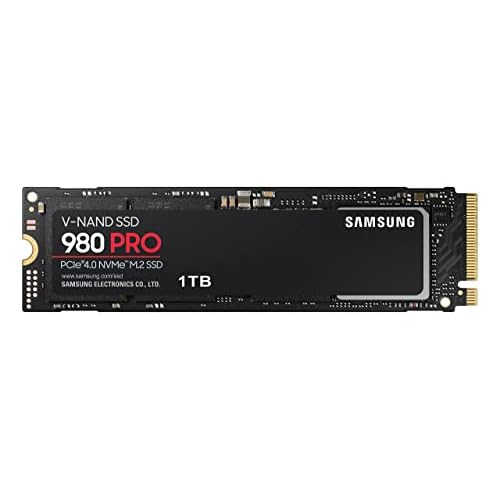
Clone your existing drive using free software like Macrium Reflect or Samsung Data Migration before swapping. This copies your OS, apps, and files to the new SSD without reinstalling Windows.
Some laptops have a secondary M.2 slot or 2.5″ SATA bay. Add a second drive for storage without replacing your boot drive. Use Disk Management (right-click Start > Disk Management) to initialize and format the new drive.
“Upgraded from 256GB to 1TB SSD. Best $90 I ever spent. No more storage warnings and everything loads faster” via r/laptops
If DIY upgrades feel intimidating, Best Buy’s Geek Squad and local repair shops install SSDs for $50–$100 labor. The performance and peace of mind are worth it.
This Satechi Aluminum USB-C Hub with SSD Enclosure is the ultimate desk upgrade. It adds USB ports, HDMI, and houses an M.2 SSD for instant external storage, ideal for MacBook and ultrabook users with soldered-in drives that can’t be upgraded.
Frequently Asked Questions
What causes ‘not enough space’ errors on a laptop?
Temporary system files, Windows Update components in the WinSxS folder, app caches, browser downloads, and hibernation files typically consume most space. These accumulate silently over months, reducing available storage on your C: drive.
How much storage should I keep free on my laptop?
Maintain at least 15–20% free space on your C: drive. SSDs slow dramatically when full because they need empty blocks for wear-leveling and write operations. If consistently above 85% capacity, upgrade or expand storage immediately.
How do I check what’s using storage space on my laptop?
Windows users can open Settings > System > Storage for a color-coded breakdown by category. For granular detail, use TreeSize Free to visualize folder sizes. Mac users can check Apple menu > About This Mac > Storage > Manage.
What’s the safest way to clean up laptop storage without losing files?
Run Disk Cleanup (cleanmgr) to remove temporary files and system caches safely. Enable Storage Sense for automatic cleanup. Avoid manually deleting from WinSxS folder—instead, use Dism.exe command in Command Prompt for safe system file cleanup.
Can I upgrade my laptop’s storage if it’s running out of space?
Most laptops support M.2 NVMe SSD upgrades under $100. Check your laptop’s manual or search your model for compatibility. Use Macrium Reflect or Samsung Data Migration to clone your drive before swapping. Professional installation costs $50–$100 if preferred.
How much space can cloud storage services help free up on my laptop?
Cloud services like OneDrive and Google Drive offer 15GB–1TB free tiers. Using ‘Files On-Demand’ keeps files in the cloud but accessible through File Explorer. They download locally only when opened, significantly reducing internal drive usage.
Read More:
- Laptop Not Automatically Connecting to WiFi (Quick and Easy Fixes)
- Laptop Not Booting Into Windows (Causes and Quick Fixes Explained)
- Laptop Not Connecting to WiFi But Other Devices Are (Here’s How to Fix It)
- Laptop Not Bright Enough (Expert Fixes for Maximum Screen Brightness)
- Laptop Not Booting After RAM Upgrade (This Might Fix the Problem)