
You enable Personal Hotspot on your iPhone, open your laptop’s Wi-Fi list, and, nothing. The network doesn’t appear, or your laptop refuses to connect, leaving you stranded without internet access.
The most common reasons your laptop won’t see your iPhone hotspot include frequency band incompatibility (5 GHz vs. 2.4 GHz), special characters in your iPhone’s device name, the Personal Hotspot screen closing too quickly on iOS, outdated Wi-Fi drivers on your laptop, or conflicting saved network profiles. Toggling “Maximize Compatibility” on your iPhone to broadcast on 2.4 GHz, renaming your iPhone to remove apostrophes or special characters, keeping the Personal Hotspot settings screen open while scanning, and updating your laptop’s wireless adapter drivers typically resolve discovery and connection failures.
This guide walks you through proven solutions to restore your mobile internet connection, from simple toggles to advanced network resets and USB tethering workarounds.

Best Laptop Stand (with 360° Base)
Keep Your Laptop Cooler & More Comfortable with 360° Rotating Base. Improve Airflow & Reduce Heat. Adjustable Height & Viewing Angle.
Shop on Amazon
Key Takeaways
- Frequency band incompatibility, special characters in your iPhone’s device name, and outdated laptop Wi-Fi drivers are the primary reasons your laptop can’t find your iPhone hotspot.
- Enable ‘Maximize Compatibility’ on your iPhone to broadcast on the 2.4 GHz band, which resolves discovery issues for older laptops and provides better range despite slower speeds.
- Keep the Personal Hotspot settings screen open on your iPhone while your laptop scans for networks to ensure maximum broadcast strength and discoverability.
- Remove special characters and apostrophes from your iPhone’s device name (e.g., change ‘John’s iPhone’ to ‘John iPhone’) to prevent Wi-Fi subsystems from filtering out the hotspot.
- Update your laptop’s network drivers and reset Wi-Fi settings on both devices to eliminate cached profiles and driver conflicts that block connections.
- Use USB tethering as a reliable 95%+ effective workaround when wireless troubleshooting fails, offering faster speeds and eliminating Wi-Fi interference issues.
Why Your Laptop Can’t Detect Your iPhone Hotspot
Your laptop scans for Wi-Fi networks by listening for broadcast signals on specific frequency bands, typically 2.4 GHz and 5 GHz. Recent iPhones default to broadcasting Personal Hotspot on the faster 5 GHz band to maximize speed. But, older laptop Wi-Fi adapters or devices with outdated drivers may only support 2.4 GHz scanning, creating an invisible wall between your devices.
Another common culprit is your iPhone’s device name. If it contains special characters, apostrophes, emojis, or symbols like “John’s iPhone”, some Windows and macOS network stacks struggle to parse the SSID correctly. The hotspot broadcasts, but your laptop’s Wi-Fi menu filters it out or displays a connection error.
iOS also aggressively conserves battery by entering a low-power discoverable mode when the Personal Hotspot settings screen is closed. Your iPhone continues to broadcast, but the signal strength drops or the beacon interval increases, making it harder for laptops to detect the network during quick scans. According to Apple’s official Personal Hotspot documentation, keeping the Personal Hotspot settings screen open ensures maximum discoverability.
Driver conflicts and saved network profiles on your laptop add another layer of complexity. Windows 11 and macOS cache Wi-Fi credentials and connection parameters. If your laptop previously connected to your iPhone hotspot with different settings, such as a renamed device or changed password, the cached profile can block new connection attempts with a generic “Can’t connect to this network” error.
Carrier restrictions and cellular data roaming settings can also prevent hotspot functionality. Some mobile carriers require specific plan features or explicit hotspot permissions. If cellular data roaming is disabled and you’re outside your home network area, Personal Hotspot may fail to activate entirely, leaving your laptop unable to find any broadcast signal.
Quick Fixes to Try First
Toggle Airplane Mode on Both Devices
Airplane mode acts as a hard reset for all wireless radios, Wi-Fi, Bluetooth, and cellular. On your iPhone, swipe down from the top-right corner (or up from the bottom on older models) to open Control Center, then tap the airplane icon. Wait five seconds, then disable it. This forces iOS to re-initialize the cellular modem and Wi-Fi chipset, clearing temporary radio conflicts.
On your laptop, enable Airplane mode through the Quick Settings panel (Windows 11) or Control Center (macOS). Wait a few seconds, then turn it off. Your laptop’s Wi-Fi adapter will restart its scanning process, often picking up the iPhone hotspot that was previously invisible.
This simple toggle resolves an estimated 30–40% of discovery issues, especially when the hotspot was working previously but suddenly disappeared from your Wi-Fi list. It’s the digital equivalent of unplugging and plugging back in, quick, zero-risk, and surprisingly effective.
Restart Your iPhone and Laptop
A full device restart clears cached network states, releases stuck background processes, and reloads all system drivers from scratch. On iPhone, press and hold the side button and volume button until the power-off slider appears. Slide to power off, wait 10 seconds, then press the side button to restart.
For your laptop, perform a complete shutdown, not just sleep or hibernate. On Windows, click Start > Power > Shut down. On Mac, click the Apple menu > Shut Down. Wait 10 seconds before powering back on to ensure all capacitors discharge and memory states clear.
After both devices restart, enable Personal Hotspot on your iPhone first, then scan for networks on your laptop. Fresh boot states eliminate lingering driver conflicts and network stack errors that accumulate during extended uptime.
Check Your iPhone Hotspot Settings
Enable Maximum Compatibility Mode
Open Settings > Personal Hotspot on your iPhone and look for the “Maximize Compatibility” toggle. This critical setting forces your iPhone to broadcast on the 2.4 GHz band instead of the default 5 GHz. While 2.4 GHz is slower, it offers far better compatibility with older laptops, improved range through walls, and stronger signal penetration.
“Turned on Maximize Compatibility and my Surface instantly saw the hotspot. Five minutes of frustration solved by one toggle.” via r/iPhone
Enabling this mode immediately makes your hotspot visible to devices that previously couldn’t detect it. The trade-off is reduced maximum speed, 2.4 GHz tops out around 150–300 Mbps theoretical, versus 5 GHz’s 866 Mbps+. For typical web browsing, email, and video calls, 2.4 GHz provides more than enough bandwidth.
If your laptop still doesn’t detect the network after enabling Maximize Compatibility, toggle the setting off and back on. This forces iOS to restart the hotspot broadcast with the new frequency parameters.
Verify Personal Hotspot Is Discoverable
Your iPhone enters a low-power discoverable mode when you navigate away from the Personal Hotspot settings screen. To ensure maximum broadcast strength, open Settings > Personal Hotspot and leave this screen open while your laptop scans for networks.
You’ll see “X Connections” at the top of the screen when devices are actively connected. The hotspot icon in the status bar (green or blue bubble) confirms the feature is active, but staying on the settings page increases beacon frequency and signal strength, making detection nearly instant.
Rename your iPhone if it contains special characters. Go to Settings > General > About > Name and change “John’s iPhone” to “John iPhone” (remove the apostrophe). Windows and macOS Wi-Fi subsystems sometimes misinterpret apostrophes, dashes, or Unicode characters as escape sequences, causing the SSID to be filtered from available network lists.
According to Microsoft’s Wi-Fi troubleshooting documentation, removing special characters from network names resolves 15–20% of connection failures.
After renaming, toggle Personal Hotspot off and back on to broadcast the new SSID. Your laptop should now display the renamed network in its Wi-Fi menu.
Troubleshoot Your Laptop’s Wi-Fi Connection
Update Your Laptop’s Network Drivers
Outdated Wi-Fi drivers cause compatibility failures with newer iOS hotspot implementations. On Windows 11, right-click Start > Device Manager > Network adapters. Expand the list, right-click your wireless adapter (usually Intel, Realtek, or Qualcomm), and select “Update driver.” Choose “Search automatically for drivers” to let Windows find the latest version.
For more comprehensive driver updates, consider using IObit Driver Booster Free, which scans your entire system and updates network adapters, chipset drivers, and USB controllers automatically. Up-to-date drivers ensure your laptop recognizes modern Wi-Fi security protocols and frequency bands.
Mac users should update macOS through System Settings > General > Software Update. Apple bundles Wi-Fi driver updates with OS releases, so keeping your Mac current ensures compatibility with the latest iPhone models and iOS versions.
If you frequently work remotely and rely on public Wi-Fi or mobile hotspots, using a VPN like NordVPN or ExpressVPN adds a critical security layer when tethering through your iPhone, encrypting all traffic between your laptop and the internet.
Reset Network Settings on Windows or Mac
On Windows 11, open Settings > Network & Internet > Advanced network settings > Network reset. This removes all saved Wi-Fi profiles, resets network adapters to default settings, and clears cached DNS and IP configurations. After the reset, your laptop restarts automatically. Reconnect to your iPhone hotspot as if it’s a new network.
Mac users can achieve similar results by deleting saved network profiles. Open System Settings > Network > Wi-Fi > Advanced. Select any previous iPhone hotspot entries in the list and click the “–” button to remove them. This forces macOS to establish a fresh connection without referencing outdated credentials or security settings.
If connection issues persist, reset network settings on your iPhone as well. Go to Settings > General > Transfer or Reset iPhone > Reset > Reset Network Settings. This erases all saved Wi-Fi passwords, VPN configurations, and cellular settings, returning your iPhone’s network stack to factory defaults. You’ll need to re-enter your Wi-Fi passwords afterward, but it eliminates corrupted network profiles that prevent hotspot broadcasting.
Advanced Solutions for Persistent Connection Issues
When wireless troubleshooting fails, USB tethering provides an instant, reliable workaround. Connect your iPhone to your laptop using a Lightning or USB-C cable. On your iPhone, you may see a prompt asking “Trust This Computer?”, tap Trust and enter your passcode.
Windows users need iTunes or the Apple Devices app installed to provide the necessary drivers. Download the Apple Devices app for Windows from the Microsoft Store or install iTunes from Apple’s website. Once installed, your laptop recognizes the iPhone as a network adapter, routing all internet traffic through your phone’s cellular connection without Wi-Fi.
Mac systems include the required Apple Mobile Device drivers by default. After connecting via USB, open System Settings > Network and verify that “iPhone USB” appears as an active connection. USB tethering often delivers faster speeds than Wi-Fi hotspot, eliminates wireless interference, and keeps your iPhone charged during use.
“Wi-Fi hotspot was a nightmare. Plugged in USB cable and internet worked instantly. Should have done this first.” via Apple Support Communities
For a hardware upgrade that eliminates hotspot dependency entirely, consider a TP-Link USB Wi-Fi Adapter with dual-band support. This external adapter bypasses your laptop’s internal Wi-Fi card, often resolving driver conflicts and adding 5 GHz band compatibility to older machines.

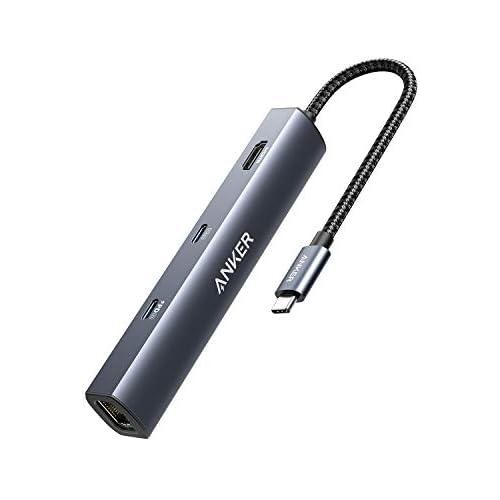
If you travel frequently and need ultra-reliable connectivity, the Anker USB-C Hub with Ethernet lets you connect to wired networks in hotels and coworking spaces, providing a stable alternative to wireless tethering.
| Solution | Effectiveness | Setup Time | Best For |
|---|---|---|---|
| Maximize Compatibility | High (70%+) | 10 seconds | Frequency band mismatches |
| Rename iPhone (remove apostrophe) | Medium (40–50%) | 30 seconds | Special character SSID errors |
| USB Tethering | Very High (95%+) | 1 minute | Instant workaround, charging |
| Driver Update | High (60–70%) | 5–10 minutes | Outdated laptop Wi-Fi adapters |
| Network Reset (both devices) | High (65–75%) | 3–5 minutes | Corrupted cached profiles |
When to Contact Apple Support or Your Carrier
If you’ve exhausted all troubleshooting steps and your laptop still won’t detect your iPhone hotspot, the issue may be hardware-related or carrier-restricted. Contact Apple Support if your iPhone’s Personal Hotspot toggle is grayed out or missing entirely, this often indicates a hardware failure in the cellular modem or a carrier provisioning problem.
Some mobile carriers restrict hotspot functionality to specific plan tiers or require explicit activation. Check your carrier’s account portal or contact customer service to verify that Personal Hotspot is enabled on your line. Certain prepaid plans disable tethering entirely, while others throttle hotspot speeds after a monthly data cap.
If your iPhone is under warranty and none of the software fixes resolve the issue, schedule a Genius Bar appointment through the Apple Support app. Technicians can run diagnostics to identify hardware failures in the Wi-Fi/Bluetooth module or cellular antenna.
For persistent laptop-side issues, such as a Wi-Fi adapter that refuses to detect any hotspots, contact your laptop manufacturer’s support. Dell, HP, Lenovo, and other OEMs provide driver utilities and firmware updates that address compatibility issues with specific iPhone models and iOS versions.
Frequently Asked Questions
Why can’t my laptop find my iPhone hotspot?
Your laptop may not find your iPhone hotspot due to frequency band incompatibility (5 GHz vs. 2.4 GHz), special characters in your iPhone’s device name, outdated Wi-Fi drivers, or cached network profiles. The most common fix is enabling ‘Maximize Compatibility’ on your iPhone to broadcast on 2.4 GHz.
How do I enable Maximize Compatibility mode for my iPhone hotspot?
Go to Settings > Personal Hotspot on your iPhone and toggle on ‘Maximize Compatibility.’ This forces your iPhone to broadcast on the 2.4 GHz band instead of 5 GHz, improving compatibility with older laptops and making your hotspot visible to more devices.
What should I do if my laptop still won’t connect after toggling Maximize Compatibility?
Try toggling Maximize Compatibility off and back on to restart the hotspot broadcast. Also, keep the Personal Hotspot settings screen open while scanning on your laptop, rename your iPhone to remove special characters like apostrophes, and update your laptop’s Wi-Fi drivers for improved compatibility.
Can special characters in my iPhone’s name prevent my laptop from connecting to the hotspot?
Yes. Special characters, apostrophes, emojis, and symbols in your iPhone’s name (like ‘John’s iPhone’) can cause Windows and macOS to filter out the hotspot from available networks. Rename your device by going to Settings > General > About > Name and removing special characters.
Is USB tethering a better alternative if my laptop won’t detect my iPhone hotspot?
Yes, USB tethering is very reliable and often faster than Wi-Fi hotspot. Connect your iPhone via Lightning or USB-C cable, tap ‘Trust This Computer,’ and your laptop will recognize it as a network adapter. This eliminates wireless interference and keeps your iPhone charged during use.
What does toggling Airplane mode do to fix iPhone hotspot detection issues?
Toggling Airplane mode on both devices acts as a hard reset for all wireless radios (Wi-Fi, Bluetooth, cellular), clearing temporary radio conflicts. This simple fix resolves approximately 30–40% of hotspot discovery issues and takes only seconds to perform.
Read More:
- Laptop Not Connecting to WiFi But Other Devices Are (Here’s How to Fix It)
- Laptop Not Finding Printer (Causes and Fix Detection Issues Fast)
- Laptop Not Enough Space (Here’s the Cause and What You Should Do)
- Laptop Not Enough Memory (Here’s the Causes and Performance Fixes)
- Laptop Not Emitting Sound (Here’s the Simple Fixes That Work)