
You close your laptop lid expecting it to sleep, but when you pull it out of your bag later, it’s hot, the battery is drained, and the fans are roaring. This isn’t just annoying, it’s a sign your laptop overheating in bag lid closed sleep fail is a real problem that can damage hardware over time.
When your laptop isn’t going to sleep with the lid closed, the culprit is usually a misconfigured power plan setting, a background process blocking sleep mode, a faulty magnetic hall effect lid sensor, or wake timers keeping the system active. Windows and macOS both rely on specific hardware and software triggers to enter sleep when the lid closes, and if any step in that chain fails, your laptop stays awake, drains the battery, and overheats in confined spaces.
You’ll learn how to use Command Prompt tools like powercfg /requests to identify sleep blockers, adjust “Choose what closing the lid does” in Windows Power Options, disable Fast Startup and Wake-on-LAN, test your lid sensor, and fix Modern Standby versus S3 sleep conflicts. These steps prevent battery drain, protect your laptop from heat damage, and restore predictable lid-close behavior.

Best Laptop Stand (with 360° Base)
Keep Your Laptop Cooler & More Comfortable with 360° Rotating Base. Improve Airflow & Reduce Heat. Adjustable Height & Viewing Angle.
Shop on Amazon
Key Takeaways
- When your laptop is not going to sleep with the lid closed, check for software blockers using powercfg /requests on Windows or pmset -g assertions on Mac to identify background processes preventing sleep mode.
- Adjust your lid-close settings in Control Panel Power Options to Sleep for both battery and plugged-in states, and disable Fast Startup and Wake-on-LAN to restore proper sleep behavior.
- Update or reinstall your lid switch drivers (magnetic hall effect sensor) through Device Manager, as outdated drivers can prevent the laptop from detecting when the lid is closed.
- Disconnect external monitors and USB devices—clamshell mode and external peripherals can override lid-close sleep settings and keep your laptop awake in your bag.
- If software fixes fail, run powercfg /energy for a full power diagnostic to identify efficiency errors, or consider a faulty lid sensor or weak magnet requiring hardware replacement.
- Always verify your laptop is asleep before packing it by pressing the power button and manually selecting Sleep from the Start menu to prevent battery drain and overheating damage.
Why Your Laptop Stays Awake When You Close the Lid
Your laptop should enter sleep mode the moment you close the lid, but that requires a chain reaction: the magnetic hall effect sensor detects the lid position, sends a signal to the operating system, and Windows or macOS triggers the sleep state defined in your power plan. If any link in that chain breaks, whether from a software setting, a driver glitch, or a hardware fault, your machine stays awake.
Background applications frequently block sleep by requesting active system states. Media players, file sync services, remote desktop tools, and even antivirus scans can tell the OS to stay awake. On Windows, you can expose these culprits by opening Command Prompt as Administrator and running powercfg /requests. This command lists every program preventing sleep mode, along with the reason it’s doing so.
Wake timers are another common cause. Windows schedules automatic maintenance tasks, updates, and backups that can wake your laptop from sleep, or prevent it from sleeping in the first place. Fast Startup, a hybrid shutdown mode in Windows 10 and 11, can interfere with sleep triggers and cause lid-close actions to fail. Modern Standby (also called S0 Low Power Idle) replaces the traditional S3 sleep state on newer laptops, but it’s less reliable and more sensitive to misconfiguration.
Finally, external displays and network adapters can override lid-close sleep. If you use your laptop in clamshell mode with an external monitor, Windows may interpret the closed lid as a signal to stay awake and use the external screen. Wake-on-LAN settings in your network adapter allow it to wake the computer remotely, which can also block sleep when the lid is closed.
How to Check Your Current Lid Close Settings
Windows Power Settings
Open Control Panel (not Windows Settings) and navigate to Hardware and Sound > Power Options > Choose what closing the lid does. This panel shows separate actions for “On battery” and “Plugged in.” Both should be set to Sleep if you want your laptop to sleep when you close the lid. If either is set to “Do nothing” or “Hibernate,” change it to Sleep and click Save changes.
You can also verify your active power plan’s advanced settings. In Power Options, click “Change plan settings” next to your active plan, then “Change advanced power settings.” Expand Power buttons and lid and confirm “Lid close action” is set to Sleep for both battery and plugged-in states. While you’re there, expand Sleep and check that “Allow wake timers” is set to Disable, and “Allow hybrid sleep” is off unless you specifically need it.
Mac System Preferences
MacBooks handle lid-close sleep differently. Open System Settings > Battery (or Energy Saver on older macOS versions). Click Options and review settings like “Prevent automatic sleeping when the display is off” and “Wake for network access.” If either is enabled, your Mac may stay awake when the lid is closed, especially if connected to power.
For deeper diagnostics on macOS, open Terminal and type pmset -g assertions. This command lists active power assertions preventing sleep. Look for entries labeled “PreventUserIdleSystemSleep” or “PreventSystemSleep” and note which processes are responsible. Common offenders include backups, file sharing, and VPN clients that maintain active network connections.
Fixing Lid Sleep Issues on Windows Laptops
Adjust Power Plan Lid Close Actions
Start by confirming your lid-close action in Control Panel Power Options, as described above. If the setting already says Sleep but your laptop still doesn’t sleep, reset your power plan to defaults. In Power Options, click “Change plan settings,” then “Restore default settings for this plan.” This clears any hidden advanced settings that might conflict with lid-close behavior.
If you’re using a custom power plan, switch to the Balanced plan temporarily to test. Sometimes third-party manufacturer power profiles (Dell Power Manager, Lenovo Vantage, HP Command Center) override Windows settings. Disable or uninstall these utilities, reboot, and test lid-close sleep again.
Update or Reinstall Lid Switch Drivers
The lid switch sensor (often a magnetic hall effect switch) is detected by Windows as a device under “System devices” in Device Manager. Press Win + X, select Device Manager, and expand System devices. Look for entries like “ACPI Lid,” “Lid Switch,” or similar. Right-click and choose “Update driver,” then “Search automatically for drivers.”
If that doesn’t help, right-click the lid switch device and select “Uninstall device.” Reboot your laptop: Windows will reinstall the driver automatically. This can fix cases where the lid sensor isn’t reporting its state correctly. You should also update your chipset drivers from the laptop manufacturer’s support page, since chipset firmware controls power management and ACPI events.
“I had the same issue on my XPS 15. Turns out Fast Startup was preventing the lid sensor from triggering sleep. Disabled it and now it works perfectly every time.” via r/Dell
Disable Wake Timers and Prevent Wake Settings
Open Power Options advanced settings and expand Sleep > Allow wake timers. Set both “On battery” and “Plugged in” to Disable. This stops scheduled tasks and updates from waking your laptop or preventing sleep.
Next, check your network adapter. Open Device Manager, expand Network adapters, right-click your Wi-Fi or Ethernet adapter, and select Properties. Go to the Power Management tab and uncheck “Allow this device to wake the computer.” This disables Wake-on-LAN and prevents network activity from blocking sleep mode bypass when laptop lid closed.
Finally, disable Fast Startup. Open Control Panel > Power Options, click “Choose what the power buttons do,” then “Change settings that are currently unavailable.” Uncheck “Turn on fast startup (recommended)” and save. Fast Startup is a known cause of disable fast startup windows 11 sleep bug issues, especially on laptops with Modern Standby.
Solving Lid Sleep Problems on MacBooks
MacBooks typically handle lid-close sleep more reliably than Windows laptops, but issues still arise. Open System Settings > Battery > Options and ensure “Prevent automatic sleeping when the display is off” is unchecked. If you’re using a USB-C hub or external monitor, disconnect it and test lid-close sleep without peripherals. Some docks send wake signals that keep the Mac awake.
Check for rogue processes using Terminal: type pmset -g assertions and look for “PreventUserIdleSystemSleep” entries. Apps like Amphetamine, Caffeine, or backup utilities can prevent sleep. Quit those apps, close the lid, and verify the Mac enters sleep mode. You can also reset the System Management Controller (SMC) by shutting down, holding Shift + Control + Option + Power for 10 seconds on Intel Macs, or simply restarting on Apple Silicon Macs.
“My M1 MacBook Pro wouldn’t sleep with the lid closed if I had an external SSD plugged in. Ejecting the drive before closing the lid fixed it.” via Apple Discussions
If you’re running macOS Sonoma or later and use a VPN like NordVPN, configure it to disconnect on sleep. Some VPN clients maintain active network sessions that prevent the Mac from entering deep sleep. For persistent issues, consider Driver Booster (Windows-focused) or third-party macOS utilities that update firmware and drivers, though macOS handles most updates natively.
External Displays and Clamshell Mode Conflicts
Clamshell mode, using your laptop with the lid closed and an external monitor, can override lid-close sleep settings. Windows interprets the external display as a signal to stay awake, even if you’ve configured the lid to trigger sleep. To fix this, disconnect the external monitor, close the lid, and confirm the laptop sleeps. If it does, the external display is the problem.
You have two options: either disable clamshell mode when you’re not using an external monitor, or adjust your power plan to “Do nothing” when the lid is closed only when plugged in and an external display is detected. Some laptops offer this granular control in manufacturer utilities (Lenovo Vantage, Dell Power Manager). Alternatively, manually put the laptop to sleep using the Start menu before closing the lid when an external monitor is connected.
For a hardware workaround, consider a laptop docking station with automatic sleep detection, which signals the laptop to sleep when you disconnect. Or upgrade to a laptop stand with cooling fans, which prevents overheating if you must use clamshell mode regularly. These stands improve airflow and can alert you if the laptop stays awake unexpectedly by monitoring fan noise and heat.

If you frequently travel and rely on your laptop to sleep in your bag, always verify it’s asleep before packing it. Press the power button briefly to wake it, then use the Start menu to manually select Sleep. Wait for the power LED to blink or turn off before closing the lid and placing it in your bag. This two-step approach ensures the laptop enters sleep mode even if the lid sensor fails.
Hardware Issues That Prevent Sleep Mode
If software fixes don’t work, you may have a faulty hall effect magnetic lid switch sensor. This tiny component detects when the lid is closed using a magnet embedded in the display bezel. Over time, the magnet can weaken, the sensor can fail, or debris can interfere with detection. To test, open Device Manager, expand System devices, and locate the lid switch. Close the lid slowly while watching Device Manager: the sensor should trigger an ACPI event. If it doesn’t, the sensor is likely broken.
You can also use a multimeter to test the lid sensor’s continuity, but this requires disassembly and technical expertise. A simpler test: hold a small magnet near the sensor location (usually along the front or side edge of the keyboard deck) while the lid is open. If the laptop enters sleep, the sensor works but the lid magnet is weak. Replace the magnet or the entire lid assembly if necessary.
Faulty battery firmware can also prevent sleep. Run powercfg /batteryreport in Command Prompt to generate a battery health report saved to C:\Windows\System32\battery-report.html. Open the report and check for anomalies like rapid discharge or charging errors. Update your BIOS and battery firmware from the manufacturer’s support site: outdated firmware can cause power management bugs that block sleep.
Finally, overheating protection can keep your laptop awake. If the CPU or GPU temperature is too high, the system may refuse to sleep to prevent thermal damage. Clean your laptop’s vents and fans, reapply thermal paste if the machine is older than three years, and monitor temperatures using HWMonitor or similar tools. If the laptop runs hot even at idle, a background app keeping laptop awake closed lid scenario is likely compounding the issue.
Advanced Troubleshooting for Persistent Sleep Issues
For stubborn cases, run a full power diagnostic. Open Command Prompt as Administrator and type powercfg /energy. This generates a 60-second trace and saves a report to C:\Windows\System32\energy-report.html. The report lists errors, warnings, and informational messages about power efficiency, including processes blocking sleep, inefficient timers, and USB devices preventing low-power states. Review the errors and address each one.
Modern Standby vs. S3 sleep is a critical distinction. Newer laptops use Modern Standby (S0), which keeps the system partially awake for background tasks like email sync. Older laptops use S3 (traditional sleep), which suspends nearly all activity. To check which your laptop uses, run powercfg /a in Command Prompt. If S3 is listed as “available,” you can force it by editing the registry (advanced users only). If only S0 is available, you’re stuck with Modern Standby unless you disable it in BIOS (if the option exists).
Disable wake timers power plan settings as described earlier, but also check Task Scheduler for automated tasks that wake the computer. Open Task Scheduler, click Task Scheduler Library, and review tasks with “Wake the computer to run this task” enabled. Disable or delete unnecessary tasks, especially those related to Windows Update or manufacturer bloatware.
If all else fails, reset power plan defaults windows 11 by running powercfg -restoredefaultschemes in Command Prompt as Administrator. This wipes all custom power plans and restores factory defaults. Reboot and test lid-close sleep again. For a visual walkthrough, watch this YouTube troubleshooting guide that covers common power management fixes.
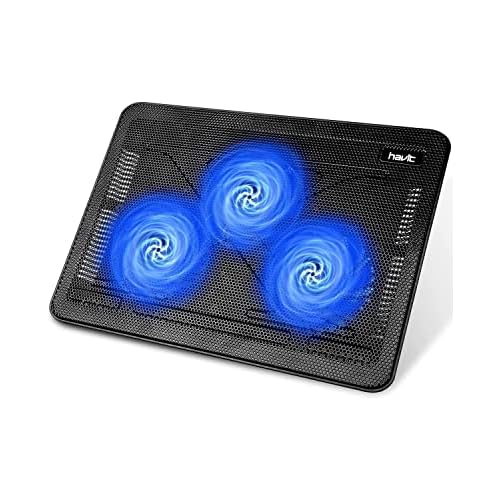
For reliable VPN protection without sleep interference, use NordVPN, which lets you configure disconnect-on-sleep behavior. Keep drivers current with Driver Booster, which automates chipset and ACPI updates. And if you need a hardware safety net, invest in a laptop cooling pad to prevent thermal damage if your laptop stays awake in your bag.
Frequently Asked Questions
Why is my laptop not going to sleep when the lid is closed?
Your laptop likely has misconfigured power settings, background processes blocking sleep, a faulty lid sensor, or wake timers keeping the system active. Check Control Panel > Power Options > Choose what closing the lid does, ensure it’s set to Sleep, and use powercfg /requests to identify background apps preventing sleep mode.
How do I fix a laptop that stays awake when the lid is closed on Windows?
Adjust your lid-close action to Sleep in Control Panel Power Options, disable wake timers, update lid switch drivers in Device Manager, disable Fast Startup, and turn off Wake-on-LAN in your network adapter settings. If these don’t work, run powercfg /energy for a detailed power diagnostic report.
What is the difference between Modern Standby and S3 sleep on laptops?
Modern Standby (S0) keeps your system partially awake for background tasks like email sync, while S3 suspends nearly all activity. Newer laptops use Modern Standby, which is less reliable and more prone to misconfiguration. Check which mode you have by running powercfg /a in Command Prompt.
Can external monitors prevent my laptop from sleeping when the lid closes?
Yes, clamshell mode with an external display can override sleep settings because Windows interprets the external monitor as a signal to stay awake. Disconnect the external monitor and test if the laptop sleeps. You can also manually put the laptop to sleep before closing the lid when using an external display.
How do I check if my laptop’s lid sensor is faulty?
In Device Manager, locate the lid switch under System devices. Close your lid slowly while watching for an ACPI event to trigger. If nothing happens, the sensor may be broken. Test with a small magnet near the sensor location; if the laptop sleeps, the magnet in your lid is weak and needs replacement.
What background processes commonly block laptop sleep mode?
Media players, file sync services, remote desktop tools, antivirus scans, VPN clients, backup utilities, and even some docking stations can prevent sleep. Run powercfg /requests in Command Prompt to identify which apps are blocking sleep, then disable or quit those applications.
Read More:
- Laptop Not Emitting Sound (Here’s the Simple Fixes That Work)
- Laptop Not Enough Memory (Here’s the Causes and Performance Fixes)
- Laptop Not Finding Printer (Causes and Fix Detection Issues Fast)
- Laptop Not Finding iPhone Hotspot (Here’s Why and Simple DIY Fixes)
- Laptop Not Fully Charging (Common Causes and How to Fix It Fast)