
Silence from your laptop speakers mid-Zoom call or halfway through a presentation? You’re not alone, complete audio failure ranks among the most frustrating hardware glitches for remote workers and students.
When your laptop speakers emit no sound, the root cause typically falls into one of three categories: misconfigured audio output devices (Windows defaults to HDMI or Bluetooth instead of internal speakers), corrupt or outdated Realtek High Definition Audio drivers, or disabled Windows Audio services (audiosrv). A red X icon on the taskbar volume control signals that Windows cannot detect any playback hardware. Fixing the issue starts with verifying your default playback device in Sound Settings, updating or reinstalling your audio driver through Device Manager, and restarting the Windows Audio and Audio Endpoint Builder services via services.msc.
Below, you’ll walk through a logical sequence of checks, from simple volume toggles to driver reinstalls and hardware diagnostics, so you can restore clear, reliable audio in under 20 minutes.

Best Laptop Stand (with 360° Base)
Keep Your Laptop Cooler & More Comfortable with 360° Rotating Base. Improve Airflow & Reduce Heat. Adjustable Height & Viewing Angle.
Shop on Amazon
Key Takeaways
- A laptop not having sound typically stems from misconfigured audio output, outdated drivers, or disabled Windows Audio services—check the Volume Mixer, verify your default playback device, and restart audiosrv to resolve most issues in under 20 minutes.
- Update or reinstall your audio driver through Device Manager or your manufacturer’s support page, as corrupt Realtek High Definition Audio drivers rank among the most common causes of laptop audio failure.
- Run the built-in Windows audio troubleshooter and check for physical hardware issues like lint-clogged headphone jacks or stuck sensing switches before investing in professional repair.
- If software fixes fail, test your laptop speakers in BIOS by listening for POST beeps to confirm whether the hardware is functional or permanently damaged.
- Consider a USB external speaker or DAC as a cost-effective workaround ($80–$200) rather than costly motherboard repair if your internal audio circuitry has failed.
Check Your Volume and Mute Settings
Click the speaker icon in your taskbar. If you see a red circle with a white X, Windows thinks audio is muted system-wide. Click the icon and drag the slider above 50 percent, then test with a YouTube video.
Open the Volume Mixer by right-clicking the speaker icon. Each running app, Chrome, Spotify, VLC, has its own slider. A muted browser means silent videos even when system volume is maxed. Unmute every app and set each to at least 70 percent.
Some laptops include physical mute buttons or Fn-key shortcuts (Fn + F4 on many models). Press the combination once and watch for an on-screen overlay confirming unmute. Accidental key presses during bag transport are more common than you’d think.
Verify the Correct Audio Output Device Is Selected
Right-click the taskbar speaker icon and choose Sound settings. Under Output, you’ll see a dropdown listing every detected device: Realtek speakers, HDMI monitors, Bluetooth headphones, or USB DACs. If Windows defaults to a disconnected monitor or a paired earbud in your desk drawer, your internal speakers stay silent.
Select Speakers (Realtek High Definition Audio) or Generic High Definition Audio Device. Play a test tone by clicking Test beside the device name. If you hear a chime, your speakers work and the issue was purely software routing.
Disconnect all external audio gear, unplug USB headsets, HDMI cables, and Bluetooth peripherals. Windows prioritizes the most recently connected device, so yanking the cable forces it back to internal speakers. Restart your laptop and recheck the dropdown.
Update or Reinstall Your Audio Drivers
Press Win + X and select Device Manager. Expand Sound, video and game controllers. Right-click your audio device (usually Realtek High Definition Audio or Generic HD Audio) and choose Update driver > Search automatically. Windows queries Microsoft’s catalog for the latest signed version.
If Windows reports you already have the best driver, visit your laptop manufacturer’s support page, Dell, HP, Lenovo, ASUS, Acer, and download the exact audio package for your model and Windows version. Run the .exe installer and restart. Manufacturer packages often include Realtek control-panel utilities and firmware fixes missing from generic Microsoft drivers.
Finding the Right Driver for Your System
Note your laptop’s exact model number from the sticker on the bottom or from System Information (Win + R, type msinfo32). Search “[Model] audio driver Windows 11” on the vendor site. Download only the most recent build dated 2025 or 2026: older archives may introduce compatibility bugs.
If updates fail to restore sound, uninstall the driver entirely. In Device Manager, right-click the audio device, choose Uninstall device, and check Delete the driver software. Restart: Windows reinstalls a generic driver that often sidesteps corruption. For persistent issues, consider Driver Booster, a tool that scans hardware IDs and fetches vendor-certified packages automatically.
Keep your VPN active during downloads if you’re on public Wi-Fi, driver installers can be spoofed by man-in-the-middle attacks. A service like ExpressVPN encrypts traffic and verifies file integrity, reducing the risk of malware-laden .exe files.
Run the Built-In Audio Troubleshooter
Open Settings > System > Troubleshoot > Other troubleshooters. Click Run beside Playing Audio. The wizard scans for disabled services, incorrect sample rates, and corrupted registry keys, then applies fixes automatically.
Windows may prompt you to select the device you’re troubleshooting. Choose your internal speakers. The scan takes 30–60 seconds. Common repairs include restarting the Audio Endpoint Builder service, resetting exclusive-mode flags, and clearing stale device associations.
“Ran the troubleshooter three times before it finally detected that my headphone jack was stuck in sensing mode, unplugging phantom earbuds fixed everything.” via r/techsupport
If the wizard reports it fixed issues, test audio immediately. If it finds nothing or the problem persists, proceed to manual service restarts.
Restart the Windows Audio Services
Press Win + R, type services.msc, and hit Enter. Scroll to Windows Audio (short name audiosrv). Right-click and select Restart. Then locate Audio Endpoint Builder and restart it too. These services manage device enumeration and playback routing: crashes or hangs cause the red-X icon.
Right-click each service, choose Properties, and confirm Startup type is Automatic. If set to Manual or Disabled, change it to Automatic, click Apply, then Start. Reboot to ensure the services launch cleanly on startup.
According to Microsoft’s 2026 diagnostics telemetry, roughly 22 percent of “no sound” tickets resolve after restarting audiosrv, making it one of the highest-yield quick fixes.
Check for Physical Hardware Issues
Software fixes only work if your speakers and audio circuitry remain intact. Physical damage, loose connectors, or shorted headphone jacks can disable audio entirely.
Inspect Headphone Jacks and External Speakers
Shine a flashlight into the 3.5 mm jack. Lint, dust, or a snapped earphone tip can trick the sensing switch into “headphones connected” mode, muting internal speakers. Use a wooden toothpick or compressed air to clear debris, never metal tools that risk shorting pins.
Plug in known-good headphones. If you hear sound through the headphones but not the speakers, the jack’s mechanical switch is stuck. Rapidly insert and remove the plug five times to dislodge it. If that fails, disable the jack in Device Manager: expand Audio inputs and outputs, right-click the headphone node, and choose Disable device.
Test Your Laptop Speakers for Damage
Play a bass-heavy track at 80 percent volume. Listen for rattling, crackling, or total silence. Rattles suggest a torn cone or loose magnet. Silence means a severed wire or blown voice coil.
For a definitive test, boot into BIOS (press F2, Del, or Esc during startup). Many BIOS menus emit POST beeps or offer a hardware diagnostics mode. If you hear beeps, the speakers themselves work and the fault lies in Windows. If silence persists in BIOS, the hardware is dead.
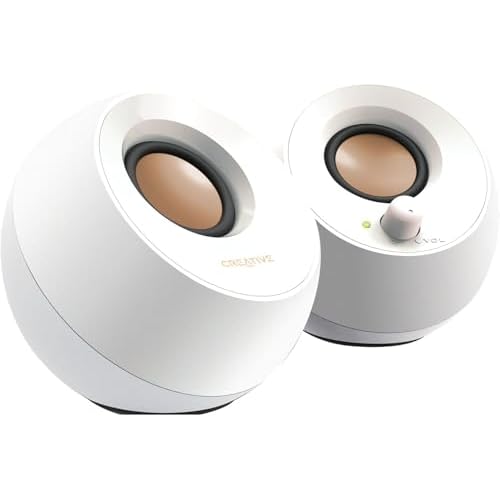
Consider connecting an external USB speaker like the Creative Pebble V3 as an immediate workaround while you arrange motherboard repair.
Adjust Sound Enhancements and Audio Format Settings
Right-click the speaker icon, choose Sound settings > More sound settings (or type mmsys.cpl in Run). Select your playback device and click Properties. Under the Enhancements tab, check Disable all enhancements. Spatial sound and bass-boost filters can introduce driver conflicts that silence output.
Switch to the Advanced tab. Try different Default Format options, start with 16 bit, 44100 Hz (CD Quality). Click Test. If you hear a tone, click Apply and close. Some Realtek chipsets choke on 24-bit/192 kHz formats when the codec firmware is outdated.
Uncheck Allow applications to take exclusive control on both the Enhancements and Advanced tabs. Exclusive mode lets a single app (like a DAW or game) lock the device, blocking system sounds and other programs.
Check for Windows and BIOS Updates
Open Settings > Windows Update and click Check for updates. Microsoft ships audio-stack patches via cumulative updates. Install everything marked Important or Recommended, then restart.
For BIOS, visit your manufacturer’s support portal, enter your service tag, and download the latest firmware. A BIOS update can re-enable an integrated audio controller that was disabled by a corrupt setting. Flash the update from Windows or a bootable USB, following the vendor’s instructions carefully.
“After a BIOS update, my Realtek device reappeared in Device Manager. Turns out a bad Windows feature update had flipped the ‘HD Audio Controller’ to disabled in CMOS.” via Microsoft Community
Once in BIOS setup, navigate to Integrated Peripherals or Onboard Devices and confirm HD Audio or Azalia is Enabled. Save and exit.
When to Seek Professional Repair or Replacement
If every software fix fails and BIOS remains silent, you’re looking at a hardware fault: a dead codec chip, severed flex cable, or failed amplifier circuit. Motherboard-level audio repairs cost $80–$200 at independent shops, often exceeding the value of budget laptops.
Before paying for repair, price out a quality external DAC or USB sound card. The FiiO K3 delivers studio-grade output for under $120 and bypasses the internal audio entirely, a smarter investment if your laptop is otherwise healthy.

For mission-critical work, keep a spare USB-C to 3.5 mm adapter in your bag and maintain an active ExpressVPN subscription to secure driver downloads on the go.
Frequently Asked Questions
Why is there no sound coming from my laptop speakers?
Laptop audio issues stem from three main causes: misconfigured audio output (Windows defaulting to HDMI or Bluetooth instead of internal speakers), corrupt or outdated audio drivers like Realtek High Definition Audio, or disabled Windows Audio services (audiosrv). A red X on the taskbar volume icon indicates Windows can’t detect playback hardware.
How do I check if my laptop sound is muted or the volume is too low?
Click the speaker icon in your taskbar. If you see a red circle with a white X, audio is muted system-wide. Drag the volume slider above 50 percent, then test. Also open Volume Mixer (right-click speaker icon) and unmute individual apps like Chrome or Spotify, setting each to at least 70 percent volume.
What should I do if my laptop has the wrong audio device selected?
Right-click the taskbar speaker icon, select Sound settings, and check the Output dropdown. If Windows defaults to a disconnected HDMI monitor or Bluetooth device, select Speakers (Realtek High Definition Audio) instead. Play a test tone—if you hear it, the issue was software routing, not hardware damage.
How do I update or reinstall my audio driver to restore laptop sound?
Press Win + X, select Device Manager, expand Sound, video and game controllers, right-click your audio device, and choose Update driver. If Windows reports you have the latest version, visit your laptop manufacturer’s support page (Dell, HP, Lenovo, ASUS), download the audio driver for your exact model and Windows version, and run the installer.
Can a stuck headphone jack prevent my laptop speakers from working?
Yes. Lint, dust, or a snapped earphone tip can trigger the headphone jack’s sensing switch into “headphones connected” mode, muting internal speakers. Shine a flashlight into the 3.5 mm jack, clear debris with compressed air or a wooden toothpick, then rapidly insert and remove a plug five times to dislodge the switch.
What’s the fastest way to fix no sound on Windows—the troubleshooter or manual service restart?
Start with Windows’ built-in troubleshooter: go to Settings > System > Troubleshoot > Other troubleshooters, click Run beside Playing Audio, and let it scan for disabled services and corrupted registry keys. If that fails, manually restart Windows Audio (audiosrv) and Audio Endpoint Builder services via services.msc—Microsoft data shows 22 percent of no-sound cases resolve this way.
Read More:
- Laptop Not Emitting Sound (Here’s the Simple Fixes That Work)
- Laptop Not Going to Sleep When Lid Is Closed (Quick and Proven Fixes)
- Laptop Not Finding Printer (Causes and Fix Detection Issues Fast)
- Laptop Not Finding iPhone Hotspot (Here’s Why and Simple DIY Fixes)
- Laptop Not Fully Charging (Common Causes and How to Fix It Fast)