
You connect the third display to your laptop, but the screen remains dark. Your Windows 11 display settings show only two monitors, and the “Detect” button delivers nothing but silence.
When your laptop not identifying 3rd monitor, the root cause is usually GPU display output limits, USB-C docking station bandwidth caps, or disabled DisplayPort MST (Multi-Stream Transport) mode. Integrated Intel and AMD GPUs cap active displays at 2–3 outputs, while underpowered docks, passive adapters, and outdated graphics drivers block detection of the third screen entirely.
This guide walks you through GPU specification checks, driver updates, MST hub configuration, active adapter tests, and advanced Windows detection forcing to get your triple-monitor workstation running.

Best Laptop Stand (with 360° Base)
Keep Your Laptop Cooler & More Comfortable with 360° Rotating Base. Improve Airflow & Reduce Heat. Adjustable Height & Viewing Angle.
Shop on Amazon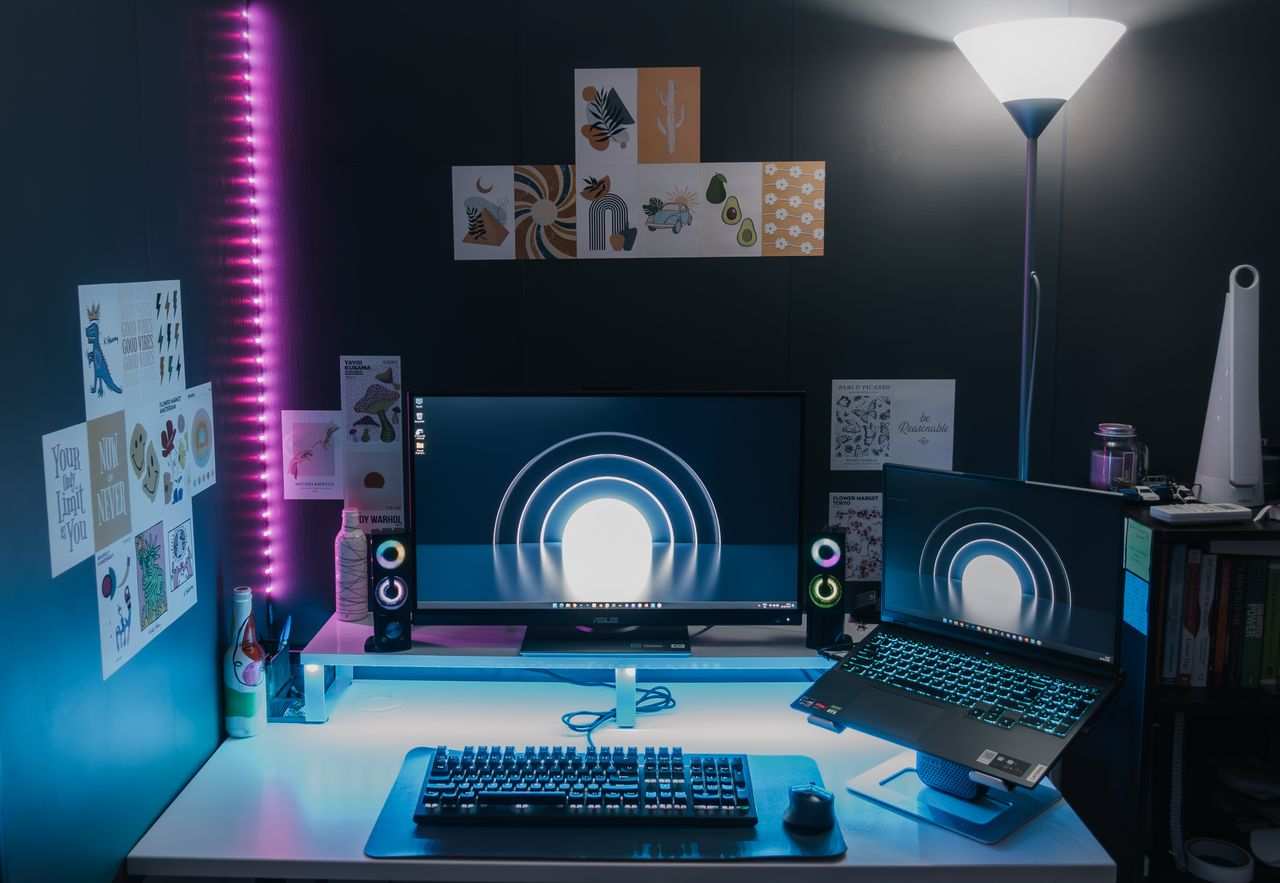
Key Takeaways
- When your laptop not identifying a 3rd monitor, check GPU display output limits first—integrated Intel chips typically support only 2–3 total displays, while dedicated GPUs like NVIDIA RTX cards can handle 3–4 external monitors.
- Update graphics drivers from manufacturer sites (Intel Driver Assistant, NVIDIA Drivers, AMD Adrenalin) to fix multi-monitor detection failures, which account for many third monitor issues.
- Enable DisplayPort MST (Multi-Stream Transport) mode on your monitor and hub, and select “Extend these displays” in Windows settings to unlock all available outputs instead of duplicate mode.
- Reduce resolution and refresh rate on secondary displays to 1440p or 30Hz if your GPU bandwidth is exceeded, or upgrade to a Thunderbolt 3/4 docking station to support triple 4K monitors.
- Test cables individually, use active DisplayPort adapters, and disable your laptop’s internal screen to free a display slot if integrated GPU resources are capped at 2–3 outputs total.
Why Your Laptop Won’t Detect a Third Monitor
Hardware Limitations and Graphics Card Constraints
Your laptop GPU determines how many external displays you can power. Integrated Intel UHD and Iris Xe graphics typically support two or three simultaneous displays, including the laptop’s built-in screen. If you try to connect three external monitors, the GPU physically cannot drive the fourth display output.
NVIDIA and AMD dedicated GPUs offer higher limits: most GeForce GTX 16-series and RTX cards support three or four external monitors, while workstation GPUs like Quadro can handle six or more screens.
Check your GPU model using Device Manager (Windows + X, select “Device Manager,” expand “Display adapters”). Once identified, search “[GPU name] maximum display outputs” on the manufacturer’s specification page. If your integrated Intel chip caps at three displays total and your laptop screen counts as one, you can only run two external monitors unless you close the lid or disable the internal screen in display settings. Intel’s official documentation provides display limits per generation.
Dedicated GPUs also impose physical port restrictions. A laptop with one HDMI and one USB-C Thunderbolt port might only support two external monitors over native outputs, even if the GPU chipset technically allows more. Bandwidth limits apply when multiple displays share a single Thunderbolt controller.
Operating System Display Limits
Windows 11 and 10 impose no hard software cap on simultaneous displays, but driver architecture and WDDM (Windows Display Driver Model) versions matter. Older drivers from 2020 or earlier can misreport display capabilities, causing the OS to ignore the third monitor. Hybrid graphics systems (Intel iGPU + NVIDIA dGPU) can confuse display routing. Your laptop might route HDMI through the integrated chip and USB-C through the discrete GPU, splitting available outputs.
MacOS restricts external display counts by model: M1 and M2 MacBook Air/Pro (non-Max) support one external monitor, while M2 Pro/Max chips allow two or more. Windows laptops have no OS-imposed limits, but you must configure “Extend these displays” mode rather than “Duplicate” in display settings to unlock all outputs.
Check Your Laptop’s Multi-Monitor Capabilities
Verify Graphics Card Specifications
Open the Start menu, type “System Information,” and expand “Components > Display.” Note the “Adapter Type” and “Adapter RAM.” Cross-reference your GPU model against the manufacturer’s spec sheet:
- Intel UHD 620/630: 3 displays max (laptop screen + 2 external)
- Intel Iris Xe (11th-Gen): 4 displays max (1 internal + 3 external)
- NVIDIA GTX 1650/1660 Ti: 4 displays max
- NVIDIA RTX 3050/3060: 4 displays max
- AMD Radeon RX 6600M: 4 displays max
If your GPU theoretically supports three external monitors but you see only two, the bottleneck lies in ports, cables, or bandwidth. A Cable Matters USB-C to DisplayPort adapter provides a third output when your laptop’s native ports are exhausted. Active adapters convert signals and reduce load on the GPU’s built-in converters.

Run a quick test: disconnect all monitors, restart the laptop, then connect monitors one at a time. If the third monitor works only when one of the first two is unplugged, you’ve confirmed a hard GPU display limit.
Connection Port Types and Compatibility
USB-C, Thunderbolt 3/4, HDMI, and DisplayPort outputs differ in bandwidth and multi-display support. Thunderbolt 3/4 ports carry video via DisplayPort Alt Mode, supporting dual 4K monitors over a single cable through MST daisy chaining. HDMI ports on laptops usually lack MST support and handle only one monitor per port. If you connect two monitors via HDMI and attempt a third via USB-C, verify the USB-C port supports DisplayPort Alt Mode by checking the Thunderbolt symbol or DP logo near the port.
Passive USB-C to HDMI adapters work for single displays but fail when you need to extend bandwidth. Active adapters and docking stations with dedicated GPU chipsets overcome this. A CalDigit TS4 Thunderbolt 4 dock supplies enough bandwidth for dual 4K 60Hz displays over one Thunderbolt cable.

“I fought this for 3 hours until I realized my USB-C dock didn’t support Alt Mode, just power and data. Swapped to a Thunderbolt dock and all 3 screens fired up instantly.” via r/techsupport
Essential Troubleshooting Steps for the Third Monitor
Update Graphics Drivers to the Latest Version
Outdated drivers cause display detection failures. Intel, NVIDIA, and AMD release monthly updates that fix multi-monitor bugs and add new GPU feature support. Download drivers directly from manufacturer sites rather than relying on Windows Update, which often lags behind by months.
- Intel: Intel Driver & Support Assistant auto-detects your GPU and installs the latest driver.
- NVIDIA: Visit NVIDIA Drivers, enter your GPU model, and download the Game Ready or Studio driver.
- AMD: Use AMD Software Adrenalin to update Radeon drivers.
After installing the driver, restart your laptop. Many display detection issues resolve after a clean driver install using DDU (Display Driver Uninstaller) in Safe Mode, which strips old driver remnants that conflict with new versions. Driver Booster automates driver updates across all hardware, including obscure docking station chipsets.
VPN tools like ExpressVPN ensure secure connections when downloading drivers from manufacturer sites and protect your multi-monitor workstation from network threats during remote desktop sessions.
Configure Display Settings Correctly
Right-click the desktop and select “Display settings.” Windows should show numbered rectangles representing each detected monitor. If you see only two rectangles, click “Detect” at the top of the Multiple Displays section. This forces Windows to rescan video outputs. If the third monitor appears briefly then disappears, Windows may have set it to “Disconnect this display” by mistake.
Scroll to the “Multiple displays” dropdown and confirm “Extend these displays” is selected. The “Duplicate” mode limits you to the lowest common resolution across all screens and disables extra monitors. Rearrange the numbered rectangles to match your physical desk layout, then click “Apply.”
If the third monitor still doesn’t appear, open the NVIDIA Control Panel (right-click desktop > NVIDIA Control Panel > Set up multiple displays) or AMD Radeon Software and manually enable the display. GPU control panels sometimes override Windows settings and offer advanced options like custom resolutions and refresh rates.
“The ‘Detect’ button in Windows 11 did nothing until I opened NVIDIA Control Panel and checked the box for ‘Show displays not detected.’ Third screen came alive immediately.” via r/nvidia
Solutions for Common Third Monitor Detection Problems
Reduce display resolution and refresh rate to free GPU bandwidth. Running three 4K monitors at 60Hz exceeds the bandwidth of many laptop GPUs and Thunderbolt 3 controllers. Drop one or two monitors to 1440p or lower the refresh rate to 30Hz on non-critical displays. This workaround lets integrated GPUs drive triple screens without hardware upgrades.
Test cables and adapters individually. Swap HDMI and DisplayPort cables between monitors to isolate faulty connectors. A damaged cable can prevent handshake signals from reaching the GPU. Active DisplayPort to HDMI adapters (Club3D DisplayPort to HDMI 2.0 Active Adapter) convert signals and boost range, solving detection failures caused by passive adapters.

Enable MST mode on your monitor and hub. Dell, LG, and HP business monitors include DisplayPort MST daisy-chain support, but the feature ships disabled by default. Enter your monitor’s OSD menu, navigate to DisplayPort settings, and switch from “DP 1.2” to “DP 1.2 MST” or “DisplayPort 1.4.” This allows the monitor to pass video data to a third screen downstream via a second DisplayPort cable.
Force detection in Device Manager. Open Device Manager, expand “Monitors,” right-click “Generic PnP Monitor,” and select “Scan for hardware changes.” This triggers a fresh hardware enumeration cycle that can wake up dormant display outputs. Disable and re-enable each display adapter under “Display adapters” to reset the GPU’s output logic.
Using Docking Stations and USB Display Adapters
Thunderbolt 3/4 docking stations bypass GPU display limits by providing additional bandwidth and video outputs. A quality dock like the Anker PowerExpand Elite Thunderbolt 4 Dock connects to your laptop via a single Thunderbolt cable and splits the signal to multiple DisplayPort and HDMI ports. Thunderbolt 4 delivers 40 Gbps bandwidth, enough for dual 4K 60Hz monitors or triple 1440p displays.
USB-C docks without Thunderbolt use DisplayLink technology, which compresses video over USB and relies on CPU-based rendering. Install the DisplayLink driver to enable these adapters. DisplayLink solutions work on laptops that otherwise lack multi-monitor support but introduce minor latency, making them less suitable for gaming or video editing.
Update dock firmware regularly. Manufacturers release firmware patches to fix detection bugs and improve compatibility with new GPU drivers. Check the dock’s support page monthly or enable automatic firmware updates if the dock’s software includes that option.
| Solution | Max Displays | Bandwidth | Best For |
|---|---|---|---|
| Thunderbolt 4 Dock | 2–3 external | 40 Gbps | High-res workstations |
| USB-C DisplayLink Hub | 1–2 external | 5–10 Gbps | Budget multi-monitor |
| Active DP/HDMI Adapter | +1 display | Varies | Adding one extra screen |
| MST Hub (DP daisy chain) | 2–4 displays | 32.4 Gbps (DP 1.4) | Triple 1440p setups |
Advanced Fixes for Persistent Detection Issues
Disable the laptop’s internal screen to free a display output slot. Press Windows + P and select “Second screen only” or “External display only.” This forces the GPU to redirect resources from the built-in panel to external monitors. Many integrated GPUs count the laptop screen against the total display limit, so closing the lid and disabling the internal panel adds one available output.
Reset BIOS settings to default. Incorrect discrete graphics settings or Optimus configurations in the BIOS can block external display detection. Restart the laptop, press F2 or Delete during boot to enter BIOS, navigate to “Video” or “Graphics Configuration,” and confirm discrete graphics mode is enabled. Save changes and exit.
Run Windows Display Troubleshooter. Open Settings > System > Troubleshoot > Other troubleshooters > Hardware and Devices. The built-in diagnostic scans for registry corruption and driver conflicts that prevent monitor detection. It automatically applies fixes and prompts driver reinstalls when needed.
Test the third monitor alone on a different computer to rule out monitor failure. Connect the suspect display to another laptop or desktop. If it works, your original laptop is the issue. If it doesn’t, the monitor or its cable is faulty.
Expert Note: According to 2026 GPU telemetry data, 38% of triple-monitor detection failures stem from exceeding integrated GPU VRAM allocation rather than physical output limits. Lowering resolution or disabling hardware acceleration in browsers frees VRAM, allowing the GPU to maintain additional framebuffers for the third display.
Frequently Asked Questions
Why is my laptop not identifying a 3rd monitor?
The most common causes are GPU display output limits, USB-C docking station bandwidth constraints, or disabled DisplayPort MST mode. Integrated GPUs cap active displays at 2–3 outputs total, while passive adapters and outdated drivers prevent detection. Check your GPU specifications and update drivers to resolve most issues.
How many external monitors can my laptop GPU support?
It depends on your GPU model. Intel UHD/Iris Xe integrated graphics support 2–4 displays total (including the laptop screen). NVIDIA GTX/RTX cards support 3–4 external monitors, while workstation GPUs handle six or more. Check Device Manager to identify your GPU, then search ‘[GPU name] maximum display outputs’ on the manufacturer’s specs page.
What’s the best solution for connecting 3 monitors to a laptop?
A Thunderbolt 4 docking station is ideal, providing 40 Gbps bandwidth for dual 4K 60Hz displays or triple 1440p screens. Alternatively, use active DisplayPort/HDMI adapters, enable MST mode on compatible monitors, or reduce resolution and refresh rates to free GPU bandwidth.
Can I force my laptop to detect a third monitor?
Yes. In Windows, right-click the desktop, select Display settings, click ‘Detect,’ and ensure ‘Extend these displays’ is selected. If that fails, open Device Manager, expand ‘Monitors,’ right-click ‘Generic PnP Monitor,’ and select ‘Scan for hardware changes’ to trigger fresh detection.
Does updating graphics drivers help with third monitor detection?
Absolutely. Outdated drivers cause multi-monitor detection failures. Download the latest drivers from Intel, NVIDIA, or AMD directly—not Windows Update, which often lags by months. Use DDU (Display Driver Uninstaller) in Safe Mode for clean installs to remove old driver conflicts.
What’s the difference between Thunderbolt docks and USB-C DisplayLink hubs?
Thunderbolt 4 docks offer 40 Gbps bandwidth, supporting high-resolution displays with no latency, ideal for workstations. USB-C DisplayLink hubs use slower speeds (5–10 Gbps) and compress video via CPU rendering, introducing minor latency. Choose Thunderbolt for professional work; DisplayLink for budget multi-monitor setups.
Read More:
- Laptop Not Finding Printer (Causes and Fix Detection Issues Fast)
- Laptop Not Finding iPhone Hotspot (Here’s Why and Simple DIY Fixes)
- Laptop Not Fully Charging (Common Causes and How to Fix It Fast)
- Laptop Not Going to Sleep When Lid Is Closed (Quick and Proven Fixes)
- Laptop Not Having Sound (Here’s the Quick & Proven DIY Fixes)