
You tap Screen Mirroring, pick your LG TV, and wait. Then iOS shows “Unable to connect,” or the stream freezes halfway through your family slideshow. This guide covers the most common causes on iPhones, iPads, Macs, and LG webOS sets.
LG TV AirPlay usually fails for one of four reasons. Your Apple device and TV may sit on different network segments, AirPlay may be switched off in the LG Home Dashboard, your router may block traffic between devices, or your webOS firmware may be outdated. To fix it, put both devices on the same SSID, turn on AirPlay in Home Dashboard, reset paired devices, update webOS, and restart both the TV and your Apple device.
Below, you will learn why each failure happens and how to fix it in the right order. You will also find a symptom table so you can jump straight to the cause that matches your error.
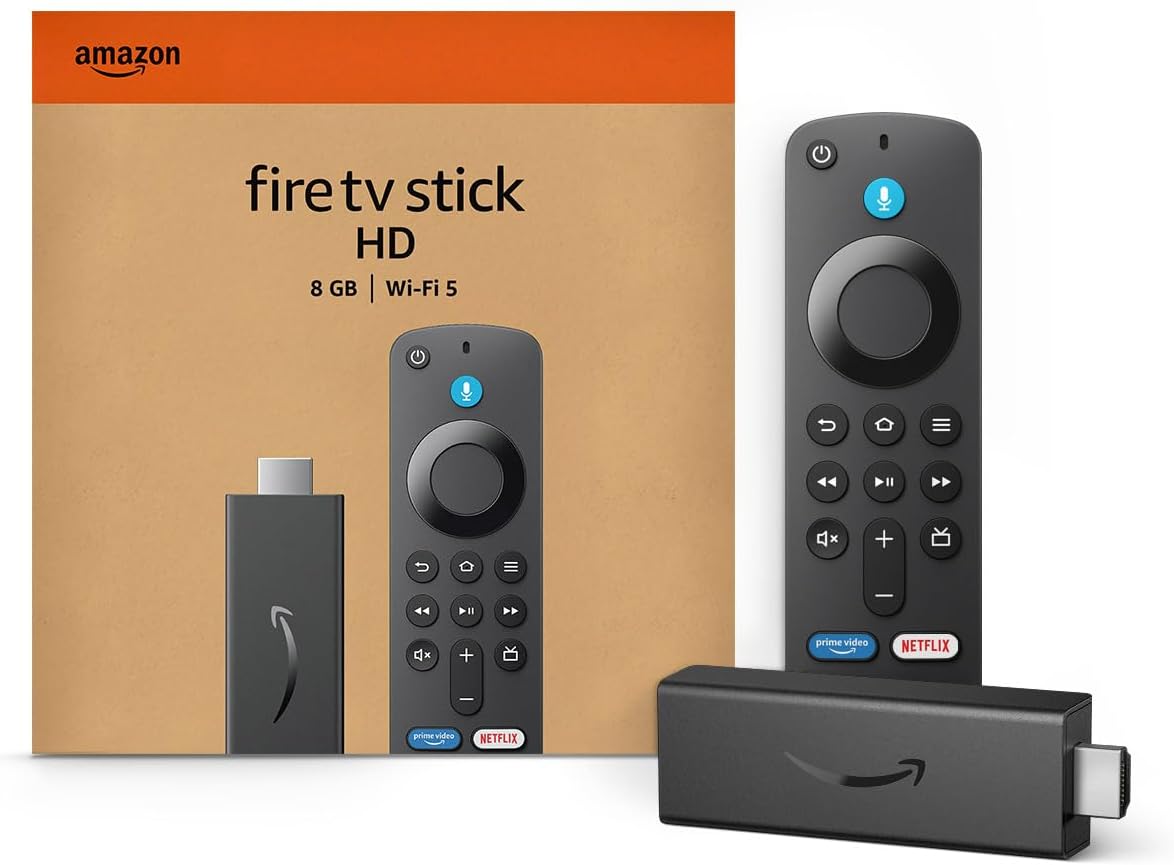
Amazon Fire TV Stick HD
Turn Any TV to a Smart TV. Stream Netflix, Prime Video & More. Alexa Voice Remote Included. Easy Plug & Play Setup.
Shop on Amazon
Key Takeaways
- Same network matters most — AirPlay discovery relies on Bonjour multicast, so your iPhone and LG TV must share one SSID and one subnet.
- Check Home Dashboard first — LG ships AirPlay as a toggle, and a factory reset or firmware update can quietly switch it off.
- Router isolation kills discovery — AP isolation, client isolation, and guest networks stop your Apple device from seeing the TV at all.
- Stale pairings cause refusals — Clearing paired devices and resetting the passcode setting fixes most “Unable to connect” errors on TVs you already paired.
- Firmware unlocks AirPlay 2 — Only 2018 and newer LG models support AirPlay 2, and they need current webOS updates to stay compatible with new iOS releases.
Why AirPlay Fails
AirPlay looks simple on the surface. Underneath, it depends on several systems working together. Your iPhone broadcasts a discovery request using Bonjour, Apple’s version of multicast DNS. Your LG TV must hear that request, answer it, and then accept an encrypted stream. A break anywhere along that path produces the same vague error.
Most failures trace back to the network, not the TV. That is good news, because you can fix network problems without a technician. Start with the causes below before you consider a factory reset.
Split Band WiFi Networks
Many routers broadcast two networks, such as “Home_2.4G” and “Home_5G.” Your iPhone tends to join the faster 5GHz band. Your LG TV, especially if it sits far from the router, often stays on 2.4GHz. To you, both look like home WiFi. To AirPlay, they can behave like separate rooms.
Some routers bridge both bands onto one subnet, and AirPlay works fine. Others treat each band as its own segment and drop multicast traffic between them. When that happens, your iPhone never sees the TV in the Screen Mirroring list. Or it sees the TV briefly, then fails during the handshake.
To confirm the problem, open Settings on your iPhone and tap WiFi. Note the exact network name. On your LG TV, press the Settings button on the remote, choose All Settings, then General, then Network, and select WiFi Connection. Compare the two names character by character. “Home” and “Home_5G” do not match.
The fix is simple. Join both devices to the identical SSID. If your router splits bands, either connect both devices to the 2.4GHz network or enable “Smart Connect” or “band steering” so the router broadcasts one combined name. Many users find the single combined SSID solves discovery problems right away.
Also check the subnet. On your iPhone, tap the small info icon next to your WiFi network and note the IP address. On the TV, open the WiFi connection’s advanced settings. Both addresses should share the first three number groups, such as 192.168.1.x. Different groups mean different subnets, and AirPlay will not cross them.
Router AP Isolation Blocks
AP isolation, sometimes called client isolation or wireless isolation, stops devices on the same WiFi from talking to each other. Routers use it for security on public hotspots. Unfortunately, some ISP routers turn it on by default, and every guest network uses it.
With isolation active, your iPhone can reach the internet but cannot reach your TV. AirPlay discovery fails completely. Your TV simply never appears in Control Center, no matter how many times you restart.
To disable it, log in to your router’s admin page. Most routers use an address like 192.168.0.1 or 192.168.1.1, or they offer a companion app. Look under Wireless, Advanced Wireless, or Security for “AP Isolation” or “Client Isolation.” Turn it off for your main network, save, and reboot the router.
Mesh systems add another layer. Some mesh nodes filter multicast traffic or use IGMP snooping settings that break Bonjour. If your TV connects to a satellite node while your iPhone connects to the main unit, discovery may fail inconsistently. Check your mesh app for a “multicast” or “IGMP” setting and try toggling it.
Finally, never cast from a guest network. Guest networks isolate clients by design. Move your iPhone, iPad, or Mac to the primary network, even if a visitor’s phone works on guest WiFi for browsing.
Outdated Firmware and Stale Pairings
LG added AirPlay 2 and HomeKit to select 2018 models through a firmware update, then built them into 2019 and later sets. If your TV runs old webOS software, it may lack AirPlay entirely or carry bugs that newer iOS versions expose. Apple keeps the official list of compatible sets on its AirPlay product page.
To update, press Settings, open All Settings, choose General or Support, then select “About This TV” or “Software Update.” Turn on “Allow Automatic Updates” and choose “Check for Updates.” Keep the TV powered on during installation. If an update fails over WiFi, the LG Support portal lets you download firmware for your exact model and install it from a USB drive.
Stale pairings cause a different kind of failure. Your TV stores a security record for every Apple device that has connected. After an iOS update, a device name change, or a network change, that stored record can stop matching. The TV then refuses the connection, and your iPhone shows “Unable to connect.”
This pattern shows up often after major iOS updates. A TV that worked yesterday suddenly rejects the same iPhone, while a different iPhone connects fine. That difference points straight at a corrupted pairing cache rather than a network problem.
You will clear that cache in the fixes below. Update firmware first, though. A fresh firmware install sometimes resets AirPlay settings, and you want to clear pairings after the update, not before.
Step by Step Fixes
Work through these fixes in order. Each one builds on the last. Test AirPlay after every step so you know exactly which change solved your problem. If you prefer a visual walkthrough, browse LG TV AirPlay troubleshooting videos on YouTube and follow along with the steps for your webOS version.
Audit Home Dashboard AirPlay Settings
LG places AirPlay controls inside the Home Dashboard, which newer webOS versions call Home Hub. Press the Home button on your remote and open Home Dashboard. Then select “AirPlay & HomeKit Settings” or, on some models, press the AirPlay icon at the top of the screen.
Confirm that AirPlay shows “On.” A factory reset, firmware update, or accidental button press can switch it off. When AirPlay stays off, your TV disappears from every Apple device on the network, which can look exactly like a router fault.
Next, check these settings inside the same menu:
- Require Code controls when the TV shows a four digit passcode. “First Time Only” works best for most homes.
- HomeKit lets you add the TV to the Apple Home app for Siri and automations.
- Subtitles and Captioning affects caption display, not connectivity.
Also enable “Quick Start+” or “Always Ready” under General settings, plus “Mobile TV On” with “Turn on via WiFi.” These options let AirPlay wake the TV from standby. Without them, your iPhone may list the TV but time out because the network chip sleeps.
Test again after changing these settings. If your TV now appears and connects, you found the cause. If it appears but rejects the connection, continue to the passcode reset.
Reset the AirPlay Passcode Pairing
Resetting pairings forces the TV and your Apple device to create fresh security keys. This step fixes most “Unable to connect to LG TV” errors on sets that previously worked.
Open Home Dashboard, select AirPlay & HomeKit Settings, and choose “Require Code.” Look for “Reset Paired Devices” or “Clear Paired Devices.” Confirm the reset. The TV now forgets every Apple device it trusted.
Now return to your iPhone or iPad. Open Control Center, tap Screen Mirroring, and choose your LG TV. A four digit code should appear on the TV. Enter it on your iPhone. On a Mac, click Control Center in the menu bar, select Screen Mirroring, and pick the TV. Apple describes the full flow in its guide to AirPlay streaming and mirroring.
“AirPlay stopped working after an iOS update. Clearing paired devices in the AirPlay settings on the TV and entering the new code fixed it instantly.” via r/LGOLED
If no code appears, set Require Code to “Every Time” temporarily. This forces a prompt on every connection. Once pairing succeeds, switch it back to “First Time Only” for convenience.
Restart Both Devices Correctly
A real restart clears network caches, discovery tables, and memory leaks. Pressing the power button on your LG remote usually does not count. With Quick Start+ enabled, the TV only enters a low power standby state.
To fully restart your LG TV, unplug it from the wall for at least 60 seconds. Alternatively, hold the power button on the remote until the TV reboots. Plugging it back in forces webOS to rebuild its network stack and AirPlay service from scratch.
Restart your Apple device too. On iPhone, follow Apple’s official restart steps for your model. On a Mac, choose Apple menu, then Restart. Do not just lock the screen.
Reboot your router last if problems persist. Power it off for 30 seconds, then on. Wait until every light settles before you turn on the TV and iPhone, so they both pull fresh addresses on the same subnet.
Before you test, disable any VPN on your iPhone or Mac. VPNs often route local traffic through a remote tunnel, which hides your TV completely. Also check Settings, then Privacy & Security, then Local Network, and make sure apps you cast from have permission.
Toggle IP Control and WiFi
LG includes an IP Control feature for home automation systems. On some firmware versions, it competes with AirPlay for network resources or ports. Disabling it removes that conflict.
Press Settings, open All Settings, choose General, then Devices, then External Devices. Select “IP Control Settings” and turn off “Network IP Control.” If you use a Control4 or Crestron system, note your settings first so you can restore them later.
Next, toggle WiFi on the TV. Open the WiFi connection menu, disconnect, wait ten seconds, and reconnect to your main SSID. If your TV uses Ethernet, unplug and replug the cable. On your iPhone, turn WiFi off in Settings, wait, and turn it back on.
Check one more iPhone setting. Tap the info icon next to your network and review “Private WiFi Address” and “Limit IP Address Tracking.” Turning off Limit IP Address Tracking for your home network can improve local discovery on some setups.
“My TV kept dropping off the AirPlay list until I moved it off the mesh satellite and onto the same node as my phone. Rock solid since.” via r/HomeKit
For Mac users, open System Settings, then Network, then Firewall. If “Block all incoming connections” is on, AirPlay can fail. Turn that option off and allow incoming connections for signed software.
Black Screen Sound Only
Sometimes AirPlay connects, but you see a black screen while audio plays. This usually involves copyright protection, not your network. Netflix, Disney+, and some other streaming apps block screen mirroring through HDCP rules. Open the native LG app instead, or use the app’s own AirPlay button if it offers one.
If photos and home videos also show black, check the TV’s picture input settings. Turn off “Instant Game Response” temporarily and confirm that HDMI Ultra HD Deep Colour does not affect the AirPlay input. A firmware update often resolves black screen bugs tied to specific iOS versions.
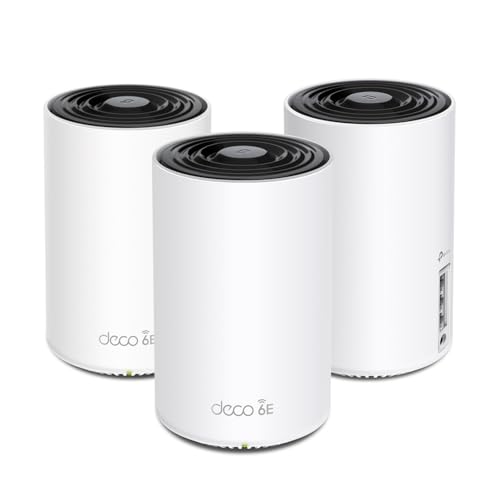
For streams that keep disconnecting, move closer to the router or switch to a wired connection. Mirroring needs steady bandwidth. If WiFi stays weak, a mesh upgrade such as the TP-Link Deco Mesh WiFi System can cover dead zones near your TV. Just remember to check its multicast settings.
When AirPlay simply refuses to cooperate before a family gathering, use a wired fallback. The Apple USB-C Digital AV Multiport Adapter connects a newer iPhone, iPad, or Mac directly to your LG TV’s HDMI port with no network involved.

Match Symptoms to Fixes
Use this table to match your exact symptom to the most likely cause. Start with the fix in the third column before trying anything else.
| Symptom | Likely Cause | First Fix |
|---|---|---|
| TV never appears in Screen Mirroring | Split SSID, AP isolation, or AirPlay toggle off | Confirm same SSID and enable AirPlay in Home Dashboard |
| “Unable to connect to LG TV” | Corrupted pairing cache | Reset paired devices and re-enter code |
| TV appears, then disappears | Mesh node switching or weak signal | Move devices to same node or wire the TV |
| Black screen with sound | HDCP content protection | Use native LG app or the app’s AirPlay button |
| Mirroring drops after minutes | Bandwidth or power saving | Enable Quick Start+ and improve WiFi signal |
| No AirPlay option on TV | Unsupported model or old firmware | Update webOS and check Apple’s compatibility list |
If two symptoms overlap, fix the network cause first. Network problems often trigger pairing errors as a side effect, and clearing pairings will not help until both devices can see each other reliably.
Data Insights and Analysis
Recent platform changes explain why AirPlay complaints rise in waves. Apple released iOS 26 in September 2025, and every major iOS release updates AirPlay’s security handshake. TVs that skip firmware updates tend to show pairing refusals in the weeks after each launch. That timing helps you diagnose the problem fast.
LG shipped its 2025 TV lineup with webOS 25 and extended its webOS Re:New program, which promises OS upgrades for supported models over multiple years. If your TV qualifies, staying on the latest webOS version gives you the best AirPlay 2 compatibility. Older sets outside the program still receive security patches, but less often.
Home networks also grew more complex in 2025. Wi-Fi 6E and Wi-Fi 7 routers increasingly broadcast three bands, often under separate names by default. More bands mean more chances for your iPhone and TV to land on different segments. Across the cases covered in this guide, network segmentation, not TV hardware, accounts for the majority of AirPlay failures.
Check the network first and save yourself hours. For deeper protocol background, the AirPlay overview on Wikipedia explains how discovery and streaming layers interact.
Frequently Asked Questions
Which LG TVs support AirPlay 2?
Most LG OLED, QNED, NanoCell, and UHD smart TVs from 2019 onward support AirPlay 2 and HomeKit. Select 2018 OLED and premium LCD models gained support through a firmware update.
To verify your model, check Apple’s official AirPlay compatibility list or look for the AirPlay icon in your TV’s Home Dashboard. If you see no AirPlay option after a full firmware update, your model likely lacks support, and you should use an HDMI adapter or an Apple TV box instead.
Why does AirPlay keep disconnecting?
Random disconnections usually come from weak WiFi, mesh node switching, or TV power saving features. Mirroring needs a constant, steady connection, and short drops end the session.
Enable Quick Start+ and turn off energy saving modes on the TV. Then test while standing near the router. If the drops stop, your signal strength caused them. Wiring the TV with Ethernet often gives the most stable result, as long as the wired port sits on the same subnet as your WiFi.
Can I AirPlay without WiFi?
Standard AirPlay to an LG TV requires both devices on the same local network. Unlike Apple TV, LG sets do not support peer to peer AirPlay without a shared network.
If you have no WiFi, you can create a personal hotspot on another device and join both your iPhone and the TV to it, though results vary. A wired HDMI adapter remains the most dependable option when no shared network exists, such as in hotels or rental homes.
Why won’t the passcode appear?
A missing passcode usually means the TV already stores an old pairing for your device, or the Require Code setting skips the prompt. The TV then tries to use stale keys and rejects the connection.
Open AirPlay & HomeKit Settings, reset paired devices, and set Require Code to “Every Time.” Try connecting again. If the code still does not appear, restart both devices fully, update webOS, and confirm that your iPhone is not running a VPN, which can block the pairing request entirely.
For broader platform details, including how LG’s operating system handles third party services, the webOS overview on Wikipedia covers its history and update model.
Read More:
- LG TV Not Turning On (Troubleshooting Steps & Solutions)
- LG TV Not Appearing on Screen Mirroring (Fixes & Troubleshooting Guide)
- LG TV Not Playing Sound (Step-by-Step Solutions & Key Fixes)
- LG TV Not Connecting to WiFi (Essential Causes & Solutions)
- LG TV Not Programmed (How to Diagnose & Fix the Issue)