
You updated macOS Sequoia or Sonoma last night, and now your MacBook keyboard won’t register a single keystroke. The trackpad works fine, but typing? Nothing. You can’t even log in.
This happens because macOS updates occasionally corrupt input device drivers, reset system preferences incorrectly, or leave behind conflicting launch daemons that prevent the built-in keyboard from initializing. Driver cache corruption and outdated kernel extensions are the most common culprits, especially on Intel Macs running legacy third-party keyboard utilities.
Before you panic or rush to the Apple Store, you can resolve most post-update keyboard failures yourself with a power cycle, Safe Mode boot to clear driver caches, SMC/NVRAM reset, or system file reinstall via Recovery Mode, all without losing data.

Best Wireless Keyboard and Mouse Combo
Logitech Comfortable Full-Size Keyboard with Palm Rest. Reliable 2.4GHz Wireless Connection up to 10m. Long Battery Life for Everyday Productivity.
Shop on Amazon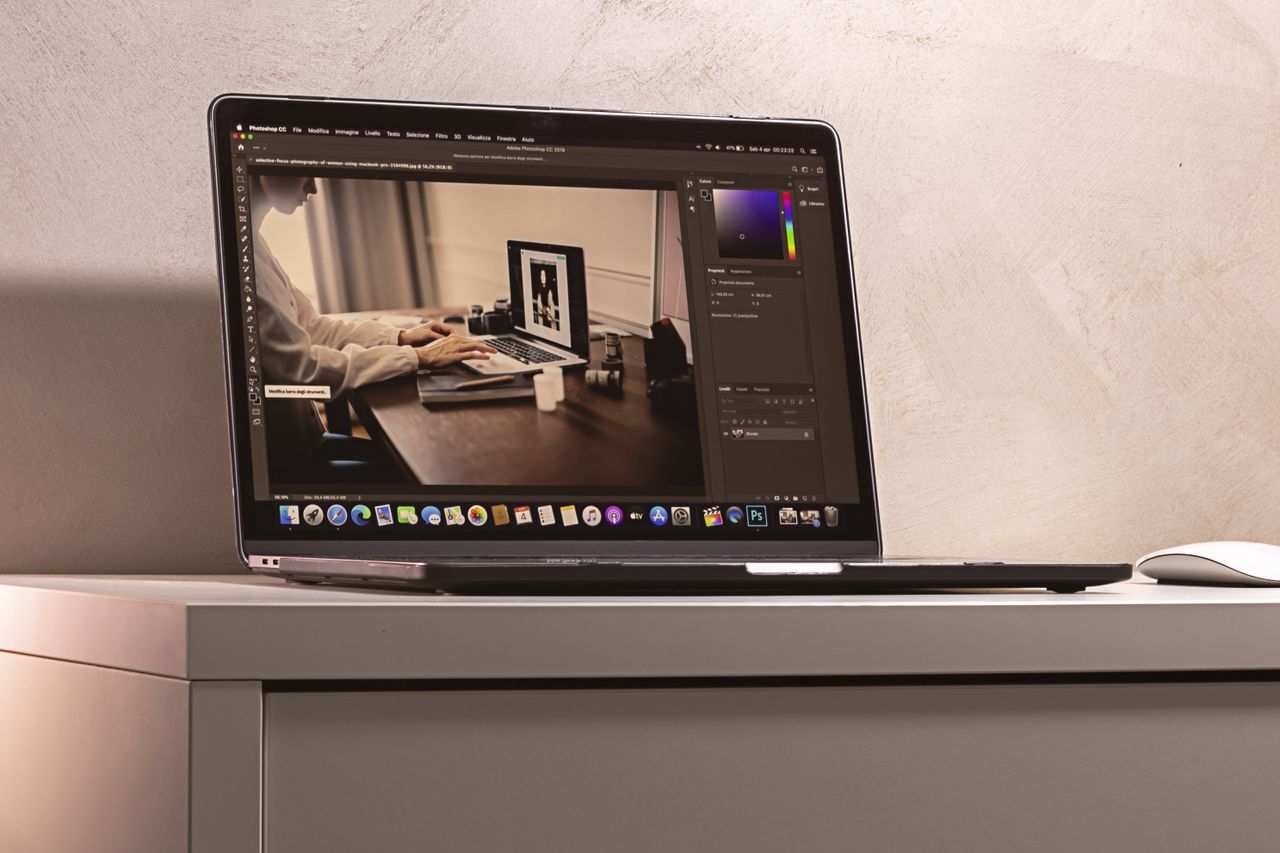
Key Takeaways
- MacBook keyboard failures after macOS updates are typically caused by corrupted input device drivers, conflicting kernel extensions, or SMC/NVRAM settings rather than hardware defects, making most cases resolvable through software troubleshooting.
- Start with a hard power cycle (hold power for 10 seconds), check for supplemental software updates, and reset the SMC and NVRAM using device-specific key combinations to restore keyboard functionality without data loss.
- Boot into Safe Mode to identify whether a third-party app or kernel extension is blocking the native keyboard driver—if it works in Safe Mode but fails normally, disable third-party keyboard utilities like Karabiner or BetterTouchTool.
- Delete corrupted keyboard preference files in ~/Library/Preferences/ (com.apple.HIToolbox.plist, com.apple.keyboard.plist) and restart to allow macOS to regenerate clean settings files.
- Use Apple Diagnostics (press D at startup) to rule out hardware issues; error codes starting with VFK or PFM indicate a hardware fault requiring professional Apple Support intervention.
- As a last resort, reinstall macOS from Recovery Mode to repair damaged system files and driver caches without erasing your data, a process that typically takes 30–60 minutes.
Why Your MacBook Keyboard Stops Working After macOS Updates
MacOS updates rewrite core system files, including the Input/Output (I/O) drivers that manage your keyboard, trackpad, and USB devices. When an update installs incorrectly or conflicts with existing preferences, the keyboard driver can fail to load at startup.
Driver corruption happens when the update process is interrupted by a forced shutdown, low battery, or disk permission errors. The system creates a new driver cache but leaves behind fragments of the old one, causing the kernel to reject keyboard initialization.
Legacy kernel extensions (kexts) from third-party apps like Karabiner, BetterTouchTool, or old accessibility tools can also block the native keyboard driver after an update. Apple’s support documentation warns that deprecated kexts must be removed before major updates, but many users skip this step.
On Apple Silicon Macs, power management changes during updates can reset the System Management Controller (SMC) settings, which control low-level hardware like the keyboard. Even a clean install of macOS can trigger this if the update migrated preferences incorrectly.
Quick Fixes to Try First
Restart Your MacBook the Right Way
A true power cycle flushes temporary driver states and forces the system to reload all I/O kexts from scratch. Don’t just click Restart, hold the power button for 10 seconds until the screen goes black, wait 30 seconds, then press it again to boot.
For Apple Silicon Macs (M1, M2, M3), this hard shutdown clears the Secure Enclave’s input device registry. For Intel models, it resets the SMC partially without entering the full SMC reset procedure.
Check for Additional Software Updates
Apple frequently releases supplemental updates within 48–72 hours of a major release to patch driver bugs. Open System Settings > General > Software Update using your trackpad or an external USB keyboard. Install any pending patches, even if they seem minor.
“Updated to Sequoia 15.3 and my keyboard died. Found a 15.3.1 supplemental update the next day, installed it and keyboard came back instantly.” via r/mac
Reset the System Management Controller (SMC)
The SMC controls keyboard power delivery, USB-C port communication, and sensor polling. A corrupt SMC can leave your keyboard electrically disconnected even though macOS boots normally.
For Apple Silicon Macs: Shut down completely, wait 30 seconds, then power on. Apple Silicon automatically resets the SMC during this process, no key combination needed.
For Intel MacBooks with T2 chip: Shut down, then press and hold Control + Option + Shift (left side) + Power for 10 seconds. Release all keys, wait 5 seconds, and press Power to start.
For older Intel Macs without T2: Shut down, then press and hold Shift + Control + Option (left side) + Power for 10 seconds. Release, then press Power.
After the SMC reset, log in using an external keyboard if needed. The built-in keyboard should register within 15–20 seconds as the SMC reinitializes USB and internal I/O channels.
Reset the NVRAM or PRAM
NVRAM (non-volatile random-access memory) stores keyboard layout, input source preferences, and accessibility settings. If the update corrupted these values, your Mac might ignore keyboard input entirely.
For Apple Silicon: Go to System Settings > General > Transfer or Reset > Reset NVRAM (requires admin password). Restart after the reset completes.
For Intel Macs: Shut down, then immediately press and hold Option + Command + P + R during startup. Hold for about 20 seconds (you’ll hear two startup chimes or see the Apple logo twice). Release and let the Mac boot.
NVRAM reset clears boot arguments, display resolution, and startup disk selection, so you may need to reconfigure those. Your files and apps remain untouched.
Boot Into Safe Mode to Identify Software Conflicts
Safe Mode loads only essential Apple-signed kexts and disables all third-party launch agents. If your keyboard works in Safe Mode but fails in normal boot, a conflicting app or driver is the root cause.
Apple Silicon: Shut down, hold the power button until “Loading startup options” appears, select your startup disk, then hold Shift and click “Continue in Safe Mode.”
Intel Macs: Restart and immediately hold Shift until the login window appears. Safe Mode boot takes 2–3 minutes because macOS runs First Aid on the startup disk.
Once in Safe Mode, test the keyboard thoroughly. Open TextEdit, type a few sentences, and try shortcut keys like Command + Space. If it works, the issue is a third-party kext or login item.
To identify the culprit, check /Library/Extensions/ and ~/Library/LaunchAgents/ for recently modified files. Use EtreCheck to generate a system report that flags unsigned or outdated kernel extensions.
Remove Problematic Keyboard Settings and Preferences
Delete Keyboard Preference Files
Corrupted preference files can prevent the keyboard from loading its default settings. Open Finder, press Command + Shift + G, and paste:
~/Library/Preferences/
Locate and delete these files:
com.apple.HIToolbox.plistcom.apple.keyboardtype.plistcom.apple.keyboard.plist
Empty the Trash and restart. macOS will regenerate clean preference files on the next boot.
Disable Third-Party Keyboard Apps and Extensions
Apps like Karabiner-Elements, BetterTouchTool, and TextExpander install system extensions that intercept keyboard events. After a macOS update, these extensions may fail to load or block the native driver.
Open System Settings > Privacy & Security > Login Items & Extensions. Disable all keyboard-related extensions, restart, and test. If the keyboard works, re-enable extensions one at a time to isolate the conflict.
For stubborn kexts, use Terminal:
sudo kextunload /Library/Extensions/ExampleKeyboard.kext
Replace ExampleKeyboard.kext with the actual kext name found in /Library/Extensions/.
Check for Hardware Issues vs. Software Problems
If your keyboard failed immediately after the update and external keyboards work fine, it’s almost always software. But cable and connector damage can occur during thermal expansion/contraction cycles inside the Mac.
Run Apple Diagnostics: shut down, then press and hold D during startup. The diagnostic suite will test the keyboard flex cable, connector pins, and logic board I/O controller.
Error codes starting with VFK or PFM indicate a hardware fault. If Diagnostics report “No issues found,” the problem is driver-related.
Compare behavior:
| Symptom | Software | Hardware |
|---|---|---|
| Keyboard works in Recovery Mode | No | Yes |
| External keyboard works | Yes | Yes |
| Keyboard works in Safe Mode | Yes | No |
| Random keys work intermittently | Maybe | Yes |
| Total keyboard failure after update | Yes | No |
Reinstall or Roll Back the macOS Update
If driver corruption persists, reinstalling macOS from Recovery Mode repairs system files without erasing your data.
Apple Silicon: Shut down, hold the power button until “Loading startup options” appears, select Options, click Continue, then choose Reinstall macOS.
Intel Macs: Restart and hold Command + R until the Apple logo appears. Select Reinstall macOS from the Utilities window.
The installer downloads a fresh copy of your current macOS version and overwrites damaged driver caches. Your apps, files, and settings stay intact. This process takes 30–60 minutes depending on internet speed.
Rolling back: If you suspect the latest update is fundamentally broken, you can use Time Machine to restore to a pre-update snapshot or erase and install the previous macOS version from a bootable USB installer. But, rollback is risky, always back up first.
When to Contact Apple Support
If you’ve tried every software fix and Apple Diagnostics returns a hardware error code, the keyboard flex cable or logic board likely needs professional repair. This is rare for post-update failures but can happen if the update coincided with physical wear.
Schedule an appointment at the Apple Support website or call 1-800-MY-APPLE. Bring your Mac, admin password, and a list of troubleshooting steps you’ve completed. If your MacBook is under warranty or AppleCare+, keyboard replacement is usually free.
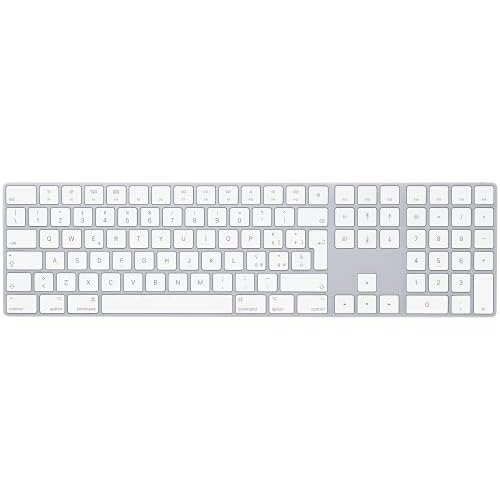
For a temporary workaround, consider the Logitech MX Keys Mini for Mac (compact, backlit, pairs via Bluetooth) or the Apple Magic Keyboard with Touch ID for seamless macOS integration. Both support full macOS shortcuts and function keys.
Frequently Asked Questions
Why is my MacBook keyboard not working after a macOS update?
macOS updates can corrupt input device drivers, reset system preferences incorrectly, or leave conflicting launch daemons that prevent keyboard initialization. Driver cache corruption and outdated kernel extensions are common culprits, especially on Intel Macs with legacy third-party keyboard utilities.
How do I fix a MacBook keyboard not working after macOS Sequoia or Sonoma?
Try these steps in order: perform a hard power cycle, check for supplemental software updates, reset the SMC or NVRAM, boot into Safe Mode to identify conflicts, remove corrupted keyboard preference files, and disable third-party keyboard extensions. Most issues resolve without data loss using these methods.
Does a hard restart actually fix keyboard driver issues?
Yes, a true hard power cycle forces the system to reload all I/O kernel extensions from scratch. Hold the power button for 10 seconds until the screen goes black, wait 30 seconds, then restart. This flushes temporary driver states and can resolve post-update keyboard failures.
What should I do if my MacBook keyboard works in Safe Mode but not normally?
If your keyboard functions in Safe Mode, a third-party app or driver is causing the conflict. Check /Library/Extensions/ and ~/Library/LaunchAgents/ for recently modified files. Disable keyboard-related extensions in System Settings > Privacy & Security > Login Items & Extensions, then re-enable them one at a time to isolate the culprit.
Can I tell if my keyboard problem is hardware or software related?
Run Apple Diagnostics by pressing and holding D during startup. If Diagnostics show no issues and your keyboard works in Recovery Mode but fails after updates, it’s software. Error codes starting with VFK or PFM indicate hardware faults requiring professional repair.
Will reinstalling macOS delete my files if my keyboard stops working?
No. Reinstalling macOS from Recovery Mode repairs corrupted driver files and system caches without erasing apps, files, or settings. Access Recovery Mode by holding Command + R (Intel) or power button (Apple Silicon) during startup, then select Reinstall macOS. The process takes 30–60 minutes.