

If your Tesla key card isn’t working, it’s often due to simple issues like incorrect placement, signal interference, or the key needing to be re-paired with your vehicle. Ensuring you tap the card on the correct spot and checking for any physical damage or software glitches usually solves the problem quickly.
Many Tesla owners overlook factors such as dirt on the sensor, nearby electronic devices, or a recent software update that temporarily disrupts key card recognition. Understanding these common causes can save you time and help you avoid unnecessary service visits.
By following practical troubleshooting steps, you can regain access to your Tesla without frustration. Keep reading to learn the most effective fixes and how to prevent this issue from happening again.
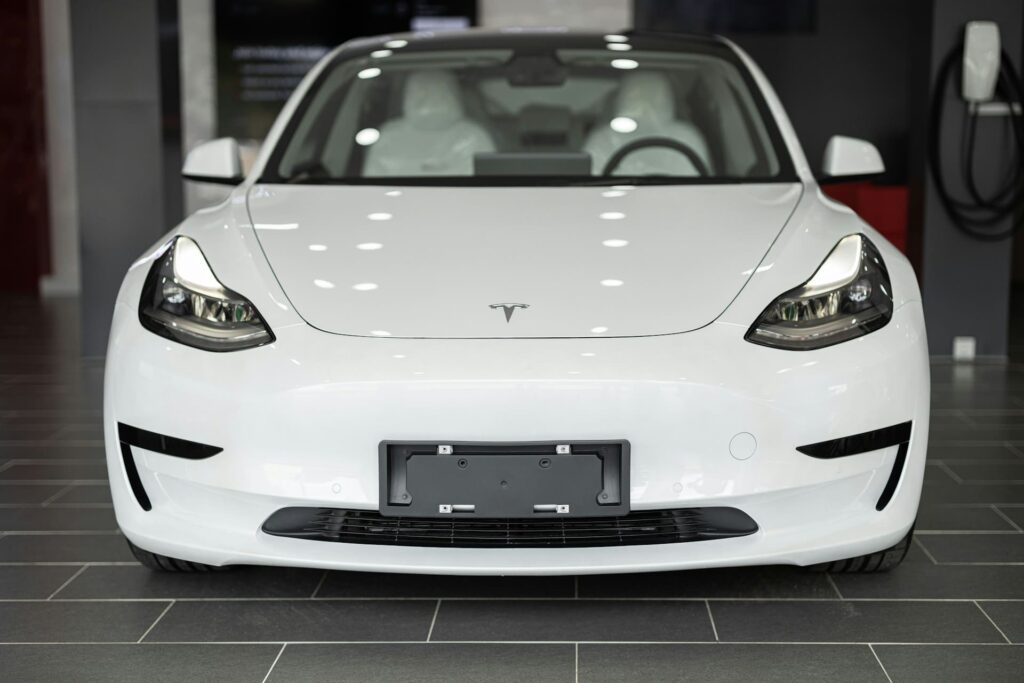
Common Causes of Tesla Key Card Not Working
Issues with your Tesla key card typically arise from straightforward factors involving the card’s positioning, its physical condition, external interference, or software-related glitches. Understanding these elements helps you identify the root problem and restore functionality efficiently.
Incorrect Card Placement or Position
Your Tesla key card relies on precise contact with the car’s RFID sensor to communicate. A common mistake is holding the card slightly off the sensor area. The reader is usually located on the driver’s side B-pillar, just below the camera. If the card is tilted, tapped too quickly, or held too far from the sensor, it won’t register.
When starting your Tesla, the key card must be placed flat on the center console behind the cup holders. Avoid scanning the card while it’s inside a thick wallet, as layers of plastic or metal can block the RFID signal.
To fix this, hold the card steady on the marked spot for about two seconds. Removing any case or wallet for direct scanning improves reliability.
Physical Damage or Wear to Key Card
A Tesla key card can lose functionality if it suffers physical or magnetic damage. Although it looks like a standard card, it contains a delicate RFID chip inside. Scratches, bending, or exposure to strong magnets can degrade the chip’s ability to send signals.
Damage often happens when the card is kept near electronic devices, magnetic mounts, or other RFID cards. Over time, the chip’s communication range shortens until it no longer works.
Check for warping, cracks, or fading on your key card’s surface. If you have a backup Tesla key card, test it—working spares indicate the original is compromised. Replacement cards typically cost around $35 to $50 and require quick programming through Tesla Service.
Signal Interference and Environmental Factors
The Tesla key card’s RFID system depends on clean, short-range radio signals, but these can be disrupted. Metal objects, electromagnetic fields from phones, NFC-enabled credit cards, or RFID-blocking wallets nearby can interfere with the signal.
Environmental conditions such as dirt, moisture, or residue on the sensor surface also reduce responsiveness. Wet or dirty sensor areas create barriers preventing the card’s chip from connecting properly.
To troubleshoot, move away from crowded electronic environments like parking garages or charging stations. Try scanning the card alone, without other devices nearby. Also, clean both the sensor and card surfaces gently with a dry microfiber cloth to ensure clear contact.
Software Glitches and System Resets
Software updates or system glitches in your Tesla can cause your key card to temporarily stop working. Updates sometimes reset authentication caches, causing the car to “forget” the card even though it remains registered.
A simple soft reset often restores the connection. To do this, press and hold both scroll wheels on the steering wheel until the Tesla logo appears. Then re-scan your key card on the center console.
If that fails, re-pair the card through the car’s menu by going to Controls → Locks → Add Key, confirming with an admin key like your phone. In many cases, letting the car sleep for 10–15 minutes can clear the glitch naturally.
For persistent problems, consulting Tesla Service may be necessary.
You can find detailed explanations of these fixes on how to address Tesla key card issues.
Effective Troubleshooting Steps
To address issues with your Tesla key card, you need a precise approach targeting hardware cleanliness, registration status, and system resets. Each step ensures the communication between your key card and your Tesla is either re-established or confirmed functional.
Clean Card and Reader Surfaces
Start by inspecting both your Tesla key card and the NFC reader on the vehicle’s B-pillar. Dirt, dust, or smudges on either surface can interfere with signal transmission.
Use a soft microfiber cloth to gently clean the card and the reader area. Avoid harsh chemicals; a lightly dampened cloth with water is sufficient.
Check the reader for any visible damage such as cracks or corrosion. If the reader or card looks worn or scratched, this could explain inconsistent recognition.
Regular cleaning prevents buildup that obstructs the NFC signal, improving reliability. Keeping these surfaces clean is a basic yet often overlooked step.
Test with Backup Key Card
If cleaning doesn’t restore function, try using your secondary Tesla key card to isolate the problem.
If the backup card works, the issue likely lies with your primary card’s hardware or NFC chip. Damage like scratches or bending undermines its operation.
Conversely, if neither card works, the vehicle’s NFC reader or software may be malfunctioning.
Testing the second card quickly helps you determine whether you should focus on replacing a damaged card or pursuing vehicle hardware diagnostics.
Tesla service centers can assist in reprogramming or replacing faulty key cards, which can save you time and frustration.
Verify Key Card Registration on Vehicle
Confirm that your key card is properly registered in your Tesla’s system. Unregistered or deactivated cards won’t communicate with your vehicle.
Access the touchscreen and navigate to Controls > Locks > Keys to view all paired cards. If your card is missing or marked inactive, remove and re-add it.
Follow the pairing process carefully: hold the card against the center console’s reader inside your car until the screen prompts confirmation.
Ensure your Tesla’s software and Tesla app are both fully updated to avoid compatibility issues affecting key card recognition.
Proper registration is critical; without it, even a physically perfect card will fail to unlock or start your Tesla.
Power Cycling and Soft Reset Procedures
If cleaning and registration checks don’t fix the issue, perform a system reset to clear potential software glitches.
Power cycle your Tesla by turning off the vehicle completely, then waiting at least 60 seconds before turning it back on.
For a more comprehensive reset, execute the touchscreen soft reset by holding both scroll wheels on the steering wheel until the screen restarts.
These resets refresh the NFC reader and internal systems that manage key card communication.
If problems persist after resets, professional diagnostics at a Tesla service center or through mobile technicians may be necessary to check reader hardware or perform reprogramming.
Alternative Tesla Access Methods and Solutions
When your Tesla key card fails, you still have reliable options to access and operate your vehicle. These include using digital keys through your phone, physical backup devices, or restoring your key card’s functionality through re-pairing or replacement.
Using the Tesla Mobile App as a Key
The Tesla mobile app provides a seamless alternative to your key card. Once you set it up, your phone acts as a digital key, unlocking the car and allowing you to start it without needing the physical card. This method uses Bluetooth and can work from a short distance, so you don’t even need to take your phone out of your pocket or bag.
The app also gives you additional control features like remote start, climate control, and vehicle location tracking. To use it, ensure Bluetooth is enabled on your phone and the app is logged in with your Tesla account. If your key card is lost or damaged, this can be your primary access method until you resolve the card issue. For more on this solution, see Tesla mobile app access details.
Leveraging the Tesla Key Fob
If you have a Tesla key fob, it serves as another option to access your vehicle. The key fob operates via low-frequency radio signals, giving you hands-free unlocking and starting capabilities. Unlike the RFID key card, the key fob has buttons for locking, unlocking, and controlling some functions remotely.
In cases where your Tesla key card isn’t working, the key fob can be your immediate backup. However, if the Tesla key fob is not working, check the battery first, then try re-pairing it with your vehicle through the settings menu. Keep in mind, key fobs must be paired by an authorized Tesla user to function correctly.
Re-Pairing or Replacing the Key Card
If your Tesla key card stops working, the issue may be due to accidental unpairing or software glitches. You can re-pair the card by going to Controls > Locks > Add Key on your car’s touchscreen. Use your phone key or another paired device as an admin key to authorize the pairing. Hold the key card flat on the center console RFID reader until the car confirms the connection.
When re-pairing fails and the card is physically damaged, replacement may be necessary. New Tesla key cards typically cost between $35 and $50 and require programming at a Tesla service center. Always keep a spare paired card for emergencies to avoid getting locked out. More detailed instructions are available on how to re-pair or replace your Tesla key card.
When to Seek Professional Support
If your Tesla key card remains unresponsive despite basic troubleshooting, expert help may be necessary. Addressing hardware faults or deeper system errors usually requires professional tools and specialized knowledge.
Contacting Tesla Customer Service
Tesla Customer Service can guide you through advanced troubleshooting steps remotely. They can verify your vehicle’s software version, confirm key card registration, and determine if a known update or bug affects key recognition.
You can reach them via phone, the Tesla app, or online chat. Be ready to provide your vehicle identification number (VIN) and describe the issue clearly.
Tesla Customer Service can also schedule mobile technician visits or direct you to your nearest service center. They may remotely reprogram your key card to restore functionality at no additional cost.
Using their assistance ensures you avoid unnecessary delays or damage from improper handling.
Visiting a Tesla Service Center for Diagnosis
If remote support doesn’t resolve the problem, a visit to a Tesla Service Center is often the next step. Technicians there use diagnostic tools that can identify whether the NFC reader, door sensor, or internal vehicle modules are failing.
They inspect your key card’s physical condition and reprogram or replace it if necessary. Hardware repairs can involve replacing the B-pillar reader or other associated electronics.
Appointments are recommended to reduce wait times. Tesla service centers provide comprehensive support that covers software resets, key card re-pairing, and hardware repair or replacement, ensuring your vehicle’s access system works reliably.
Bringing your vehicle in can help pinpoint issues that are impossible to detect remotely, saving time and preventing repeated failures.
For more on troubleshooting and professional support, see Tesla key card troubleshooting guides online.
