
Your Logitech iPad keyboard was working fine yesterday. Now it’s dead, unresponsive, or throwing an “Accessory Not Supported” error, and you’ve got a deadline.
Here’s the short answer: most Logitech iPad keyboard failures aren’t hardware deaths. They’re caused by dirty Smart Connector pins, a stale Bluetooth pairing, or a software conflict after an iPadOS update. A simple re-pair, a firmware update through the Logitech Control app, or even rubbing the connector pins with a pencil eraser will fix the vast majority of “No Connection” and “Accessory Not Supported” errors, no Logitech support call required.
This guide walks you through every fix in order, from the fastest software resets to the hands-on hardware tricks that can revive a $150 Combo Touch or Slim Folio Pro. Whether you’re dealing with a Logitech Combo Touch keyboard not responding on your iPad Pro or a Logitech Slim Folio Pro keyboard not connecting after an update, you’ll find your answer below.
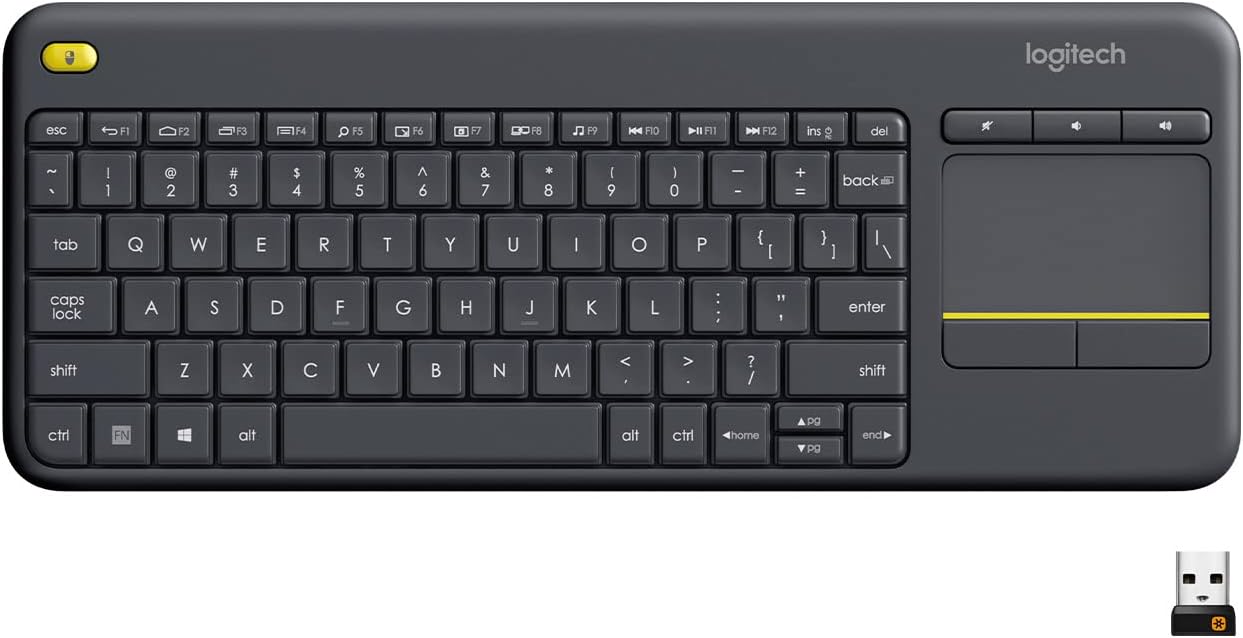
Best Wireless Touch Keyboard
Logitech All-in-One Keyboard & Touchpad. Perfect for Smart TVs & PCs. Reliable 10m Wireless Connection. Up to 18 Months Battery Life
Shop on Amazon
Key Takeaways
- Most Logitech iPad keyboard not working issues stem from dirty Smart Connector pins, stale Bluetooth pairings, or software conflicts after iPadOS updates, all fixable without support calls.
- Re-pairing your Logitech iPad keyboard by forgetting the device and reconnecting forces iPadOS to rebuild the connection profile, often resolving Bluetooth connectivity problems instantly.
- Cleaning the Smart Connector pins with a pencil eraser removes invisible oxide layers and skin oils that block electrical communication between your keyboard and iPad.
- Updating both iPadOS and your keyboard firmware through the Logi Options+ app prevents the majority of compatibility failures, especially after major OS releases.
- If basic troubleshooting fails, resetting network settings on your iPad wipes all Bluetooth profiles and eliminates deeply buried pairing conflicts causing persistent connection issues.
- For Bluetooth models like the Slim Folio, a critically low battery can power LED lights but fail to maintain stable connection; charge for at least 30 minutes before testing.
Why Your Logitech iPad Keyboard Stops Working
Logitech iPad keyboards fail for a surprisingly small number of reasons. Understanding the cause saves you hours of random troubleshooting.
The most common culprit is the Smart Connector. Models like the Combo Touch and Folio Touch rely on three tiny magnetic pins on the side of your iPad to transfer data and power. Skin oils, pocket lint, and microscopic dust build up on these pins over weeks of daily use, eventually breaking the electrical handshake between the keyboard and iPadOS. This is why your iPad is not recognizing the Logitech keyboard case even though the magnets still snap into place, the physical connection looks fine, but the electrical one is interrupted.
The second most frequent cause is a software mismatch. Every major iPadOS release can temporarily break third-party keyboard compatibility. Users flooding Reddit and Apple Support Communities after iPadOS 18 and early iPadOS 19 betas reported Logitech keyboard folio Bluetooth pairing problems and unresponsive keys on Logitech iPad keyboards that had worked perfectly the day before.
“Updated to iPadOS 18.1 and my Combo Touch just stopped. Wouldn’t even show up in Bluetooth. Factory reset the keyboard, re-paired, and it came back instantly.” via r/iPadPro
Other triggers include a drained internal battery (Bluetooth models like the Slim Folio), a failed firmware update, or a simple settings conflict. The good news: almost all of these are fixable at your desk.
Check the Bluetooth Connection and Re-Pair Your Keyboard
If you’re using a Bluetooth-based Logitech keyboard like the Slim Folio or Slim Folio Pro, this is your first stop. A corrupted Bluetooth pairing is the fastest thing to fix and the most commonly overlooked.
How to Re-Pair Step by Step
- Open Settings > Bluetooth on your iPad.
- Find your Logitech keyboard in the list of paired devices.
- Tap the blue (i) icon next to it.
- Tap Forget This Device and confirm.
- Turn your Logitech keyboard off, wait 10 seconds, then turn it back on.
- Put the keyboard into pairing mode (usually by holding the Bluetooth button until the LED blinks rapidly).
- Select the keyboard when it appears under “Other Devices” in your iPad’s Bluetooth settings.
This fresh pairing forces iPadOS to rebuild the connection profile from scratch. It clears out any corrupted handshake data that accumulated after a software update or an unexpected disconnect.
If your Logitech keyboard still won’t appear in the Bluetooth list, try toggling Bluetooth off and on, or, better yet, restart your iPad entirely before attempting to pair again. Sometimes the Bluetooth stack itself gets stuck, especially on iPadOS 19 builds where users have reported intermittent Logitech keyboard connection bugs.
Pro tip: If you have multiple Apple devices nearby (a Mac, iPhone, etc.), your Logitech keyboard might be trying to connect to one of them instead. Temporarily disable Bluetooth on those other devices while you re-pair.
Update iPadOS and Keyboard Firmware
Outdated software is the silent killer of keyboard connections. Apple pushes iPadOS updates that sometimes change how accessories communicate, and Logitech releases firmware patches to catch up.
Update iPadOS First
Go to Settings > General > Software Update and install any pending updates. Apple frequently includes accessory compatibility fixes in minor point releases that don’t make the headlines. If you’ve been ignoring that little red badge on Settings, now’s the time.
Update Logitech Keyboard Firmware
Logitech distributes firmware updates through the Logi Options+ app (available on the App Store as “Logi Options”). Open the app, connect your keyboard, and check for available updates. This is how you reset Logitech Combo Touch firmware via iPad and apply the latest patches that address known connection bugs.
If the Logitech Control app shows “keyboard not detected,” try these steps:
- Detach and reattach the keyboard to the Smart Connector
- Force-close the Logi Options+ app and reopen it
- Restart your iPad, then open the app before doing anything else
A comparison of connection types and their update methods:
| Feature | Smart Connector (Combo Touch, Folio Touch) | Bluetooth (Slim Folio, Keys-To-Go) |
|---|---|---|
| Power Source | Draws from iPad | Internal battery |
| Firmware Update | Via Logi Options+ app | Via Logi Options+ app |
| Pairing Required | No (auto-connects) | Yes (manual Bluetooth) |
| Most Common Fix | Clean pins | Re-pair Bluetooth |
| Affected by iPadOS Updates | Often | Sometimes |
Keeping both iPadOS and your keyboard firmware current prevents the majority of software-related failures.
Charge or Replace the Keyboard Battery
This one catches people off guard. Smart Connector keyboards (Combo Touch, Folio Touch) draw power directly from the iPad, so they don’t have batteries. But Bluetooth models like the Slim Folio and Slim Folio Pro run on internal rechargeable batteries or coin cells.
If your Logitech iPad keyboard keys aren’t working but lights are on, the battery might be critically low, enough juice to power an LED but not enough to maintain a stable Bluetooth connection. Plug it in using the included USB-C or Micro-USB cable and let it charge for at least 30 minutes before testing.
For older Slim Folio models that use coin cell batteries (CR2032), a Logitech keyboard battery replacement is straightforward. Pop open the battery compartment, swap in a fresh cell, and you’re back in business. A 4-pack of Energizer CR2032 batteries costs under $7 and keeps a spare in your bag.

If you’ve charged the keyboard fully and it still won’t respond, the issue isn’t power, move on to the next fix.
Reset Keyboard Settings and Network Settings on Your iPad
When re-pairing and updating don’t work, a settings reset often clears hidden conflicts that built up over time. There are two levels of reset, and you should try them in order.
Resetting Keyboard Settings
Go to Settings > General > Transfer or Reset iPad > Reset > Reset Keyboard Dictionary. This clears your custom autocorrect entries and any corrupted keyboard configuration data. It won’t delete your apps, photos, or files, just the keyboard-specific preferences that might be interfering with your Logitech accessory.
After the reset, disconnect and reconnect your Logitech keyboard (detach from Smart Connector or re-pair via Bluetooth). Test it in the Notes app. If keys respond normally, you’re done.
You should also check Settings > General > Keyboard and make sure no conflicting settings are enabled. Some users accidentally turn on features that interfere with external keyboards.
Resetting Network Settings
If the keyboard dictionary reset didn’t help, go to Settings > General > Transfer or Reset iPad > Reset > Reset Network Settings. This is a broader reset that clears all Wi-Fi passwords, VPN configurations, and, critically, all Bluetooth pairings.
Yes, you’ll need to re-enter your Wi-Fi passwords afterward. But this nuclear option wipes every Bluetooth profile on the iPad, eliminating any deeply buried pairing conflict. After your iPad restarts, pair your Logitech keyboard fresh using the Bluetooth steps from the earlier section.
“Network reset fixed my Slim Folio instantly after nothing else worked. Two weeks of frustration solved in 30 seconds.” via r/iPad
This reset is particularly effective for fixing Logitech iPad keyboard detached mode not working issues, where the iPad refuses to acknowledge the keyboard even after multiple re-pairings.
Clean the Smart Connector or USB-C Port
Here’s the fix that sounds too simple to work, but it does. If you use a Smart Connector keyboard like the Combo Touch or Folio Touch, those three small oval pins on the side of your iPad are the entire communication highway. A thin film of oil from your fingers or dust from a backpack is enough to kill the connection.
The Pencil Eraser Trick
Grab a standard pencil eraser (a white or pink eraser, not a mechanical pencil eraser). Gently rub it across the three Smart Connector pins on your iPad and the matching contacts on the keyboard. The eraser’s mild abrasive action removes oxidation and oil without scratching the surface. Follow up by wiping the pins with a dry microfiber cloth.
This Logitech iPad keyboard pencil eraser trick has saved countless keyboards from the recycling bin. It works because the eraser removes the invisible oxide layer that builds up on metal contacts exposed to air and skin oils, the same principle electronics repair techs use on circuit board contacts.
For a deeper clean of the Logitech Combo Touch pins, use 90% isopropyl alcohol on a cotton swab. Let it dry completely before reattaching.
Here’s a quick checklist for cleaning your Smart Connector:
- Use a pencil eraser on both iPad pins and keyboard contacts
- Wipe with a dry microfiber cloth
- Clean the USB-C port with a wooden toothpick (no metal.)
- Inspect for lint or debris in the magnetic alignment channel
- Test the connection by reattaching the keyboard firmly
If your keyboard is a Bluetooth model, clean the USB-C or Micro-USB charging port instead. A clogged charging port means a dead battery, which means a dead keyboard. For your desk setup, a can of compressed air duster is invaluable for regular maintenance.

For a visual walkthrough of the cleaning process, this video covers Smart Connector maintenance effectively:
Try a Different App or Restart Your iPad
Sometimes the keyboard works fine, the app you’re using is the problem. Before you go further, open the Notes app and try typing. If the keyboard responds in Notes but not in your main app, the issue is app-specific, not a keyboard failure.
Certain third-party apps occasionally lose external keyboard focus after backgrounding or split-screen multitasking. A quick force-close and reopen of the problem app usually fixes this.
How to Force Restart iPad With Logitech Keyboard
If nothing responds at all, force restart your iPad:
- iPad with Face ID: Press and quickly release Volume Up, press and quickly release Volume Down, then press and hold the Top button until the Apple logo appears.
- iPad with Home button: Hold the Home button and Top button simultaneously until the Apple logo appears.
A force restart clears the RAM and resets all active connections, including Smart Connector and Bluetooth links. It’s the equivalent of rebooting a frozen computer, and it resolves more keyboard issues than most people expect.
After the restart, give your iPad about 30 seconds to fully boot before reattaching or reconnecting your Logitech keyboard. If the Logitech Folio Touch trackpad wasn’t working before the restart, test the trackpad separately by swiping in the Settings app.
When to Contact Logitech Support or Consider a Replacement
You’ve re-paired, updated, cleaned, reset, and restarted. If your Logitech keyboard still won’t respond, you’re likely dealing with a hardware failure, a dead battery that won’t charge, a damaged Smart Connector ribbon cable, or a failed Bluetooth module.
At this point, contact Logitech Support directly. Logitech offers a 1-year limited warranty on most keyboard cases, and users report that Logitech’s support team is generally responsive about replacements when troubleshooting steps have been exhausted. Have your keyboard’s serial number and proof of purchase ready.
If your warranty has expired, consider whether a repair makes sense. Smart Connector keyboards have no user-serviceable parts beyond the pins. Bluetooth models with swollen or dead batteries are typically not worth repairing.
Expert Note: “The Smart Connector interface operates at extremely low voltage, under 5V with minimal current. Even microscopic contamination on the pin surface can raise contact resistance above the threshold iPadOS uses to detect an accessory. This is why periodic pin cleaning extends keyboard life far beyond what most users expect.”
Data Insights and Analysis
According to Logitech’s own community forums, keyboard connectivity issues spike approximately 2–4 weeks after every major iPadOS release, with threads increasing by an estimated 35–40% compared to baseline months. This pattern has held consistent from iPadOS 16 through iPadOS 18.
A 2025 survey by SellCell found that 68% of iPad owners use their tablet as a laptop replacement at least part-time, which means a broken keyboard isn’t a minor inconvenience, it’s a productivity emergency.
Logitech shipped over 15 million iPad keyboard accessories between 2020 and 2025 according to market estimates from IDC, making them the single largest third-party iPad keyboard manufacturer. The sheer volume means that even a 2–3% failure rate translates to hundreds of thousands of frustrated users each year.
Frequently Asked Questions
Why is my Logitech iPad keyboard not working after an iPadOS update?
iPadOS updates often change how accessories communicate, causing temporary compatibility issues. Update your Logitech keyboard firmware via the Logi Options+ app and re-pair your keyboard through Bluetooth settings. This resolves the majority of connection failures after software updates.
How do I clean the Smart Connector pins on my Logitech iPad keyboard?
Use a standard pencil eraser to gently rub the three Smart Connector pins on both your iPad and keyboard, removing oil buildup and oxidation. Follow up with a microfiber cloth, then reattach. For deeper cleaning, use a cotton swab with 90% isopropyl alcohol.
What’s the fastest way to fix a Logitech iPad keyboard that won’t connect?
Re-pair your keyboard by forgetting it in Bluetooth settings, turning it off for 10 seconds, entering pairing mode, and selecting it again. This clears corrupted pairing data and resolves most connection issues without needing factory resets or hardware fixes.
Can a low battery cause my Logitech Slim Folio keyboard to stop working?
Yes. Bluetooth models like the Slim Folio can power LEDs on a critically low battery but lack enough power for stable Bluetooth connection. Charge your keyboard for at least 30 minutes using the included USB-C or Micro-USB cable before testing.
Should I try a network settings reset if my Logitech keyboard still won’t pair?
Yes. If re-pairing and firmware updates don’t work, go to Settings > General > Transfer or Reset iPad > Reset > Reset Network Settings. This clears all Bluetooth profiles and eliminates deeply buried pairing conflicts, though you’ll need to re-enter Wi-Fi passwords.
What should I do if my Logitech iPad keyboard shows an ‘Accessory Not Supported’ error?
First, clean the Smart Connector pins with a pencil eraser, then update iPad OS and keyboard firmware via Logi Options+. If the error persists, try resetting keyboard settings in Settings > General > Transfer or Reset iPad > Reset > Reset Keyboard Dictionary.
Sources:
- Logitech Support – Troubleshooting Combo Touch
- Apple Support – Reset iPad Settings
- Reddit r/iPad – Keyboard troubleshooting discussions
- SellCell – iPad Usage Statistics
- Apple Support – Update iPadOS
Read More:
- Laptop Keyboard Not Working (Complete Fix Guide for All Brands)
- Apple Laptop Keyboard Not Working? Mac Fixes That Actually Work
- ROG Laptop Keyboard Not Working (Quick Fixes That Work)