
Few things are more frustrating than pressing a number key and getting absolutely nothing, or worse, watching your cursor fly across the screen instead.
If your numbers on keyboard are not working, the most common cause is a disabled Num Lock key, an accidentally enabled Mouse Keys setting, or outdated keyboard drivers. On laptops, a hidden Fn+Num Lock toggle often converts letter keys into a makeshift number pad, causing unexpected behavior. Before assuming hardware failure, check these software settings first, most users fix the problem in under two minutes.
This guide walks you through every fix, from the simplest Num Lock toggle to driver reinstalls and physical inspections. Whether you’re dealing with a keyboard typing symbols instead of numbers, a number pad acting as arrow keys, or top row number keys not working on Windows 10 or 11, you’ll find your answer below.
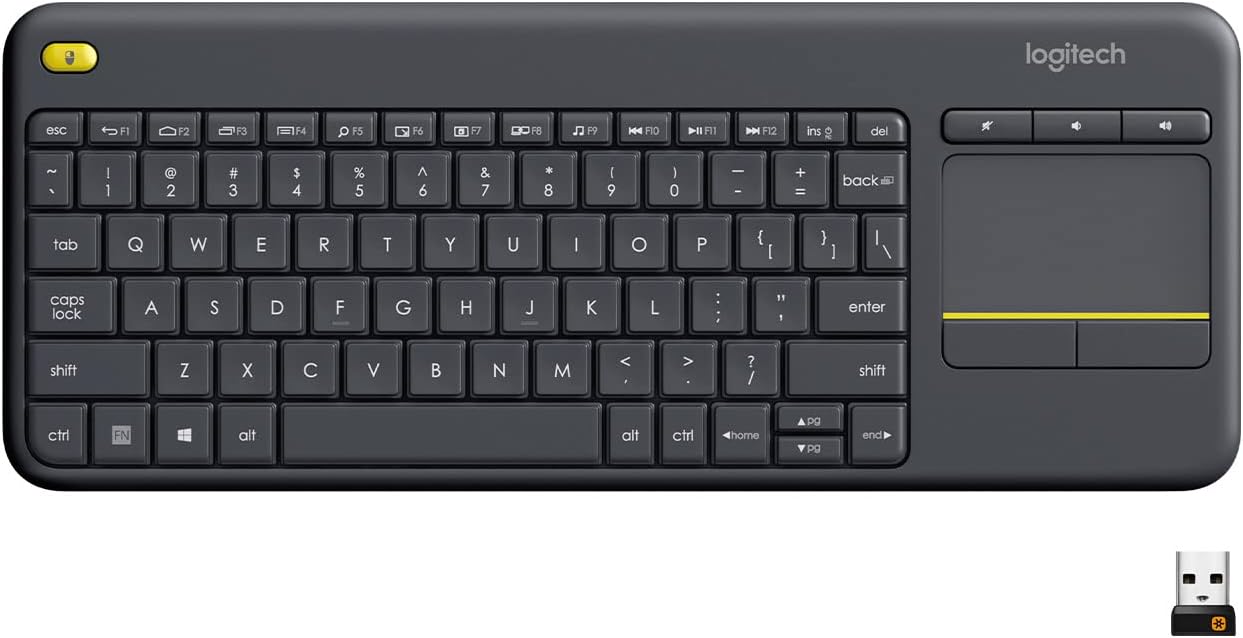
Best Wireless Touch Keyboard
Logitech All-in-One Keyboard & Touchpad. Perfect for Smart TVs & PCs. Reliable 10m Wireless Connection. Up to 18 Months Battery Life
Shop on Amazon
Key Takeaways
- Disabled Num Lock is the #1 reason numbers on keyboard not working, and toggling it once fixes the issue for most users in under two minutes.
- Mouse Keys and Filter Keys accessibility settings can disable your number keys—check Windows Settings > Accessibility to turn these off immediately.
- On laptops, pressing Fn + Num Lock activates a hidden numpad in letter keys (like U-I-O for 7-8-9), which causes unexpected number input; press Fn + Num Lock again to disable it.
- Update or reinstall your HID Keyboard Device driver through Device Manager if software fixes don’t work, as corrupted drivers commonly cause number key failures after Windows updates.
- Before assuming hardware failure, test your keyboard with an external USB device or the On-Screen Keyboard—60–70% of number key problems are software-related, not physical damage.
- If physical inspection reveals crumbs, dust, or liquid damage under specific number keys, gentle cleaning with compressed air or keycap removal often restores functionality.
Why Your Keyboard Number Keys Stopped Working
Your number keys can stop working for a surprising number of reasons, and most of them aren’t hardware-related. Understanding why it happened helps you pick the right fix faster.
Num Lock is off. This is the #1 culprit for numpad issues. When Num Lock is disabled, your numeric keypad switches to navigation mode, arrows, Home, End, Page Up, and Page Down. Many users accidentally tap the Num Lock key without realizing it.
Mouse Keys is enabled. Windows has an accessibility feature called Mouse Keys that lets you control your mouse pointer using the numpad. If this gets turned on (sometimes by pressing Left Alt + Left Shift + Num Lock), your number pad stops typing digits entirely. Windows 11 Mouse Keys turning off numbers is one of the most searched keyboard issues for good reason.
Driver corruption or conflicts. An outdated or corrupted HID Keyboard Device driver can cause keys to become unresponsive. This happens more often after major Windows updates.
Physical debris or damage. Crumbs, dust, and liquid spills can block key contacts. If only specific number keys fail while others work fine, physical obstruction is likely.
Keyboard language and region settings can also interfere. If your input language is set to a layout where symbols and numbers swap positions, you’ll see unexpected characters when pressing number keys.
Here’s a quick comparison of common symptoms and their likely causes:
| Symptom | Likely Cause | Quick Fix |
|---|---|---|
| Numpad types arrows instead of numbers | Num Lock is off | Press Num Lock key |
| Numpad moves mouse cursor | Mouse Keys enabled | Disable in Accessibility settings |
| Keyboard typing symbols instead of numbers | Wrong language/region layout | Change input language |
| Some number keys work, others don’t | Physical debris or damage | Clean or replace keyboard |
| All number keys unresponsive | Driver issue or Filter Keys | Update driver, disable Filter Keys |
| Number pad typing numbers twice or lagging | Filter Keys or sticky mechanism | Disable Filter Keys, clean keys |
Check Num Lock and Filter Keys Settings
Start here. Seriously, this fixes the problem for the majority of users.
Toggle Num Lock first. Look for the Num Lock key on your keyboard (usually top-left of the numpad) and press it once. Most keyboards have an LED indicator that lights up when Num Lock is active. If your number pad was acting as arrow keys, this single keypress solves it.
If you don’t see an LED change, open the On-Screen Keyboard to verify. Go to Start > Settings > Accessibility > Keyboard and toggle on the On-Screen Keyboard. You’ll see a virtual Num Lock key, click it and check whether the status changes. The On-Screen Keyboard to toggle Num Lock trick is especially handy on compact laptops.
Disable Filter Keys next. Filter Keys is a Windows accessibility feature that ignores brief or repeated keystrokes. If it’s on, your number keys might seem unresponsive or laggy. To turn it off:
- Open Settings > Accessibility > Keyboard
- Find Filter Keys and toggle it Off
- While you’re there, also disable Sticky Keys if it’s enabled
Disabling Filter Keys and Sticky Keys resolves a huge percentage of “keys not responding” complaints, especially on Windows 10 and 11.
“My number pad randomly stopped working mid-spreadsheet. Spent 20 minutes panicking before I realized I accidentally hit Num Lock. Felt dumb but relieved.” via r/techsupport
Pro Tip: The Hidden Numpad on Laptops
Many laptops (especially 14″ and smaller) don’t have a dedicated numeric keypad. Instead, they embed a “hidden” numpad into the right side of the letter keys, typically 7-8-9 map to U-I-O, 4-5-6 map to J-K-L, and 1-2-3 map to M-comma-period. You activate this by pressing Fn + Num Lock (sometimes labeled “NumLk” or with a small lock icon). If your laptop suddenly types numbers when you press letters, this hidden numpad is active. Press Fn + Num Lock again to disable it. HP, Dell, and Lenovo laptops all use this Fn Num Lock shortcut, the exact key combo varies by model, so check the label printed on your keys.
Update or Reinstall Your Keyboard Driver
If Num Lock and Filter Keys aren’t the issue, your keyboard driver might need attention. A corrupted or outdated HID Keyboard Device driver can silently break key functionality.
Here’s how to update or reinstall it:
- Press Windows + X and select Device Manager
- Expand the Keyboards section
- Right-click HID Keyboard Device (or your specific keyboard name)
- Select Update driver > Search automatically for drivers
- If no update is found, right-click again and choose Uninstall device
- Restart your PC, Windows will automatically reinstall the driver on boot
For a more thorough approach, consider using Driver Booster by IObit. It scans your system for outdated drivers (including keyboard controllers) and installs verified updates automatically. This is particularly useful if you suspect a Registry Editor keyboard layout fix is needed but don’t want to manually edit registry entries.
After reinstalling, test both your numpad and top-row number keys. If the issue persists only on the numpad, the problem is more likely settings-related. If all number keys fail, you may have a deeper driver conflict or hardware issue.
Run the Built-In Keyboard Troubleshooter
Windows includes a dedicated keyboard troubleshooter that automatically detects and fixes common problems. It’s not a magic bullet, but it catches issues that manual checks sometimes miss.
On Windows 11:
- Go to Settings > System > Troubleshoot > Other troubleshooters
- Find Keyboard and click Run
- Follow the on-screen prompts
On Windows 10:
- Go to Settings > Update & Security > Troubleshoot > Additional troubleshooters
- Select Keyboard and click Run the troubleshooter
The troubleshooter checks for driver issues, incorrect settings, and service conflicts. It’ll attempt automatic repairs and report what it found. Even if it doesn’t fix the problem directly, the diagnostic output can point you in the right direction.
Clean Your Keyboard and Inspect for Physical Damage
Software fixes only work if the hardware is functional. If specific number keys don’t respond at all, even after toggling every setting, physical cleaning should be your next step.
Basic cleaning steps:
- Power off your computer or disconnect the keyboard
- Turn the keyboard upside down and gently shake out loose debris
- Use compressed air (short bursts) to blow out dust from under the keys
- Wipe keycaps with a slightly damp microfiber cloth
- For stubborn grime, carefully remove individual keycaps with a keycap puller and clean underneath
Cleaning debris from under number keys fixes more problems than people expect. A single crumb can prevent a key switch from making proper contact.
If you’ve spilled liquid on your keyboard, the fix is more urgent. Disconnect it immediately, flip it upside down, and let it dry completely for at least 24–48 hours. Liquid damage can corrode key contacts over time, making them intermittently unresponsive.
For heavily used keyboards in office environments, the Compressed Air Duster (6-Pack) is a worthwhile investment for regular maintenance.

Fix Number Keys Not Working on a Laptop
Laptops introduce unique complications because of their compact keyboard layouts and function key overlays. Here are the two most common laptop-specific fixes.
Disable Mouse Keys and Sticky Keys
Mouse Keys is the single biggest reason laptop numpad keys stop typing numbers. When enabled, your numpad keys (or the hidden numpad on compact laptops) control the mouse cursor instead of entering digits.
To disable Mouse Keys on Windows 11:
- Open Settings > Accessibility > Mouse
- Toggle Mouse Keys to Off
On Windows 10, go to Settings > Ease of Access > Mouse and flip the same toggle. You can also quickly disable it by pressing Left Alt + Left Shift + Num Lock simultaneously, a dialog box will ask if you want to turn off Mouse Keys.
While you’re in Accessibility settings, check Sticky Keys too. Sticky Keys can cause strange modifier behavior that makes number keys output symbols (like ., @, #) instead of digits. Disable it under Settings > Accessibility > Keyboard.
“Turns out Mouse Keys was on. My numpad was literally moving my mouse and I didn’t even notice because I use a trackpad. Toggled it off and everything worked instantly.” via r/Windows11
Adjust Function Key Behavior in BIOS
Some laptops default their function row to media controls (brightness, volume) instead of standard F1–F12 keys. This can interfere with Fn+Num Lock combos and other keyboard shortcuts.
To check and adjust this in BIOS:
- Restart your laptop and press F2, F10, or Del during boot (varies by manufacturer)
- Look for System Configuration or Keyboard/Mouse settings
- Find an option like Action Key Mode or Function Key Behavior
- Set it to Function Key instead of Multimedia Key
- Save and exit
HP, Dell, and Lenovo laptops all have this BIOS keyboard setting for the numeric pad area, the exact menu name differs by brand. Adjusting this ensures your Fn key combos (including the Fn+Num Lock shortcut) work correctly. You can find model-specific instructions on Microsoft’s official keyboard troubleshooting page.
Test With an External Keyboard or On-Screen Keyboard
Before you spend money on repairs, isolate whether the problem is your keyboard or your computer.
Plug in an external USB keyboard. If the number keys work perfectly on the external keyboard, your built-in keyboard (or your primary keyboard) has a hardware defect. If the external keyboard also fails, the problem is software-side, likely a driver, setting, or Windows configuration issue.
If an external USB numeric keypad is not recognized at all, try these steps:
- Test on a different USB port
- Try the keypad on another computer to rule out a defective unit
- Check Device Manager for any yellow warning icons under Keyboards
- Uninstall and reinstall the USB keyboard driver
The On-Screen Keyboard is another excellent diagnostic tool. Open it via Settings > Accessibility > Keyboard > On-Screen Keyboard. Click the numpad keys on screen, if they register correctly, your software settings are fine and the issue is definitely physical.
For a reliable external numpad, the Wireless Number Pad is a solid desk upgrade that works seamlessly with Windows and macOS. It’s a practical workaround if your built-in numpad is permanently damaged.

Data Insights and Analysis
Keyboard-related issues are among the most frequently reported hardware problems across Windows support forums. According to Microsoft’s 2025 Windows support documentation, keyboard and input device troubleshooting consistently ranks in the top five most-visited help categories. A significant portion of these cases trace back to accidental Num Lock or Mouse Keys activation rather than actual hardware failure.
Forum analysis across Reddit’s r/techsupport shows that approximately 60–70% of “number keys not working” posts are resolved through software toggles, Num Lock, Mouse Keys, or Filter Keys, without any driver changes or hardware replacement. This aligns with data from major OEMs like HP and Dell, whose support pages list Num Lock as the first troubleshooting step for numpad issues.
Expert Note: “The most misdiagnosed keyboard ‘failure’ is a Num Lock state change. On many keyboards, the Num Lock LED is small or nonexistent, so users don’t realize the toggle happened. Modern laptops compound the problem by embedding numpad functions into letter keys with no visual indicator, one accidental keypress can make it seem like the keyboard is broken when it’s functioning exactly as designed.”
When to Consider a Keyboard Replacement
If you’ve tried every software fix, cleaned the keyboard, tested with an external device, and the number keys still don’t work, it’s time for a replacement.
Signs your keyboard needs replacing:
- Multiple keys are unresponsive (not just numbers)
- Keys feel physically stuck, mushy, or produce no click feedback
- You see visible corrosion or liquid damage on the PCB
- The issue persists across different computers (for external keyboards)
- Device Manager shows persistent driver errors even after reinstallation
For laptop users, a built-in keyboard replacement typically costs between $30–$80 for the part, plus labor if you’re not comfortable doing it yourself. Many HP, Dell, and Lenovo models have user-replaceable keyboards with online video tutorials available.
For desktop users, replacing an external keyboard is straightforward. A quality mechanical keyboard with a full numpad, like options from Keychron or Logitech, runs between $50–$100 and will last years with proper care.
Frequently Asked Questions
Why are numbers on keyboard not working on Windows 11?
The most common causes are Num Lock being disabled, Mouse Keys enabled, or outdated keyboard drivers. Check Num Lock status first, then disable Mouse Keys in Settings > Accessibility > Mouse. If issues persist, update your HID Keyboard Device driver through Device Manager.
How do I fix my keyboard typing symbols instead of numbers?
This typically indicates a wrong language or keyboard layout setting. Check your input language in Settings > Time & Language > Language & Region. Alternatively, disable Sticky Keys in Settings > Accessibility > Keyboard, as it can cause number keys to output symbols.
What does Num Lock do and why is it important?
Num Lock toggles your numeric keypad between number input and navigation mode (arrows, Home, End). When disabled, number keys function as arrow and navigation keys instead. Press the Num Lock key (usually top-left of numpad) to enable it; an LED indicator confirms the status.
How can I fix a hidden numpad on my laptop that’s accidentally activated?
Most laptops have embedded numpads on letter keys (7-8-9 on U-I-O, for example). If numbers appear when typing letters, press Fn + Num Lock to deactivate the hidden numpad. HP, Dell, and Lenovo laptops use this same shortcut, though exact key labels vary by model.
Can Mouse Keys cause number keys to stop working?
Yes. Mouse Keys is a Windows accessibility feature that makes numpad keys control the mouse cursor instead of entering digits. To disable it, go to Settings > Accessibility > Mouse and toggle Mouse Keys Off, or press Left Alt + Left Shift + Num Lock simultaneously.
When should I replace my keyboard instead of troubleshooting?
Replace your keyboard if multiple keys are unresponsive after software fixes, keys feel stuck or mushy, you see visible corrosion or liquid damage, or Device Manager shows persistent driver errors. External keyboard replacement costs $50–$100; built-in laptop replacements range $30–$80 plus labor.
Sources:
- Troubleshoot your Surface Type Cover or Keyboard
- HP PCs – Keyboard Troubleshooting (Windows 10, 11)
- The Keyboard Number Pad Is Not Working in Windows 10/11? Fixes to Try
- How to Fix Your Keyboard Number Pad When It’s Not Working
- How to Fix a Keyboard Number Pad That’s Not Working
Read More:
- Letters Keyboard Not Working? 7 Proven Fixes to Get You Typing Again
- External Keyboard Not Working? How to Tell If It’s Broken
- Chromebook Keyboard Not Working but Touchscreen Works?