
You plug your iPhone in, it starts charging, but the CarPlay icon never appears on your dashboard. This is the most common “handshake failure” drivers face in 2026.
The core issue is almost always one of three things: a power-only USB cable that can’t transmit data, a disabled Siri or CarPlay setting on your iPhone, or an infotainment system that needs a firmware update or reset. Your phone charges because it receives power, but CarPlay requires a full data handshake, meaning the cable, iPhone software settings, and car head unit must all “agree” before the interface launches. Fix these in order, cable first, then iPhone settings, then the car, and you’ll resolve it fast.
Key Takeaways
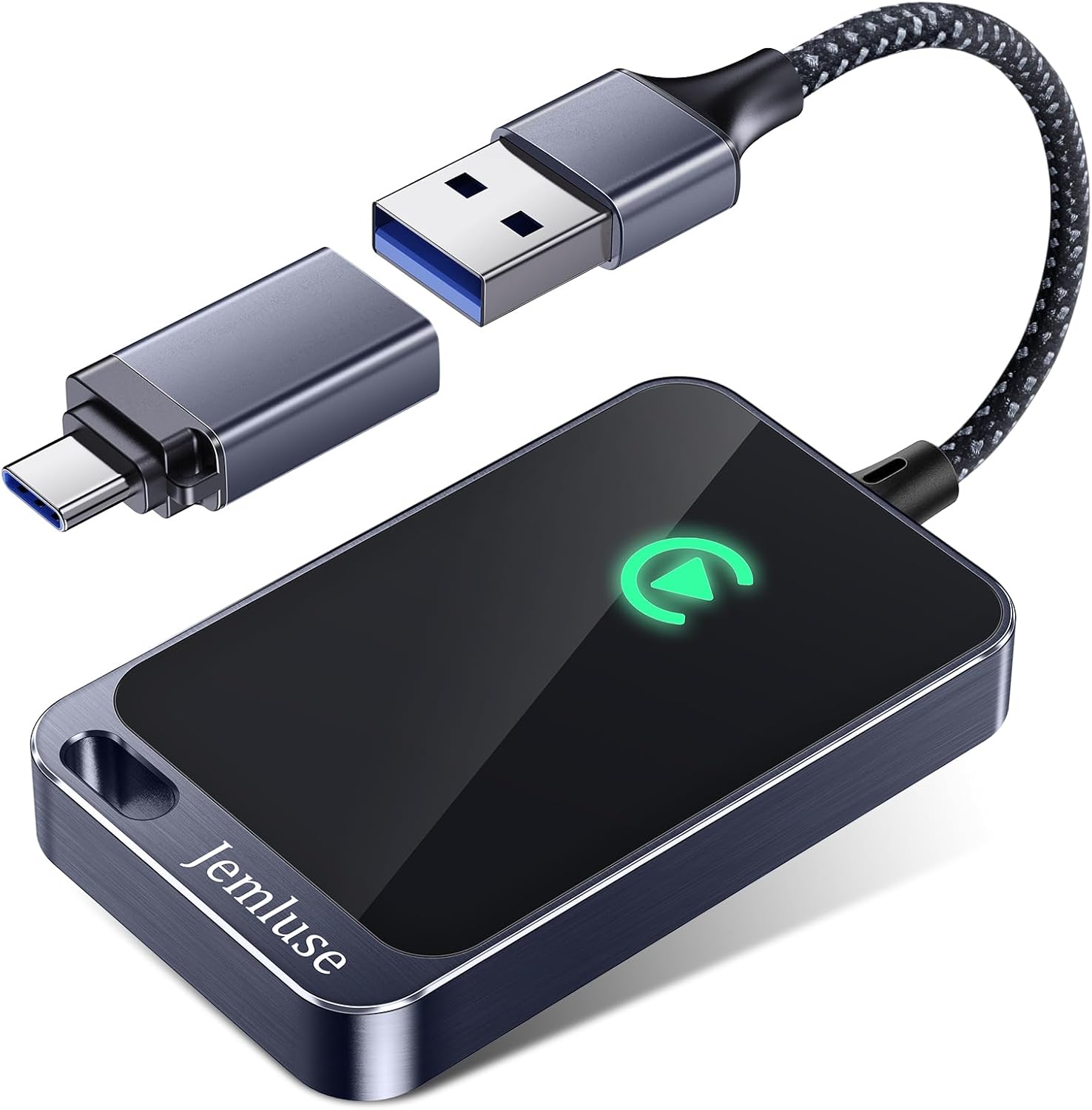
Best Wireless CarPlay Adapter
Tired of Plugging in Your iPhone Every Time? This Wireless CarPlay Adapter Converts WiredPlay to Wireless. Automatic Connection.
Shop on Amazon- CarPlay not showing up is usually caused by one of three issues: a power-only USB cable, disabled Siri or CarPlay settings on your iPhone, or outdated car firmware—fix them in that order for fastest results.
- Use an MFi-certified data cable with USB 2.0 support instead of cheap charge-only cables, since roughly 60% of CarPlay failures are resolved by switching to a proper data-capable cable.
- Verify your vehicle is on Apple’s official CarPlay compatibility list and that you’re using a data-capable USB port (usually marked with a phone or CarPlay icon in the center console).
- Enable ‘Allow CarPlay While Locked’ in Settings > General > CarPlay and ensure Siri is active, as these settings silently block CarPlay if disabled.
- If CarPlay worked before but stopped, forget your car from both iPhone and infotainment system, then restart both devices and re-pair from scratch to clear corrupted pairing data.
- For wireless CarPlay issues, disable any active VPN app before connecting, since VPNs can block the local Wi-Fi handshake required for wireless functionality.
Fundamental Requirements for Apple CarPlay
Before you start swapping cables or factory-resetting your head unit, confirm these baseline requirements. CarPlay depends on a specific chain of compatibility, and missing even one link kills the handshake.
Check Car Compatibility and Supported Regions
Apple maintains an official list of CarPlay-compatible vehicles on its website. As of 2026, over 800 car models support wired CarPlay, and wireless CarPlay availability continues to expand across manufacturers like Toyota, Ford, Hyundai, and BMW. If your vehicle isn’t on the list, no amount of troubleshooting will help, you’d need an aftermarket head unit.
Region matters too. Some vehicles sold in specific markets ship with infotainment software that disables or restricts CarPlay. Check your owner’s manual or the manufacturer’s regional support page to confirm your trim level includes CarPlay.
Update iOS and Car Firmware
CarPlay requires iOS 7.1 or later, but realistically, you should be running the latest iOS version available for your device. Apple frequently patches CarPlay bugs in point releases. On your iPhone, go to Settings > General > Software Update and install anything pending.
Equally important: your car’s infotainment firmware. Manufacturers like Ford and Hyundai push over-the-air updates that fix CarPlay handshake bugs. Check your car’s settings menu for a “System Update” or “Software Information” option. Outdated firmware is a leading cause of CarPlay not showing up after an iOS update.
Verify CarPlay Support in Your Vehicle
Some cars have multiple USB ports, but only one or two support data transfer for CarPlay. Look for ports labeled with a phone icon or a CarPlay logo, often found in the center console or dashboard, not in the rear seat or glovebox. Ports in the back seat are almost always charge-only.
If you drive a 2024–2026 vehicle with USB-C, confirm the port supports USB 2.0 data transfer at minimum. Some automakers include USB-A ports alongside USB-C: either can work for CarPlay, but the port must be data-capable.
Common Causes When CarPlay Is Not Showing Up
Now that you’ve confirmed compatibility, let’s diagnose the actual failure points. Think of this like a logic gate: each stage must pass before the next one matters.
Issues With Wired or Wireless Connections
For wired CarPlay, the connection path is simple: iPhone → USB cable → car USB port → infotainment system. A break anywhere kills the handshake. For wireless CarPlay, the path adds Bluetooth for initial pairing and Wi-Fi for the data stream. If your iPhone connects via Bluetooth for calls but CarPlay doesn’t launch, the Wi-Fi handshake is likely failing.
A VPN running on your iPhone can block the local Wi-Fi handshake that wireless CarPlay needs. According to discussions on Apple’s support forums, disabling VPN apps before connecting resolves this for many users. If you use a VPN daily, add your car’s Wi-Fi connection as an exception in your VPN app’s settings.
USB Cable or Port Failures
This is the single most common cause. Many USB-C cables sold today are charge-only, they carry power but lack the data pins CarPlay requires. If your iPhone charges but CarPlay doesn’t appear, your cable is the prime suspect.
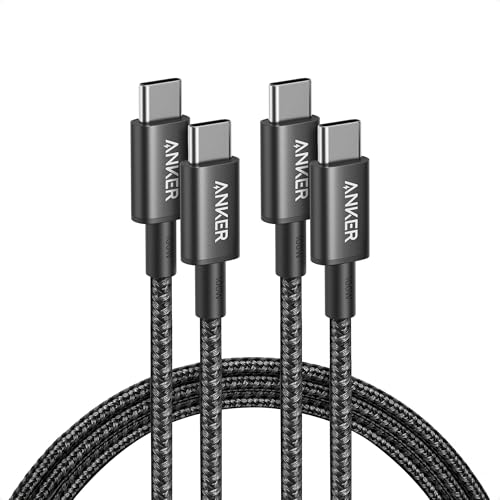
Use an MFi-certified USB-C cable that explicitly supports data transfer. The Anker 765 USB-C to USB-C cable is a reliable pick that supports USB 2.0 data and fast charging. Avoid gas station cables or ultra-cheap Amazon finds, they’re almost always power-only.
| Feature | Power-Only Cable | MFi Data Cable |
|---|---|---|
| iPhone Charges | ✅ Yes | ✅ Yes |
| CarPlay Launches | ❌ No | ✅ Yes |
| Data Transfer | ❌ No | ✅ Yes |
| Typical Price | $3–$8 | $12–$25 |
| MFi Certified | ❌ Rarely | ✅ Yes |
Software or Firmware Restrictions
Some iPhone settings silently block CarPlay. The most common culprits:
- Siri disabled: CarPlay requires Siri. Go to Settings > Siri & Search and enable it.
- CarPlay toggled off: Check Settings > General > CarPlay. If your car isn’t listed, the handshake never completed.
- Screen Time restrictions: Under Settings > Screen Time > Content & Privacy Restrictions > Allowed Apps, make sure CarPlay is enabled.
- VPN active: As mentioned, VPNs interfere with wireless CarPlay’s local network handshake.
“Turned off my VPN and CarPlay connected instantly. Months of frustration solved in 10 seconds.” via r/CarPlay
Step-by-Step Troubleshooting and Fixes
Follow this logic-gate flow. Don’t skip steps, each one eliminates a failure point.
Set Up or Enable CarPlay Correctly
If this is your first time connecting, plug your iPhone into the car’s data-capable USB port using a certified cable. Your iPhone should display a CarPlay setup prompt. Tap Allow when asked to permit CarPlay access. If nothing happens, unlock your iPhone and check for a notification you may have dismissed.
For wireless CarPlay, hold the voice command button on your steering wheel to start pairing. Your iPhone should appear in the car’s Bluetooth menu. Select it, confirm the pairing code, and the wireless handshake should complete.
Allow CarPlay While Locked and Enable Siri
This trips up a surprising number of drivers. Go to Settings > General > CarPlay, tap your car’s name, and make sure Allow CarPlay While Locked is toggled on. Without this, your car can only launch CarPlay when you manually unlock your iPhone, which defeats the purpose.
Siri must also be active. CarPlay’s entire voice interface depends on it. Navigate to Settings > Siri & Search and confirm Listen for “Hey Siri” or Press Side Button for Siri is enabled.
Forget This Car and Reset CarPlay Settings
If CarPlay worked before but stopped, a corrupted pairing profile is likely the problem. On your iPhone, go to Settings > General > CarPlay, tap your car, then tap Forget This Car. This deletes the stored handshake data and forces a fresh connection.
On the car side, delete your iPhone from the Bluetooth paired devices list. Then restart both devices and re-pair from scratch. This “forget and re-pair” method resolves the majority of CarPlay handshake failures after iOS updates.
“After updating to iOS 18.4 my CarPlay stopped connecting. Did ‘Forget This Car’ on both the phone and head unit, re-paired, and it’s been solid since.” via r/iPhone
Restart iPhone and Car
A hard restart clears temporary software glitches on both sides. For your iPhone, press and release Volume Up, then Volume Down, then hold the Side button until the Apple logo appears. For your car, turn the ignition fully off, wait 60 seconds, then restart. Some infotainment systems (looking at you, Stellantis Uconnect) need a full power cycle, not just a screen sleep, to clear their Bluetooth/Wi-Fi cache.
Advanced Solutions and Best Practices
If the basic steps didn’t work, it’s time to dig deeper.
Resolve Bluetooth and Wi-Fi Issues for Wireless CarPlay
Wireless CarPlay uses Bluetooth for the initial handshake, then switches to a peer-to-peer Wi-Fi connection for data streaming. If your iPhone’s Wi-Fi is set to “Ask to Join Networks” or if Wi-Fi is disabled, the second half of that handshake fails silently.
Go to Settings > Wi-Fi and confirm Wi-Fi is on. Also, reset your network settings (Settings > General > Transfer or Reset iPhone > Reset > Reset Network Settings). This clears saved Wi-Fi profiles and Bluetooth pairings, giving you a clean slate. You’ll need to re-enter Wi-Fi passwords afterward.
For persistent wireless issues, a dedicated CarPlay wireless adapter like the Carlinkit 5.0 can bridge the gap in vehicles that only support wired CarPlay, and it handles the Wi-Fi handshake more reliably than some factory systems.
Check and Adjust CarPlay Settings on iPhone
Jump into Settings > General > CarPlay on your iPhone. You should see a list of cars you’ve connected to. If the list is empty even though multiple connection attempts, your iPhone never completed the initial handshake, go back to the cable and port checks.
If your car appears but CarPlay still won’t launch, tap the car name and verify its settings. Make sure it isn’t set to a custom wallpaper layout that’s causing a display conflict (rare, but it happens on certain Mazda and Honda head units).
Data Insights & Analysis
According to Apple’s 2025 CarPlay compatibility data, over 800 vehicle models across 80+ brands now support CarPlay, making it one of the most widely adopted in-car smartphone integration systems globally. J.D. Power’s 2025 U.S. Tech Experience Index found that infotainment connectivity problems, including CarPlay failures, remain among the top three owner complaints in new vehicles. Community data from r/CarPlay suggests that roughly 60% of “CarPlay not showing up” posts are resolved by switching to an MFi-certified data cable.
Expert Note: "The handshake failure isn't random, it's deterministic. CarPlay requires a USB data negotiation at the protocol level before the infotainment system will even query the device for CarPlay capability. A cable missing the CC (Configuration Channel) pins on USB-C will pass power but never trigger the data enumeration. This is why the same phone works with one cable and not another, it's not a phone problem, it's a cable specification problem."
When to Seek Dealer or Apple Support
If you’ve replaced the cable, reset all pairings, updated everything, and CarPlay still won’t show up, the issue may be hardware-level. A failing USB port in the car (loose connections, corroded pins) or a malfunctioning infotainment module requires dealer diagnostics.
Book an appointment with your car’s dealership service center and specifically mention the CarPlay handshake failure. They can run module-level diagnostics. Simultaneously, you can contact Apple Support to rule out an iPhone hardware defect, especially if CarPlay doesn’t work in any vehicle.
Frequently Asked Questions
Why is CarPlay not showing up even though my iPhone is charging?
Your phone charges because the cable delivers power, but CarPlay requires a full data handshake between the cable, iPhone, and car head unit. You likely have a power-only USB cable lacking data pins. Switch to an MFi-certified data cable to enable the complete connection CarPlay needs.
What’s the difference between a power-only USB cable and a data cable for CarPlay?
Power-only cables carry electricity but lack the data pins necessary for CarPlay. MFi-certified data cables support USB 2.0 data transfer at minimum ($12–$25). They’re the most common reason CarPlay fails—even if your phone charges, a power-only cable won’t trigger the CarPlay handshake.
Can a VPN block wireless CarPlay from connecting?
Yes. VPNs can block the local Wi-Fi handshake wireless CarPlay requires. If CarPlay stops working after enabling a VPN, disable it before connecting. Alternatively, add your car’s Wi-Fi network as an exception in your VPN app’s settings for seamless connectivity.
How do I fix CarPlay if it worked before but suddenly stopped?
A corrupted pairing profile is likely the cause. Go to Settings > General > CarPlay, tap your car, and select Forget This Car. Then delete your iPhone from the car’s Bluetooth paired devices list, restart both devices, and re-pair from scratch to restore the connection.
What CarPlay settings on my iPhone might be preventing it from showing up?
Check three key settings: Siri must be enabled (Settings > Siri & Search), CarPlay must be toggled on (Settings > General > CarPlay), and Allow CarPlay While Locked should be active. Screen Time restrictions can also block CarPlay—verify it’s enabled under Content & Privacy Restrictions.
Is my vehicle’s USB port CarPlay-compatible if my phone charges but CarPlay doesn’t appear?
Not necessarily. Some cars have charge-only ports, especially in rear seats or gloveboxes. Look for ports labeled with a phone icon or CarPlay logo, usually in the center console. If you’re using the wrong port, switching to the correct data-capable port often solves the problem instantly.
Read More:
- Ford F-150 CarPlay Not Working? 7 Proven Fixes That Work
- Mazda CarPlay Not Working? Complete Troubleshooting Guide
- Volvo CarPlay Not Working? Complete Fixing Guide