
Few things are more jarring than your navigation vanishing mid-highway merge. Apple CarPlay dropping out while driving is one of the most common, and most dangerous, in-car tech frustrations reported by commuters and road-trippers alike.
The core reason Apple CarPlay disconnects during driving is almost always a failing physical connection (a worn cable, debris in the Lightning or USB-C port, or a loose USB socket) or wireless interference on the 5GHz Wi-Fi band your car uses for wireless CarPlay. Secondary causes include iOS software bugs, Low Power Mode throttling the connection, VPNs disrupting the data handshake, outdated infotainment firmware, and even Screen Time restrictions blocking CarPlay access. The fix ranges from a simple cable swap to a full network settings reset on your iPhone.
This guide walks you through every cause systematically, from the 30-second checks to the advanced settings resets, so you can stop the dropouts for good.
Key Takeaways
- Apple CarPlay drops out primarily due to worn cables, port debris, or 5GHz Wi-Fi interference—physical connection issues and wireless congestion are the top culprits affecting wired and wireless connections differently.
- Wireless CarPlay disconnects are often caused by 5GHz channel congestion in dense environments (airports, urban areas) rather than Bluetooth failure, since Bluetooth only handles the initial handshake while Wi-Fi manages data streaming.
- Quick fixes include forgetting and re-pairing your car (clearing corrupted pairing data), disabling Wi-Fi Assist and VPNs, turning off Low Power Mode, and ensuring Siri is enabled before connecting.
- Reset network settings on your iPhone to clear corrupted wireless stack data and rebuild Wi-Fi and Bluetooth connections fresh—this resolves most persistent Apple CarPlay instability issues.
- MFi-certified cables under 3 feet prevent electromagnetic interference and signal degradation, while ensuring your vehicle’s head unit firmware is updated addresses infotainment compatibility problems that cause regular disconnects.
- Optimize for stability by closing background apps, avoiding direct sunlight on your phone, connecting only one Bluetooth device, and keeping your car’s firmware updated at least annually.
Why Apple CarPlay Disconnects During Driving
CarPlay disconnecting randomly is rarely one single issue. It’s usually a combination of hardware wear, software conflicts, and environmental factors stacking on top of each other. Let’s break down the four major categories.
Common Connectivity Issues
The most frequent culprit is your physical connection. A frayed Lightning cable, USB port debris, or a Lightning port loose connection can cause CarPlay to drop out on bumps or vibrations. Even a cable that looks fine may have internal wire fatigue from months of plugging and unplugging.
If you’re using wireless CarPlay, your iPhone connects via a combination of Bluetooth (for the initial handshake) and 5GHz Wi-Fi (for data streaming). A weak Bluetooth pairing or congested Wi-Fi channel causes intermittent drops. Many users report CarPlay cuts out at certain locations, particularly near airports, dense urban areas, or industrial zones where 5GHz wireless CarPlay interference from external networks is high.
According to Apple’s official CarPlay support page, ensuring your iPhone is unlocked during the initial connection and that Siri is enabled are baseline requirements that users often overlook.
Software and iOS Problems
Outdated iOS versions are a major source of CarPlay instability. iOS 17 CarPlay connection issues were widely reported, and even newer iOS releases occasionally introduce regressions. Background app refresh CarPlay conflicts can also cause drops, resource-heavy apps running behind the scenes compete for your iPhone’s processor and network stack.
Low Power Mode is another silent killer. When enabled, your iPhone throttles background processes and can sever the CarPlay connection to conserve battery. Screen Time CarPlay restrictions can also block CarPlay entirely if you’ve accidentally toggled the wrong setting.
Radio Interference and Environmental Factors
Wireless CarPlay operates on the 5GHz band, which offers speed but shorter range and greater susceptibility to interference. Dense Wi-Fi environments, parking garages, stadiums, shopping districts, flood that band. Your car’s own radar sensors and certain aftermarket dash cams can also create localized interference.
iPhone overheating CarPlay dropout is real too. On long summer drives, a phone mounted on a windshield holder in direct sunlight can hit thermal limits. When your iPhone overheats, iOS forces a performance throttle and may disconnect CarPlay to protect the hardware.
Car and Head Unit Limitations
Not every infotainment system handles CarPlay equally. Older head units from Pioneer or Alpine may need an infotainment system firmware update to maintain compatibility with the latest iOS. Some factory systems in vehicles like certain Hyundai or Toyota models have known Bluetooth stack bugs that cause periodic disconnects.
“My 2023 Hyundai Tucson drops CarPlay every 10-15 minutes. Dealer says it’s ‘normal.’ It’s not normal.” via r/CarPlay
Always check your vehicle manufacturer’s website for head unit software updates, this step alone resolves a surprising number of persistent disconnection issues.
Wired vs Wireless CarPlay Connection Challenges
Understanding the difference between wired and wireless CarPlay failure modes helps you troubleshoot faster. Here’s a comparison:
| Factor | Wired CarPlay | Wireless CarPlay |
|---|---|---|
| Primary failure cause | Cable/port damage | Wi-Fi interference |
| Affected by bumps | Yes (loose connections) | No |
| Affected by location | No | Yes (5GHz congestion) |
| Latency | Very low | Slightly higher |
| Battery drain | Charges while connected | Drains battery faster |
| Fix difficulty | Easy (replace cable) | Moderate (settings changes) |
Problems with Wired CarPlay Connections
Wired connections fail for physical reasons. USB port debris cleaning is step one, use a wooden toothpick or compressed air to gently clear lint from your iPhone’s port and your car’s USB socket. A flashlight inspection often reveals surprising amounts of pocket lint packed into the Lightning or USB-C port.
CarPlay drops out on bumps almost always points to a loose-fitting cable or a worn USB port in the vehicle’s center console. Try a different USB port if your car has multiple. Some vehicles designate only one port for data (CarPlay) while others are charge-only.
Wireless CarPlay Dropouts
Wireless drops are trickier. Your iPhone’s CarPlay Wi-Fi auto-join settings can conflict if your phone keeps trying to connect to a previously saved network (like a nearby coffee shop) instead of your car’s internal Wi-Fi. Go to Settings > Wi-Fi, find your car’s network, and ensure Auto-Join is enabled. Disable Auto-Join for any other networks you pass frequently.
If you experience CarPlay disconnecting randomly wireless, try the “Forget This Car” method: go to Settings > General > CarPlay, tap your vehicle, then tap Forget This Car. Re-pair from scratch. This forget this car CarPlay fix clears corrupted pairing data and resolves most wireless instability.
MFi-Certified Cable Importance
Cheap cables are the #1 preventable cause of wired CarPlay failures. Apple’s MFi (Made for iPhone) certification ensures the cable meets data throughput and power delivery specs. Non-certified cables often lack proper shielding, making them prone to electromagnetic interference inside a vehicle cabin.
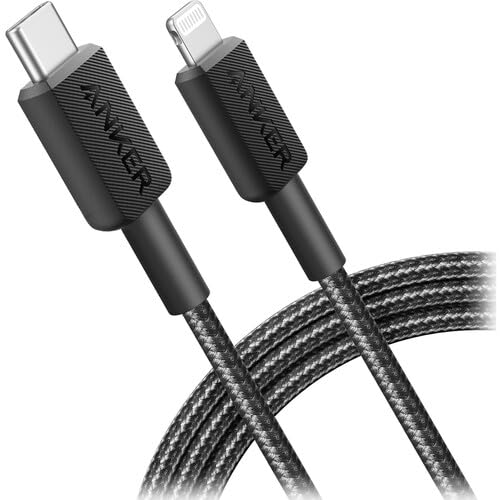
We recommend the Anker 321 USB-A to Lightning Cable, it’s MFi-certified, affordable, and built with reinforced stress points specifically useful for in-car use. For USB-C vehicles, the Anker 322 USB-C to Lightning Cable is a solid pick.
Always use a cable under 3 feet for CarPlay. Longer cables introduce signal degradation that causes intermittent disconnects.
Effective Troubleshooting and Fixes
Here’s your systematic checklist, ordered from easiest to most involved.
Resetting and Re-Enabling CarPlay
Start with the basics:
- Go to Settings > General > CarPlay and confirm your car appears
- If it does, tap the vehicle and tap Forget This Car
- Reconnect via USB or Bluetooth pairing
- Ensure Settings > Siri & Search > Siri is enabled (CarPlay requires Siri)
- Check Settings > Screen Time > Content & Privacy Restrictions > Allowed Apps and confirm CarPlay isn’t blocked
This process clears stale connection profiles and forces a clean handshake between your iPhone and infotainment system.
Reset iPhone and Network Settings
If re-pairing doesn’t work, reset network settings on your iPhone. Go to Settings > General > Transfer or Reset iPhone > Reset > Reset Network Settings. This wipes saved Wi-Fi passwords, Bluetooth pairings, and VPN configurations, then rebuilds them fresh. According to Apple’s troubleshooting guidance, this step resolves persistent connectivity problems across all iPhone wireless features, including CarPlay.
Reset network settings iPhone CarPlay is one of the most effective fixes because it clears corrupted network stack data that accumulates over time, especially after major iOS updates.
Updating iOS and CarPlay
Run the latest iOS version. Go to Settings > General > Software Update. Apple regularly patches CarPlay bugs in point releases, many iOS 17 CarPlay connection issues were resolved in subsequent updates. Also check your vehicle’s head unit firmware through the manufacturer’s app or dealer service portal.
Restarting Phone and Vehicle Systems
A hard restart of both devices clears temporary memory conflicts. Force restart your iPhone (press and release Volume Up, press and release Volume Down, then hold the Side button until the Apple logo appears). Then fully power off your car’s infotainment, some systems require you to hold the power button for 10+ seconds or pull the infotainment fuse for 30 seconds.
“After months of random disconnects in my BMW, the fix was literally turning off the car, waiting 2 minutes with doors closed, then restarting. The head unit needed a full power cycle, not just an ignition off.” via r/BMW
Optimizing CarPlay Experience While Driving
Once you’ve fixed the disconnect, these optimizations prevent it from returning.
Ensuring App Compatibility and Performance
Not all apps behave well with CarPlay. Force-close apps you aren’t using before connecting. Disable background app refresh for non-essential apps (Settings > General > Background App Refresh) to free up processor resources. Apps like Waze and Spotify are well-optimized for CarPlay, but lesser-known navigation or podcast apps can cause instability.
For monitoring your iPhone’s system health over time, an app like System Status Pro lets you track CPU temperature and memory usage, useful for diagnosing iPhone overheating CarPlay dropout patterns during long drives.
Managing VPN and Connected Devices
A VPN interfering with Apple CarPlay is more common than you’d think. VPNs route your network traffic through external servers, which can disrupt the local Wi-Fi connection between your iPhone and your car’s head unit. Disable your VPN before connecting to CarPlay, or configure it to exclude local network traffic.
Also disable Wi-Fi Assist (Settings > Cellular > scroll to bottom > Wi-Fi Assist off). This feature automatically switches to cellular data when Wi-Fi is weak, and your car’s internal CarPlay Wi-Fi signal can sometimes trigger this switch, killing the connection. Disable Wi-Fi assist CarPlay is a quick toggle that prevents this.
Tips for Stable CarPlay Use on the Road
For the most reliable experience:
- Turn off Low Power Mode before connecting
- Keep your iPhone out of direct sunlight (use a vent mount instead of a windshield mount)
- Use a cable under 3 feet for wired connections
- Update your car’s firmware at least once per year
- Avoid connecting more than one Bluetooth device simultaneously
If you’ve exhausted all software fixes and still experience drops, consider a dedicated wireless CarPlay adapter like the Carlinkit 5.0, it provides a more stable wireless bridge than many factory implementations.

Data Insights and Analysis
Apple CarPlay is now available in over 98% of new vehicles sold in the United States as of 2025, according to Apple’s CarPlay page. With that massive adoption comes equally massive support volume, Reddit’s r/CarPlay subreddit has seen a marked increase in disconnect-related posts since the rollout of iOS 17 and iOS 18.
A 2025 J.D. Power U.S. Tech Experience Index study found that smartphone-vehicle connectivity problems remain the #1 complaint category among new vehicle owners, with wireless CarPlay issues outpacing wired complaints by roughly 3 to 1.
Expert Note: "Wireless CarPlay disconnects aren't typically caused by Bluetooth failure, the Bluetooth link is only used for the initial handshake. The actual data streams over a 5GHz Wi-Fi direct connection. When users report drops in specific locations, it's almost always 5GHz channel congestion from external access points forcing a channel switch on the car's internal radio, which momentarily severs the stream. The fix is either a head unit firmware update that improves channel-hopping resilience or reducing Wi-Fi noise in the vehicle cabin by disabling competing radios."
Frequently Asked Questions About Apple CarPlay Dropouts
Why does Apple CarPlay drop out while driving?
Apple CarPlay drops out due to failing physical connections (worn cables, port debris), wireless interference on 5GHz Wi-Fi, iOS software bugs, Low Power Mode, VPNs, outdated infotainment firmware, or Screen Time restrictions. Hardware wear combined with software conflicts typically causes the issue.
How do I fix Apple CarPlay disconnecting randomly?
Start by resetting CarPlay in Settings > General > CarPlay, then forget and re-pair your vehicle. Next, reset network settings (Settings > General > Transfer or Reset iPhone > Reset Network Settings). Ensure Siri is enabled, update iOS and your car’s firmware, and check for Low Power Mode or VPN interference.
What’s the difference between wired and wireless CarPlay dropout causes?
Wired CarPlay fails from physical issues like damaged cables or port debris, especially on bumps. Wireless CarPlay drops are caused by 5GHz Wi-Fi interference, weak Bluetooth pairing, or conflicting auto-join settings. Wireless is affected by location; wired is affected by vibrations.
Can Low Power Mode cause CarPlay to disconnect?
Yes, Low Power Mode throttles background processes and can sever the CarPlay connection to conserve battery. Always disable Low Power Mode before connecting to CarPlay for stable performance and reliable navigation during drives.
Does a VPN interfere with Apple CarPlay?
Yes, VPNs route traffic through external servers and can disrupt the local Wi-Fi connection between your iPhone and car’s head unit. Disable your VPN before connecting to CarPlay, or configure it to exclude local network traffic for uninterrupted service.
What type of cable should I use for wired CarPlay?
Use an MFi-certified (Made for iPhone) cable under 3 feet long. Non-certified cables lack proper shielding and cause electromagnetic interference. Recommended options include the Anker 321 (USB-A to Lightning) or Anker 322 (USB-C to Lightning) for durability and reliability.
Sources:
- Apple CarPlay – Official Page
- Reddit r/CarPlay Community
- Apple CarPlay Support – If CarPlay Isn’t Working
- Reddit r/BMW Community
Read More:
- Ford F-150 CarPlay Not Working? 7 Proven Fixes That Work
- Mazda CarPlay Not Working? Complete Troubleshooting Guide
- Volvo CarPlay Not Working? Complete Fixing Guide