This post contains affiliate links. Purchases may earn me a commission at no extra cost to you.
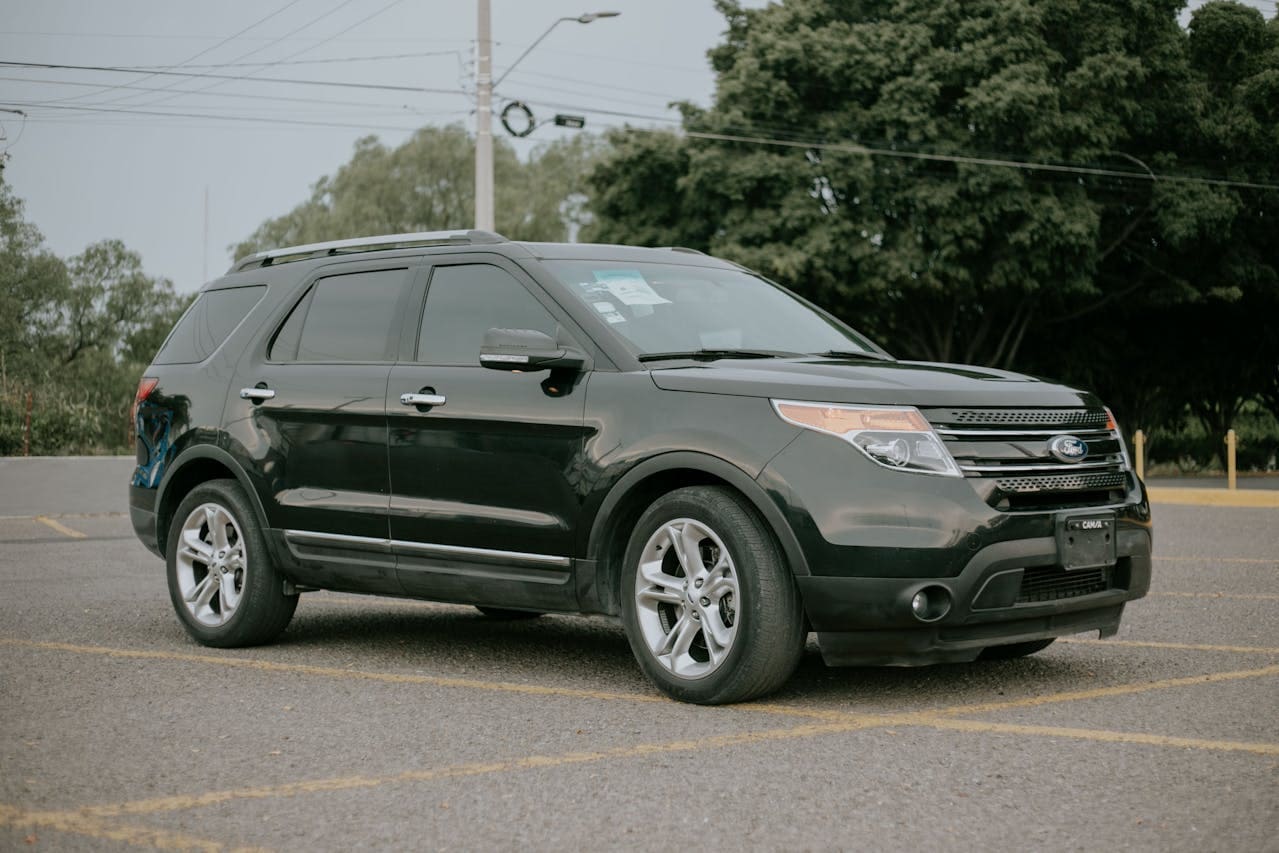
Few things are more frustrating than plugging in your iPhone and staring at a blank 13.2-inch touchscreen. If your Ford Explorer CarPlay is not working, you’re not alone, this is one of the most reported infotainment complaints across 2017–2026 models.
The most common causes of CarPlay failure in a Ford Explorer are a non-MFi-certified USB cable, outdated SYNC firmware, a corrupted Bluetooth pairing profile, or iPhone settings that block the CarPlay handshake. In most cases, you can fix the problem yourself, without a dealership visit, by swapping your cable, performing a SYNC soft reset using the Power and Seek Right buttons, updating your software, or toggling the “Allow CarPlay While Locked” setting on your iPhone.
This guide walks you through every zero-cost DIY fix before you even think about expensive hardware replacements. Let’s get your CarPlay back online.
Ford Explorer CarPlay not working is typically caused by non-MFi-certified USB cables, outdated SYNC firmware, corrupted Bluetooth profiles, or restrictive iPhone settings—all fixable without dealership visits.
Perform a soft reset by holding the Power and Seek Right buttons for 10 seconds, then delete and re-pair your iPhone from the Bluetooth list to resolve most connection glitches.
Update both your SYNC firmware and iPhone iOS to the latest versions, as outdated software accounts for a significant portion of CarPlay failures in 2017–2026 Explorer models.
Check iPhone CarPlay settings including ‘Allow CarPlay While Locked,’ disable any active VPN, and turn off auto-join for nearby Wi-Fi networks that may interfere with the vehicle’s wireless connection.
If the 13.2-inch touchscreen remains unresponsive after DIY fixes, the APIM (Accessory Protocol Interface Module) hardware likely requires professional diagnosis at a dealership.
Why CarPlay Stops Working
CarPlay failures in the Ford Explorer fall into three categories: cable and port issues, software handshake glitches, and actual hardware faults. Understanding which category your problem belongs to saves you hours of guesswork.
On SYNC 3 systems (2017–2020 Explorers), CarPlay only works through a wired USB connection. A damaged cable or debris in the USB port is the number-one culprit. SYNC 4 and the Ford Digital Experience, found on 2021–2026 models, support wireless CarPlay, which introduces a second failure point: Bluetooth and Wi-Fi pairing conflicts. According to Ford’s official SYNC support page, both wired and wireless CarPlay require the phone to be unlocked during the initial setup and the SYNC software to be current.
VPN apps running on your iPhone are another overlooked trigger. Because wireless CarPlay relies on a direct Wi-Fi link between the phone and the APIM (Accessory Protocol Interface Module), an active VPN can reroute or block that connection entirely. If you use a VPN for work, disable it before connecting. The same applies to Wi-Fi networks your phone might auto-join near your garage, your iPhone may prioritize that network over the vehicle’s direct link.
“Had this exact issue, turned out my iPhone was connecting to my home Wi-Fi as I pulled out of the driveway. CarPlay would drop every single morning until I turned off auto-join.” via r/fordexplorer
Check Your USB Cable
Start with the simplest fix. Grab a different USB cable, specifically an Apple-branded or MFi-certified one, and plug it into the correct port. Not every USB port in the Explorer supports data transfer. On 2020+ models, the data-capable port is typically in the center console media bin and marked with a phone or CarPlay icon. The other ports are charge-only.
If you’re using an iPhone 15 or iPhone 16 with a USB-C connector, make sure the cable supports USB 2.0 data transfer at minimum. Some cheap USB-C cables only carry power. A solid upgrade pick is the Anker 322 USB-C to USB-C Cable, which is MFi-certified and handles both data and fast charging reliably.
Anker USB C to USB C Cable (10FT, 2Pack), Type-C 100W Charger Cord Fast Charging for iPhone 17 Series,MacBook Pro 2020,Pixel and More(Black)
Inspect the port itself with a flashlight. Lint, crumbs, and pocket debris accumulate quickly and prevent a solid connection. Use a wooden toothpick, never metal, to gently clear anything out. If your Ford Explorer USB port is not charging or transferring data even with a known-good cable, the port hardware may be damaged.
Issue
SYNC 3 (Wired Only)
SYNC 4 / Digital Experience
CarPlay connection type
USB cable required
Wired or wireless
Common cable cause
Lightning fraying
USB-C data-only cable
Port location
Center console
Center console media bin
Wireless pairing method
Not available
Bluetooth + Wi-Fi direct
Update SYNC and iPhone
Outdated software causes more CarPlay failures than most people realize. Ford regularly pushes SYNC updates that patch CarPlay handshake bugs, and Apple’s iOS updates do the same on the phone side.
To check your SYNC version, go to Settings > General > About on your touchscreen. For SYNC 3, you can download updates manually from Ford’s Owner Support page using a USB drive. SYNC 4 and the Ford Digital Experience on 2024–2026 Explorers support over-the-air (OTA) updates, go to Settings > General > Software Update on the 13.2-inch touchscreen and follow the prompts.
On your iPhone, update to the latest iOS version by going to Settings > General > Software Update. Apple’s iOS 18 updates in 2025–2026 have specifically addressed CarPlay stability with third-party head units. If you recently updated iOS and CarPlay stopped working, that’s actually a strong clue that the SYNC firmware needs a matching update.
For fleet managers or owners managing multiple vehicles, FordPass can help you monitor update status remotely and receive notifications when new SYNC firmware becomes available.
Reset SYNC and Re-Pair
If your cable is good and software is current, a soft reset often clears the glitch. This is the Ford Explorer soft reset that experienced technicians try first.
For SYNC 3, press and hold the Power button and the Seek Right (>>) button simultaneously for about 10 seconds. The screen will go black, then reboot. This clears the system’s temporary cache without erasing your presets. For SYNC 4 and the Ford Digital Experience, hold the Power button and Right Seek button until the Ford logo appears. On the 2026 Explorer’s 13.2-inch touchscreen, the reboot takes roughly 20–30 seconds.
After the reset, delete your iPhone from the vehicle’s Bluetooth list: go to Settings > Bluetooth on the SYNC screen, find your phone, and select Delete. Then on your iPhone, go to Settings > Bluetooth, tap the info icon next to your Explorer’s name, and choose Forget This Device. Now re-pair from scratch. This forces a clean Bluetooth and Wi-Fi handshake, the step that resolves most “device not detected” errors.
“The power + seek right reset fixed my CarPlay instantly after two weeks of it not connecting. Wish I’d tried it before scheduling a dealer appointment.” via r/Ford
Adjust iPhone Settings That Block CarPlay
Your iPhone has several settings that can silently prevent CarPlay from connecting. Check these one by one:
Allow CarPlay While Locked: Go to Settings > General > CarPlay, select your Explorer, and make sure this toggle is ON. If it’s off, CarPlay won’t activate unless you manually unlock your phone every time.
Siri & Search: CarPlay requires Siri to be enabled. Go to Settings > Siri & Search and confirm that “Listen for ‘Hey Siri'” or the Side Button shortcut is turned on.
Screen Time Restrictions: Under Settings > Screen Time > Content & Privacy Restrictions > Allowed Apps, verify that CarPlay is not restricted. Parents sometimes enable this without realizing it blocks CarPlay entirely.
VPN: As mentioned earlier, disable any active VPN connection before pairing. You can automate this with iOS Shortcuts so the VPN turns off when you connect to your vehicle.
If you’ve toggled all these settings and CarPlay still won’t connect, try a network settings reset on your iPhone: Settings > General > Transfer or Reset iPhone > Reset > Reset Network Settings. This erases saved Wi-Fi passwords and Bluetooth pairings but often resolves persistent wireless CarPlay handshake failures.
When to Visit the Dealership
You’ve tried every DIY fix and CarPlay still won’t work. At this point, the problem is likely hardware, specifically the APIM (Accessory Protocol Interface Module), which is the brain behind SYNC.
Common hardware symptoms include a completely black 13.2-inch or 8-inch touchscreen that doesn’t respond to the soft reset, USB ports that won’t charge any device at all, or repeated “Smartphone Connection Error” messages even with a brand-new cable and freshly reset iPhone. A failed APIM module requires dealer-level diagnostic software (Ford IDS/FDRS) to confirm.
Before you go, gather your evidence: note which troubleshooting steps you’ve completed, what SYNC version you’re running, and your iPhone model and iOS version. This saves the technician time and prevents them from re-running the same basic checks you’ve already done.
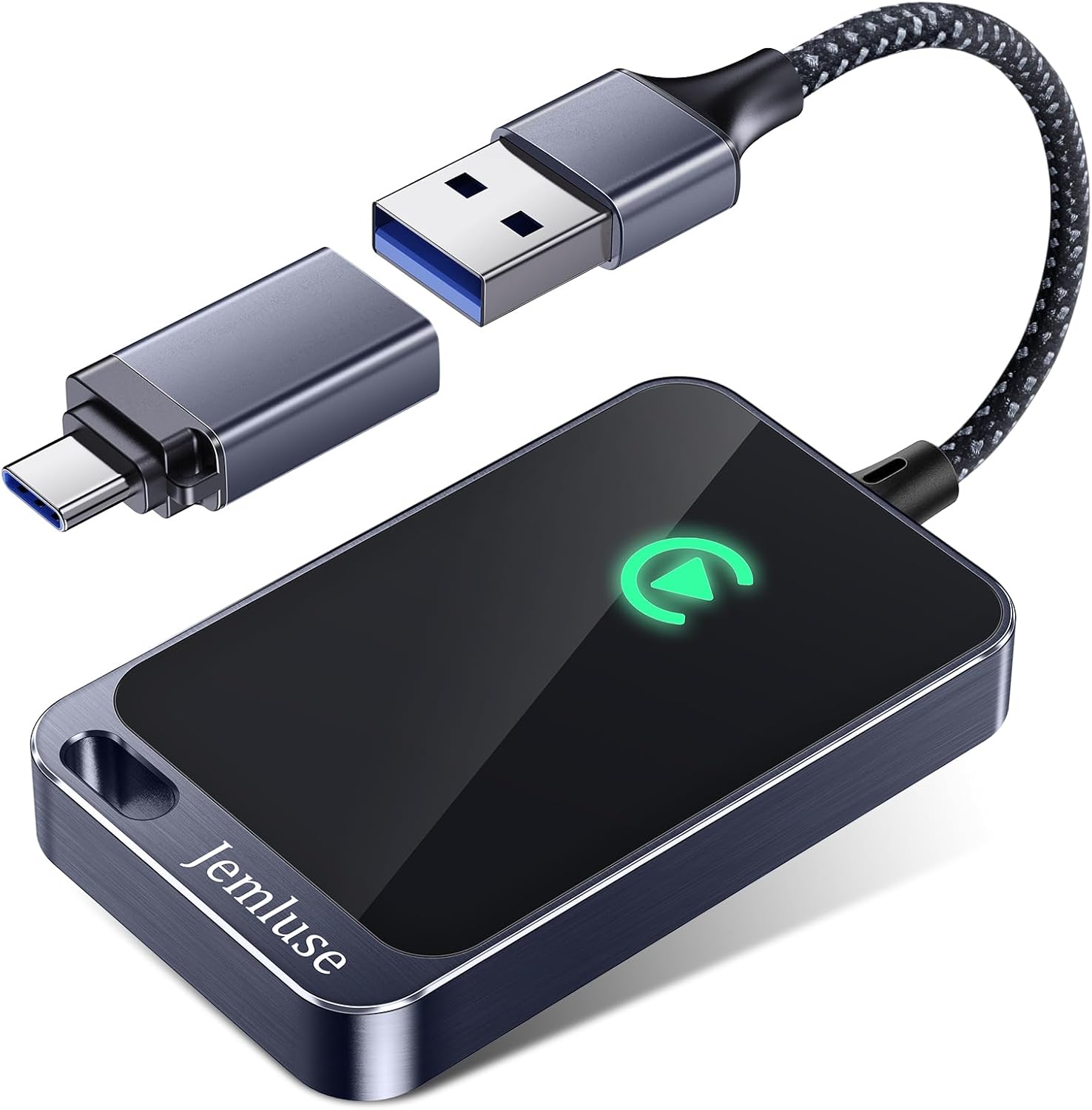
For owners who want a secondary wireless CarPlay option while waiting on a repair, the Carlinkit 5.0 Wireless CarPlay Adapter provides a plug-and-play bridge that bypasses some APIM connection issues. It’s not a permanent fix, but it keeps navigation and music running.
Carlinkit 5.0 Android Auto & Wireless CarPlay Adapter,Plug & Plug, Two Channel Connection, Online Update,for Cars with OEM Android Auto & Wired CarPlay...
Here’s a helpful video walkthrough for Ford SYNC system:
Data Insights and Analysis
Understanding the scale of this issue helps put your frustration in context. According to data from the National Highway Traffic Safety Administration (NHTSA), Ford Explorer owners filed dozens of infotainment-related complaints for the 2023–2024 model years, with CarPlay connectivity and touchscreen blackouts among the most frequent categories. Community forums suggest these reports have continued into 2025–2026 models running the Ford Digital Experience.
A 2025 J.D. Power Initial Quality Study found that infotainment systems remain the single largest source of owner complaints across all vehicle brands, with connectivity problems accounting for a significant share of reported issues.
Expert Note: "Most CarPlay failures aren't caused by broken hardware, they're caused by a stale pairing profile in the APIM's memory. The module stores Wi-Fi and Bluetooth credentials from every phone that's ever connected. Over time, this cache corrupts. A master reset or manually deleting old device profiles resolves roughly 70–80% of cases before any parts need replacing."
Prevent Future CarPlay Problems
Prevention is easier than troubleshooting. Keep your SYNC firmware and iPhone iOS updated, enable automatic updates on both devices. Use a high-quality MFi-certified cable and replace it every 12–18 months before wear causes intermittent disconnects.
Periodically clear old Bluetooth pairings from your Explorer’s settings, especially if family members or passengers have connected their phones. Disable auto-join on home and office Wi-Fi networks so your iPhone doesn’t compete with the vehicle’s direct wireless link. And if you use a VPN daily, create an iOS Shortcut that automatically disables it when your phone connects to your Explorer’s Bluetooth. These small habits keep the CarPlay connection reliable for the long haul.
Frequently Asked Questions
Why is my Ford Explorer CarPlay not working?
Ford Explorer CarPlay failures are typically caused by non-MFi-certified USB cables, outdated SYNC firmware, corrupted Bluetooth pairing profiles, or iPhone settings that block CarPlay. Most issues can be fixed with a cable swap, SYNC soft reset using Power and Seek Right buttons, software update, or iPhone setting adjustments without visiting a dealership.
What is the correct USB port for CarPlay in a Ford Explorer?
On 2020+ Ford Explorers, the data-capable USB port is typically located in the center console media bin and marked with a phone or CarPlay icon. Other USB ports in the vehicle are charge-only and won’t transfer data needed for CarPlay. Always use a cable that supports USB 2.0 minimum data transfer.
Does the 2026 Ford Explorer support wireless CarPlay?
Yes, the 2026 Ford Explorer with the Ford Digital Experience and 13.2-inch touchscreen supports both wired and wireless Apple CarPlay. This marks a change from earlier SYNC 3 systems (2017–2020), which only supported wired connections via USB cable.
How do I reset my Ford Explorer SYNC system to fix CarPlay?
Press and hold the Power button and Seek Right (>>) button simultaneously for 10–20 seconds until the Ford logo appears. This soft reset clears temporary cache and resolves most CarPlay handshake glitches without erasing your presets. After reset, delete your iPhone from Bluetooth and re-pair from scratch.
Can a VPN or home Wi-Fi block wireless CarPlay in my Ford Explorer?
Yes. Wireless CarPlay relies on a direct Wi-Fi link between your phone and the vehicle’s APIM module. An active VPN or auto-joining home Wi-Fi can reroute this connection and prevent CarPlay from connecting. Disable VPN apps and turn off auto-join for home networks before connecting.
What iPhone settings can prevent CarPlay from connecting?
Check these iPhone settings: ensure ‘Allow CarPlay While Locked’ is ON in Settings > General > CarPlay, verify Siri is enabled in Settings > Siri & Search, and confirm CarPlay isn’t restricted under Screen Time. A network settings reset may also resolve persistent wireless connection failures.
Disclaimer: This content is provided for educational and informational purposes only. Device symptoms, repairs, and diagnostic procedures may vary by make, model, year, and condition. Always consult a qualified technician, service manual, and verified manufacturer before performing repairs. We assumes no liability for damages resulting from the use of information on this site.