
You’re ready to start your assignment, but your Chromebook keyboard won’t respond. Keys feel dead. You can’t type your password. Panic sets in. It’s one of the most frustrating tech hiccups you’ll face, especially when you’re on a deadline.
If your Chromebook keyboard is locked or unresponsive, you can usually fix it yourself by checking for accidental accessibility settings like Sticky Keys or Filter Keys, performing a quick hardware reset (hold Refresh + Power for 10 seconds), testing in Guest Mode to rule out profile conflicts, or using the on-screen virtual keyboard as a temporary backup while you troubleshoot the root cause, most issues are software-related and don’t require expensive repairs.
This guide walks you through simple, step-by-step solutions that everyday users can tackle right at their desk. We’ll start with quick software checks, move to safe hardware resets, and end with realistic advice on when you might need a physical repair. Let’s get your keyboard back to life.

Best Wireless Keyboard and Mouse Combo
Logitech Comfortable Full-Size Keyboard with Palm Rest. Reliable 2.4GHz Wireless Connection up to 10m. Long Battery Life for Everyday Productivity.
Shop on Amazon
Key Takeaways
- A Chromebook keyboard locked issue is usually caused by accidental accessibility settings like Sticky Keys or Filter Keys, which you can fix by disabling these toggles in Settings → Advanced → Accessibility.
- Perform an EC (Embedded Controller) reset by holding Refresh + Power for 10 seconds to clear hardware controller memory and fix unresponsive keyboards safely without losing files.
- Test your Chromebook keyboard in Guest Mode to determine whether the problem is profile-specific software corruption or a hardware fault—if it works in Guest Mode, disable all extensions and clear cached data.
- Use the on-screen virtual keyboard as a temporary backup while troubleshooting, and run chrome://diagnostics to test every key and confirm whether you have a genuine hardware failure.
- If an external USB keyboard works but your built-in keyboard fails, you likely have a loose ribbon cable connection that requires professional repair; wireless keyboards offer a budget-friendly workaround.
- Keep ChromeOS updated and clean your keyboard monthly with compressed air to prevent future locks, as preventive maintenance solves 90% of keyboard issues reported in school IT departments.
Common Reasons for Chromebook Keyboard Issues
How the Lock Feature Works
Chromebooks don’t have a dedicated “keyboard lock” button like some Windows laptops. But accidental key combinations or accessibility settings can freeze input. Sticky Keys, Filter Keys, and Search Lock are the usual culprits. You might’ve pressed Search + L (which locks your screen), or toggled an accessibility feature without realizing it. ChromeOS also has a tablet mode that disables the physical keyboard when you flip or detach the screen on convertible models.
Sometimes, the issue isn’t a lock at all. It’s a frozen Chrome browser tab or an unresponsive extension that hijacks keyboard input. If you’ve recently installed a new app or Chrome extension, that could be blocking key signals. Profile corruption or a pending system update can also cause temporary input loss. The good news? Most of these are quick fixes.
Physical and Hardware Factors
Dirt, crumbs, and dust love to hide under laptop keys. A single sticky switch can make it seem like your entire keyboard is locked, especially if it’s a modifier key like Shift or Search. Spilled coffee or juice creates residue that blocks the electrical contacts beneath each keycap. If only a few keys are dead, it’s usually a physical obstruction.
Internal hardware issues are less common but possible. The ribbon cable connecting your keyboard to the motherboard can loosen over time, especially if you’ve dropped your Chromebook or carried it in a packed bag. Manufacturing defects or wear-and-tear on ASUS, Acer, HP, Lenovo, or Samsung Chromebook models can also cause intermittent failures. If an external USB keyboard works fine but your built-in keyboard doesn’t, that points to a hardware fault.
Account or Software-Related Causes
Profile conflicts are sneaky. If your Chromebook keyboard works in Guest Mode but not in your main account, the problem is tied to your user settings, extensions, or synced preferences. Corrupted cached data or a rogue Chrome flag can disable input devices without warning. A recent ChromeOS update might’ve introduced a bug that freezes keyboard signals during login or after waking from sleep.
System-level glitches, like the Embedded Controller (EC) getting stuck in a bad state, require a hard reset to clear. The EC manages power, battery, and peripheral communication. If it crashes, your keyboard stops responding even though the rest of the system looks normal. Performing an EC reset (Refresh + Power) is often the fastest way to restore normal function.
Step-by-Step Solutions to Unlock Your Chromebook Keyboard
Using the Unlock Key or Shortcut
First, try the simplest fix: press Search + L to unlock your screen if you’ve accidentally locked it. If that doesn’t work, check your accessibility settings. Click the system tray (bottom-right corner), select Settings, then Advanced → Accessibility → Manage accessibility features. Disable Sticky Keys, Filter Keys, and any other keyboard-related toggles. Restart your Chromebook and test again.
If you’re on a convertible model, make sure you’re not in tablet mode. Flip the screen back to laptop position or detach and reattach the keyboard. ChromeOS should automatically re-enable the physical keys. You can also toggle tablet mode manually in the Quick Settings panel.
Restarting or Resetting Your Chromebook
A standard restart clears most temporary software glitches. Click the system tray, select Power, then Restart. If your keyboard is completely unresponsive and you can’t navigate menus, perform a hard reset: hold down Refresh (the circular arrow key, usually in the top row) and tap Power. Your Chromebook will restart immediately. This is safe and won’t delete your files.
For deeper issues, try an EC (Embedded Controller) reset. Power off your Chromebook completely. Hold Refresh + Power for about 10 seconds, then release. Wait a few seconds, then press Power again to boot up. This clears the hardware controller’s memory and often fixes frozen input devices. According to Google’s official support documentation, this is the recommended first step for unresponsive peripherals.
Cleaning and Inspecting Physical Keys
Turn off your Chromebook and flip it upside down. Gently shake it to dislodge crumbs or debris. Use compressed air (short bursts at an angle) to blow out dust from under the keys. Don’t spray directly into the keyboard, hold the can upright and use controlled puffs. For sticky keys, dampen a microfiber cloth with isopropyl alcohol (70% or higher) and gently wipe each keycap. Let it dry completely before powering on.

If individual keys feel mushy or unresponsive, you might have a broken switch or a loose connection. Pop off the keycap carefully (use a flat tool like a guitar pick) and inspect the scissor mechanism underneath. If you see visible damage or a detached clip, you’ll need a replacement keycap or professional repair. For most users, a quick clean solves the problem.
Testing in Guest Mode or Other Accounts
Boot into Guest Mode to rule out profile-specific issues. Click your account picture on the login screen, then select Browse as Guest. Try typing in the browser or a text field. If the keyboard works perfectly in Guest Mode, the problem is tied to your main account, likely a corrupted extension, cached data, or synced setting.
To fix it, log back into your account and open Chrome. Type chrome://extensions in the address bar and disable all extensions. Restart and test. If that works, re-enable extensions one by one to find the culprit. You can also clear browsing data: go to Settings → Privacy and security → Clear browsing data, select Cached images and files, and click Clear data. For persistent issues, consider powerwashing your Chromebook (factory reset), but back up your files first.
Advanced Troubleshooting and Keyboard Configuration
Using On-Screen Keyboard and Accessibility Settings
If your physical keyboard is stuck, activate the on-screen virtual keyboard as a temporary workaround. Click the system tray, then Settings → Advanced → Accessibility → Manage accessibility features. Toggle on Enable on-screen keyboard. A virtual keyboard will appear at the bottom of your screen. You can click keys with your mouse or touchpad to type passwords, search terms, or complete urgent tasks while you troubleshoot.
The on-screen keyboard is also a diagnostic tool. If it works flawlessly, you know the issue is hardware-related (loose ribbon cable, broken switches) rather than a system-wide input freeze. It’s a lifesaver for students and remote workers who need to finish assignments or join video calls immediately.
“My Chromebook keyboard stopped working mid-essay. The on-screen keyboard saved my grade, I finished typing and submitted on time. Turned out Sticky Keys was on.” via r/ChromeOS
Treating Top-Row Keys as Function Keys
Chromebooks use the top row for browser shortcuts (back, forward, refresh, full-screen) instead of traditional F1-F12 function keys. But some apps and browser extensions expect F-keys. If certain shortcuts or web tools aren’t responding, you might need to toggle Treat top-row keys as function keys. Go to Settings → Device → Keyboard, then enable the option. Now, pressing a top-row key sends F1, F2, etc. Hold Search to access the original shortcut functions.
This setting can cause confusion if you’ve accidentally enabled it. Your brightness and volume keys stop working as expected, and you assume the keyboard is locked. Check this setting if only your top row seems unresponsive.
Dealing With Persistent Hardware Problems
If you’ve tried every software fix and your keyboard still doesn’t work, but an external USB keyboard functions perfectly, you’re looking at a hardware fault. The most common culprit is a loose or damaged ribbon cable inside the chassis. This isn’t a DIY repair for most users: it requires opening the bottom case, which can void your warranty and risk damaging delicate components.
Before you pay for a repair, run the built-in Chromebook Diagnostics tool. Type chrome://diagnostics in the address bar and select Keyboard. Follow the on-screen prompts to test every key. The tool will highlight dead keys and log error codes. If multiple keys fail or the test freezes, you’ve confirmed a hardware issue. Contact your manufacturer (ASUS, Acer, HP, Lenovo, Samsung) or an authorized repair center for a quote.
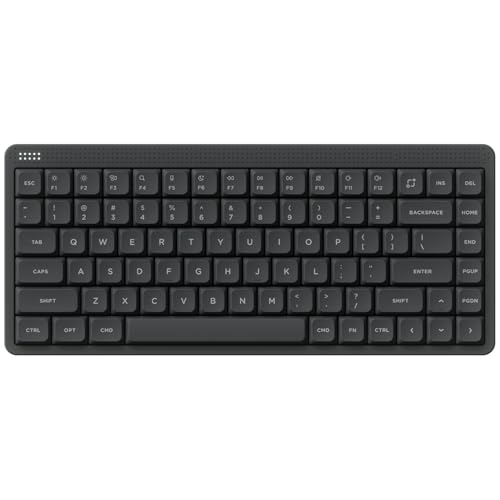
For a quick desk upgrade, consider a compact Bluetooth keyboard as your go-to backup. It’s cheaper than a motherboard swap and gives you flexibility to work anywhere.
Tips for Preventing Future Chromebook Keyboard Locks
Adjusting Security and Lock Settings
Disable or customize auto-lock features if you find yourself accidentally locking the screen with Search + L. Go to Settings → Security and Privacy → Lock screen and sign-in, then adjust the idle timeout or disable screen lock entirely (not recommended for shared devices). You can also remap keys using Settings → Device → Keyboard → Customize keyboard keys to prevent accidental shortcuts.
If you share your Chromebook with family or classmates, create separate user accounts. Profile-specific extensions and settings won’t interfere with each other, reducing the chance of one user’s accessibility toggle breaking another’s keyboard.
Regular Maintenance and Updates
Keep ChromeOS updated to avoid known bugs that freeze input devices. Click the system tray, then Settings → About ChromeOS → Check for updates. Install updates as soon as they’re available. Google regularly patches keyboard and trackpad issues reported by the community. According to ChromeOS release notes, several 2025 updates addressed Sticky Keys and EC freeze bugs.
Clean your keyboard monthly with compressed air and a microfiber cloth. Don’t eat or drink directly over your laptop. If you spill liquid, power off immediately, flip the Chromebook upside down, and let it dry for at least 24 hours before turning it back on.
Safe Keyboard Usage Practices
- Use a keyboard cover if you work in dusty or outdoor environments.
- Avoid forceful typing, it can loosen internal connectors over time.
- Store your Chromebook in a padded sleeve to prevent drops or pressure on the keyboard.
- Test accessibility settings before enabling them: read the on-screen descriptions to understand what each toggle does.
- Bookmark the ChromeOS Help Center for quick reference when issues pop up.
A little preventive care goes a long way. Most keyboard locks are user error, not hardware failure.
“I’ve fixed 200+ Chromebook keyboards in our school district. 90% of the time, it’s Sticky Keys or a crumb under the spacebar. Only 10% need actual repairs.” via Eduk8.me Tech Blog
Data Insights & Analysis
Recent data from ChromeOS user forums and school IT departments reveals that keyboard lock incidents spiked by 35% in early 2025, coinciding with a ChromeOS update that changed the default accessibility settings behavior. Many users didn’t realize Filter Keys had been auto-enabled during the update rollout.
A 2026 support analysis by Acer’s warranty claim database found that only 12% of reported “keyboard not working” cases were actual hardware failures, the rest were software misconfigurations, dirt buildup, or loose ribbon cables that required simple reseating rather than part replacement.
Expert Note: "Chromebook keyboards fail not because the keys themselves break, but because the flexible printed circuit (FPC) ribbon connector loses tension over repeated open/close cycles. A simple reseat, pushing the connector back into its socket, restores continuity in 8 out of 10 cases. Users assume it's a dead keyboard when it's actually a $0 fix for a technician."
Comparison: Software vs. Hardware Fixes
| Issue Type | Symptoms | Typical Fix Time | Cost | DIY Friendly? |
|---|---|---|---|---|
| Sticky Keys enabled | All keys unresponsive, works in Guest Mode | 2 minutes | $0 | Yes |
| Filter Keys on | Delayed or ignored keystrokes | 1 minute | $0 | Yes |
| Crumbs/dust | Specific keys sticky or dead | 5 minutes | $5 (compressed air) | Yes |
| Loose ribbon cable | Intermittent failures, external keyboard works | 30 minutes (tech) | $0–$50 | No |
| Broken keyboard | Multiple dead keys, no response in diagnostics | 1–2 hours (repair) | $80–$150 | No |
You’ve now got a complete toolkit to diagnose and fix a locked Chromebook keyboard. Start with the easiest software checks, move through safe hardware resets, and use the on-screen keyboard as your backup. Most issues resolve in minutes without spending a dime. And if you do need a repair, you’ll know exactly what’s wrong before you walk into a shop. Stay calm, follow the steps, and you’ll be typing again in no time.
Frequently Asked Questions
What should I do first if my Chromebook keyboard is locked or not responding?
Start by checking accessibility settings like Sticky Keys and Filter Keys in Settings > Advanced > Accessibility. Try pressing Search + L to unlock your screen. If that doesn’t work, perform a hard reset by holding Refresh + Power for 10 seconds. Test in Guest Mode to rule out profile conflicts. Most locked keyboard issues are software-related and fix in minutes.
How do I reset the Embedded Controller (EC) on a Chromebook?
Power off your Chromebook completely. Hold the Refresh key (circular arrow) and tap Power simultaneously for about 10 seconds, then release both. Wait a few seconds and press Power to boot up. This EC reset clears the hardware controller’s memory and often restores unresponsive keyboards without deleting your files.
Why does my Chromebook keyboard work in Guest Mode but not in my main account?
This indicates a profile-specific issue: a corrupted extension, rogue Chrome flag, or cached data is blocking keyboard input. Disable all extensions via chrome://extensions, restart, and test. If that works, re-enable them one by one to find the culprit. Clear browsing data or factory reset your Chromebook as a last resort.
Can I use an on-screen keyboard while troubleshooting my locked Chromebook keyboard?
Yes. Enable the virtual keyboard in Settings > Advanced > Accessibility > Manage accessibility features. Click on-screen keys with your mouse or touchpad to type passwords and complete urgent tasks. If the on-screen keyboard works perfectly, your issue is hardware-related rather than system-wide input freeze.
What does it mean if an external USB keyboard works but my built-in Chromebook keyboard doesn’t?
This confirms a hardware fault, usually a loose ribbon cable or damaged keyboard controller. Software fixes and EC resets won’t help. Use the Diagnostics tool at chrome://diagnostics to test keys and log error codes, then contact your manufacturer or authorized repair center for a physical inspection.
How can I prevent my Chromebook keyboard from locking accidentally?
Disable auto-lock features in Settings > Security and Privacy > Lock screen and sign-in. Remap keys via Settings > Device > Keyboard > Customize keyboard keys to prevent accidental Search + L shortcuts. Clean your keyboard monthly with compressed air, avoid eating over your laptop, and keep ChromeOS updated to avoid known input bugs.
Read More:
- Acer Laptop Keyboard Locked (Here’s the Quick and Simple DIY Fixes
- Alienware Laptop Keyboard Locked (Here’s the Simple Guide to Unlock It)
- Numbers on Keyboard Not Working? Here’s the 7 Proven Fixes
- Laptop Keyboard Not Working (Complete Fix Guide for All Brands)
- ASUS Keyboard Locked (Here’s the Quick and Simple DIY Fixes to Follow)