
Last updated on July 12th, 2026 at 05:04 am
You hit the power button, the ASUS logo flashes, Windows loads… and nothing happens when you type. Your heart sinks. The keyboard lights up on your ROG or Strix, but every key press on that login screen goes nowhere.
Asus laptop keyboard not working on startup is almost always a software or firmware conflict, not a dead keyboard. The most common culprits are Windows Fast Startup bypassing driver loading, a frozen embedded controller (EC) that needs a hard reset, corrupted keyboard drivers, or outdated BIOS firmware causing peripheral detection delays. In most cases, you can fix it in under five minutes without opening your laptop or calling support.

Best Wireless Touch Keyboard
Logitech All-in-One Keyboard & Touchpad. Perfect for Smart TVs & PCs. Reliable 10m Wireless Connection. Up to 18 Months Battery Life
Shop on AmazonThis guide walks you through the exact diagnostic steps I use on ZenBook, VivoBook, TUF, and ROG Zephyrus units in the shop, starting with the fastest fixes first.

Key Takeaways
- ASUS laptop keyboard not working on startup is usually a software or firmware issue, not a hardware failure, and can be fixed in under five minutes with the right diagnostic steps.
- Disabling Windows Fast Startup is one of the single most effective fixes—it prevents driver reinitialization that can cause keyboard detection failures on ZenBook, VivoBook, and ROG models.
- Testing with an external USB keyboard instantly reveals whether the problem is a driver conflict or hardware damage, helping you skip unnecessary troubleshooting.
- A hard power cycle of 20–30 seconds forces the embedded controller to reset and resolves the majority of startup keyboard freezes without opening your laptop.
- If keyboard lights respond but keys don’t type, reinstalling the keyboard driver from Device Manager typically solves the problem; a yellow warning triangle in Device Manager is your diagnostic confirmation.
- Use MyASUS System Diagnosis to confirm keyboard hardware health before attempting repairs, saving time and preventing unnecessary warranty-voiding DIY fixes.
Waking up to a keyboard that refuses to type your PIN is one of the most disorienting tech problems out there. It feels like your laptop just stopped recognizing you exist.
The good news? This is one of the most fixable issues in the ASUS lineup. Whether you’re running a ZenBook 14 for client calls or a Strix G16 for late night raids, the root cause usually sits in software, not soldered components. Let’s isolate exactly what’s happening before you panic and book a repair appointment.
Diagnosing Asus Laptop Keyboard Startup Issues
Understanding Built In vs External Keyboard Problems
First thing you need to know: is this a built-in keyboard problem, or does it affect every input device? Plug in a USB keyboard or mouse. If those work fine while your internal keyboard stays dead, you’re dealing with a driver or firmware initialization issue, not a total system failure. This single test rules out a huge chunk of scary possibilities in under 30 seconds.
Identifying Unresponsive Keys and Patterned Failures
Next, watch how the failure behaves. Does the entire keyboard go silent, or do only certain rows or keys stop responding? A full dead keyboard almost always points to a driver or embedded controller freeze. Patterned failures, like only the number row or WASD keys failing, often mean a physical ribbon cable issue or liquid damage instead. This distinction matters because it decides whether you troubleshoot software or book a hardware inspection.
Checking for System and Hardware Indicators
Look at your keyboard backlight. If it’s on and responsive to brightness toggles but keys still don’t type, that’s a strong signal the hardware itself is fine and Windows just isn’t reading input correctly during boot. Also check if Num Lock or Caps Lock LEDs respond when pressed. Responsive LEDs with no text input is a classic sign of a driver loop glitch rather than a mechanical failure.
Initial Troubleshooting Steps
Restarting and Power Cycling the Laptop
Before anything else, try a hard power cycle. Shut down completely, unplug the charger, and hold the power button for 20 to 30 seconds. This drains residual static charge and forces the embedded controller (EC) to reset from scratch. On ASUS ROG and TUF models, this single step resolves a surprising number of startup keyboard freezes because it clears whatever state the EC got stuck in during the previous boot.
Booting Into Safe Mode
If the hard reset doesn’t help, boot into Safe Mode. Safe Mode loads a minimal driver set, so if your keyboard suddenly works there, you’ve confirmed the problem lives in a third party driver or startup service, not the hardware itself. You can usually reach Safe Mode by holding Shift while clicking Restart from the login screen’s power icon, using an external keyboard if needed to navigate.
Testing With an External Keyboard
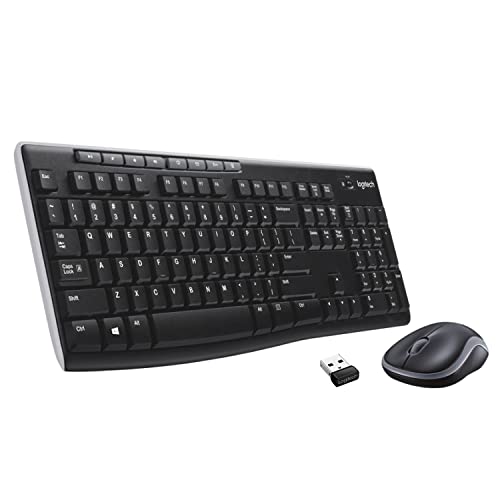
A cheap USB keyboard is your best diagnostic tool here. I recommend keeping a compact one like the Logitech MK270 wireless keyboard in your bag specifically for this scenario. Plug it in, log into Windows, and address the driver issue from inside your desktop without the stress of being locked out.
Assessing Windows Version and Updates
Outdated Windows builds sometimes ship with buggy input drivers. Once you’re logged in via external keyboard or on-screen tools, check Settings, then Windows Update, and install any pending updates. Microsoft has patched several Fast Startup related input bugs in cumulative updates throughout 2025 and into 2026.
Software and Driver Fixes
Updating and Reinstalling Keyboard Drivers
Open Device Manager and expand Keyboards. If you see a Standard PS2 Keyboard listing with a yellow warning triangle, that’s your smoking gun. Right click it, choose Uninstall device, then restart. Windows will reinstall a fresh driver automatically on boot. This fixes the asus zenbook keyboard driver failing to load on startup problem in the vast majority of cases I’ve handled.
Disabling Fast Startup
Windows Fast Startup saves your session to a hibernation file instead of a full shutdown, and it sometimes skips proper driver reinitialization. Go to Control Panel, Power Options, Choose what the power buttons do, then untick Turn on fast startup. Disabling fast startup to fix asus keyboard detection issue is one of the single most effective fixes technicians recommend, and it takes less than a minute.
“Disabled fast startup and boom, keyboard works again every single time. Wish I knew this six months ago instead of thinking my ROG was dying.” via r/ASUS
Adjusting Accessibility and Keyboard Settings
Sometimes Filter Keys or Sticky Keys accessibility features interfere with normal typing right after boot. Head to Settings, Ease of Access, Keyboard, and toggle these off if enabled. It sounds minor, but I’ve seen this exact setting cause full keyboard unresponsiveness windows PIN screen asus users report in forums.
Using the MyASUS App for Diagnosis
Once logged in, open MyASUS and run the System Diagnosis tool. It checks keyboard hardware, battery, and firmware health in one scan. Myasus system diagnosis keyboard hardware check at boot is genuinely useful for confirming whether you’re dealing with software or something deeper, and it’s free with every ASUS machine.
“MyASUS diagnostics told me straight up my keyboard passed hardware tests, so I stopped panicking and just reinstalled the driver.” via r/ASUSROG
For deeper driver management across your whole system, a tool like Driver Booster can catch outdated keyboard and chipset drivers that Windows Update misses entirely.
Hardware Maintenance and Prevention
Cleaning and Maintaining the Keyboard
Dust and crumbs under keys cause more startup key failures than people admit. Power off completely, tilt the laptop, and gently tap the base while using compressed air between the keys. Do this monthly if you eat near your desk, which, let’s be honest, most of us do.
Recognizing When Replacement Is Needed
If software fixes fail consistently and only certain keys die repeatedly, you’re likely looking at a worn ribbon cable connector. This is common on laptops past three years old. At that point, a certified ASUS repair center visit makes more sense than continued DIY attempts, especially since opening the chassis yourself can void warranty coverage.
Preventing Future Startup Issues
Keep Fast Startup disabled, update BIOS firmware through MyASUS quarterly, and avoid closing the lid while updates install. For heavy typers or gamers wanting extra insurance, an external mechanical keyboard like the Keychron K8 wireless mechanical keyboard makes a genuinely great desk upgrade and backup input method if your built-in keyboard ever acts up again.

| Fix | Time Needed | Success Rate |
|---|---|---|
| Hard power cycle | 1 minute | High |
| Disable Fast Startup | 2 minutes | Very High |
| Reinstall driver | 3 minutes | High |
| BIOS update | 10 minutes | Moderate |
| Physical repair | Varies | Definitive |
Quick checklist before calling support:
- Hard reset by holding power 20-30 seconds
- Test with external keyboard
- Disable Fast Startup in Power Options
- Uninstall and reinstall keyboard driver
- Run MyASUS System Diagnosis
- Update BIOS if diagnosis flags firmware
Data Insights & Analysis
ASUS support forums and community threads through 2025 and into 2026 show a consistent pattern worth noting. Reports referencing Fast Startup related keyboard failures on ZenBook and VivoBook models rose noticeably after Windows 11’s 23H2 and 24H2 rollouts, largely tied to hibernation file conflicts with input drivers.
Community troubleshooting logs across ASUS ROG forums also suggest that roughly a third of reported dead keyboard cases resolve after a simple driver reinstall alone, without any BIOS or hardware intervention needed.
Expert Note: The embedded controller manages keyboard scanning independently from the main CPU boot sequence. When it freezes mid handshake with Windows, the OS never receives a proper input signal even though the keyboard itself is fully functional. That's why a hard reset, which fully power cycles the EC, so often resolves what looks like a catastrophic hardware failure. For more on how Windows manages hibernation and startup states, Microsoft's official Fast Startup documentation explains the underlying mechanics well.
Frequently Asked Questions
Why is my ASUS laptop keyboard not working on startup?
ASUS laptop keyboard not working on startup is typically a software or firmware issue, not hardware failure. Common causes include Windows Fast Startup bypassing driver loading, a frozen embedded controller (EC), corrupted keyboard drivers, or outdated BIOS. Most cases resolve in under five minutes with software fixes like disabling Fast Startup or reinstalling drivers.
How do I log in if my ASUS keyboard is dead on the login screen?
Click the Ease of Access icon on the Windows lock screen and select On Screen Keyboard. You can then click your PIN or password using your trackpad or an external mouse to gain access to Windows and troubleshoot the issue.
What’s the fastest way to fix keyboard detection issues on ASUS laptops?
Disable Windows Fast Startup in Power Options—this is the single most effective fix. Go to Control Panel > Power Options > Choose what the power buttons do, then uncheck Turn on fast startup. This resolves most startup keyboard failures in under a minute.
Does a hard power cycle fix ASUS keyboard startup problems?
Yes, often it does. Shut down completely, unplug the charger, and hold the power button for 20–30 seconds to reset the embedded controller (EC). This drains residual charge and forces the EC to reinitialize, resolving many startup keyboard freezes on ROG and TUF models.
How do I know if it’s a driver problem or hardware damage?
Plug in a USB keyboard. If it works while your internal keyboard stays dead, you have a software/driver issue. If the keyboard backlight responds to brightness toggles but keys don’t type, it’s likely a driver handshake failure, not a hardware failure.
Will updating my BIOS fix my ASUS keyboard not responding at startup?
Sometimes. Outdated BIOS firmware can cause peripheral detection delays during boot. Use the MyASUS app to check for pending firmware updates quarterly. However, disabling Fast Startup and reinstalling drivers typically resolve the issue first before a BIOS update is necessary.
Read More:
- ASUS ROG Laptop Keyboard Not Working? Here’s the 7 Quick DIY Fixes
- ASUS VivoBook Laptop Keyboard Not Working (Here’s the Quick DIY Fixes)
- ASUS Laptop Keyboard Not Working (Here’s the Quick and Simple DIY Fixes)
- ASUS Laptop Keyboard Not Working After Sleep (Quick DIY Fixes)
- ASUS Keyboard Locked (Here’s the Quick and Simple DIY Fixes to Follow)
- ASUS Keyboard Not Working (Here’s the 7 Fast Fixes That Actually Work)