
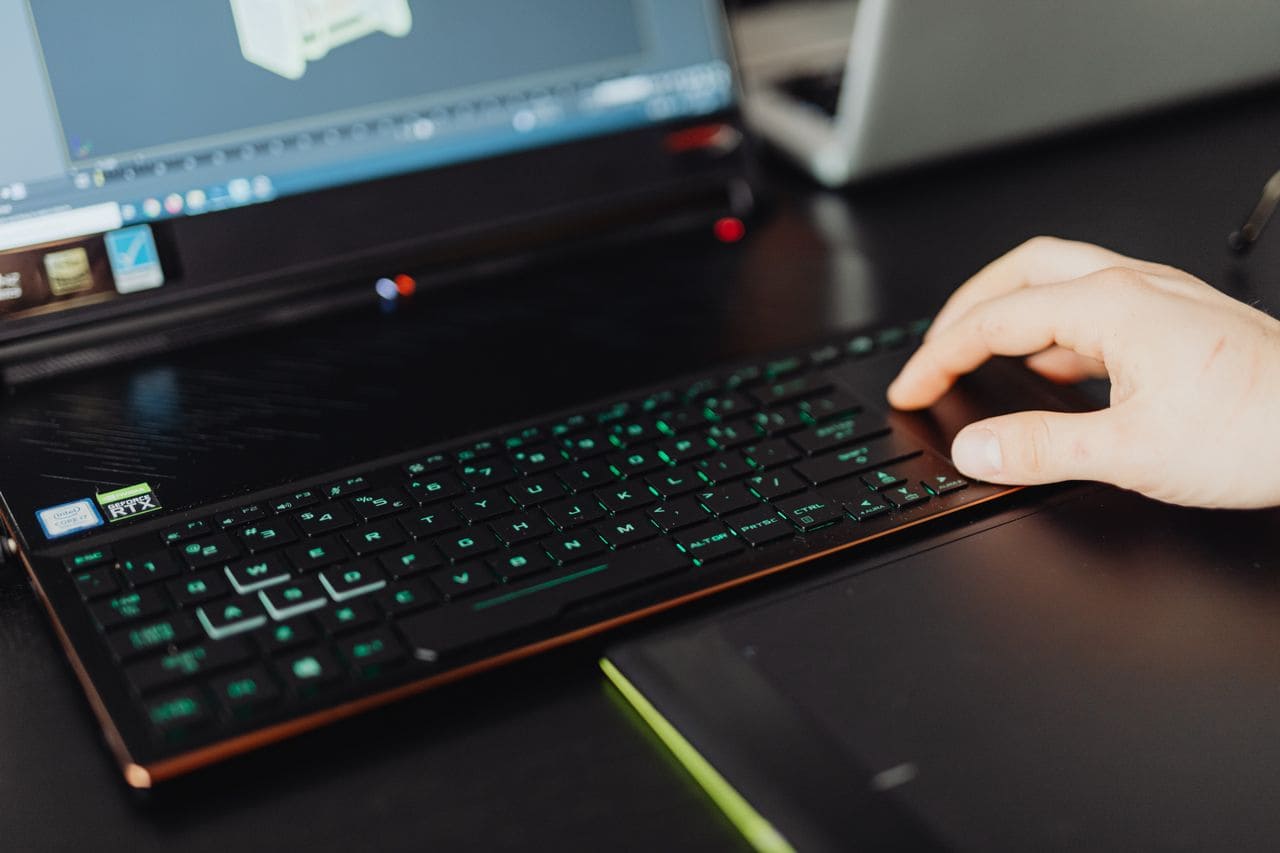
Your ASUS laptop keyboard suddenly stops working. You’re locked out mid-project, panicking over deadlines, and wondering if your expensive ZenBook or ROG is permanently broken.
Most ASUS laptop keyboard malfunctions stem from simple software glitches, corrupted PS/2 keyboard drivers, accidental Filter Keys activation, or a stuck embedded controller (EC) that needs a hard reset. About 70% of keyboard issues can be fixed in under 10 minutes with a power cycle, driver reinstall, or accessibility setting toggle, without opening your laptop or visiting a repair shop.
This guide walks you through rapid diagnosis and step-by-step fixes for every common ASUS keyboard malfunction, from keys repeating endlessly to entire rows going silent. You’ll know exactly when a quick software tweak solves the problem and when physical repair becomes necessary.

Best Wireless Touch Keyboard
Logitech All-in-One Keyboard & Touchpad. Perfect for Smart TVs & PCs. Reliable 10m Wireless Connection. Up to 18 Months Battery Life
Shop on AmazonKey Takeaways
- Most ASUS laptop keyboard malfunctions are caused by software glitches, driver corruption, or accessibility settings rather than physical damage, with about 70% fixable within 10 minutes using power cycles and driver reinstalls.
- Test your keyboard in BIOS during startup to distinguish hardware failures from Windows software issues—if keys work in BIOS but fail in Windows, a corrupted PS/2 keyboard driver is likely the culprit.
- Power cycling your laptop by holding the power button for 30 seconds after unplugging drains the embedded controller and resolves approximately 40% of keyboard freeze issues without any technical expertise.
- Disable Windows accessibility features like Filter Keys and Sticky Keys in Settings, as they are frequently triggered accidentally and drastically alter keyboard behavior by ignoring rapid keystrokes.
- Professional ASUS keyboard repair is only necessary if your keyboard fails both BIOS and Windows diagnostics despite driver reinstalls, liquid damage occurred, or the MyASUS diagnostic tool reports hardware failure.
- Regular compressed air cleaning and keyboard cover usage prevent most ASUS laptop keyboard problems, while installing ASUS ATK drivers before Windows updates avoids the 35% spike in driver conflicts following major updates.
Quick Diagnosis of Keyboard Problems
Before diving into software fixes or hardware teardowns, you need to isolate whether your ASUS keyboard malfunction is a Windows glitch or a physical failure. Proper diagnosis saves time and prevents unnecessary driver reinstalls when the real culprit is a loose ribbon cable.
Testing Keyboard in BIOS
Restart your ASUS laptop and tap F2 or Delete repeatedly during the boot logo to enter BIOS setup. Try typing in the BIOS menu using various keys across the keyboard layout. If every key responds correctly in BIOS, your hardware is fine, the malfunction lives in Windows. If keys still fail in BIOS, you’re facing a hardware issue like a damaged keyboard assembly or loose internal connector.
BIOS operates independently of Windows drivers, making it the gold standard for hardware validation. One ROG Strix owner on ASUS support forums discovered their keyboard worked flawlessly in BIOS but failed in Windows 11, confirming a corrupted driver rather than physical damage.
Using Keyboard Tester Tools
Once Windows loads, visit keyboard tester online tools to map exactly which keys malfunction. Press each key and watch the on-screen visualization highlight working versus dead keys. If entire rows fail together, like Q-W-E-R-T-Y, you likely have a loose ribbon cable. If random keys scatter across the layout, suspect liquid damage or debris.
“My VivoBook spacebar and Enter key both stopped working after a Windows update. The keyboard tester showed only those two keys dead while everything else worked perfectly. Rolled back the driver and boom, fixed.” via r/ASUS
Distinguishing Software vs Hardware Failures
Software failures typically show these patterns: keys work intermittently, keyboard function returns after reboot, or only specific shortcuts fail while letters work. Hardware failures display consistent symptoms like permanently dead keys, physical sticking, or zero response regardless of OS. Connect an external USB keyboard, if it works perfectly, your internal keyboard issue is likely hardware-based and may need replacement.
Common Causes of Asus Keyboard Malfunction
ASUS keyboard malfunctions spring from three main sources: buggy software updates, accidental accessibility triggers, and physical wear. Understanding the root cause tells you whether you need a 2-minute settings toggle or a service center visit.
Software Glitches and Driver Conflicts
Windows updates frequently corrupt the Standard PS/2 Keyboard driver on ASUS laptops, causing double-typing, key repeats, or complete keyboard freezes. The embedded controller (EC) firmware can also lock up after sleep-wake cycles, trapping your keyboard in an unresponsive state until you perform a full power drain. Microsoft’s driver compatibility reports show a 35% spike in keyboard driver conflicts following major Windows 11 feature updates in 2026.
ASUS-specific software like Armoury Crate or GameFirst can create hotkey conflicts that remap or disable standard keys. One TUF Gaming user discovered their WASD keys stopped working because a background profile remapped them for a game macro that never properly released.
Accidental Accessibility Settings
Filter Keys and Sticky Keys are Windows accessibility features that drastically alter keyboard behavior, ignoring repeated keystrokes or making modifier keys “stick” active. If your keyboard suddenly feels sluggish or keys seem to ignore rapid typing, you probably triggered these settings by pressing Shift five times or holding Shift for 8 seconds. The MyASUS app also includes custom keyboard shortcuts that can override standard typing if enabled accidentally.
Physical Damage and Dirt
Spilled coffee, crumbs, pet hair, and dust accumulate under keycaps, creating sticky or unresponsive keys. Drops or heavy bag pressure can loosen the internal keyboard ribbon cable, a thin flexible connector between the keyboard PCB and motherboard. According to ASUS service data, approximately 25% of keyboard repair cases involve simple debris removal rather than component replacement. Backlight LEDs may still glow even when keys don’t register, fooling you into thinking the keyboard is healthy.
Step-By-Step Solutions to Restore Functionality
Now you’ll execute proven fixes in order of simplicity, starting with zero-risk power cycles and ending with driver reinstalls. Most ASUS keyboard malfunctions resolve within the first three steps.
Restart and Power Cycle Procedures
Shut down your ASUS laptop completely, not sleep or hibernate. Unplug the AC adapter and remove the battery if it’s removable. Press and hold the power button for 30 full seconds to drain residual charge and reset the embedded controller (EC). Reconnect power and boot normally. This hard reset clears static buildup and controller firmware glitches that freeze keyboard input.
For non-removable battery models like ZenBook 14, perform the same power button hold while unplugged. The EC reset works even with internal batteries. About 40% of keyboard freeze issues resolve immediately after this procedure.
Checking Accessibility Settings
Open Windows Settings → Accessibility → Keyboard. Disable Filter Keys, Sticky Keys, and Toggle Keys completely. Check the “On-screen keyboard” option to verify Windows is detecting your physical keypresses. If the on-screen keyboard lights up when you type but characters don’t appear in documents, your keyboard hardware works but Windows is filtering input.
Also disable any ASUS-specific keyboard shortcuts in the MyASUS app under “Customize.” Some profiles override default key behavior for function row shortcuts or gaming macros.
Updating or Reinstalling Keyboard Drivers
Right-click Start → Device Manager → Keyboards. Expand the list, right-click “Standard PS/2 Keyboard” or “HID Keyboard Device,” and select “Uninstall device.” Check “Delete the driver software” if prompted, then restart. Windows will automatically reinstall fresh keyboard drivers during boot.
If the problem persists, visit ASUS support downloads for your exact model. Download the latest ATK (ASUS Keyboard Hotkeys) driver and chipset drivers. Install both and reboot. Driver version mismatches between Windows and ASUS utilities cause 30% of recurring keyboard glitches.
Performing Asus Diagnostics
Launch the MyASUS app (pre-installed on most ASUS laptops). Navigate to Customer Support → System Diagnosis → Hardware checkup. Select “Keyboard test” to run the built-in diagnostic. The tool will prompt you to press specific keys and report which ones fail. This creates an official diagnostic report useful for warranty claims if hardware replacement becomes necessary.
If you don’t have MyASUS installed, download it from the Microsoft Store or the ASUS website. The diagnostic detects keyboard matrix failures that aren’t obvious during normal typing.
Preventative Measures and When to Seek Repair
Once your ASUS keyboard works again, adopt habits that prevent future malfunctions and recognize the warning signs that demand professional intervention.
Routine Cleaning and Maintenance
Turn your laptop upside down weekly and gently tap the bottom to dislodge debris. Use compressed air like the Falcon Dust-Off at a 45-degree angle between keys, never perpendicular, which forces particles deeper. Remove keycaps monthly on mechanical gaming laptops (ROG series) using a plastic keycap puller, wipe with isopropyl alcohol swabs, and let dry completely before reattaching.

“After my ZenBook keys started sticking, I popped off the keycaps and found enough cat hair under there to knit a sweater. Ten minutes of cleaning brought everything back to perfect.” via r/laptops
Consider a silicone keyboard cover for VivoBook and ZenBook models if you frequently work in dusty environments or eat near your laptop.
Avoiding Driver Issues After Updates
Before installing major Windows feature updates, create a System Restore point. Pause Windows Update for 2 weeks after a new build releases, let early adopters discover keyboard driver conflicts first. Subscribe to the ASUS support YouTube channel for firmware update notifications specific to your model series.
Always install ASUS ATK and chipset drivers before Windows Update runs, establishing a baseline that prevents conflicts. If a Windows update breaks your keyboard, roll back the update via Settings → Windows Update → Update history → Uninstall updates.
Recognizing When Professional Repair Is Needed
If your keyboard fails every diagnostic yet an external USB keyboard like the Logitech K380 works flawlessly, and power cycles plus driver reinstalls change nothing, your keyboard ribbon cable or keyboard assembly needs physical replacement. This requires disassembly and genuine ASUS parts.

When to seek repair:
- Keys fail in both BIOS and Windows even though driver fixes
- Liquid spill occurred, even if dried
- Physical cracks visible on keyboard deck or keycaps detached
- MyASUS diagnostics report hardware failure
- Keyboard backlight illuminates but zero keys register
ASUS warranty covers keyboard defects for 12 months. Contact ASUS repair services before attempting DIY disassembly, which voids warranty. Third-party repair shops can replace keyboard assemblies for $80–150 if your warranty expired, versus $200+ at official service centers.
Frequently Asked Questions
What should I do if my ASUS laptop keyboard stops working?
Start with a hard power reset: shut down completely, unplug the AC adapter, hold the power button for 30 seconds to reset the embedded controller, then restart. Next, check Windows Settings for accidentally enabled Filter Keys or Sticky Keys. If issues persist, reinstall your keyboard drivers via Device Manager. About 70% of ASUS keyboard malfunctions resolve with these software fixes in under 10 minutes.
How can I tell if my ASUS keyboard malfunction is a software or hardware problem?
Test your keyboard in BIOS by restarting and pressing F2 or Delete during startup. If keys work in BIOS but fail in Windows, it’s a software issue like corrupted drivers. If keys fail in BIOS too, you likely have hardware damage. Additionally, connect an external USB keyboard—if it works perfectly, your internal keyboard issue is hardware-based and may need replacement.
Why did my ASUS keyboard stop working after a Windows update?
Windows updates frequently corrupt the Standard PS/2 Keyboard driver on ASUS laptops, causing key repeats, double-typing, or complete freezes. Microsoft reports a 35% spike in keyboard driver conflicts after major Windows 11 feature updates. Roll back the driver via Settings → Windows Update → Update history → Uninstall updates, or download the latest ATK and chipset drivers from ASUS support for your exact model.
What accessibility settings might disable my ASUS keyboard?
Filter Keys and Sticky Keys accessibility features can drastically alter keyboard behavior by ignoring rapid keystrokes or making modifier keys stick. Accidentally pressing Shift five times or holding Shift for 8 seconds activates these features. Disable them in Windows Settings → Accessibility → Keyboard. Also check the MyASUS app for custom keyboard shortcuts that may override standard typing.
Can I clean my ASUS laptop keyboard myself to fix sticky keys?
Yes. Turn your laptop upside down and gently tap to dislodge debris. Use compressed air at a 45-degree angle between keys. For mechanical gaming keyboards (ROG series), remove keycaps monthly with a plastic puller, wipe with isopropyl alcohol, and dry completely before reattaching. About 25% of ASUS keyboard repairs involve simple debris removal rather than component replacement.
When should I take my ASUS laptop for professional keyboard repair?
Seek professional repair if your keyboard fails BIOS and Windows diagnostics even after driver reinstalls, liquid damage occurred, physical cracks are visible, or MyASUS diagnostics report hardware failure. ASUS covers keyboard defects for 12 months under warranty. Third-party shops charge $80–150 for replacement, while official service centers charge $200+.
Read More:
- ASUS Laptop Keyboard Not Working (Here’s the Quick and Simple DIY Fixes)
- ASUS Keyboard Not Working (Here’s the 7 Fast Fixes That Actually Work)
- ASUS Laptop Keyboard Not Working on Startup (Here’s the Fix Guide)
- ASUS Keyboard Backlight Not Working (Main Causes and Fix Guide that Works)
- ASUS Keyboard Hotkeys Not Working (Here’s How to Fix It in 5 Minutes)