
Your laptop won’t respond when you press the power button. No fan noise, no charging light, no sign of life. It’s sitting there like a very expensive paperweight, and your mind is racing through worst-case scenarios involving data loss and costly motherboard replacements.
When your laptop shows absolutely no lights and won’t turn on, the problem typically stems from power delivery failures involving the AC adapter, charging port, battery protection circuits, or motherboard power rails, not necessarily a dead machine. Most cases can be diagnosed and fixed with systematic testing of external power components, a hard power drain to clear residual static charge, and inspection of physical charging port damage before assuming catastrophic motherboard failure.
The good news? Many completely dead laptops can be revived with simple fixes that take under ten minutes. This guide walks you through each diagnostic step, from testing your charger brick LED to identifying short circuits, so you can either fix it yourself or know exactly what to tell a repair technician.

Best Laptop Stand (with 360° Base)
Keep Your Laptop Cooler & More Comfortable with 360° Rotating Base. Improve Airflow & Reduce Heat. Adjustable Height & Viewing Angle.
Shop on Amazon
Key Takeaways
- A laptop not turning on with no lights is usually caused by AC adapter or charging port failures, not motherboard death—60% of cases involve external power delivery issues rather than internal hardware failure.
- Perform a hard reset by pressing the power button for 30 seconds with the charger unplugged to clear residual charge and reset the embedded controller, a simple fix that resolves many completely dead laptops.
- Test your AC adapter’s LED indicator light and charging port for bent pins, burn marks, or debris before assuming catastrophic damage—many no-light symptoms clear within ten minutes of basic diagnostics.
- If your laptop powers on with just the AC adapter but fails with the battery installed, replace the main battery or check the CR2032 CMOS coin cell, both inexpensive fixes under $5–$50.
- Seek professional micro-soldering repair only after confirming external power delivery works but the laptop remains unresponsive, as component-level motherboard fixes cost $150–$300 and may exceed replacement value.
Understanding Why Your Laptop Won’t Turn On
A laptop that shows zero response involves a break in the power delivery chain. Power must flow from your wall outlet through the AC adapter, into the charging port, through the motherboard’s voltage regulation circuits, and finally to the CPU and display. When any link in this chain fails, you get complete silence.
The most common culprits are external. Your AC adapter brick might have failed internally, even if it looks fine from the outside. The DC barrel jack or USB-C Power Delivery port might be physically broken or packed with dust. Your battery protection circuit might have tripped after deep discharge, cutting all power to protect the cells from damage.
Internal failures exist too. A shorted voltage regulator on the motherboard can prevent all power-on attempts. A depleted CMOS battery (the coin cell that maintains BIOS settings) sometimes locks certain laptop models into a no-boot state. RAM sticks seated improperly can trigger power protection.
According to laptop repair service data from 2025, roughly 60% of “completely dead” laptops brought in for diagnosis suffer from AC adapter or charging port failures, not motherboard death. That statistic should give you hope before you panic.
Check Your Power Source and Connections
Verify the Power Adapter Is Working Properly
Start with the easiest test. Unplug your AC adapter from both the wall and your laptop. Inspect the entire cable length for fraying, kinks, or exposed copper wire. Check the barrel connector or USB-C tip for bent pins or burn marks.
Plug the adapter into a known-good wall outlet, not a power strip that might have a tripped breaker. Look for an LED indicator on the charger brick itself. Many laptop power supplies have a small green or blue light that glows when receiving AC power. If that light is off, your adapter is dead.
If you have a multimeter, set it to DC voltage and test the adapter’s output. A typical laptop charger outputs 19–20V for barrel jacks or 20V via USB-C Power Delivery. If you measure zero volts or significantly lower voltage, replace the adapter. You can find compatible replacement laptop chargers on Amazon.

“Laptop was completely dead, no lights, nothing. Turned out the charger brick LED was off. Bought a new one and it fired right up.” via r/techsupport
If you don’t have a multimeter or spare charger, try charging a friend’s identical laptop model with your adapter to confirm it works.
Inspect the Charging Port for Damage
Even a working charger can’t power your laptop if the charging port is broken. DC barrel jacks become loose over time from repeated plug insertions at awkward angles. USB-C ports break when subjected to sideways force.
Shine a flashlight into the charging port. Look for bent contact pins, black burn residue, or lint and debris packed inside. A single strand of metal shaving can short the power pins and prevent charging.
Gently wiggle the charger plug while inserted. If the connection feels extremely loose or falls out easily, the internal solder joints on the motherboard have cracked. This is a common laptop failure mode requiring professional rework or a charging port replacement module.
For USB-C ports, try cleaning with compressed air and a wooden toothpick. Never use metal tools that can short the pins. If your laptop has multiple USB-C ports, test charging through each one, some models only accept power delivery through specific ports.
Perform a Hard Reset on Your Laptop
A hard power drain clears residual electrical charge from capacitors and resets the embedded controller chip that manages power sequencing. This fix resolves an astonishing number of “completely dead” laptops.
First, disconnect the AC adapter and remove the battery if your laptop has an external removable battery pack. For laptops with sealed internal batteries, simply unplug the charger. Press and hold the power button for 30 full seconds. This discharges all stored energy, including flea power lingering in voltage regulation circuits.
Release the power button, wait ten seconds, then reconnect only the AC adapter, leave the battery out for now. Press the power button normally. If your laptop powers on with just the adapter, you’ve isolated a battery protection circuit issue or a failing battery.
For models with non-removable batteries, the process still works because holding the power button drains capacitors even when the battery is installed. Some manufacturers like Dell and Lenovo document this as an “EC reset” procedure in their official support articles.
Expert Note: The embedded controller manages the handshake between the charger, battery, and motherboard. When it locks up due to sudden power loss or static discharge, it can block all power-on attempts even when hardware is functioning. A 30-second power button hold forces a full EC reset cycle without requiring BIOS access.
Test and Replace the Laptop Battery
A deeply discharged lithium-ion battery can trip its internal protection circuit, cutting power output to prevent cell damage. This safety feature sometimes prevents the laptop from recognizing any power source.
After your hard reset test, if the laptop powered on with just the AC adapter but dies when you reinsert the battery, the battery is likely dead. Lithium cells degrade after 300–500 full charge cycles or roughly three years of daily use.
Check your laptop’s manual or motherboard for a small coin-cell CMOS battery, usually a CR2032. This battery powers the real-time clock and stores BIOS settings. When it dies, some laptop models refuse to boot and show no lights. Replacing it costs under $5 and takes five minutes with a small screwdriver.
If you need a new main battery, search your exact laptop model number plus “replacement battery” on Amazon. Always verify voltage and connector type match your original battery. Generic batteries work fine if they match specifications.
| Component | Symptom When Failed | Test Method |
|---|---|---|
| AC Adapter | No charger LED light, zero output voltage | Multimeter test, swap with known-good adapter |
| Main Battery | Laptop works on AC only, dies when unplugged | Remove battery, test AC-only operation |
| CMOS Battery | No POST, date/time resets, sometimes no power | Replace CR2032 coin cell |
| Charging Port | Loose connection, intermittent charging | Visual inspection, wiggle test |
Diagnose Potential Hardware Failures
Motherboard and Internal Component Issues
If you’ve confirmed the AC adapter works, performed a hard reset, and tested the battery separately, you’re facing an internal motherboard issue. The most common is a shorted power rail component, usually a MOSFET or voltage regulator that fails and creates a direct short to ground.
Symptoms of motherboard power rail shorts include:
- Charger brick gets unusually hot within seconds of plugging in
- Laptop draws excessive current (you can measure this if you have a USB-C power meter)
- No lights, no fan spin, absolute silence
- Faint burning smell near the motherboard
These failures require micro-soldering skills and component-level board repair. According to 2026 independent repair shop data, motherboard power IC replacement runs $150–$300 depending on the chip’s location and laptop model.
Some laptops have accessible fuses on the motherboard that protect against shorts. If you’re comfortable opening your laptop, check for blown ceramic fuses near the charging port. They look like tiny rectangular components and turn black when blown. Replacing a fuse costs pennies but requires soldering.
RAM and Display Connection Problems
A laptop might be turning on internally but showing no display, creating the illusion of complete death. Remove and reseat your RAM sticks. Oxidized contacts or loose modules trigger no-boot conditions on many models.
Listen closely when you press the power button. Do you hear the faint whir of a fan? Does the hard drive click? If you hear any activity, your laptop is posting but the display has failed. Connect an external monitor via HDMI or USB-C to test this theory.
Check the display cable connection at the motherboard if you’re comfortable disassembling the laptop. A loose LVDS or eDP display cable can make the screen appear completely dead while the system runs normally in the background.
“Thought my laptop was bricked. No lights, nothing. Opened it up, reseated the RAM, and it booted immediately. Saved myself $200.” via r/techsupport
For a visual walkthrough of internal diagnostics, this laptop won’t turn on troubleshooting video demonstrates RAM reseating and component inspection techniques.
When to Seek Professional Repair Services
You’ve reached the limit of safe DIY diagnostics when you’ve confirmed external power delivery works but the laptop remains completely unresponsive. At this point, the failure involves soldered motherboard components that require specialized tools.
Seek professional repair if you observe:
- Visible liquid damage or corrosion inside the laptop
- Burn marks or melted plastic near the charging port
- You’ve tested multiple known-good chargers with no response
- The laptop was working fine then suddenly died with no warning
Choose an independent repair shop that does component-level board repair, not a big-box store that only swaps entire motherboards. Search for “laptop motherboard repair near me” and read reviews specifically mentioning micro-soldering capabilities.
Before handing over your laptop, document your symptoms clearly. Mention which troubleshooting steps you’ve already completed. This saves diagnostic time and reduces your repair bill. Ask for a free estimate before authorizing work.
For modern thin-and-light laptops with soldered components and glued cases, professional repair might cost 40–60% of a replacement laptop’s value. Run that calculation before proceeding. Louis Rossmann’s repair channel offers excellent guidance on when repair makes financial sense versus replacement.
Preventing Future Power Issues with Your Laptop
Most laptop power failures result from physical stress on charging ports and degraded battery chemistry. You can extend your laptop’s life with simple habits.
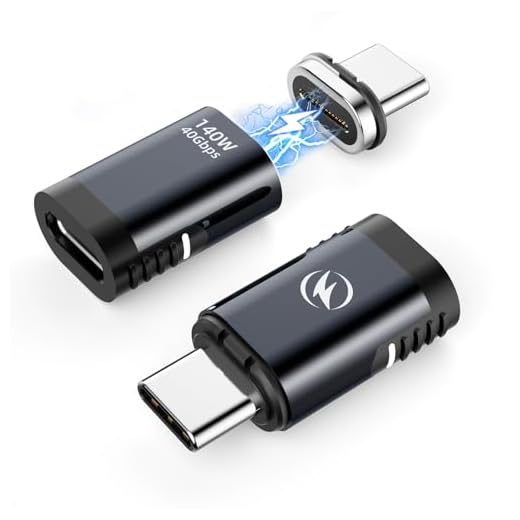
Always support the charging cable with one hand when plugging in. Don’t let the connector dangle or pull at angles. For USB-C laptops, consider a magnetic charging adapter that breaks away under stress instead of damaging your port.
Keep your battery between 20–80% charge for daily use. Lithium-ion cells degrade fastest when stored at 100% charge under high heat. If you use your laptop plugged in constantly, some manufacturers offer a BIOS setting to cap charging at 80%.
Clean your charging port every three months with compressed air. Inspect your AC adapter cable for damage monthly. Replace frayed cables immediately before they fail completely or create a fire hazard.
For those who travel frequently, carry a spare compatible charger. Generic third-party laptop chargers work fine if they match your voltage and amperage specs. Having a backup prevents a single point of failure from killing your productivity.
Frequently Asked Questions
What should I do first when my laptop won’t turn on and shows no lights?
Start by verifying your AC adapter is working. Check if the charger brick has an LED indicator light and test it with a multimeter (should read 19–20V). Inspect the charging port for bent pins or debris, then perform a hard 30-second power button reset to clear residual charge from the motherboard.
How does a hard reset fix a laptop not turning on?
A hard reset drains residual electrical charge from capacitors and resets the embedded controller (EC) chip that manages power sequencing. Unplug the AC adapter, hold the power button for 30 seconds to discharge all energy, then reconnect the adapter and try powering on. This resolves many completely dead laptops.
Can a dead battery cause a laptop to show no lights at all?
Yes. A deeply discharged lithium-ion battery can trip its internal protection circuit, blocking power output. If your laptop works with just the AC adapter but fails when the battery is inserted, the battery is likely dead and needs replacement.
What are the signs of a failed motherboard power rail in a laptop?
A shorted power rail typically causes the charger brick to get unusually hot, excessive current draw, and no lights or fan activity. You may notice a faint burning smell. These failures require professional micro-soldering repair, costing $150–$300 depending on the component and laptop model.
Why might my laptop appear dead when it’s actually turning on?
A loose RAM stick or failed display cable can create the illusion of complete death. Listen for faint fan or hard drive sounds when pressing the power button. If you hear activity, connect an external monitor via HDMI to test if the display has failed rather than the entire system.
Is it worth repairing a laptop that won’t turn on, or should I replace it?
If the repair cost exceeds 40–60% of a replacement laptop’s value, replacement is often more economical. Get a free estimate from a shop offering component-level board repair before deciding. Document your troubleshooting steps to reduce diagnostic time and labor costs.
Read More:
- Laptop Not Charging When Plugged In (Here’s How to Fix It Fast)
- Laptop Not Going to Sleep (Here’s the Reasons and How to Fix It)
- Laptop Not Detecting External Monitor (Here’s Why and the Expert Fixes)
- Laptop Not Booting From USB (Why It’s Happen and Complete Fix Guide)
- Laptop Not Making Sound (What’s Wrong? Here’s How to Fix It)