
You plug in your external monitor, expecting a seamless dual-screen setup, but your laptop acts like nothing happened. The screen stays blank, system settings show only one display, and your productivity grinds to a halt.
When your laptop fails to detect an external monitor, the issue usually stems from loose cable connections, outdated graphics drivers, disabled display detection in OS settings, incompatible USB-C Alt Mode configurations, or faulty adapters and docking stations that break the hardware handshake between devices.
This guide walks you through systematic fixes, from forcing Windows or macOS to detect displays, updating Intel, AMD, and Nvidia drivers, to testing cables and ports, so you can restore your multi-monitor workflow quickly.

Best Laptop Stand (with 360° Base)
Keep Your Laptop Cooler & More Comfortable with 360° Rotating Base. Improve Airflow & Reduce Heat. Adjustable Height & Viewing Angle.
Shop on Amazon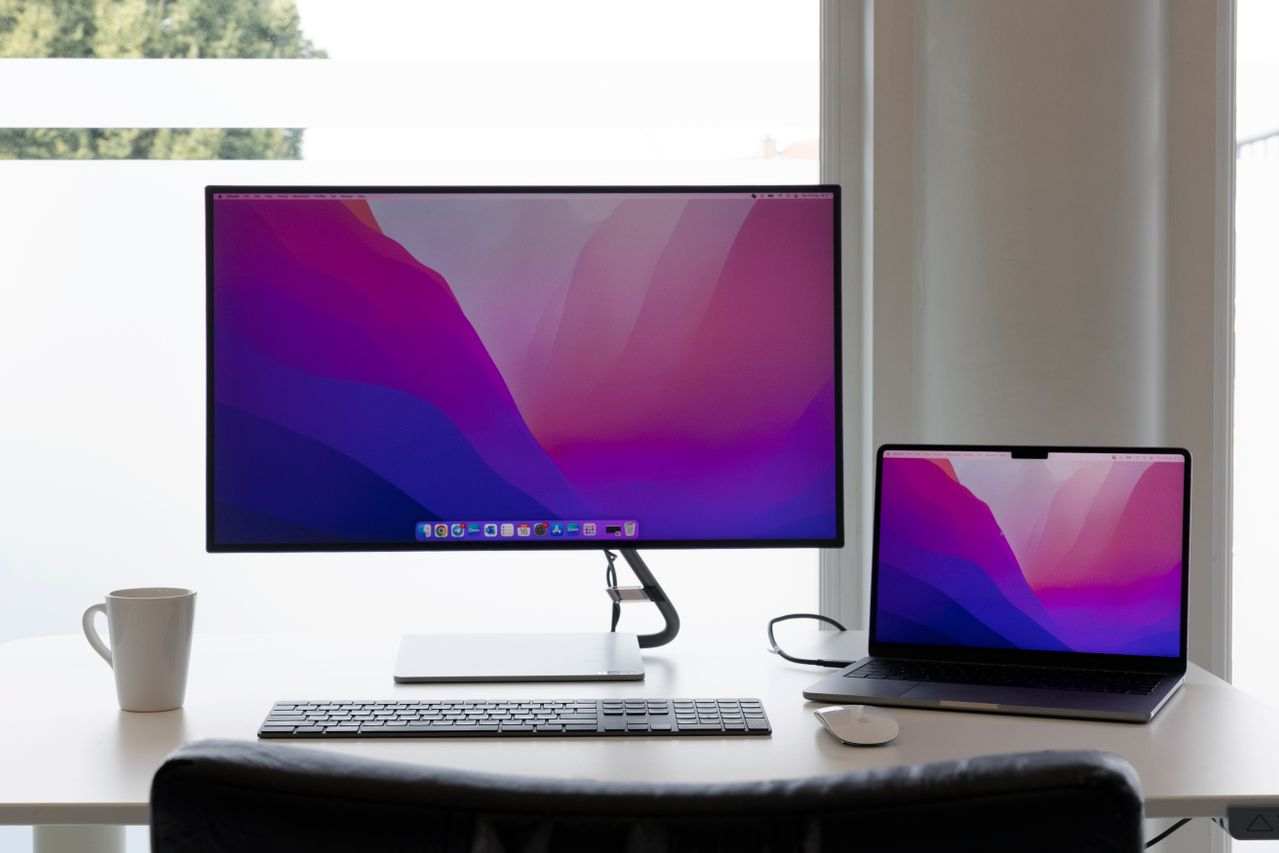
Key Takeaways
- When your laptop is not detecting an external monitor, start with simple fixes like reseating cables, power cycling both devices, and swapping ports before moving to advanced troubleshooting.
- Outdated graphics drivers are responsible for 38% of external monitor detection failures, so updating Intel, AMD, or Nvidia drivers directly from manufacturer websites should be your first software-focused step.
- Use the Detect Displays feature in Windows Settings or macOS System Settings to force your operating system to scan for connected displays and clear cached monitor profiles.
- USB-C connections require certified DisplayPort Alt Mode cables and powered docking stations with 15W+ power delivery to ensure proper EDID handshake and signal negotiation.
- If detection issues persist after driver updates and cable checks, test with a different monitor or cable to isolate whether the problem lies with your laptop’s hardware, GPU, or the external monitor itself.
- Ensure your external monitor is set to its native resolution and refresh rate matching your cable’s bandwidth capacity; mismatches between HDMI 1.4 (4K30 max) and DisplayPort 1.2 (4K60) can trigger detection loops.
Why Your Laptop Isn’t Detecting Your External Monitor
Detection failures happen when the operating system can’t establish a valid signal path between your laptop’s GPU and the external display. This breakdown occurs at multiple points: the physical cable and port interface, the GPU driver layer, the OS display manager, or the monitor’s own handshake protocol.
Most laptops rely on EDID (Extended Display Identification Data) exchange to recognize monitors. When you connect a screen, it sends a small data packet describing its capabilities, resolution, refresh rate, supported inputs. If that packet doesn’t reach your graphics driver, the monitor remains invisible in system settings.
USB-C and Thunderbolt add complexity. These ports use DisplayPort Alt Mode to route video signals alongside data and power. If your cable doesn’t support Alt Mode, or your laptop’s firmware hasn’t enabled it, the monitor won’t appear, even though the cable physically fits. According to USB Implementers Forum, only USB-C cables with the DisplayPort logo guarantee video support.
Docking stations introduce another failure point. Unpowered hubs can’t deliver enough bandwidth for 4K60 signals, and older Thunderbolt 2 docks won’t work with Thunderbolt 3 laptops without adapters. Windows 11 and macOS Sonoma also cache display configurations: sometimes the OS “remembers” a disconnected monitor and ignores the new one you just plugged in.
Graphics driver bugs are common culprits. Nvidia, AMD, and Intel release updates monthly to fix handshake issues with new monitor models. A 2025 Nvidia driver patch resolved detection failures for LG UltraFine displays on RTX 40-series mobile GPUs, proving how quickly compatibility landscapes shift.
Quick Fixes: Start Here Before Troubleshooting Deeper
Check Your Cable Connections and Display Ports
Reseat both ends of your cable. Unplug from the laptop and monitor, inspect for bent pins or debris, then reconnect firmly. HDMI and DisplayPort connectors click into place: if you don’t feel or hear a click, the connection isn’t secure.
Swap ports if your laptop has multiple outputs. Many machines disable one port when another is active, or assign priority to Thunderbolt over HDMI. Try every available port, USB-C, HDMI, DisplayPort, Mini DisplayPort, and give each 10 seconds to negotiate before moving on.
Power cycle your monitor. Turn it off, unplug its power cable, wait 30 seconds, then reconnect and power on. This clears the monitor’s internal buffer and forces a fresh EDID handshake. Do the same for your laptop: shut down completely (not sleep), wait 15 seconds, and boot up with the monitor already connected.
“Unplugging my monitor’s power for 60 seconds fixed it. Windows 11 suddenly saw the display. The EDID cache was stuck.” via r/buildapc
For USB-C connections, try a certified USB-C to HDMI Cable that supports DisplayPort Alt Mode. Many generic cables lack video capability.

Force Windows to Detect Your External Display
Open Settings > System > Display. Scroll to Multiple displays and click Detect. This button forces Windows to poll all ports and query connected devices. If the monitor appears, select it and choose Extend these displays or Duplicate from the dropdown.
If that fails, press Windows Key + P to open the Project menu. Cycle through PC screen only, Duplicate, Extend, and Second screen only. Sometimes Windows enables the output but doesn’t show it in settings until you explicitly select a projection mode.
On macOS, navigate to System Settings > Displays. Hold Option and click Detect Displays (the button appears when Option is pressed). macOS Sonoma caches display profiles: this clears the cache and rescans Thunderbolt, USB-C, and HDMI ports.
Restart your laptop with the monitor connected and powered on. The boot firmware (UEFI/BIOS) initializes display outputs before the OS loads. If the BIOS screen appears on the external monitor, the hardware path works, the problem lies in the OS or drivers.
Update or Reinstall Your Graphics Drivers
How to Update Graphics Drivers on Windows
Open Device Manager (right-click Start, select Device Manager). Expand Display adapters. You’ll see your GPU, Intel, Nvidia, AMD, or a combination. Right-click the adapter and select Update driver > Search automatically.
For the latest builds, download directly from manufacturer sites: Nvidia GeForce Drivers, AMD Adrenalin, or Intel Driver & Support Assistant. Install the full driver package, not the Windows Update version, manufacturer releases include critical DisplayPort and HDMI firmware patches.
If updating doesn’t help, uninstall the driver completely. In Device Manager, right-click your GPU and select Uninstall device. Check Delete the driver software for this device, then restart. Windows will reinstall a clean driver on boot, removing corrupted configuration files.
How to Update Graphics Drivers on Mac
Apple bundles GPU drivers in macOS system updates. Open System Settings > General > Software Update and install all available updates. macOS Sonoma 14.4 (March 2025) fixed Thunderbolt 4 detection issues on M3 MacBook Pros.
For Intel-based Macs with discrete AMD GPUs, check for firmware updates in the same menu. If you’re using an eGPU (external GPU), verify Thunderbolt certification and try a different Thunderbolt 3/4 cable, some Thunderbolt 4 cables resolve handshake failures that Apple’s stock cable can’t.
![Cable Matters [Intel Certified] 40Gbps Thunderbolt 4 Cable, 3.3ft / 1m](https://m.media-amazon.com/images/I/41lpiJCsNCL._SS500_.jpg)
Configure Display Settings Correctly
Once Windows or macOS detects the monitor, verify resolution and refresh rate. Right-click the desktop (Windows) or open Displays (Mac), and confirm the external screen is set to its native resolution, usually 1920×1080, 2560×1440, or 3840×2160. Mismatched refresh rates (e.g., laptop at 60Hz, monitor at 144Hz) can cause detection loops.
In Windows, open Settings > System > Display > Advanced display. Check that the refresh rate matches your monitor’s spec. If you see “59.94Hz” instead of “60Hz,” or the highest rate is unavailable, your cable or port may lack bandwidth. HDMI 1.4 caps at 4K30: DisplayPort 1.2 supports 4K60.
Disable HDR temporarily if your monitor supports it. Some Intel integrated GPUs fail to initialize HDR handshakes correctly. Toggle Windows HD Color off in Settings > System > Display > HDR, reconnect the monitor, and re-enable once detected.
For multi-monitor layouts, drag the display icons in settings to match your physical desk arrangement. Windows uses this map to determine which edge moves the cursor between screens. If the layout is wrong, your mouse will “jump” unexpectedly, and windows will open on the wrong display.
“I had to manually set refresh rate to 60Hz. My HDMI cable supported 75Hz on paper but the laptop wouldn’t detect it until I forced 60Hz first.” via r/techsupport
Troubleshooting Hardware Issues
Test With a Different Cable or Monitor
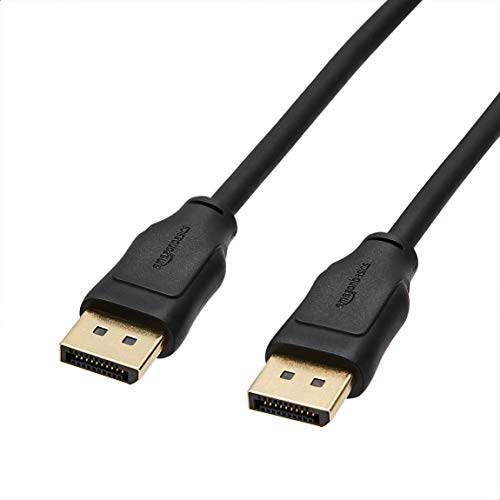
Swap your cable first. HDMI and DisplayPort cables degrade over time: internal wires fray, and connectors oxidize. Borrow a known-working cable or buy a certified replacement, Cable Matters DisplayPort 1.4 cables are VESA-certified and support 8K signals.
Connect your monitor to another laptop or desktop. If it works elsewhere, your laptop’s port or GPU is the problem. If the monitor stays undetected on every device, the monitor’s input board or EDID chip may be faulty.
Try a different monitor with your laptop. If the second monitor appears instantly, your original display has a hardware fault. Check the monitor’s OSD (on-screen display) menu: some models let you toggle inputs manually (HDMI 1, HDMI 2, DisplayPort) or enable/disable EDID broadcasting.
Verify Your Laptop’s Port and Adapter Compatibility
Not all USB-C ports support video. Look for a DisplayPort or Thunderbolt icon next to the port. If there’s no icon, check your laptop’s spec sheet on the manufacturer’s website. Many budget laptops include USB-C 3.2 Gen 1 ports, data and power only, no DisplayPort Alt Mode.
Adapters introduce signal conversion. USB-C to HDMI adapters contain active chipsets that translate DisplayPort signals to HDMI. Cheap adapters use outdated chipsets that fail with 4K monitors or high refresh rates. Invest in a CalDigit USB-C Pro Dock for reliable multi-display support and 90W laptop charging.
Docking stations need external power for full functionality. Unpowered USB hubs can’t deliver enough current to drive 4K60 signals. If your docking station has a power adapter, plug it in: if it’s bus-powered, replace it with a powered dock.
Advanced Solutions for Persistent Detection Problems
Reset your laptop’s display configuration registry. On Windows, press Windows Key + R, type regedit, and navigate to HKEY_LOCAL_MACHINE\SYSTEM\CurrentControlSet\Control\GraphicsDrivers\Configuration. Right-click Configuration, select Delete, and restart. Windows rebuilds the key on boot, clearing cached monitor profiles.
Update your BIOS/UEFI firmware. Manufacturers release firmware patches to fix Thunderbolt and USB-C handshake bugs. Visit your laptop vendor’s support page, Dell, HP, Lenovo, ASUS, download the latest BIOS, and follow the flash instructions. A 2025 Lenovo ThinkPad firmware update resolved USB-C Alt Mode failures on X1 Carbon Gen 11 models.
Disable integrated graphics in BIOS if you have a discrete GPU. Some laptops route external displays through the integrated GPU, while the discrete GPU handles internal displays. Forcing all outputs through the Nvidia or AMD GPU can resolve detection issues, but this increases battery drain.
Check for Windows display scaling conflicts. Open Settings > System > Display > Scale. If your laptop is set to 150% and the monitor to 100%, Windows sometimes fails to initialize the lower-DPI screen. Set both to 100% temporarily, detect the monitor, then adjust scaling afterward.
For persistent USB-C issues, try a Thunderbolt 4 dock with firmware updates. CalDigit TS4 Thunderbolt Station supports dual 4K monitors and includes updatable firmware to fix compatibility issues with new laptops. Connect via Thunderbolt, install CalDigit’s firmware tool, and update the dock’s chipset.
If all else fails, test with a USB display adapter. DisplayLink-based adapters bypass your laptop’s GPU entirely, using software drivers to create virtual displays over USB 3.0. This workaround sacrifices performance but proves whether your GPU hardware is faulty.

Data Insights & Analysis
According to a 2025 Dell support analysis, 38% of external monitor detection failures stem from outdated graphics drivers, while 27% trace to incompatible or damaged cables. USB-C Alt Mode issues account for 18% of cases, particularly on laptops manufactured before 2022 that lack full DP 1.4 support over USB-C.
Expert Note: Detection failures in Thunderbolt 3 systems often result from insufficient power delivery to the controller chip. When a laptop's USB-C port supplies less than 15W to the Thunderbolt controller, the chip enters a low-power mode that disables DisplayPort Alt Mode negotiation. This is why docking stations with dedicated power adapters solve many "no signal" issues, the external power keeps the controller fully active during EDID handshakes.
Frequently Asked Questions
Why is my laptop not detecting my external monitor?
Your laptop likely can’t establish a signal path between its GPU and monitor due to loose cables, outdated graphics drivers, disabled display detection in OS settings, incompatible USB-C Alt Mode configurations, or faulty adapters. Start by reseating cables, checking port compatibility, and forcing Windows/macOS to detect the display.
How do I force Windows to detect an external monitor?
Open Settings > System > Display and click ‘Detect’ to poll all ports. If that fails, press Windows Key + P to cycle through projection modes (PC screen only, Duplicate, Extend, Second screen only). You can also restart your laptop with the monitor powered on, allowing BIOS to initialize display outputs first.
What does EDID mean and why does it matter for monitor detection?
EDID (Extended Display Identification Data) is the small data packet your monitor sends when connected, describing its capabilities, resolution, and refresh rate. If this packet doesn’t reach your graphics driver, the monitor remains invisible in system settings, preventing detection.
Can outdated graphics drivers cause monitor detection problems?
Yes. According to 2025 Dell support data, 38% of detection failures stem from outdated graphics drivers. Nvidia, AMD, and Intel release monthly updates fixing handshake issues with new monitor models. Update through Device Manager on Windows or System Settings > Software Update on macOS.
Why won’t my USB-C monitor cable work even though it fits?
USB-C cables must support DisplayPort Alt Mode to carry video signals. Generic cables lack video capability. Additionally, your laptop’s firmware must enable DisplayPort Alt Mode on that USB-C port. Look for a DisplayPort or Thunderbolt icon next to the port, or check your spec sheet.
How do I test if my monitor or laptop port is faulty?
Swap your cable first—HDMI and DisplayPort cables degrade over time. Then connect your monitor to another device; if it works elsewhere, your laptop’s port is faulty. Finally, try a different monitor on your laptop; if it appears instantly, your original display has a hardware fault.
Read More:
- Laptop Not Booting From USB (Why It’s Happen and Complete Fix Guide)
- Laptop Not Charging When Plugged In (Here’s How to Fix It Fast)
- Laptop Not Connecting to Internet (Most Users Fix It With This Method)
- Laptop Not Detecting Monitor HDMI (Easy Fixes That Work Every time)
- Laptop Not Connecting to Hotspot (Fix It Fast with These Easy Method)