
You plug in your laptop, expecting the battery indicator to climb to 100%. Instead, it stubbornly halts at 80%, 60%, or displays “Plugged in, not charging.” Is your battery dying, or is something else happening?
Most laptops that won’t fully charge aren’t broken, they’re limited by built-in battery health management software that caps charge levels to extend battery lifespan. Manufacturers like Lenovo, Dell, HP, and ASUS deliberately stop charging at 60-80% to reduce cell stress and degradation. But, genuine hardware issues, faulty adapters, damaged charging ports, outdated drivers, or aging battery cells, can also prevent charging, making proper diagnosis essential.
This guide walks you through every troubleshooting step: checking power-management software caps, reinstalling battery drivers, recalibrating cells, performing static power drains, and determining when replacement is necessary. You’ll distinguish smart software limits from real hardware failures.

Best Laptop Stand (with 360° Base)
Keep Your Laptop Cooler & More Comfortable with 360° Rotating Base. Improve Airflow & Reduce Heat. Adjustable Height & Viewing Angle.
Shop on Amazon
Key Takeaways
- A laptop not fully charging is often caused by built-in battery health management software that deliberately caps charge at 60-80% to extend battery lifespan, not a hardware failure.
- Check your OEM power management utilities (Lenovo Vantage, Dell Power Manager, HP Battery Health Manager, ASUS MyASUS) for enabled charge limits and switch to Maximum Capacity or Full Charge mode to resume 100% charging.
- Inspect your power adapter for physical damage, verify it meets your laptop’s wattage requirements, and confirm USB-C cables support at least 60W power delivery to ensure proper charging.
- Clean your charging port with compressed air or a wooden toothpick to remove debris, and test with cable pressure to diagnose port damage that may require professional repair.
- Reinstall the Microsoft ACPI battery driver and update your BIOS to fix charging errors, then perform battery calibration every 2-3 months to realign capacity reporting accuracy.
- Replace your battery if Full Charge Capacity drops below 60% of design capacity or if you notice physical swelling, and prevent future issues by avoiding 24/7 charging at 100% and keeping your laptop cool during use.
Why Your Laptop Stops Charging Before Reaching 100%
Modern laptops include intelligent battery management features that intentionally limit maximum charge. Lenovo’s Conservation Mode caps charge at 55-60%, Dell’s Primarily AC Use stops at 50-80%, and ASUS Battery Health Charging offers multiple thresholds. These aren’t defects, they’re longevity features.
Lithium-ion cells degrade faster when held at 100% charge for extended periods. According to Battery University, charging to only 80% can triple battery cycle life compared to daily 100% charging. OEMs build this science directly into their power management utilities.
Check your taskbar for manufacturer software. Lenovo Vantage, Dell Power Manager, HP Battery Health Manager, and ASUS Battery Health Charging all have settings that cap charge. If you recently enabled these features or installed OEM software updates, that explains the behavior.
“My Lenovo was stuck at 60% for days. I panicked and bought a new charger. Turns out Conservation Mode was enabled in Lenovo Vantage the whole time.” via r/Lenovo
Software caps are reversible. Open your OEM utility, navigate to battery settings, and switch to Maximum Capacity or Full Charge mode. Your laptop should immediately resume charging to 100%.
Check Your Power Adapter and Charging Cable
Your laptop requires a specific wattage to charge properly. A 15W USB-C phone charger won’t power a 65W or 90W laptop. Run powercfg /batteryreport in Windows Command Prompt to see your OEM’s specified wattage requirement.
Inspect your adapter brick carefully. Look for physical damage, frayed cables near the plug, or a loose barrel connector. Many third-party replacement chargers advertise compatibility but deliver insufficient amperage. Always use OEM-spec adapters or certified equivalents.
If you’re using USB-C charging, not all cables support power delivery (PD). A data-only cable won’t charge your laptop. Verify your cable is rated for at least 60W PD and supports the USB-IF Power Delivery standard.
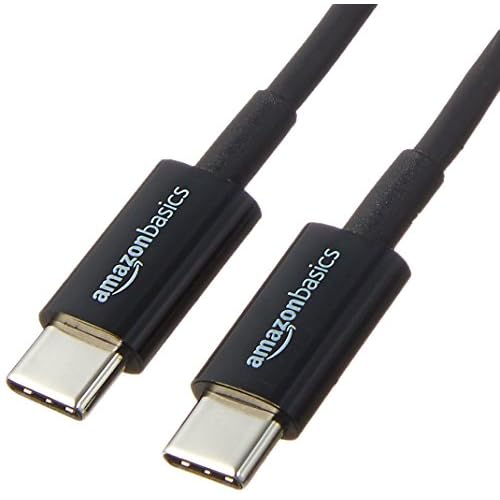
Amazon Basics USB-C to USB-C 3.1 Gen 2 Charger Cable provides reliable 100W PD for modern laptops at an affordable price point. Keep a backup cable in your laptop bag to rule out cable failure during troubleshooting.
Inspect the Charging Port for Damage or Debris
Charging ports accumulate lint, dust, and debris that block proper contact. Power off your laptop, then shine a flashlight into the USB-C or barrel port. You might be surprised by what you find.
Use compressed air or a wooden toothpick (never metal) to gently remove compacted debris. Metal tools can short pins and permanently damage charging circuitry. For USB-C ports, check for bent or recessed pins, even one misaligned pin prevents charging.
Physical port damage often results from yanking cables at angles or tripping over charging cords. If your charging plug feels loose or wobbles significantly, internal solder joints may have cracked. This requires professional motherboard repair or port replacement.
Test charging with slight upward or downward pressure on the cable while plugged in. If charging starts or stops with cable movement, you’ve confirmed a damaged port. Many independent repair shops can replace DC jacks for $50-120.
Review Your Battery Settings and Charging Thresholds
Windows Battery Limit Settings
Windows 11 introduced native battery charge limiting in Settings > System > Power & battery > Battery. Toggle “Battery saver” or check for charge threshold options if your OEM exposes them through Windows settings.
For OEM-specific controls, launch Lenovo Vantage, Dell Power Manager, HP Command Center, or ASUS MyASUS. Navigate to battery health or power management sections. Look for these common culprits:
- Lenovo Conservation Mode: Caps charge at 55-60%
- Dell Primarily AC Use: Stops at 50-80% based on usage pattern analysis
- ASUS Battery Health Charging: Offers 60%, 80%, or 100% maximum charge modes
- HP Adaptive Battery Optimizer: Learns your usage and adjusts charge limits automatically
Disable these features temporarily to test if your laptop charges to 100%. If it does, you’ve confirmed the cause. Decide whether you want longevity (lower cap) or maximum runtime (full charge).
Mac Battery Health Management
macOS includes battery health management that intelligently limits charging to 80% based on usage patterns. Open System Settings > Battery, then click the info icon next to Battery Health.
You’ll see “Optimized Battery Charging” or “Battery Health Management.” This feature learns when you typically use your MacBook on battery and when it stays plugged in. It holds charge at 80% during extended AC use to reduce battery aging.
To disable it temporarily, turn off the feature in Battery settings. Your Mac will immediately resume charging to 100%. Apple’s implementation is sophisticated, it predicts your unplug times and ensures a full charge is ready when you need portability.
Update Your Battery Drivers and BIOS
Windows relies on the “Microsoft ACPI-Compliant Control Method Battery” driver to communicate with your battery. Corruption in this driver causes “Plugged in, not charging” errors and inaccurate percentage reporting.
Open Device Manager (Win + X, then select Device Manager), expand “Batteries,” right-click “Microsoft ACPI-Compliant Control Method Battery,” and select “Uninstall device.” Restart your laptop. Windows will automatically reinstall the driver on boot.
This simple fix resolves charging issues in about 30% of cases according to Microsoft support forums. The reinstalled driver reestablishes proper power management communication between your OS and battery firmware.
Next, update your BIOS. Outdated firmware can’t properly negotiate with newer power adapters or support updated battery management algorithms. Visit your manufacturer’s support site, download the latest BIOS for your exact model, and follow installation instructions carefully.
“Reinstalling the ACPI battery driver fixed my Dell XPS 15 that was stuck at 0% while plugged in. Windows just needed to reset the connection.” via r/Dell
Always install BIOS updates while plugged in with at least 30% charge remaining. Never interrupt a BIOS update, it can brick your motherboard.
Calibrate Your Laptop Battery
Battery calibration resets the power management chip’s understanding of actual cell capacity. Over time, the reported percentage and actual charge level drift out of sync, causing premature shutdown or charging cutoffs.
Follow this calibration process:
- Charge to 100%: Leave your laptop plugged in until fully charged
- Unplug and drain completely: Use your laptop normally until it automatically shuts down from 0% battery
- Leave unplugged for 5 hours: Let residual charge dissipate completely
- Charge uninterrupted to 100%: Plug in while powered off and charge fully without interruption
This four-step process teaches the battery management system the true voltage range of your cells. The calibration doesn’t restore lost capacity, it simply realigns reporting accuracy.
Perform calibration every 2-3 months if you primarily use your laptop plugged in. Frequent AC use prevents the battery management IC from experiencing full charge cycles, leading to inaccurate capacity calculations.
For Windows users, run powercfg /batteryreport in Command Prompt after calibration to generate a detailed HTML report. Compare “Design Capacity” against “Full Charge Capacity” to see actual battery health percentages.
Test with a Different Power Outlet and Remove Power Strips
Electrical issues cause surprising charging problems. Faulty outlets, overloaded power strips, and voltage fluctuations prevent proper adapter operation. Your charger requires stable voltage to regulate DC output.
Plug directly into a wall outlet, skip the power strip. Many multi-outlet strips have worn internal contacts or overload protection that trips intermittently. A strip powering a space heater, monitor, and laptop simultaneously may not deliver sufficient amperage to all devices.
Try outlets in different rooms or on different circuit breakers. Older homes with aluminum wiring or loose connections create voltage sags when high-draw appliances cycle on. Your charger’s LED may stay lit while delivering insufficient power to charge the battery.
A Tripp Lite Isobar 4 Outlet Surge Protector provides isolated filter banks and diagnostic LEDs to confirm proper grounding and voltage. It’s essential protection for expensive laptop chargers.

Reset Your Laptop’s Power Management System
A static power drain clears residual electrical charge and resets embedded controller firmware. This “flea power” reset fixes mysterious charging issues caused by firmware glitches or improper shutdown.
Perform this reset procedure:
- Shut down completely: Don’t sleep or hibernate, full shutdown
- Unplug the AC adapter: Disconnect all power sources
- Remove the battery (if removable): Most modern laptops have internal batteries
- Press and hold the power button for 30-60 seconds: This drains residual charge from capacitors
- Reconnect everything: Reinsert battery (if applicable), plug in AC adapter
- Power on normally: Check if charging resumes
For laptops with non-removable batteries, the 60-second power button hold still drains capacitors and resets the EC. This procedure forces a cold restart of all power management subsystems.
If basic EC reset doesn’t work, check for manufacturer-specific reset procedures. Some Dell models require holding specific function keys during boot to force EC flash. Consult your service manual for advanced options.
Considering a driver management tool? Driver Booster automatically updates chipset drivers, power management firmware, and system utilities that affect charging. For users who travel frequently and need reliable connectivity while troubleshooting remotely, NordVPN provides secure access to manufacturer support sites and driver repositories from any network.
When to Replace Your Laptop Battery
Batteries don’t last forever. Lithium-ion cells typically survive 300-500 full charge cycles before dropping below 80% of original capacity. Heavy users reach this threshold in 18-24 months.
Run Windows’ built-in battery report to check health. Open Command Prompt (Win + X > Command Prompt), type powercfg /batteryreport, and press Enter. Windows saves an HTML file to C:\Windows\system32\battery-report.html. Open it in your browser.
Compare these key metrics:
| Metric | What It Means | Replacement Threshold |
|---|---|---|
| Design Capacity | Original factory capacity when new | Reference baseline |
| Full Charge Capacity | Current maximum charge the battery accepts | Below 60% of design capacity |
| Cycle Count | Complete 0-100% charge cycles | Above 500 cycles |
| Battery Health | Percentage of original capacity remaining | Below 70% |
If your Full Charge Capacity sits at 30,000 mWh but Design Capacity shows 50,000 mWh, you’re at 60% health. That’s replacement territory, you’ve lost 40% of original runtime.
Physical symptoms also indicate failure. Bulging or swelling batteries create keyboard lift and trackpad gaps. This is dangerous, swollen cells can rupture or ignite. Shut down immediately, stop charging, and replace the battery ASAP.
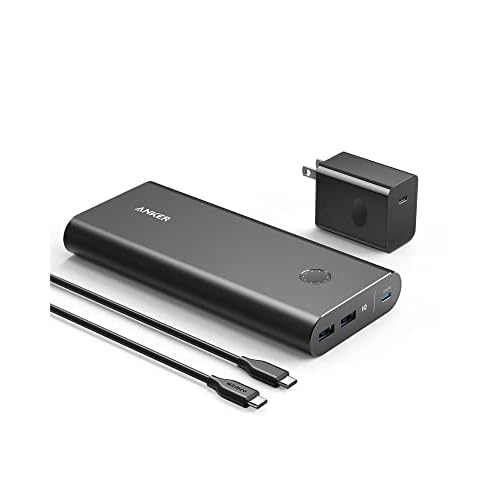
For the ultimate charging solution, consider an Anker PowerCore+ 26800 PD 45W Power Bank. It charges laptops on the go and eliminates anxiety about dying batteries during travel or extended unplugged use.
Preventing Future Charging Issues
Battery longevity starts with smart charging habits. Avoid leaving your laptop plugged in 24/7 at 100%. If you primarily use AC power, enable your OEM’s battery health mode to cap charge at 60-80%.
Heat is your battery’s biggest enemy. Don’t charge on soft surfaces (beds, couches) that block ventilation. Elevated temperatures during charging accelerate capacity loss. According to a Battery University report on temperature effects, charging at 45°C instead of 20°C can cut cycle life in half.
Keep your laptop’s vents clean and consider a cooling pad if you run intensive workloads. Dust buildup forces fans to work harder and allows internal temperatures to climb during charging.
Store long-term at 40-60% charge if you won’t use your laptop for weeks. Fully discharged or fully charged storage damages cells faster than partial charge storage. Remove the battery if possible for extended storage periods.
Update your OEM software regularly. Manufacturers push battery firmware updates that improve charge algorithms and fix known charging bugs. Lenovo, Dell, and HP release battery-related updates several times yearly through their utility software.
Frequently Asked Questions
Why is my laptop not fully charging beyond 60% or 80%?
Most laptops intentionally cap charging at 60-80% through built-in battery health management software like Lenovo Conservation Mode or Dell’s Primarily AC Use feature. This extends battery lifespan by reducing cell stress. Check your OEM utility (Lenovo Vantage, Dell Power Manager, HP Battery Health Manager) to disable these caps if you need full charging.
How can I fix a laptop showing ‘Plugged in, not charging’?
This error often stems from corrupted battery drivers. Open Device Manager, uninstall the ‘Microsoft ACPI-Compliant Control Method Battery’ driver, and restart your laptop. Windows will automatically reinstall it, resolving the issue in about 30% of cases. Also update your BIOS to the latest version.
What wattage power adapter does my laptop need to charge properly?
Different laptops require specific wattage outputs—typically 45W to 90W depending on model. Run ‘powercfg /batteryreport’ in Windows Command Prompt to see your OEM’s specifications. Using an underpowered adapter (like a 15W phone charger) won’t charge your laptop, even if it fits the port.
Can a faulty charging port prevent my laptop from charging?
Yes. Debris, bent pins, or loose connections damage charging ports. Power off, shine a flashlight into the port, and use compressed air to remove lint. If the cable feels loose or charging stops with slight movement, the port needs professional repair ($50-120). Never use metal tools on USB-C ports.
When should I replace my laptop battery?
Replace your battery when Full Charge Capacity drops below 60% of Design Capacity or after 500+ charge cycles. Run ‘powercfg /batteryreport’ to check health metrics. Physical signs include swelling, keyboard lift, or unexpected shutdowns—these require immediate replacement for safety.
How do I calibrate my laptop battery to fix charging issues?
Calibration resets the power management chip’s understanding of cell capacity. Charge to 100%, drain completely until shutdown, wait 5 hours unplugged, then charge uninterrupted to 100% while powered off. Perform this every 2-3 months if you primarily use AC power to maintain accurate percentage reporting.
Read More:
- Laptop Not Enough Space (Here’s the Cause and What You Should Do)
- Laptop Not Enough Memory (Here’s the Causes and Performance Fixes)
- Laptop Not Emitting Sound (Here’s the Simple Fixes That Work)
- Laptop Not Finding Printer (Causes and Fix Detection Issues Fast)
- Laptop Not Finding iPhone Hotspot (Here’s Why and Simple DIY Fixes)